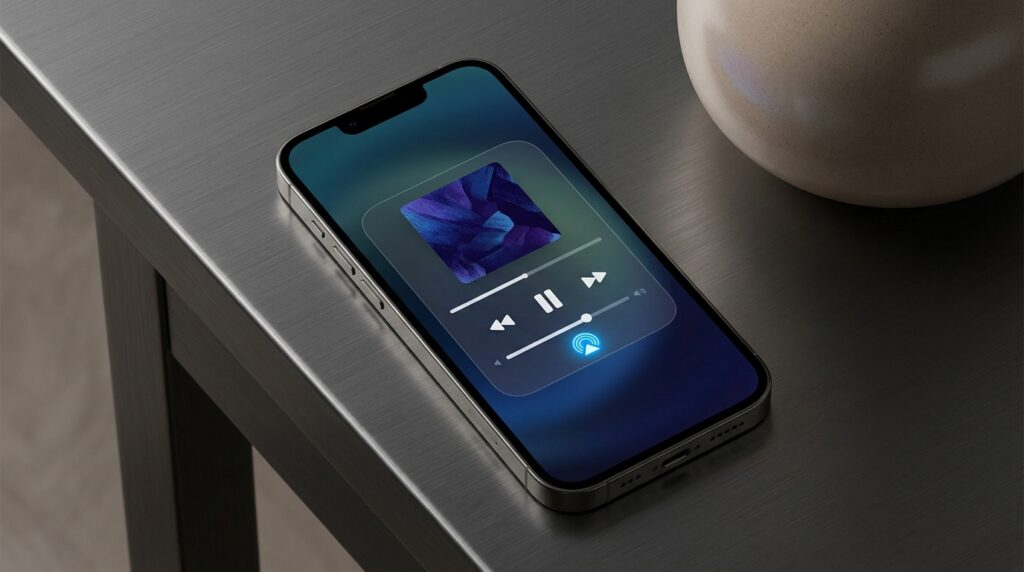
The Apple TV Remote app on iPhone cannot be deleted like a regular app — it has no icon on the home screen or in the App Library. The Apple TV Remote is built into iOS and is not a standalone application: it’s a Control Center element. But you can get rid of it — you need to remove the button from Control Center, unpair the device on the set-top box itself, and disable intrusive notifications. In this article, we’ll cover all the steps: how to remove Remote from iPhone, how to remove the Apple TV remote from the lock screen, how to disable keyboard notifications, and what to do if the “Now Playing” widget won’t go away.
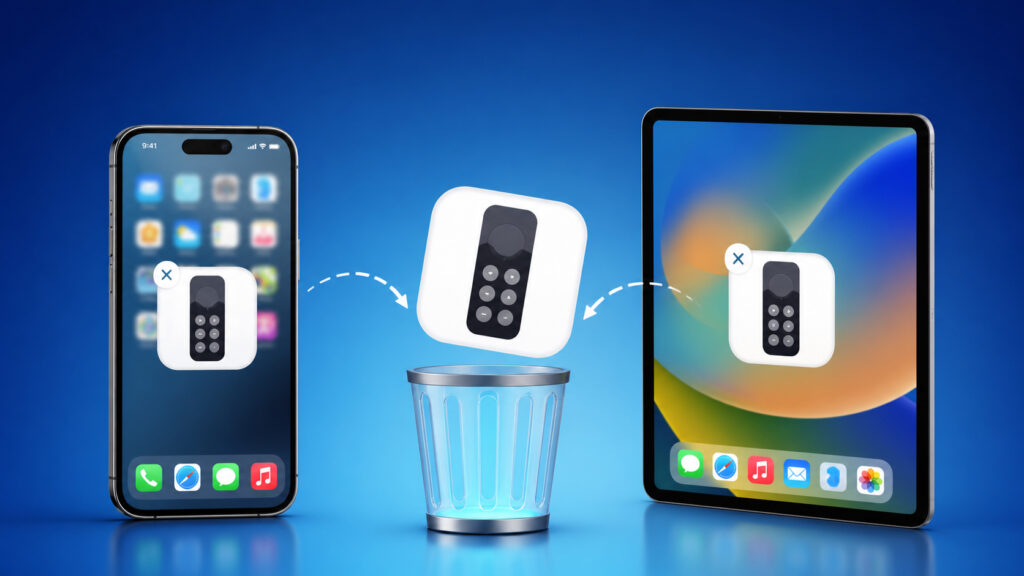
The Remote app can be annoying, but you can’t just delete it
Why You Can’t Delete the Remote Like a Regular App
Apple removed the standalone Apple TV Remote app from the App Store back in 2020 — it was quietly deleted without any announcement. Starting with iOS 12, the remote function is built directly into Control Center, and Apple deemed the separate app unnecessary.
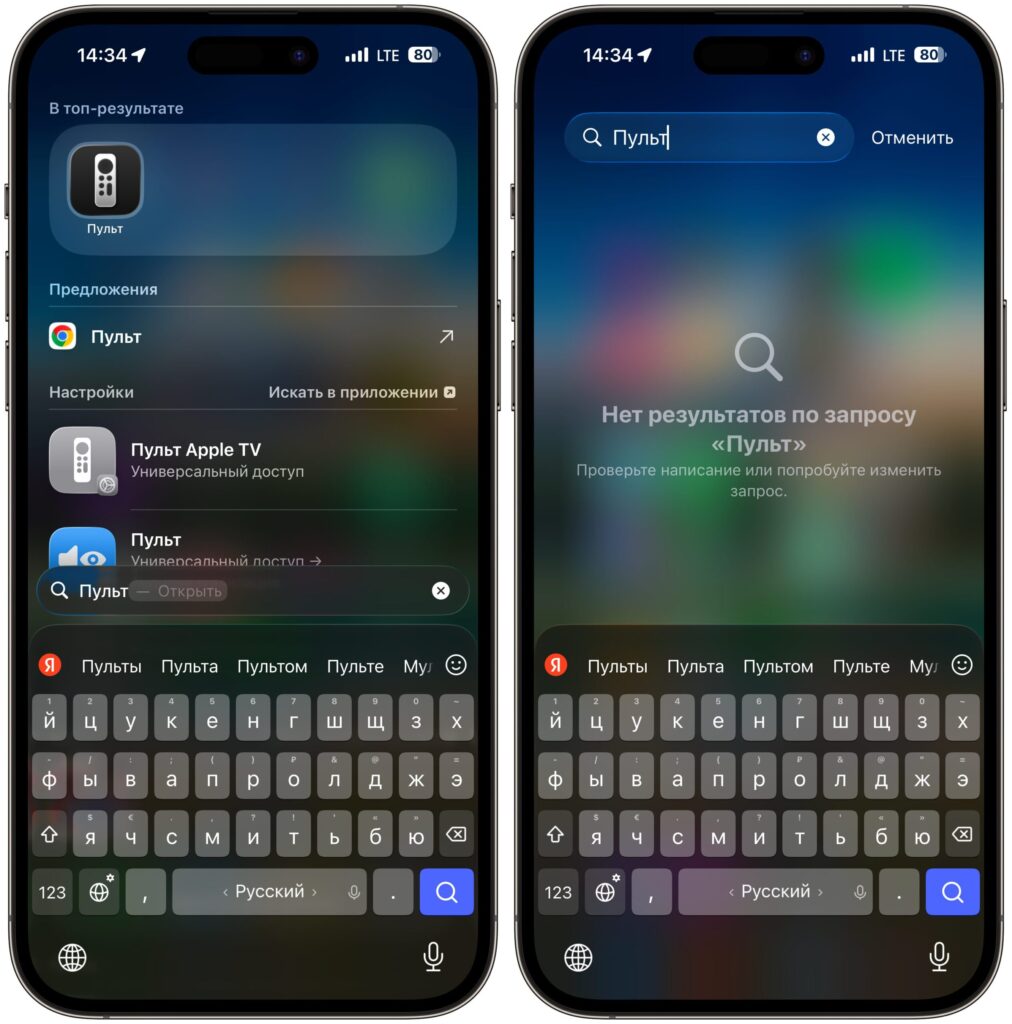
Search finds the app, but it’s not in the Library
This means that Remote won’t appear in the list of installed apps under Settings — General — iPhone Storage. It can’t be found in the App Library and can’t be deleted by long-pressing on the home screen. The Apple TV Remote in Control Center works with Apple TV 4K, Apple TV HD, Apple TV (3rd generation), and AirPlay-compatible Smart TVs.
The only places where this remote “lives”:
- A button in Control Center
- A button on the lock screen
- The “Now Playing” widget on the lock screen and in Dynamic Island
To completely get rid of the remote on iPhone, you need to remove it from each of these places. Let’s go through them one by one.
How to Remove the Remote from iPhone Control Center
This is the first and most obvious step. On devices with iOS 12 and later, the Apple TV Remote is automatically activated in Control Center when iPhone connects to Apple TV — for example, during setup or when entering text with the keyboard. So even if you never added it, it may appear there.
For iOS 18 and later (new customizable Control Center):
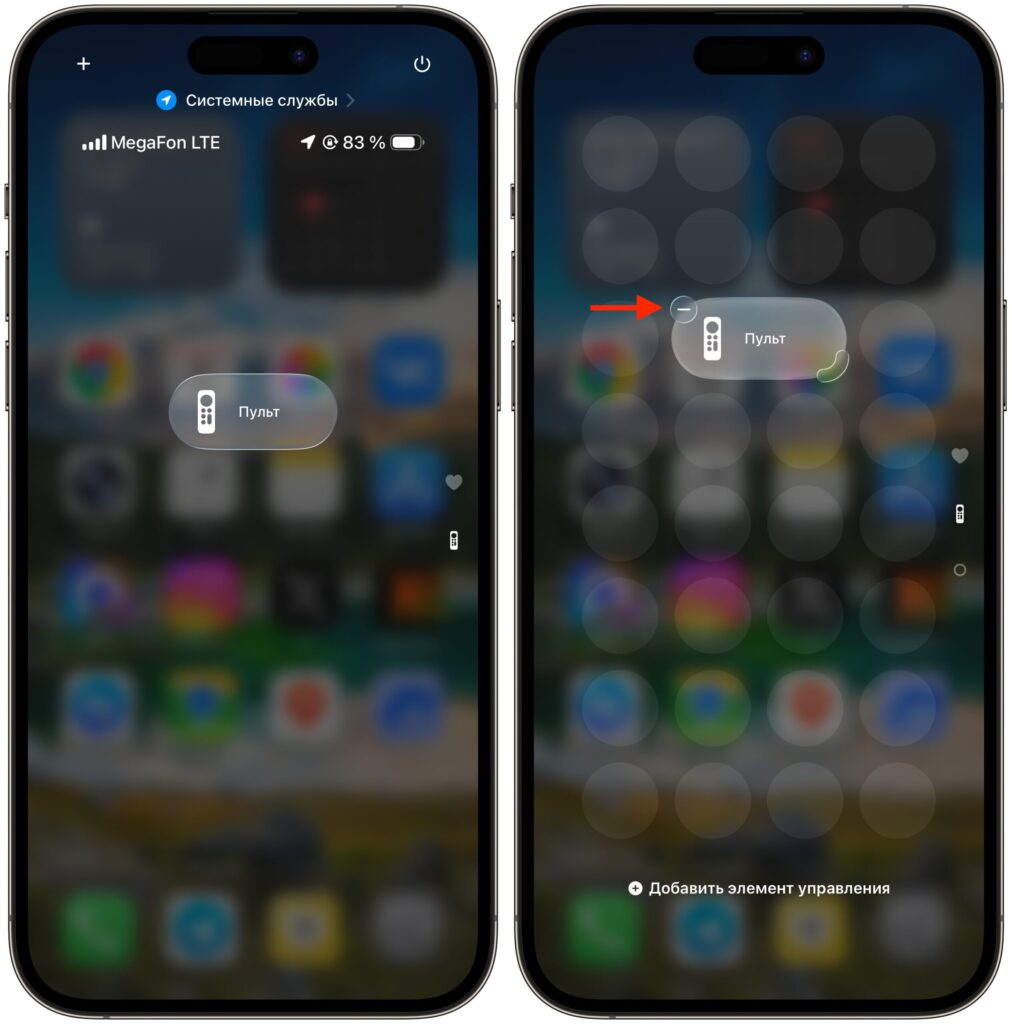
Remove it from here first
- Open Control Center: swipe down from the top-right corner of the screen.
- Tap the “+” button in the upper-left corner to enter editing mode.
- Find the “Remote” element and tap the “−” (minus) button on it.
- Tap “Remove” to confirm.
For iOS 17 and earlier:
- Open Settings — Control Center.
- In the section of enabled elements, find “Apple TV Remote.”
- Tap the red “−” button next to it and confirm the removal.
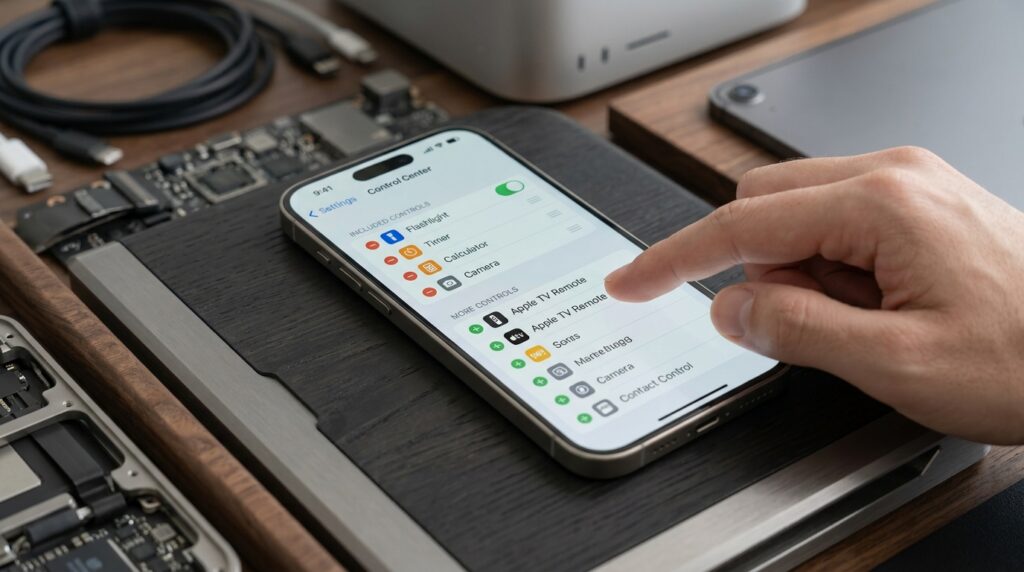
Removing Apple TV Remote from Control Center in iPhone settings
After this, the remote icon will disappear from Control Center. But this won’t completely disconnect the iPhone from Apple TV — additional steps are needed for that.
How to Disconnect iPhone from Apple TV
Even after removing the button from Control Center, the iPhone may remain a registered remote in the settings of the set-top box itself. The solution is to go into settings on the Apple TV itself: Settings — Remotes and Devices — Remote App and Devices, find your device, and remove it. Here are the detailed instructions:
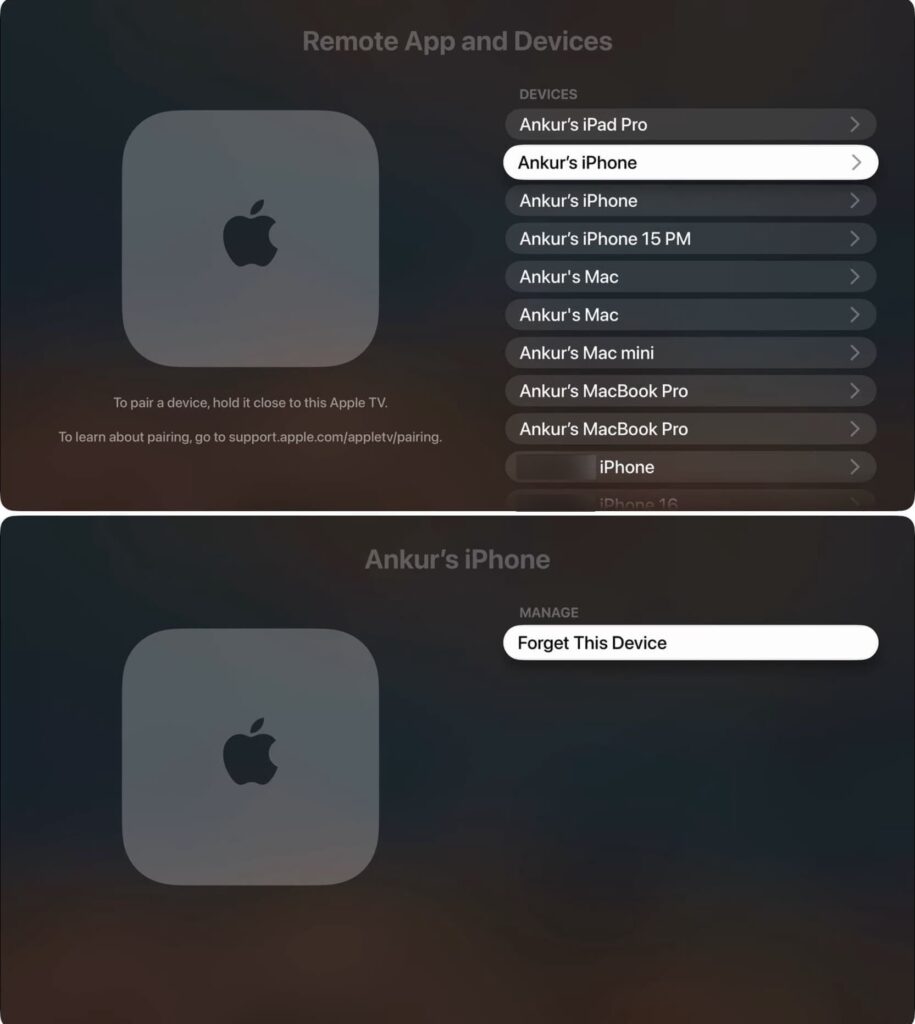
Make sure to disconnect on Apple TV
- On Apple TV, open Settings.
- Go to the Remotes and Devices section.
- Select Remote App and Devices.
- Find your iPhone or iPad in the list.
- Tap “Forget This Device” and confirm by tapping “Remove.”
The “Forget This Device” function removes a specific iPhone or iPad from the list of remotes. If multiple family members are linked to the Apple TV, remove only the devices you need to.
An important note: in practice, even after unpairing, the iPhone may sometimes reconnect to Apple TV through Control Center if both devices are on the same Wi-Fi network and linked to the same Apple ID. Therefore, removing the Remote button from Control Center (the previous step) is essential for the full effect.
How to Remove the Apple TV Remote from iPhone Lock Screen
Apple’s ecosystem allows you to control Apple TV directly from iPhone, but the intrusive remote notification on the lock screen annoys many users. This problem especially often occurs after updating to iOS 18, when the Remote widget or playback controls appear on the lock screen and refuse to go away.
There are several ways to remove the remote and the “Now Playing” widget from the lock screen:
Method 1. Disable Automatic AirPlay
Disabling automatic AirPlay prevents the iPhone from automatically connecting to nearby Apple TV and AirPlay devices, meaning the lock screen won’t automatically show the Apple TV Remote.
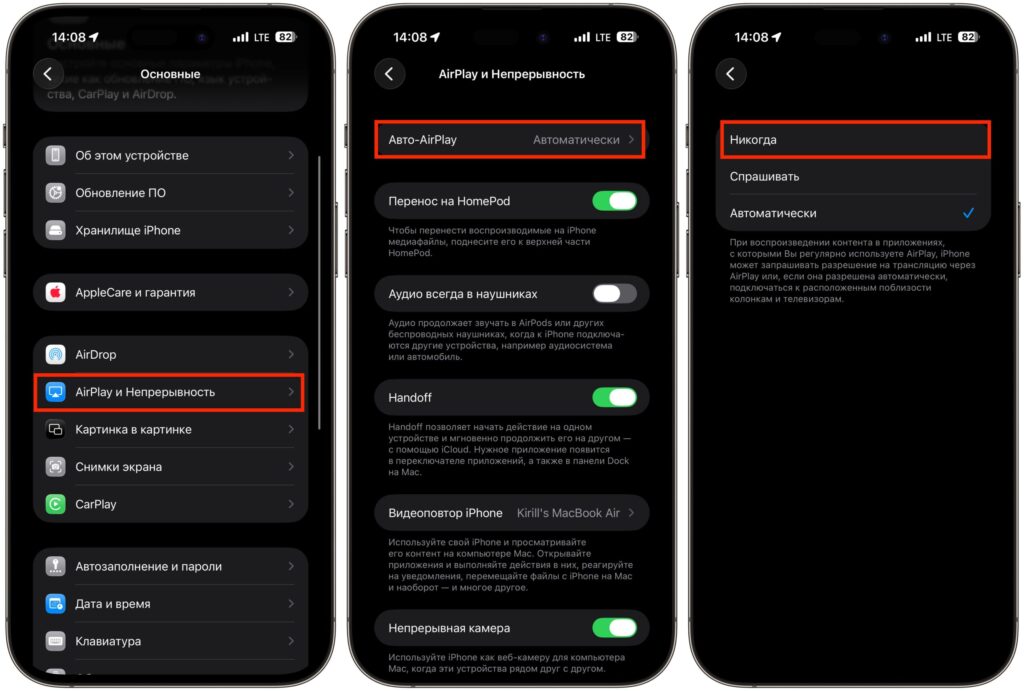
It’s best to turn off automatic AirPlay too
- Open Settings — General.
- Tap “AirPlay & Continuity.”
- Under “Automatically AirPlay” select “Never.”
Method 2. Switch the Playback Source
Tap the blue AirPlay icon in the right corner of the widget, select “Control Other Speakers & TVs” at the bottom of the list, and then tap on iPhone. This removes the link to Apple TV and hides the widget.