If your iPhone suddenly starts recording a voice message in the Messages app when you didn’t ask it to — it’s not a glitch or surveillance. Behind this behavior is a specific iOS feature called Raise to Listen. A similar issue also occurs in third-party messengers — Telegram, WhatsApp, and MAX. Sometimes voice messages can disappear from conversations for entirely different reasons, but accidental recording is a separate story. In this article, we’ll break down why your iPhone records voice messages on its own, how it works technically, and how to disable the feature in all popular apps.
iPhone sometimes records voice messages on its own, it happens
iPhone Starts Recording Audio in Messages: What to Do
The main cause of accidental audio recording is the Raise to Listen feature built into the Messages app. It’s enabled by default and uses the proximity sensor and accelerometer to determine whether you’ve raised your iPhone to your ear. When the system decides the gesture has been made, it automatically starts playing an incoming audio message or begins recording a new one.
The problem is that the sensors are triggered not only when you actually bring the phone to your ear. Recording can start in perfectly ordinary situations:
- you simply picked up your iPhone while a conversation in Messages is open on the screen;
- you brought the phone closer to your face to check a notification;
- you’re walking with the iPhone in your hand, and it swayed near your clothing or bag;
- you’re exiting a conversation or pressing the “Back” button in Messages;
- you’re holding the phone near a table, pocket, or another object that the sensor mistakes for your ear.
It’s easy to tell that Raise to Listen has been triggered: you’ll hear a short recording sound, a sound wave animation will appear on screen, and the interface will automatically switch to voice message recording mode. If you don’t stop the process at that point, the finished recording will end up in the input field, and you might accidentally send it to someone.
What Does “Raise to Listen” Mean in iPhone Settings
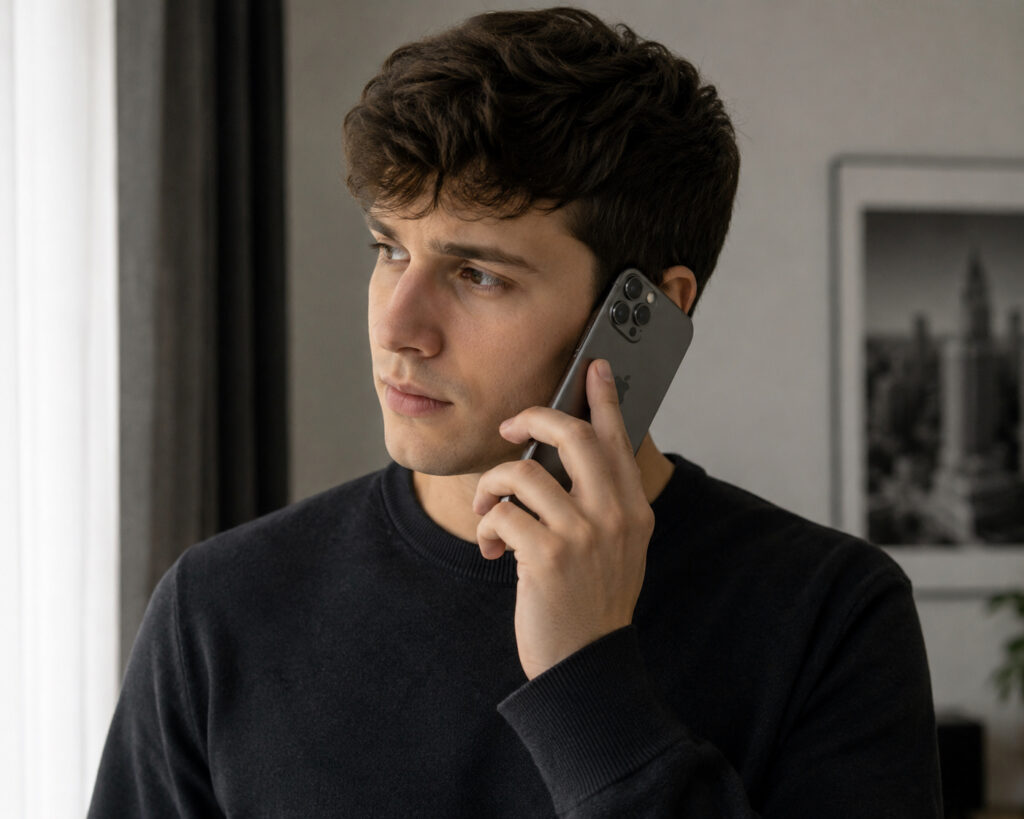
Just bring the phone to your ear or make a characteristic gesture, and voice message recording begins
Raise to Listen is a gesture-based control for audio messages in iMessage. Apple designed it so that voice conversations feel like using a walkie-talkie: raise the phone to your ear — listen to an incoming message, raise it again — record a reply, lower it — send. On paper it sounds convenient: you don’t need to reach for the record button, and you can communicate by voice just as quickly as in any messenger.
In practice, things get strange with this feature. The name itself is confusing: in settings, the toggle is labeled “Raise to Listen,” even though it’s also responsible for automatic recording. Few people associate the word “listen” with recording a voice message, so they simply can’t find the right setting. As a result, accidental recordings continue for months, and the iPhone owner thinks the phone is “glitching” or, worse, constantly listening to them.
How to Disable Automatic Voice Message Recording on iPhone
To stop your iPhone from automatically recording audio in Messages, you just need to turn off one toggle in settings. It takes about a minute:
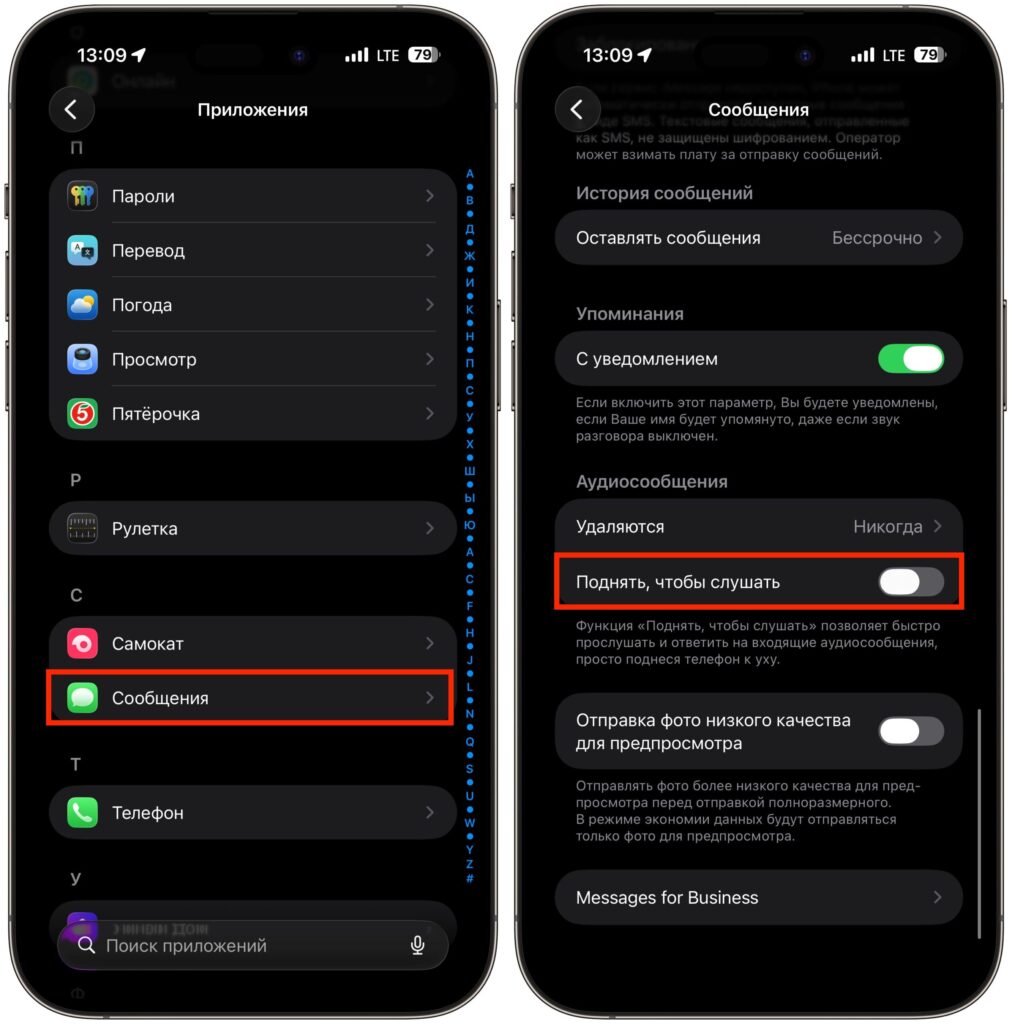
Turn off this toggle and the problem will be solved
- Open the Settings app on your iPhone.
- Go to the “Apps” section, then select “Messages.” On older versions of iOS, the “Messages” option is located right in the root of Settings.
- Scroll down to the “Audio Messages” section.
- Find the “Raise to Listen” toggle and switch it to the “Off” position.
After this, your iPhone will no longer react to movements and proximity sensor triggers in Messages. You can safely hold the phone near your face, carry it in your hand, switch between chats — recording won’t start on its own.
Important note: along with auto-recording, automatic playback of incoming voice messages when raising the iPhone to your ear will also be disabled. It’s a trade-off: either gestures with occasional accidental recordings, or full manual control. You can still record and listen to audio manually — the record button in the Messages input field works as before.
Accidental Voice Message Recording in Telegram, WhatsApp, and MAX
The problem of automatic voice message recording isn’t limited to iMessage. In third-party messengers, the situation differs slightly from Apple’s app. Let’s break down each one separately.
Telegram. Telegram has its own “Raise to Listen” feature that works on the same principle as in iMessage: if you bring your iPhone to your ear while a chat is open, the messenger will automatically play an incoming voice message, but starting a new recording this way didn’t work for me. So if you’ve caught an accidental voice recording in Telegram, it was most likely a touch on the microphone button on the messenger’s screen.
WhatsApp. The messenger uses the proximity sensor only to switch voice message playback from the speaker to the earpiece when you bring the phone to your ear. There is no automatic voice recording by gesture in WhatsApp — recording starts only when you press and hold the microphone button. Accidental voice messages here happen for a different reason: the user accidentally taps the record button, and the message is sent without confirmation. There is no separate setting to disable auto-recording in WhatsApp because the gesture-based auto-recording feature doesn’t exist. The only side effect of the proximity sensor is that the screen turns off when listening to voice messages, and this feature cannot be disabled in WhatsApp settings either.
MAX. The MAX messenger does not have an automatic voice recording feature when raising the phone to your ear. Voice messages are recorded exclusively manually: you need to press and hold the microphone button in the chat and speak. Before sending, you can listen to the recording and delete it if necessary. Sending voice messages in MAX is also convenient because next to the microphone button there’s a camera button for recording video circles — no need to switch between modes. Accidental recordings in MAX are virtually impossible since recording doesn’t start without physically holding the button.
Does iPhone Record Sound Without User Permission
No, iPhone does not record sound in the background and does not send it anywhere without your knowledge. Raise to Listen activates only when three conditions are met simultaneously:
- the feature is enabled in Messages settings (it is by default);
- the raise gesture was triggered — meaning the proximity sensor and accelerometer detected a characteristic movement;
- an active conversation in the Messages app is open at that moment.
If even one condition is not met, no recording occurs. Therefore, completely disabling Raise to Listen guarantees that audio will not be recorded accidentally. If you’re still concerned about privacy, check which apps have access to the microphone: Settings, then Privacy & Security, then Microphone. There you can see the full list of programs that can use sound recording.
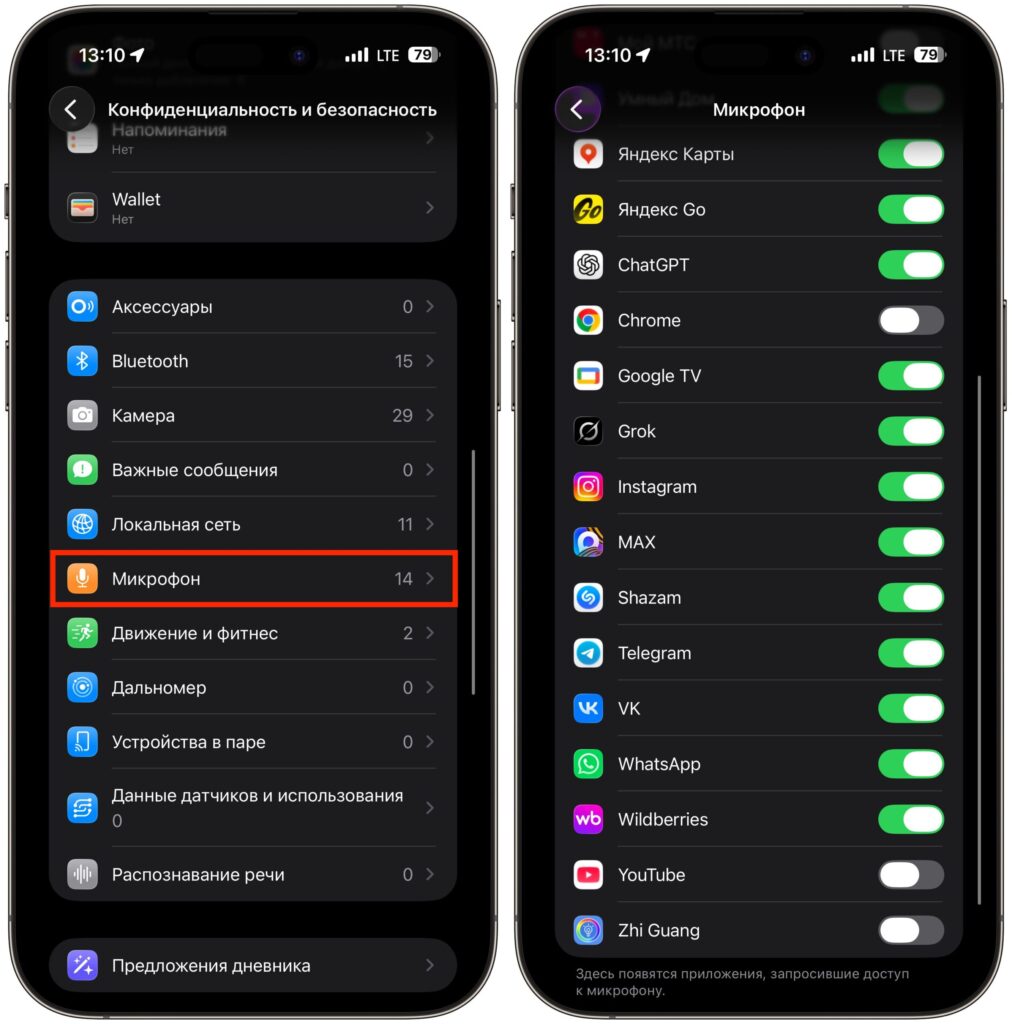
If you want, check the settings here and disable microphone access for individual apps


