A visually clean home screen and a genuinely productive one are not the same thing. The source author reports rebuilding a Samsung Galaxy home screen from scratch with a single guiding principle: surface useful information before any app is opened, reduce the number of taps needed for common tasks, and do it all without third-party launchers or dozens of extra apps. Below is a breakdown of the three main techniques described, along with their limitations.
What you need to know
- Widget stacks in One UI let you layer multiple widgets in a single slot, switchable by swiping — one stack can replace four or five standalone widgets.
- Edge panels provide quick access to apps, contacts, and task shortcuts from any screen via a swipe from the edge, but the author recommends limiting them to three panels to avoid slowing yourself down.
- Mode and routine shortcuts can be placed on the home screen as one-tap buttons that trigger chains of settings changes (e.g., enabling Do Not Disturb, setting an alarm, and disabling always-on display simultaneously).
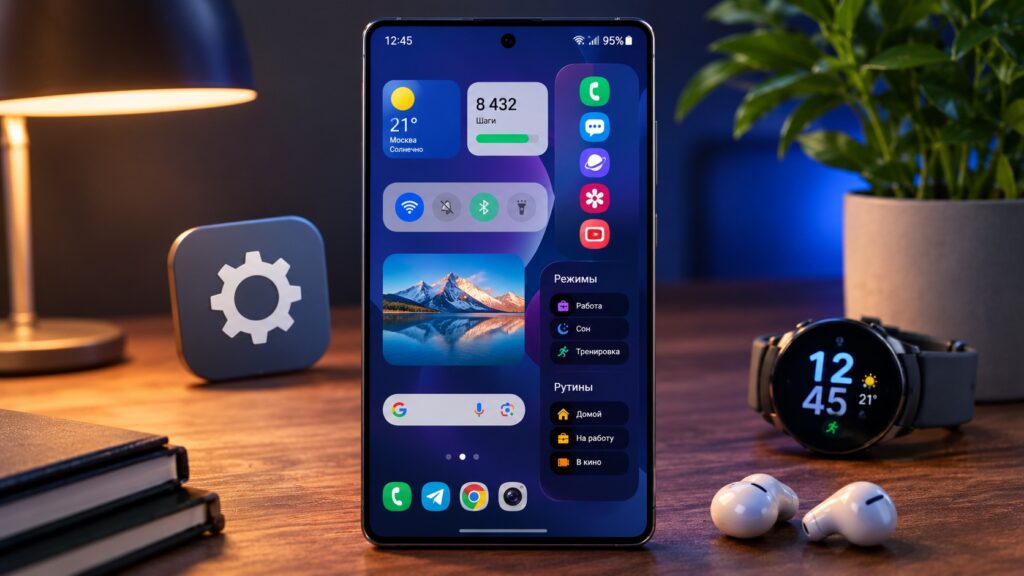
An overview of the Samsung Galaxy home screen customization settings discussed in this guide
Why a pretty home screen can get in the way
The author reports that for a long time, the home screen was treated purely as an aesthetic exercise — clean wallpaper, neatly arranged icons, everything spread across a couple of pages. It looked great in screenshots but was not efficient in practice: checking a schedule meant opening the calendar app, viewing tasks required launching reminders, and frequently used tools were buried in folders.
The takeaway sounds obvious but is easy to forget: a home screen should not just display app icons — it should present useful information at a glance, reduce the number of taps, and help you act faster.
Widget stacks: multiple panels in the space of one
The biggest change described is a shift toward information visibility. The goal was to have schedules, tasks, and notes visible immediately. The centerpiece is a large Samsung Calendar widget on the second home screen page, set to month view, so meetings, deadlines, and personal plans are visible at once. Tapping any date opens the full schedule for that day — faster than opening the calendar app and switching views manually.
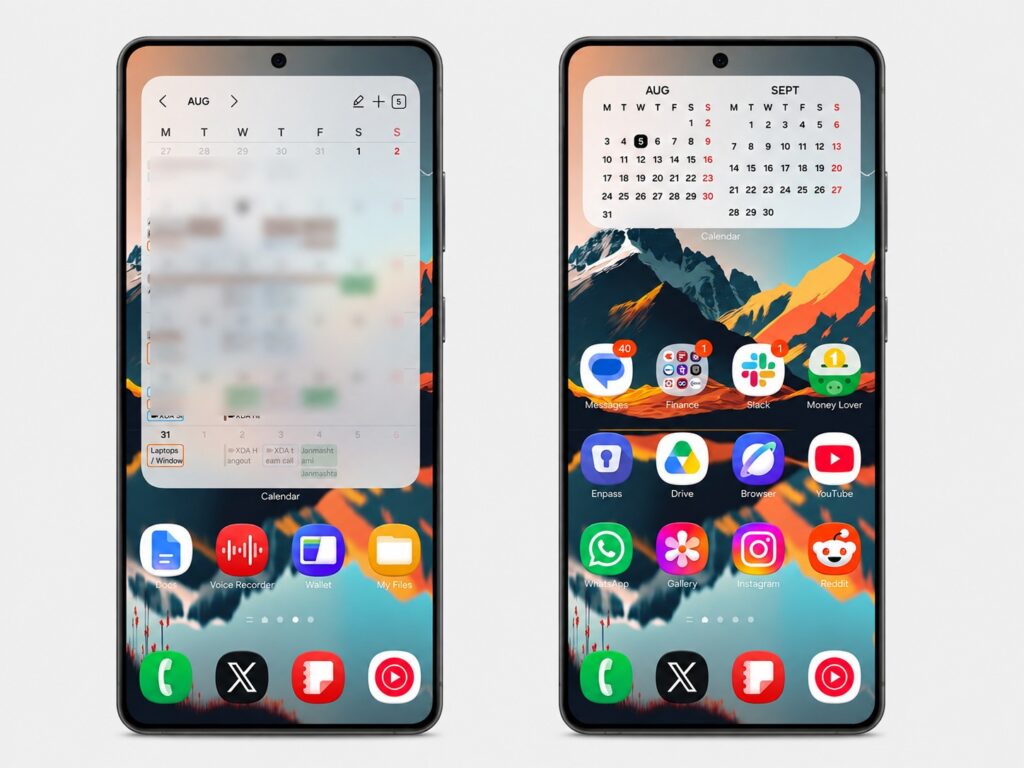
Widget stacks are extremely convenient for consolidating information

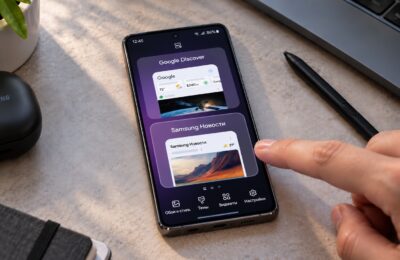
The inherent problem with widgets is that they consume screen real estate quickly. The solution is widget stacks, a feature available in Samsung’s One UI. A stack is essentially several widgets occupying the same screen space; you switch between them with a swipe.
The author reports assembling one stack containing weather, reminders, Samsung Notes, and two monthly calendars — yielding several useful information panels in the footprint of a single widget. The author considers this the most practical technique in the entire setup: one stack replaces four or five separate widgets without turning the home screen into a cluttered mess.
Edge panels: a hidden toolbox at the screen’s edge
The second technique involves Edge panels, which open with a swipe from the side of the screen. The author reports placing utilities such as a clock, Google Health, an authenticator app, and a few other regularly used but not constantly needed apps into an Edge panel. The advantage is that these tools are accessible from almost anywhere in the system, while the home screen itself stays uncluttered.
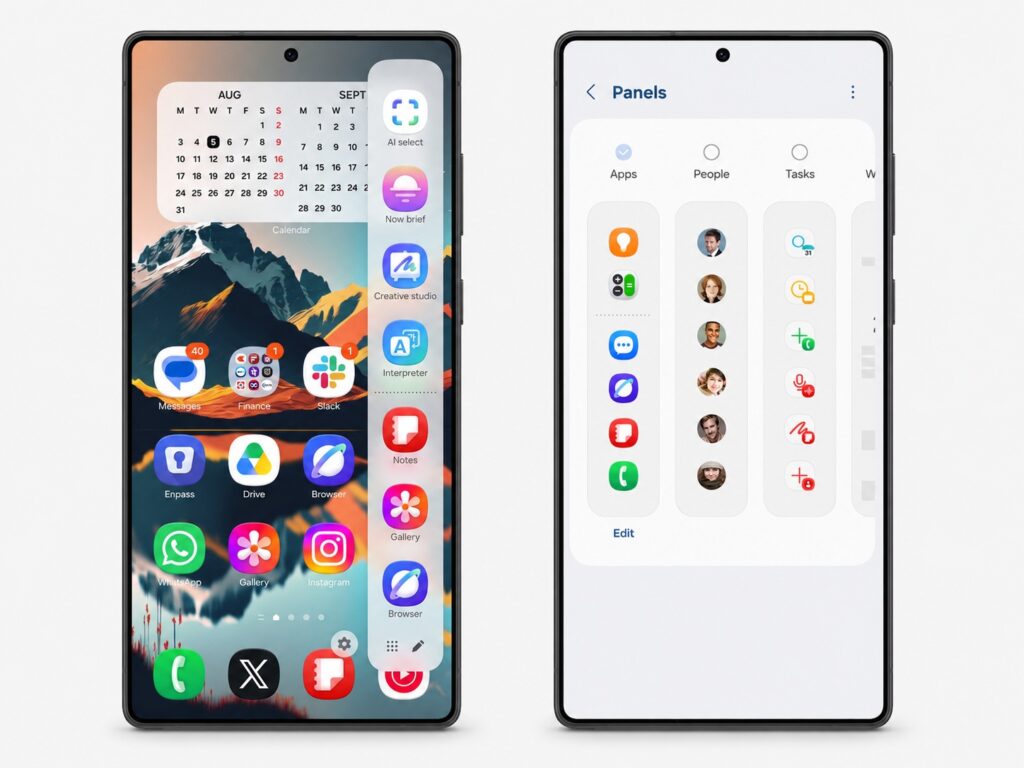
Edge panels can also be customized to suit your workflow
Beyond the standard app panel, the author enabled two additional Edge panels. A People panel provides quick access to the most frequently contacted people, while a Tasks panel surfaces shortcuts to common actions rather than simply launching apps.

An important limitation the author highlights: only three panels were kept active. Constantly swiping through many panels to find the right app becomes slower than simply opening the app drawer. More panels do not automatically mean more convenience — only tools you genuinely use regularly belong here.
Mode and routine shortcuts: one tap instead of a chain of settings
The third technique is placing mode and routine shortcuts directly on the home screen to automate repetitive actions with a single tap. The most-used example is a sleep mode shortcut. Instead of manually enabling Do Not Disturb, setting an alarm, and disabling the always-on display every evening, one widget tap triggers all of those changes simultaneously. This eliminates several small steps from the nightly routine and guards against forgetting a setting before bed.
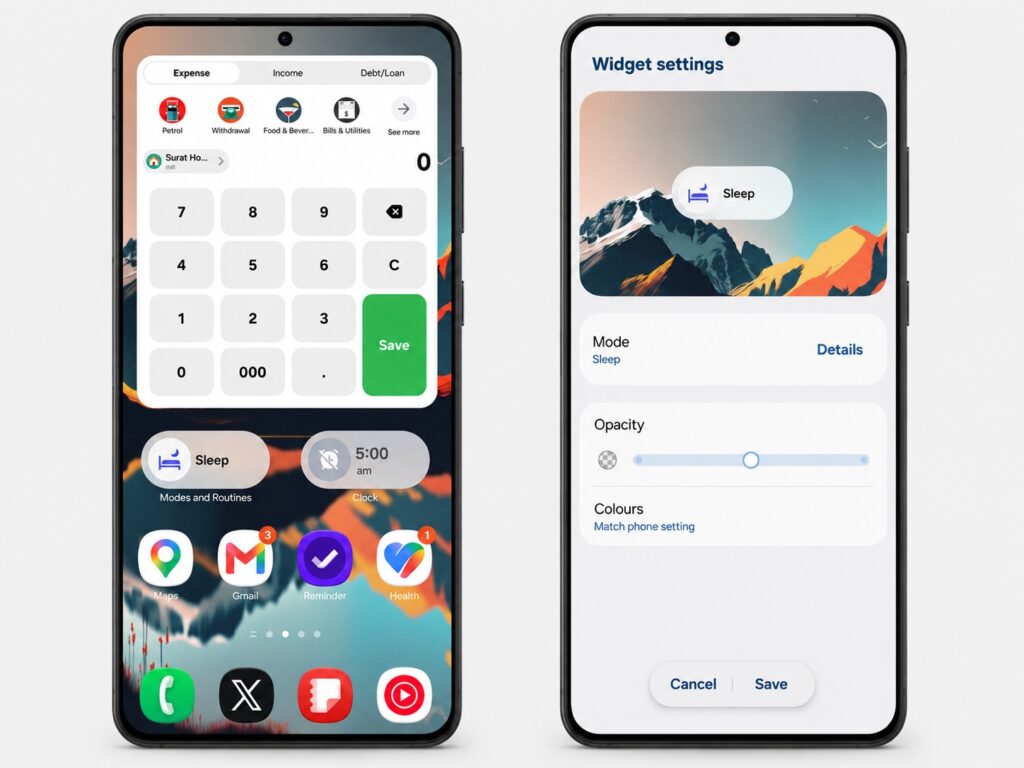
Dedicated shortcuts make switching modes much more convenient
A second shortcut described is a cinema mode: before watching a film, a single tap configures the phone for the environment without requiring any digging through quick settings. The key insight is that these shortcuts on the home screen feel like dedicated physical buttons rather than automation hidden deep in the system.
Limitations and caveats
All of the techniques described above rely on Samsung’s One UI and its built-in features — widget stacks, Edge panels, and Modes and Routines. Availability and exact behavior may vary depending on your One UI version and device model. No third-party launchers or additional apps are required for this particular setup, but the specific widgets mentioned (Samsung Calendar, Samsung Notes, weather) are Samsung’s own apps that come pre-installed on Galaxy devices.
It is also worth noting that this is one user’s personal configuration. What works as an efficient layout for one person’s workflow may not suit another’s. The source author acknowledges that some of these choices are a matter of personal taste.