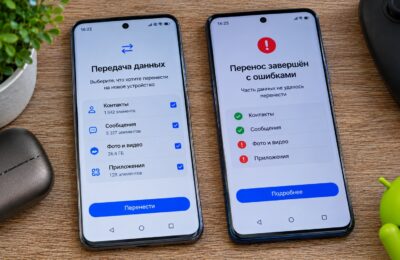
To fully wipe a HONOR smartphone, use the factory data reset option under Settings › System › Reset. If the phone is frozen or you have forgotten the screen lock, use Recovery Mode with the hardware buttons instead. The reset menu contains three similar-looking options, and only one of them erases everything. A mistake can be costly: you could lose years of photos, or end up with a phone that will not let you back in after the reset. This guide, based on an AndroidInsider.ru explainer, covers which option to choose, how to prepare, and what to expect afterwards.
What you need to know
- HONOR offers three reset options. Resetting network settings and resetting all settings both leave your files in place. Only the factory data reset wipes apps, photos, messages and accounts.
- If the phone works and you know the screen lock, you can reset it through Settings › System › Reset. The source says this sequence matches HONOR’s official instructions.
- A frozen or locked phone can be reset in Recovery Mode by holding the power and volume-up buttons together. This method erases data with no backup.
- After a full reset, the phone asks for the Google account that was previously signed in. Without that login and password, setup cannot continue.
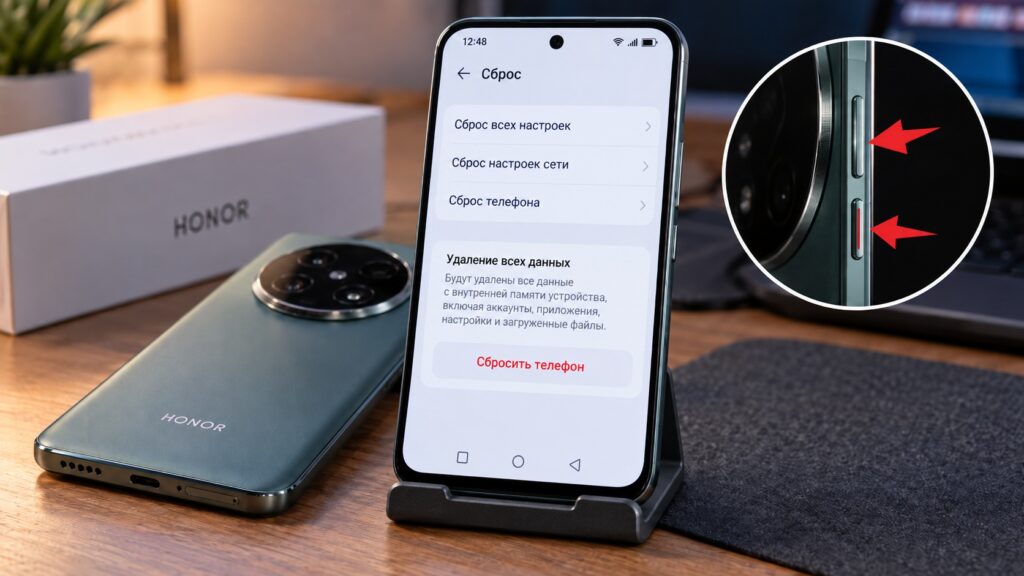
An illustration of the different ways to reset a HONOR phone
Three reset options, and only one erases everything
The reset section in HONOR’s settings lists several similar options. They are easy to confuse, but each one does something quite different:
- Reset network settings: restores Wi-Fi, mobile data and Bluetooth to their defaults. Photos and apps are not touched.
- Reset all settings: rolls back system settings, fingerprints, face data and the lock-screen password. Your files stay where they are.
- Factory data reset: erases everything on the phone, including apps, photos, messages and accounts.
If the phone has poor reception or Bluetooth cannot find your headphones, the source recommends starting with the network reset, because it deletes no data. If the system is sluggish, you can try resetting all settings. A full factory reset is a last resort, and the source cautions against expecting miracles from it.
Five minutes of preparation that can save your photos
Once a full reset is done, deleted data cannot be recovered. The source recommends a few steps beforehand:

- Save your photos, contacts and messages to the cloud, such as Google Drive, or copy them to a computer.
- Remove the memory card, if there is one, so it is not accidentally wiped as well.
- Make sure you know the password for the Google account added to the phone. You will need it immediately after the reset.
- Charge the phone to at least half, or keep it plugged in.
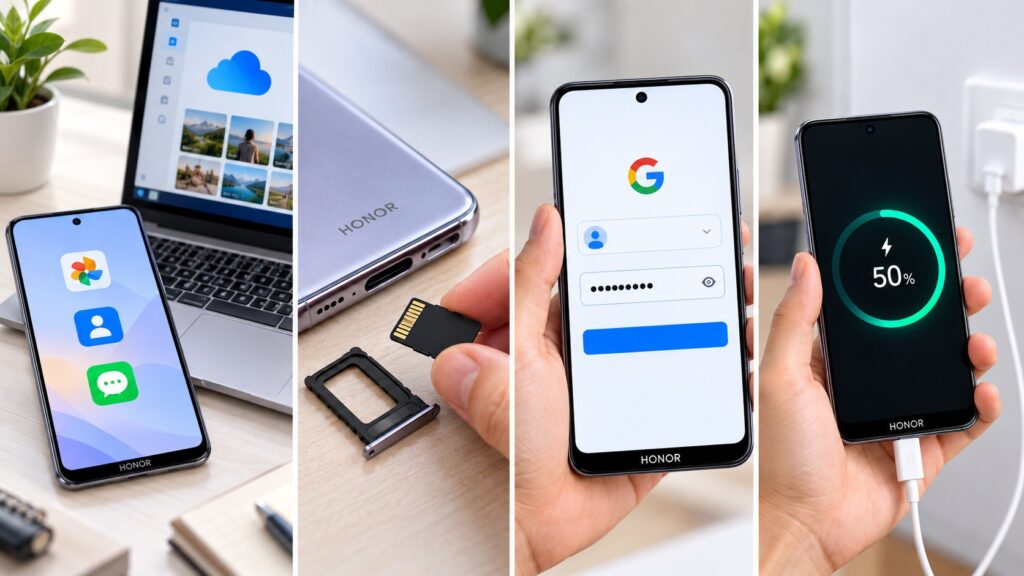
An illustration of preparing a HONOR phone for a reset
Check your messaging apps separately. Many of them keep their own backup, which is not part of the general phone backup. The Google password step may seem minor, but according to the source it is the one people most often regret skipping. The reason is explained in the final section below.
Resetting through MagicOS settings (if the phone works)
If the phone turns on and you remember the screen lock, the source says the reset takes a couple of minutes:
- Open Settings.
- Scroll down and select System.
- Tap Reset.
- Select the factory data reset option.
- Confirm the reset, and enter your lock-screen password if the phone asks for it.
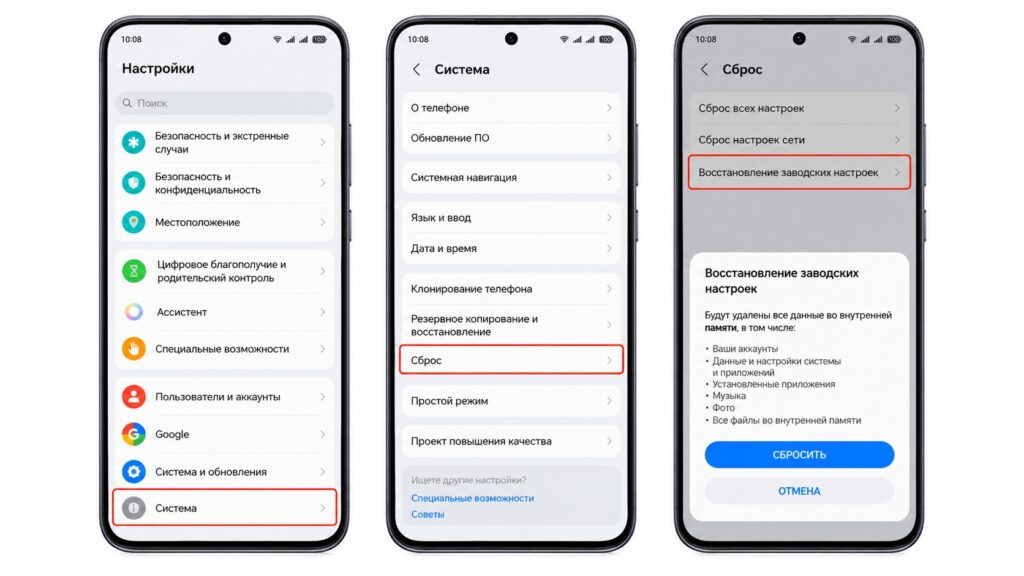
The process of resetting a HONOR phone

The phone then restarts and begins erasing data, which can take several minutes. On older models running EMUI or Magic UI, the section may be called “System & updates” and the options may be worded slightly differently, but the path is the same. If you cannot find it, search for “reset” in the settings search bar. The source states that this sequence matches HONOR’s official instructions.
Using the buttons (if the phone is frozen or you forgot the password)
Sometimes a HONOR phone will not boot past the logo, or you cannot remember the screen lock. In that case the settings menu is out of reach, and the reset is done through Recovery Mode:
- Turn the phone off. If it is frozen, hold the power button until the screen goes dark.
- Press and hold the power button and the volume-up button at the same time.
- Keep holding both until Recovery Mode appears on screen.
- Use the volume buttons to select “Wipe data/factory reset”.
- Press the power button to confirm, then wait for the reset to finish.
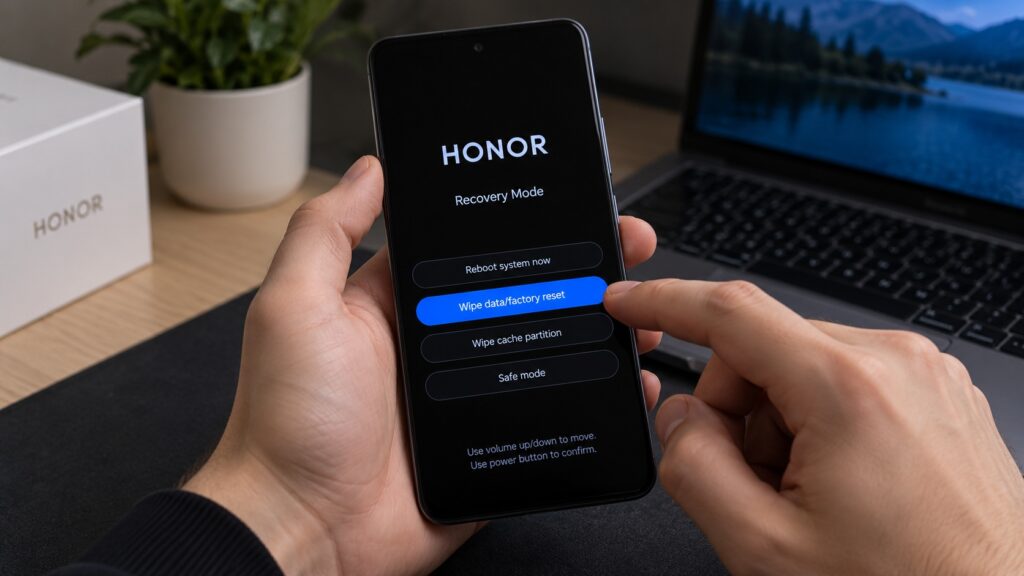
Resetting a HONOR phone through Recovery Mode
On some models you select menu items by tapping the screen, and the system may ask you to confirm the deletion a second time. Keep in mind that this method erases data without any backup. The source advises using it only when there is no other option.
Wiping the phone remotely if it is lost or stolen
If your HONOR phone is lost or stolen, the source says you can erase its data remotely using Google’s Find My Device service. Two conditions apply: the phone must be signed in to a Google account, and the reset will only happen once the phone connects to the internet.

- Open Google’s device-finding app on another smartphone, or its website on a computer.
- Sign in with the same Google account used on the missing phone.
- Select your HONOR phone from the list of devices.
- Choose the factory reset option and confirm.
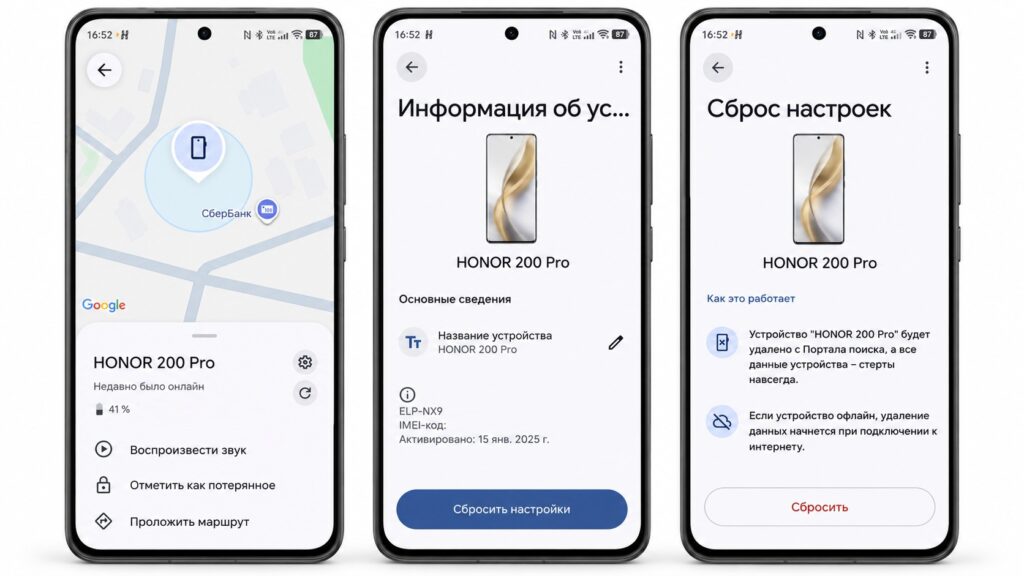
Resetting a HONOR 200 Pro through Google’s device-finding service
The phone will then reset to factory settings as soon as it comes online. After that, you will no longer be able to locate it on the map. For this reason, the source suggests trying to ring the phone or lock its screen first.
What the phone asks for after it restarts
After any full reset, the HONOR phone opens to the initial setup screen, just as it did on the day you bought it. At this point, an Android protection feature kicks in. If a Google account was on the phone, the device will ask you to sign in to that specific account. According to the source, setup cannot continue without the previous account’s login and password. This is how Google protects stolen phones from being resold.
That is why you should confirm your Google password in advance. If you are preparing the phone for sale, the source recommends signing out of your Google account in settings first and then running the reset. That way, the new owner will not be blocked by someone else’s account. To restore your data afterwards, sign in to the same Google account, and the source says the system will offer to restore your cloud backup.