Forgetting your driver’s license or vehicle registration at home is a classic scenario. Previously, this meant at least a stressful conversation with a traffic officer, and sometimes even a tow truck and an impound lot on top of that. Now all your vehicle documents are stored on your smartphone, and you can present them right from your iPhone screen. Let’s explore what the Gosuslugi Auto app can do and how useful it really is on the road.
Exploring the Gosuslugi Auto app
Authorization in Gosuslugi Auto via Gosuslugi
The first launch is as simple as it gets. You don’t need to log in manually — everything is tied to your account on the portal. If you’ve ever logged into Gosuslugi from this phone, the process takes less than a minute.
- On the start screen, tap Sign In.
- Authorize using your Gosuslugi account.
- Confirm the sign-in — the app will request permission to access via Gosuslugi.
- Create a 4-digit access code so you can quickly open the app in the future.
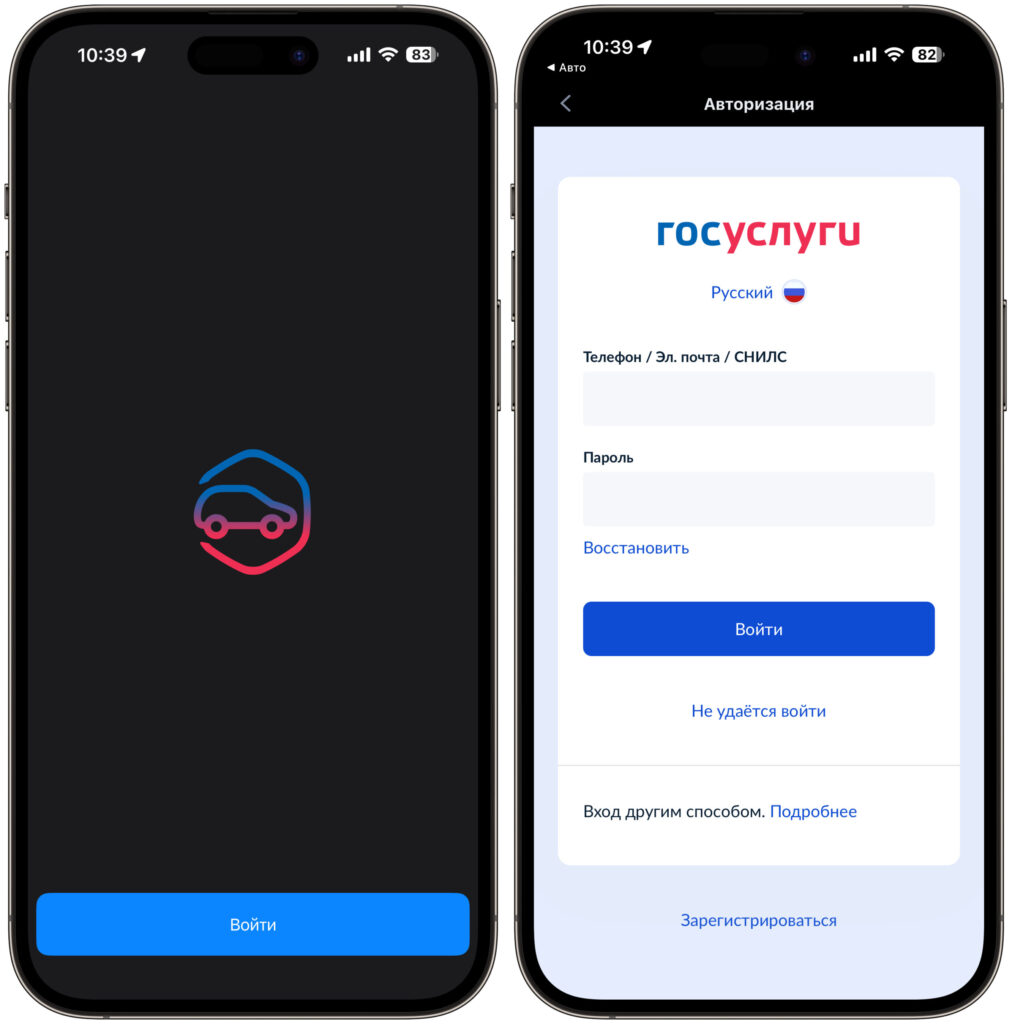
Sign in to your Gosuslugi
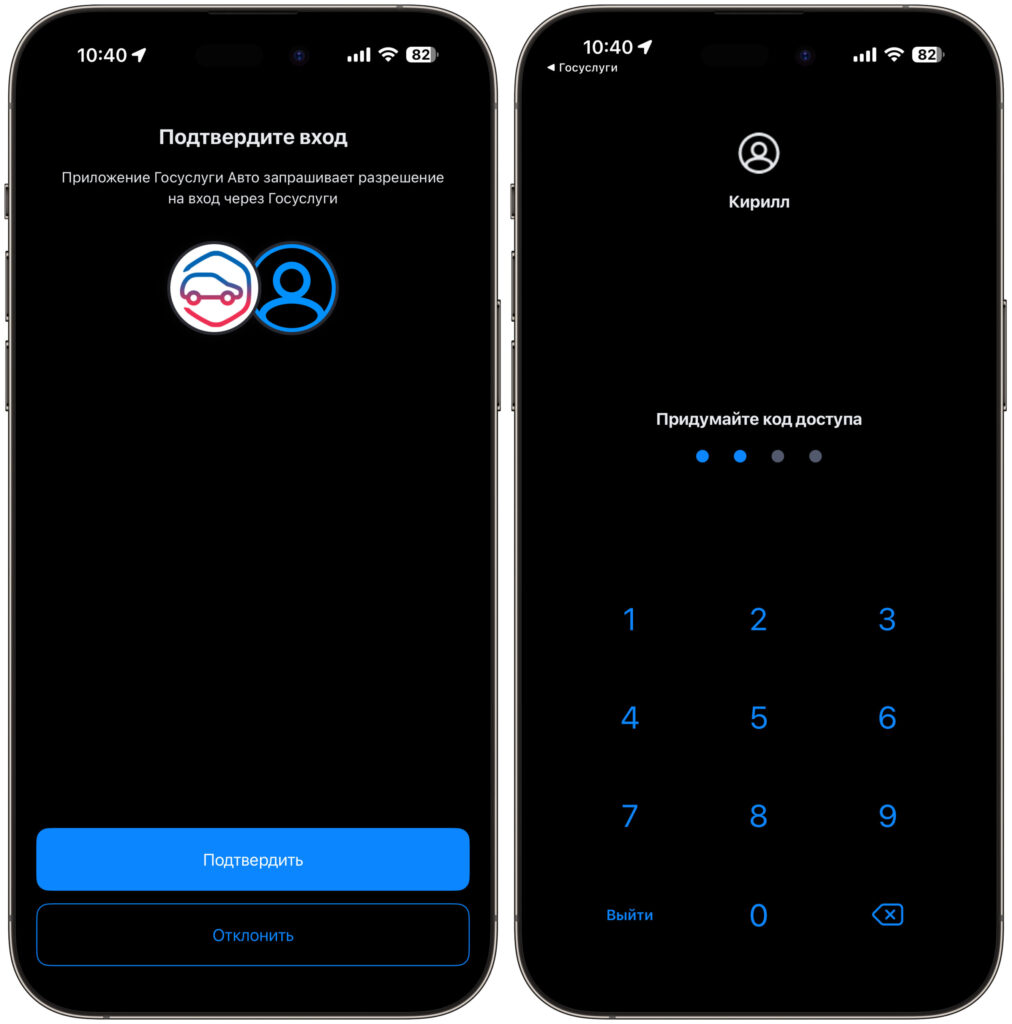
Allow Auto to access Gosuslugi and create a login password
After that, documents are pulled automatically: your driver’s license, vehicle registration certificate, OSAGO insurance, and vehicle data are all already there. You won’t need to enter anything manually — the system retrieves everything from government databases. The access code can later be replaced with Face ID if you allow biometric login, and then you can open the app with just a glance.
What Documents Are Available in Gosuslugi Auto
Right after logging in, you land on your vehicle’s card — in my case, it’s a HYUNDAI IX35 2.0 GLS AT. The car is drawn schematically but recognizably, with the make, model, and license plate number shown at the top. If you have multiple vehicles, you can swipe through them horizontally, and the silhouette of the next car peeks out from the edge of the screen — a hint that there’s more to see.
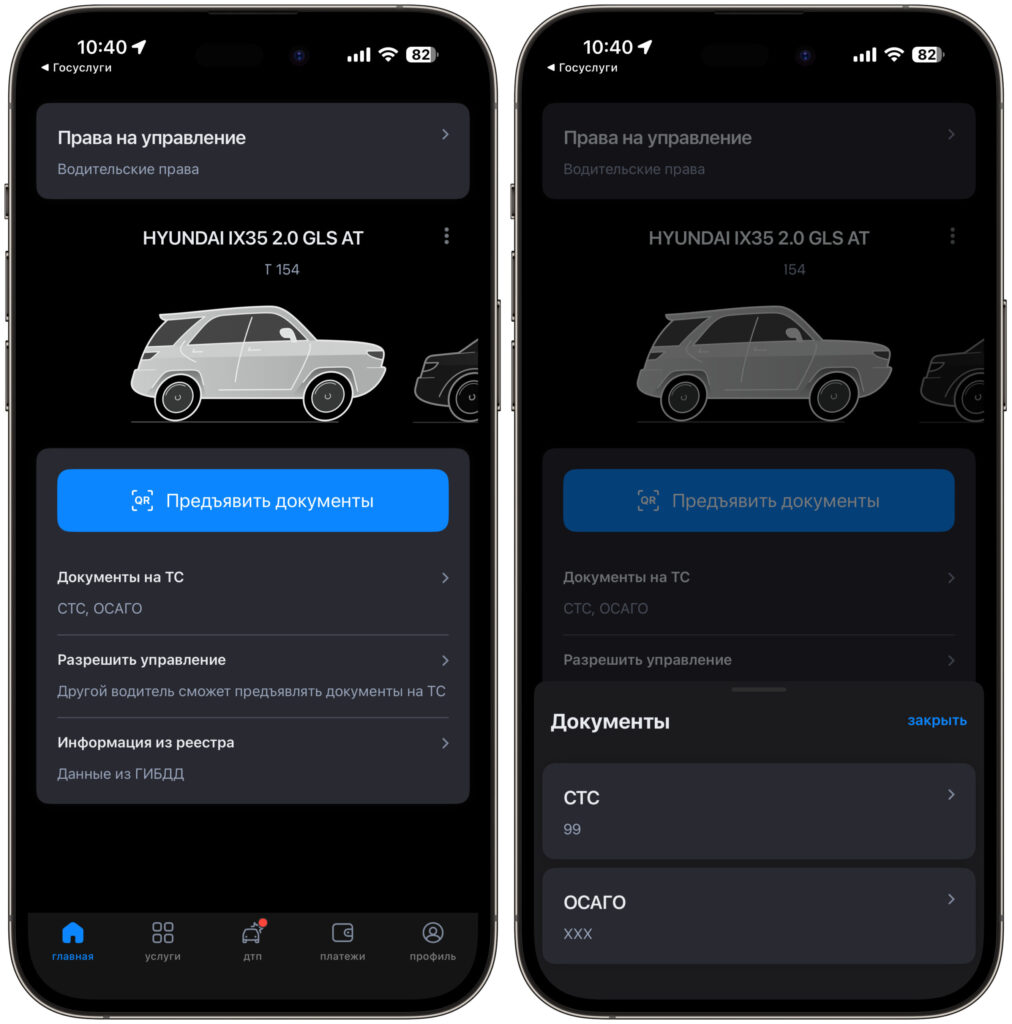
Here you can find out everything about your car and present documents
Above the card, there’s a separate Driving License block with your driver’s license. Tapping on it opens a full card with your photo, categories, issue date, and expiration date — more on that below.
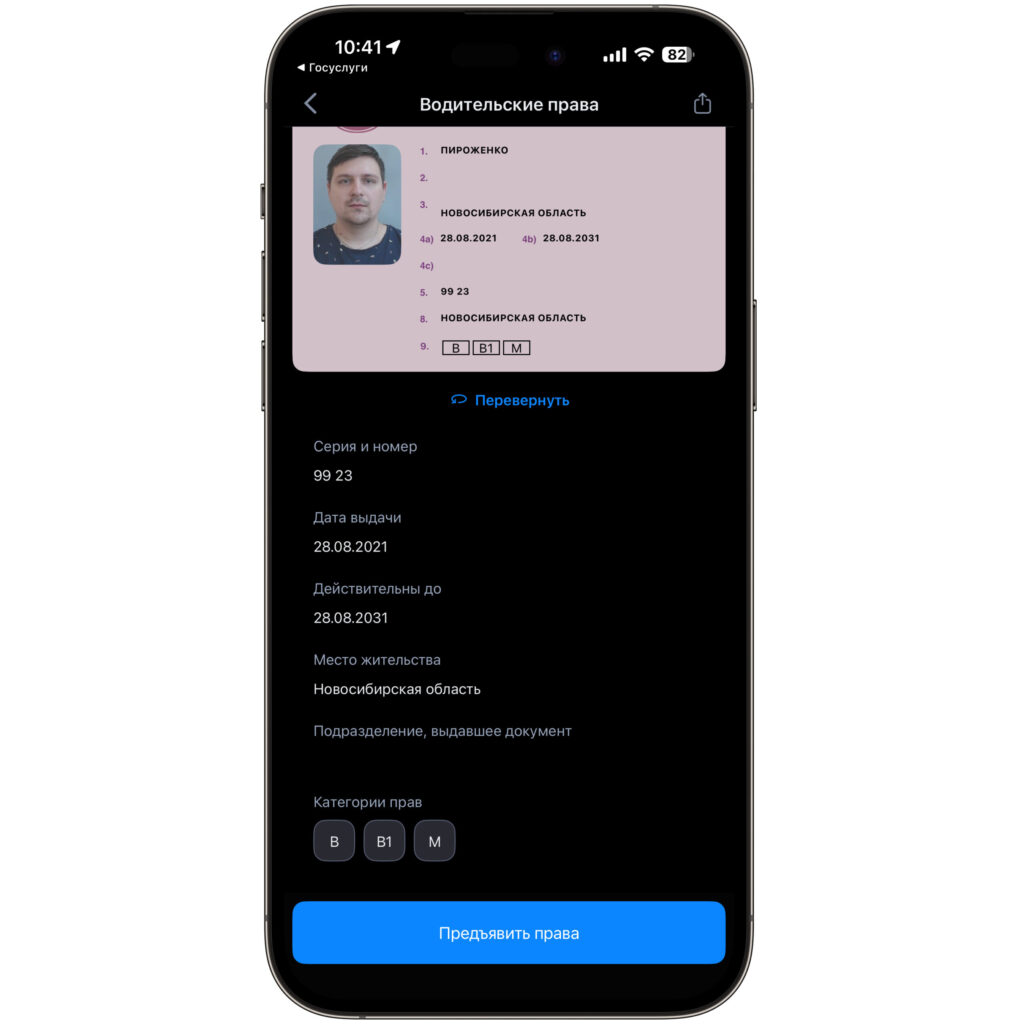
You can even show your driver’s license
Below the car image, there’s a large blue Present Documents button with a QR code icon. This is the central element of the entire app and the main reason people open it. Below that are three neat sections: Vehicle Documents (registration certificate and OSAGO), Allow Driving (transferring the car to another driver), and Registry Information (data from the traffic police). Each item has a short description, so it’s impossible to get lost even on the first launch.
At the very bottom of the screen is a navigation bar with five tabs: home, services, accident, payments, and profile. We’ll go through them next. The accident icon, by the way, may have a red notification dot — that’s a hint about an unfinished European accident report or a new event. Overall, the interface uses a dark theme, everything is large and readable even on the go.
Forgot Your Car Documents — What to Show the Officer
This is probably the main scenario the app was created for. An officer is required to accept electronic documents from the app on equal terms with paper ones, so forgetting your license at home is no longer a reason to panic.
- On the main screen, tap Present Documents — a QR code will appear.
- The officer scans the code with their service device and gains access to the data.
- You can also separately open the Vehicle Documents section — the registration certificate and OSAGO with their numbers are stored there.
- The driver’s license opens as a card with a photo, categories, and expiration date, with a “Present License” button at the bottom.
An important point: electronic documents replace the driver’s license and registration certificate, but the obligation to have a valid OSAGO insurance policy hasn’t been cancelled. A first aid kit, fire extinguisher, and warning triangle can’t be replaced by a smartphone either, so the physical minimum should remain in the trunk. But the “I left my license in my other jacket” situation can now be resolved in five seconds.
How to Allow Another Driver to Use Your Car
A handy feature if your spouse, friend, or colleague is getting behind the wheel. Previously, you’d carry a handwritten power of attorney for this; now a couple of fields in the app will suffice.
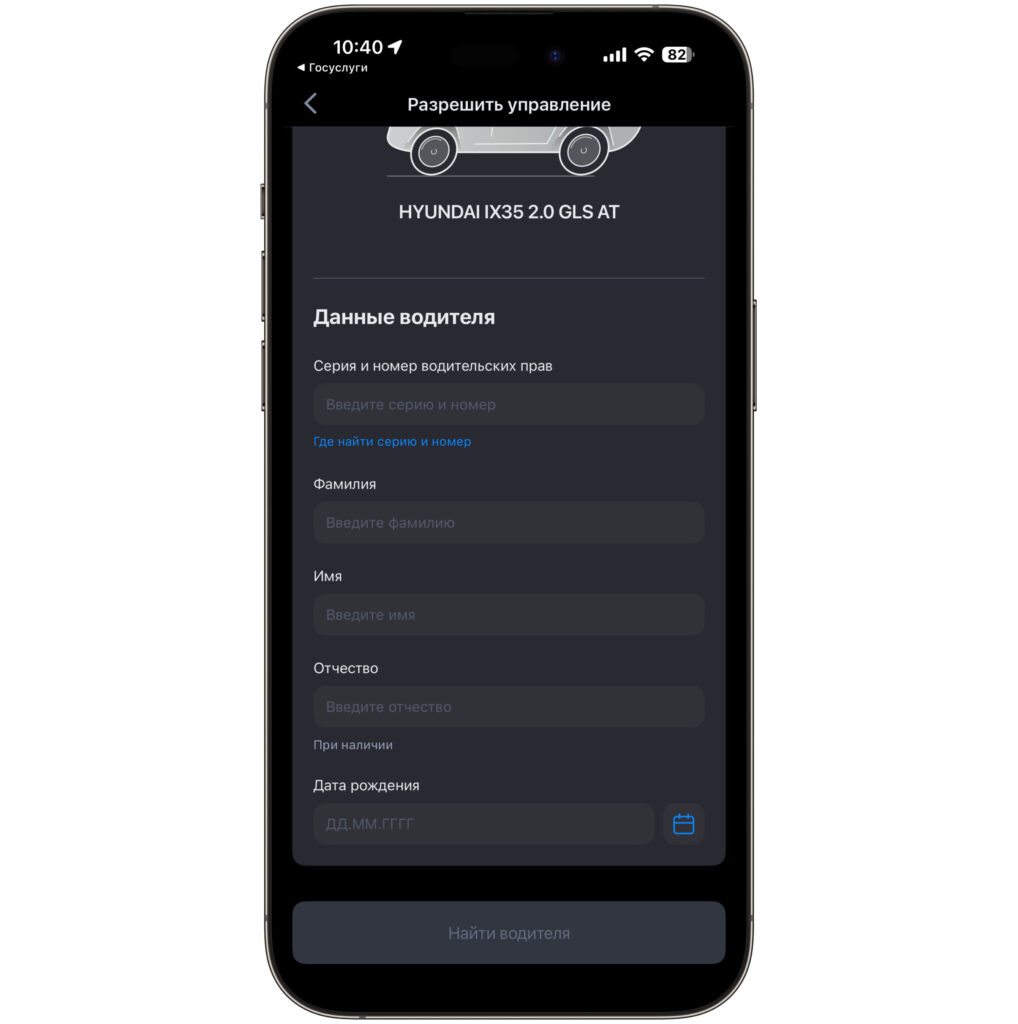
Enter the other driver’s details
- On the main screen, open the Allow Driving section.
- Enter the series and number of the second driver’s license.
- Provide their last name, first name, patronymic (if applicable), and date of birth.
- Tap Find Driver and confirm access.
After that, the other person will be able to present documents for your car from their phone. This doesn’t replace a notarized power of attorney for transactions and registration actions, but for routine roadside checks, the mechanism works flawlessly. Access can be revoked just as quickly.
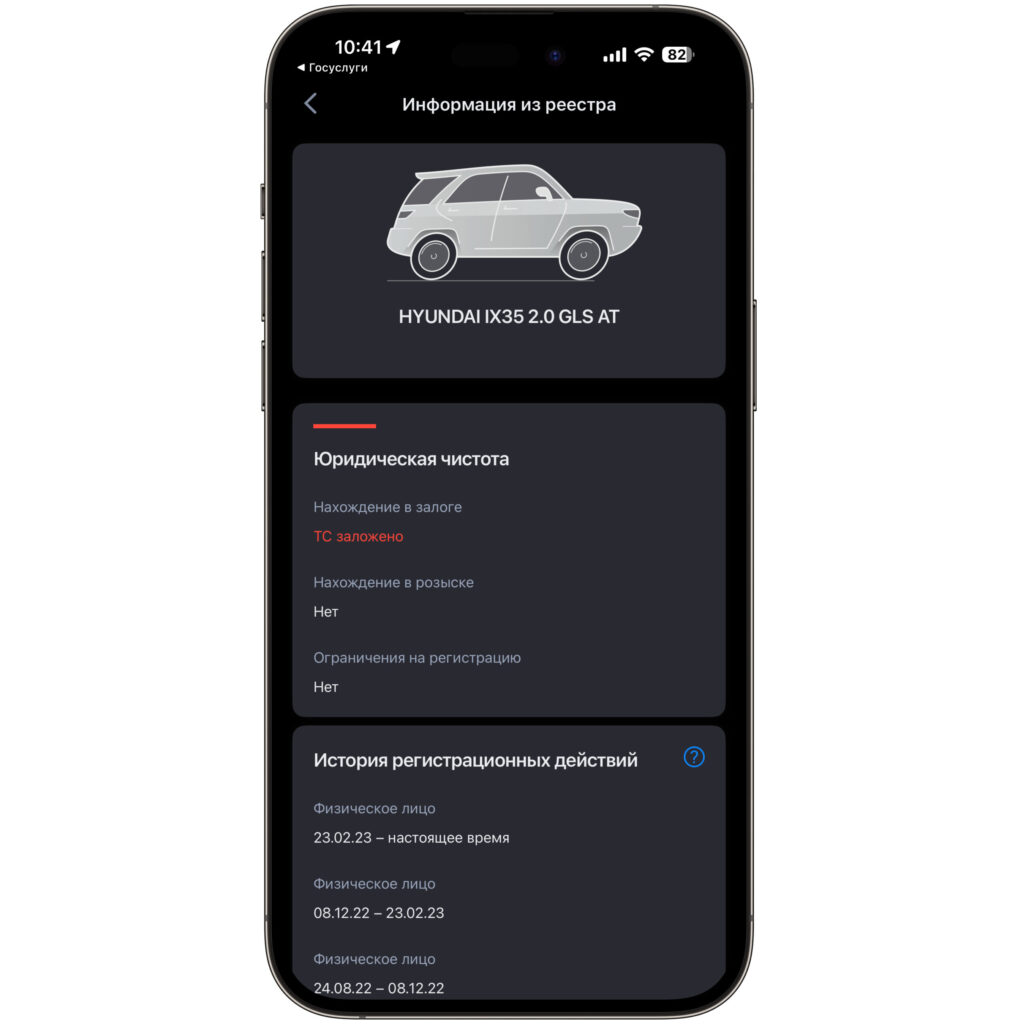
Vehicle Check via Traffic Police Databases
The Registry Information section is what people usually go to paid third-party services for. Here, data comes directly from the traffic police and is completely free.