Many iPhone owners at some point decide to change their Apple ID region to a foreign one — to access apps and subscriptions that have long been unavailable in the Russian App Store. But then an unpleasant thing comes to light: Gosuslugi, banking apps, and other Russian software can no longer be downloaded from the foreign store. Here’s how to solve this problem and not lose access to important services.
Figuring out how to update apps if they’re not available in your chosen App Store
Why Russian Apps Can’t Be Found in the Foreign App Store
It’s quite simple. Apps like Gosuslugi and other Russian services are often available only in the Russian App Store. When you change your account’s region to, say, the US or Turkey, these apps simply disappear from search results. For example, the story with the MAX messenger, which isn’t available in the US App Store, is very telling.
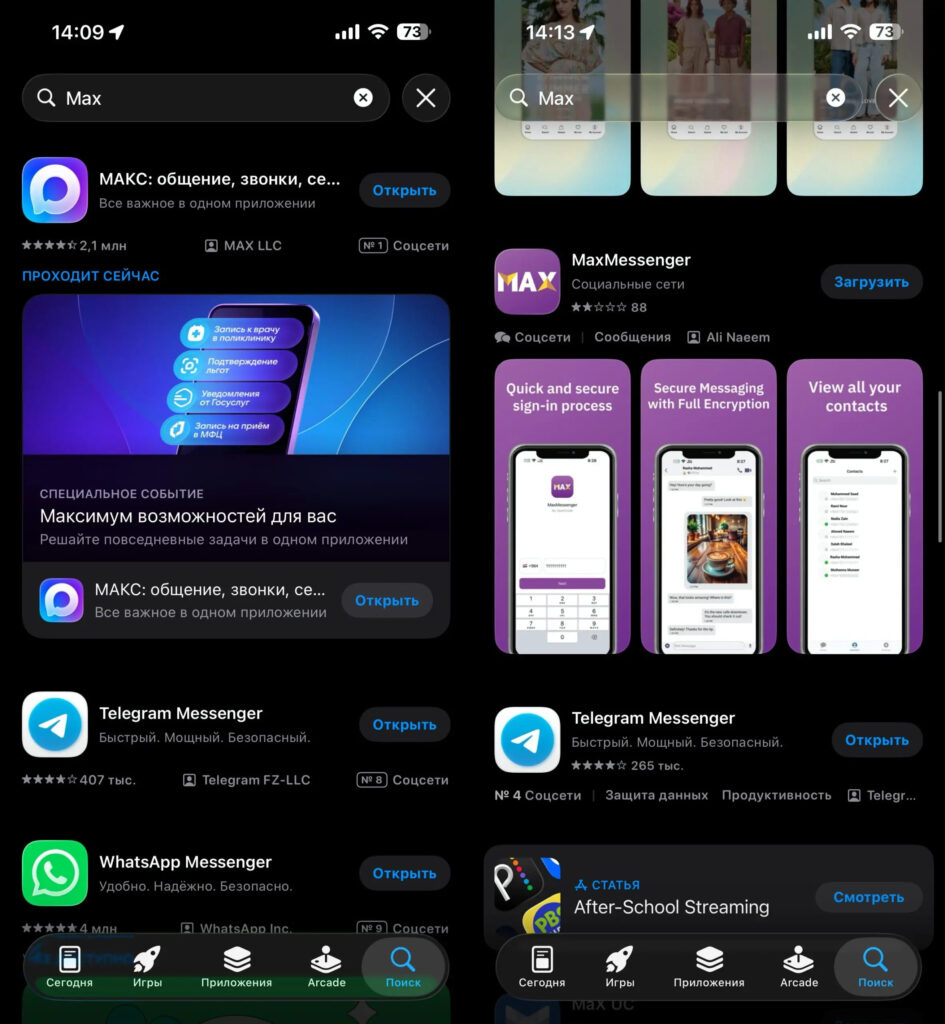
Left is the Russian App Store, right is the American one. How to update MAX is unclear
You can’t re-download them — the other country’s store knows nothing about them.
If the app was already installed on your iPhone before the region change, it will continue to work. But you won’t be able to update it — the App Store will be linked to the new region and simply won’t see updates for software from the old one. And over time, an app without updates may stop working altogether.
How to Create a Second Apple ID for the Russian App Store
The most reliable solution is to create a second Apple ID linked to Russia. You’ll use it exclusively for downloading and updating Russian apps. Your main foreign account remains untouched — iCloud, photos, contacts, and everything else will continue working as before.
To create a new account, you’ll need a free email address that isn’t yet linked to any Apple ID. Gmail or any other international email service works best.
Here’s what you need to do:
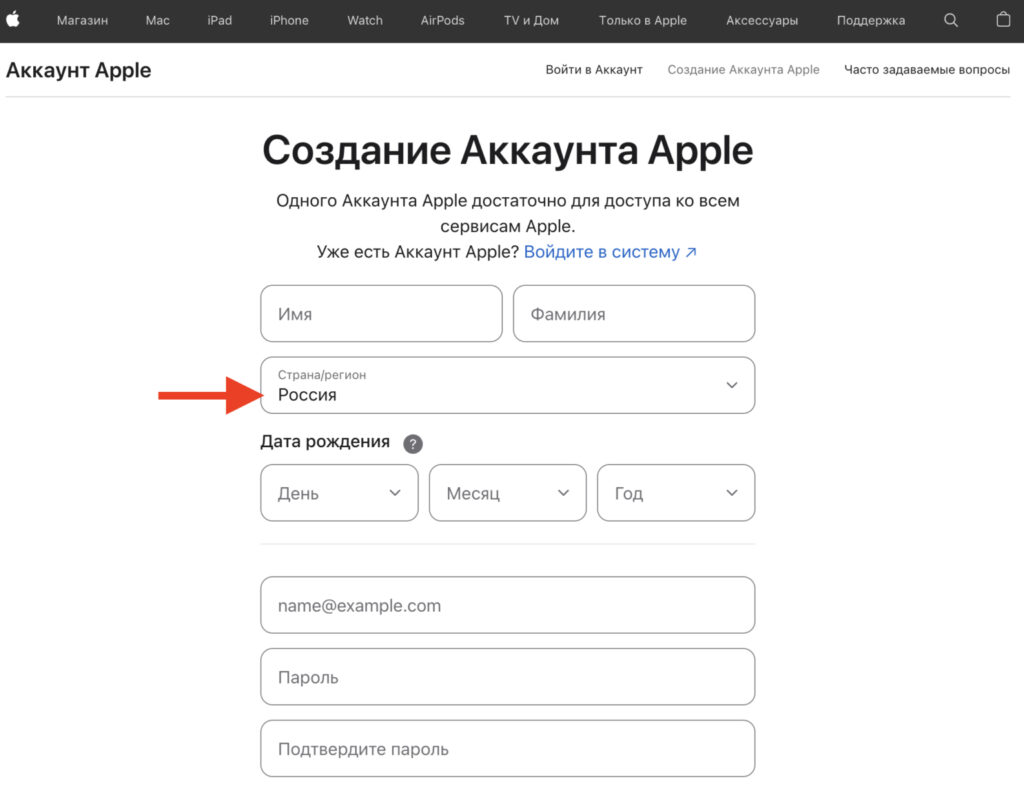
Create a new Apple ID on this page
- Open the website appleid.apple.com in your browser and click “Create Apple ID.”
- Enter your first name, last name, and date of birth. In the “Country/Region” field, select Russia.
- Enter a new email address — it will become your login.
- Create a strong password and confirm it.
- Enter a phone number for verification.
- Confirm your email and phone number with codes from SMS and email.
After this, you’ll have a fully functional Russian Apple ID ready to use in the App Store.
How to Switch Apple ID in App Store Without Signing Out of iCloud
A very important point — you don’t need to sign out of your main Apple ID on the iPhone itself. You switch the account only for purchases and downloads in the App Store, while iCloud, Find My, iMessage, and all other services continue working on your main foreign account.
Here’s how to do it:
- Open App Store on your iPhone.
- Tap your avatar in the upper right corner.
- Tap your name and scroll all the way down.
- In the window that appears, tap “Sign Out.”
- Now sign in to the App Store with your new Russian Apple ID.
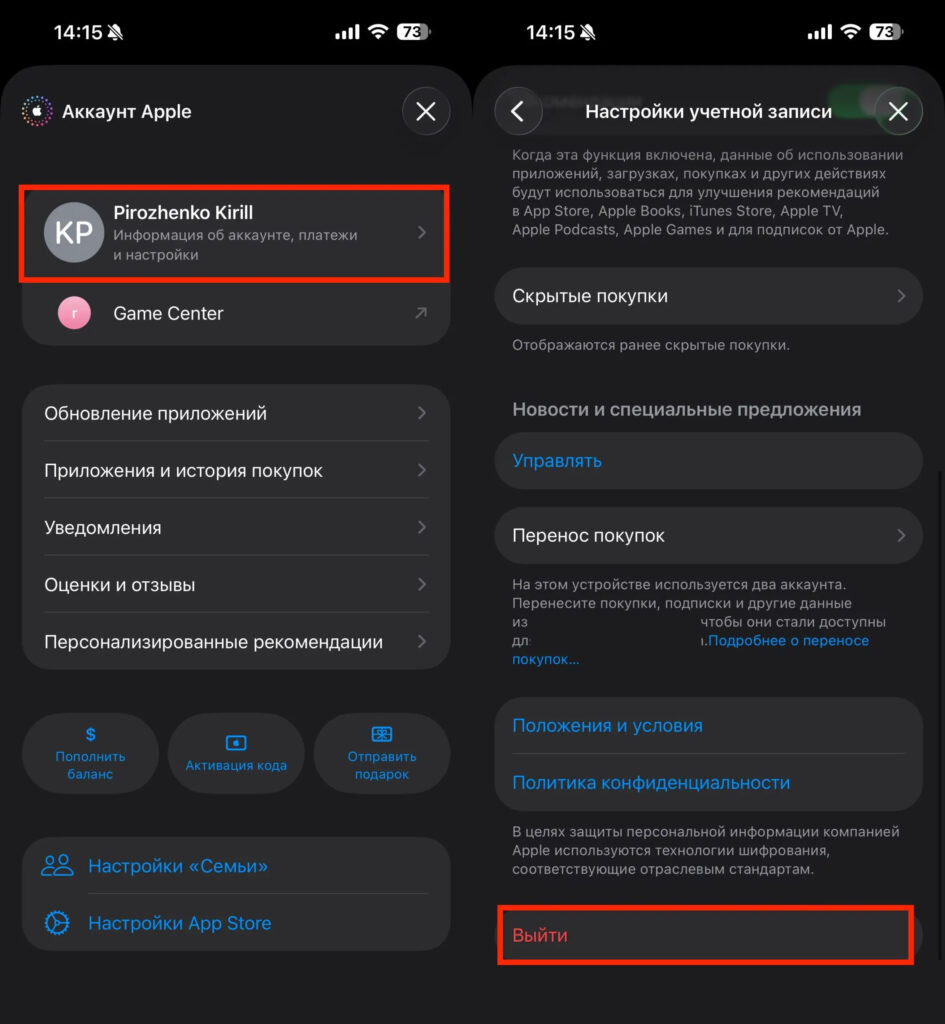
First, sign out of your main Apple ID
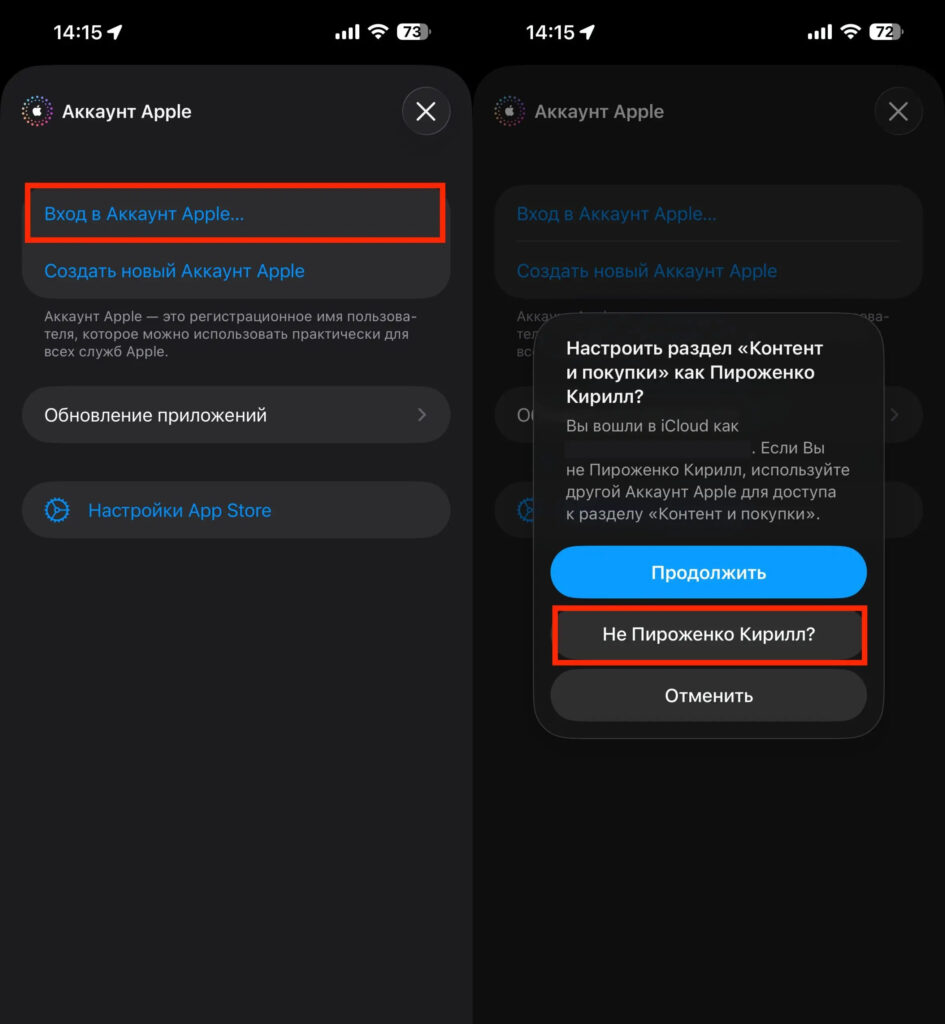
Then sign in with the new one
After this, the App Store will switch to the Russian store. You’ll be able to find and download Gosuslugi, banking apps, and any other software available in Russia. When you’re done — simply repeat the procedure in reverse: sign out of the Russian account in the App Store and sign back in with your main foreign Apple ID.
Apps on iPhone That Need to Be Deleted and Re-Downloaded
There’s one nuance here that you should prepare for in advance. Apps on iPhone are linked to the Apple ID from which they were downloaded. If you originally downloaded Gosuslugi from your main account and then changed its region to a foreign one, updates for that app will stop arriving.
In that case, you’ll need to delete the app and download it again — this time from the Russian Apple ID. This applies not only to Gosuslugi but to all other apps that aren’t available in the foreign store.
After reinstalling, you’ll need to sign back into your account within each app. The data in the services themselves won’t disappear — it’s stored on servers, not on the device. But local settings and cache will need to be set up from scratch.
Updating Apps from a Different Apple ID on iPhone
When your iPhone has apps downloaded from different Apple IDs, the system will request the password for the corresponding account with each update. This is normal behavior — simply enter the password for the account from which the app was downloaded.
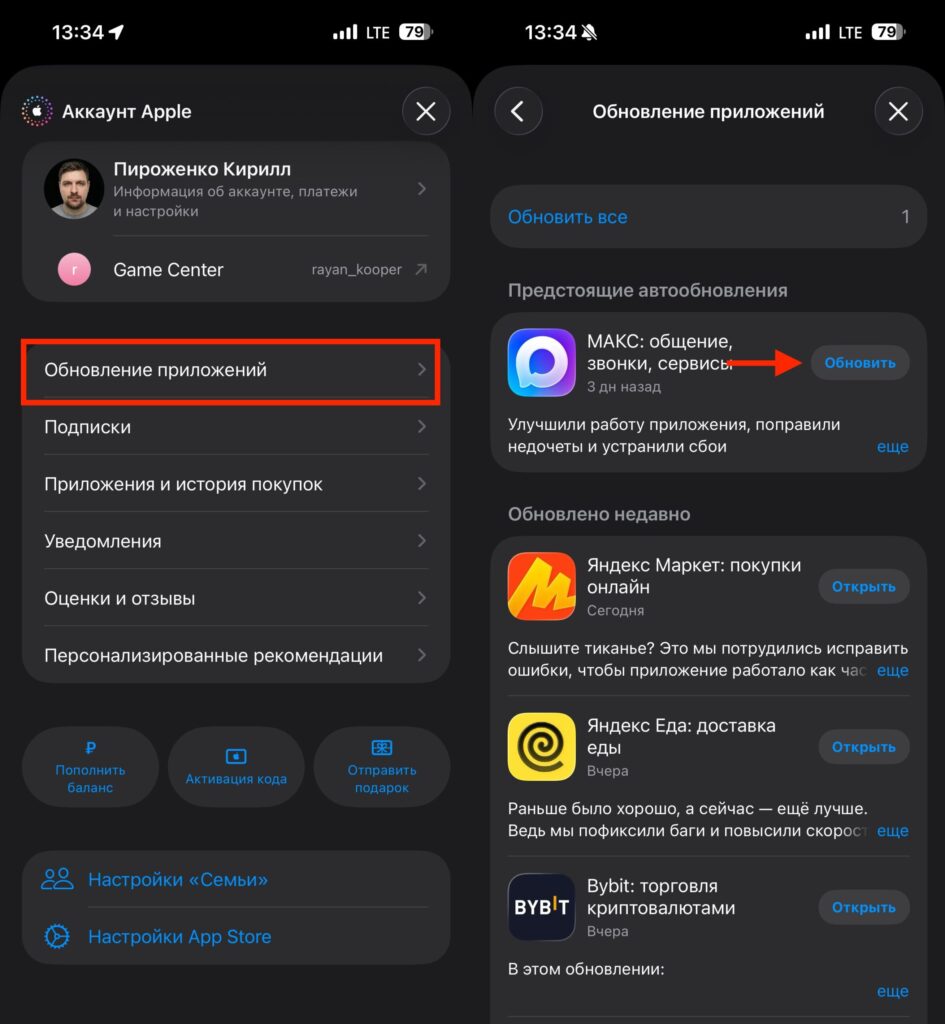
After switching accounts, just go to the updates section and install all necessary updates
Automatic updates will also work, but only for the currently active account in the App Store. To update apps from the second account, you’ll need to switch to it in the App Store and update everything manually.
In practice, it’s not as complicated as it seems. Russian apps don’t update every day, so switching once every couple of weeks is enough to keep everything up to date.