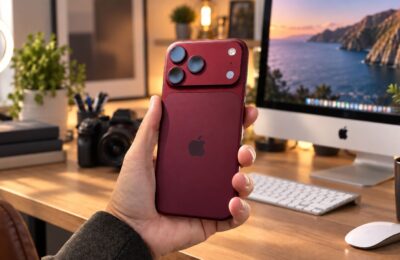
You left your iPhone on a table at a café. You handed it to an acquaintance to make a call. You gave it to a child to play with while waiting in line. Let’s look at what someone can learn about you by holding your smartphone for just five minutes. They usually don’t even need a password for this, and it’s all because of settings that are enabled by default.
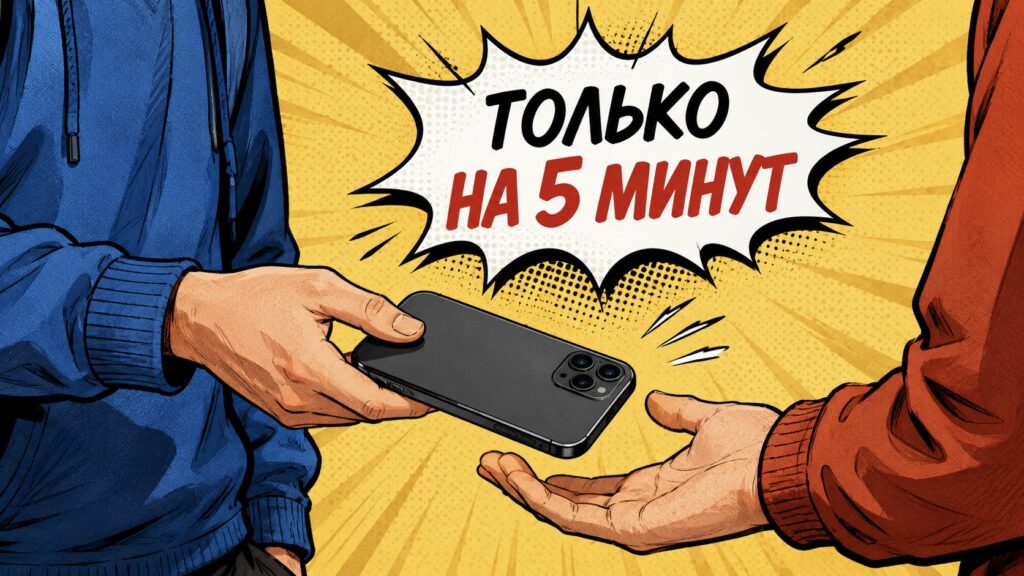
Even 5 minutes with someone else’s iPhone can reveal a lot about the owner
What’s Visible on the Phone Even Without a Password
Pick up your iPhone without unlocking it and just look at the lock screen. Most likely, there are already notifications with text: the beginning of a messenger message, an email subject line, a code from an app. All someone needs to do is touch the screen to wake it up and read everything.
It gets even more interesting. Swiping right opens the “Today” screen with widgets. It may contain a calendar with your appointments, weather for your address, a messenger widget with photos of the people you chat with most often. Swiping up from the bottom of the screen opens the Notification Center with a history of unread alerts for the day.
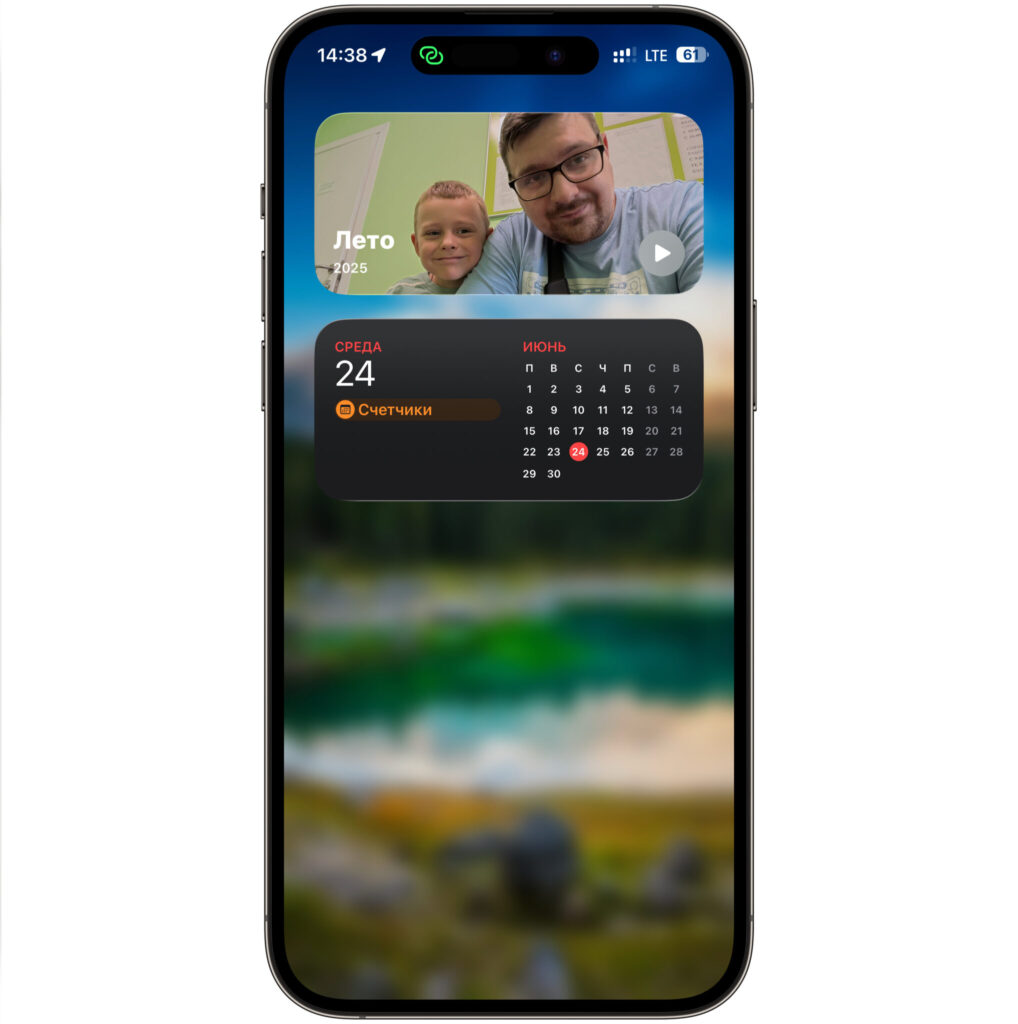
All widgets here are accessible
The Control Center is a separate story. By itself, it doesn’t reveal data, but if you have a smart home set up through the Home app, a stranger could theoretically reach the controls for your lights or lock. It sounds like a minor thing right up until you remember exactly what’s connected to your HomeKit.
What Can Be Extracted Through Notifications and Siri
The main leak happens not through eyes, but through voice. If Siri is enabled on the lock screen, a stranger can ask “Whose iPhone is this?” and get your contact card with your name, phone number, and address. That’s if the card is specified in settings. Beyond that, Siri is ready to read your latest messages aloud, dictate a reply on your behalf, or call a contact by name like “wife,” “mom,” or “bank.”
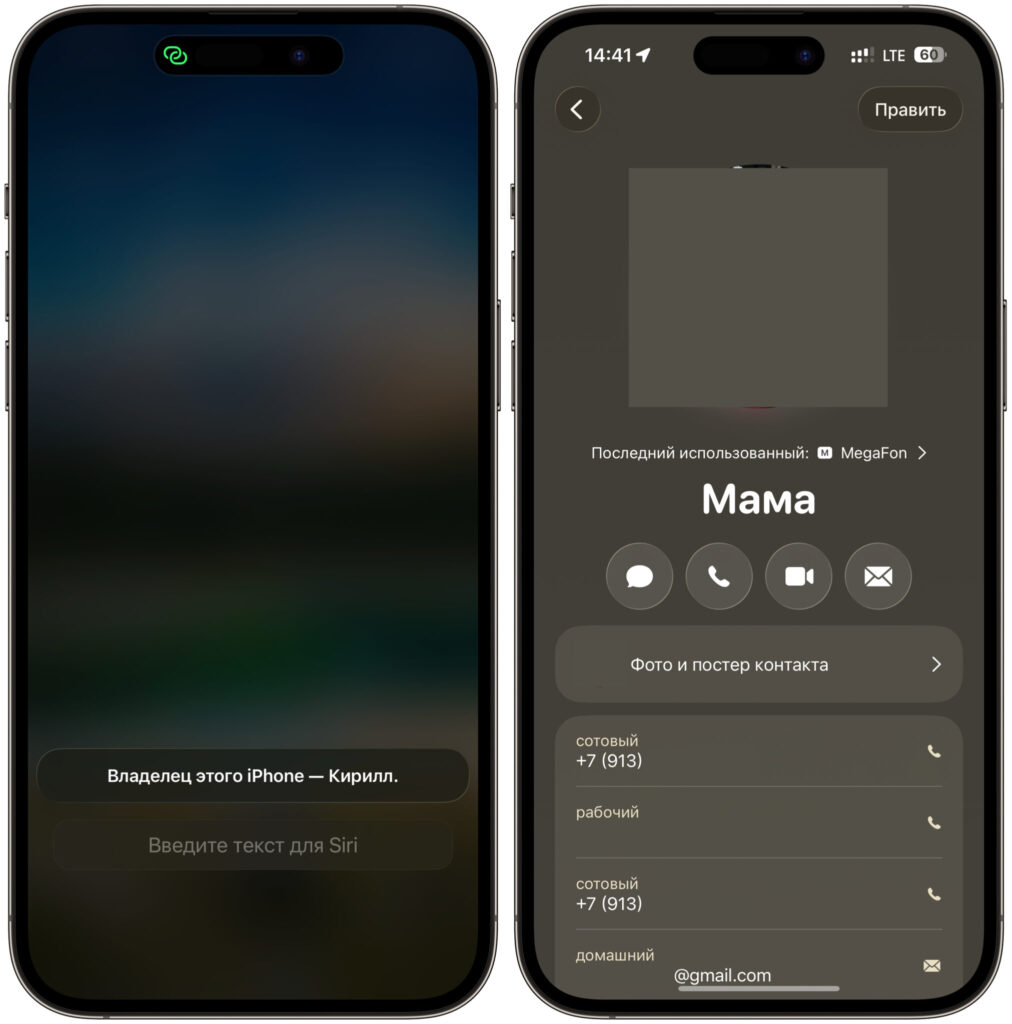
Siri will easily reveal the owner and even open parents’ contacts
Notifications themselves also work against you. By default, iPhone shows full notification previews. This means that a one-time code for login or transaction confirmation will land right on the locked screen, and anyone nearby can see it. Apple Intelligence additionally creates brief notification summaries, retelling the gist of a conversation in one line, and that line is also visible without unlocking.
If “Reply with Message” is enabled, a person can write on your behalf without entering a password. To the person on the other end, it will be exactly you.
Which Apps Open Without Face ID
Here it’s important to understand a simple thing. While the iPhone is locked, a stranger won’t get into most apps. But once the phone is unlocked even once, almost everything is open right away: email, notes, chats, and most importantly, your photo gallery. There’s no separate Face ID prompt for each app by default.
And the gallery reveals more about a person than any conversation. These are personal photos, pictures of documents, and screenshots with passwords that you once saved “just for a moment.” All someone needs to do is open Photos, scroll through the feed, or look at the “Recents” album, and a stranger has your entire life from the past few years. Search within the gallery simplifies the task to the extreme: searching for “passport,” “card,” or “document” will have the iPhone find the right shots in seconds.
The only truly protected place here is the “Hidden” album. It’s locked with Face ID by default, and removing this protection in passing won’t work: to disable the lock in Photos settings, the iPhone will still require your face or passcode. The “Recently Deleted” album is locked the same way, where photos are stored for another 30 days. So it makes sense to keep anything truly personal in the “Hidden” album rather than in the general feed.
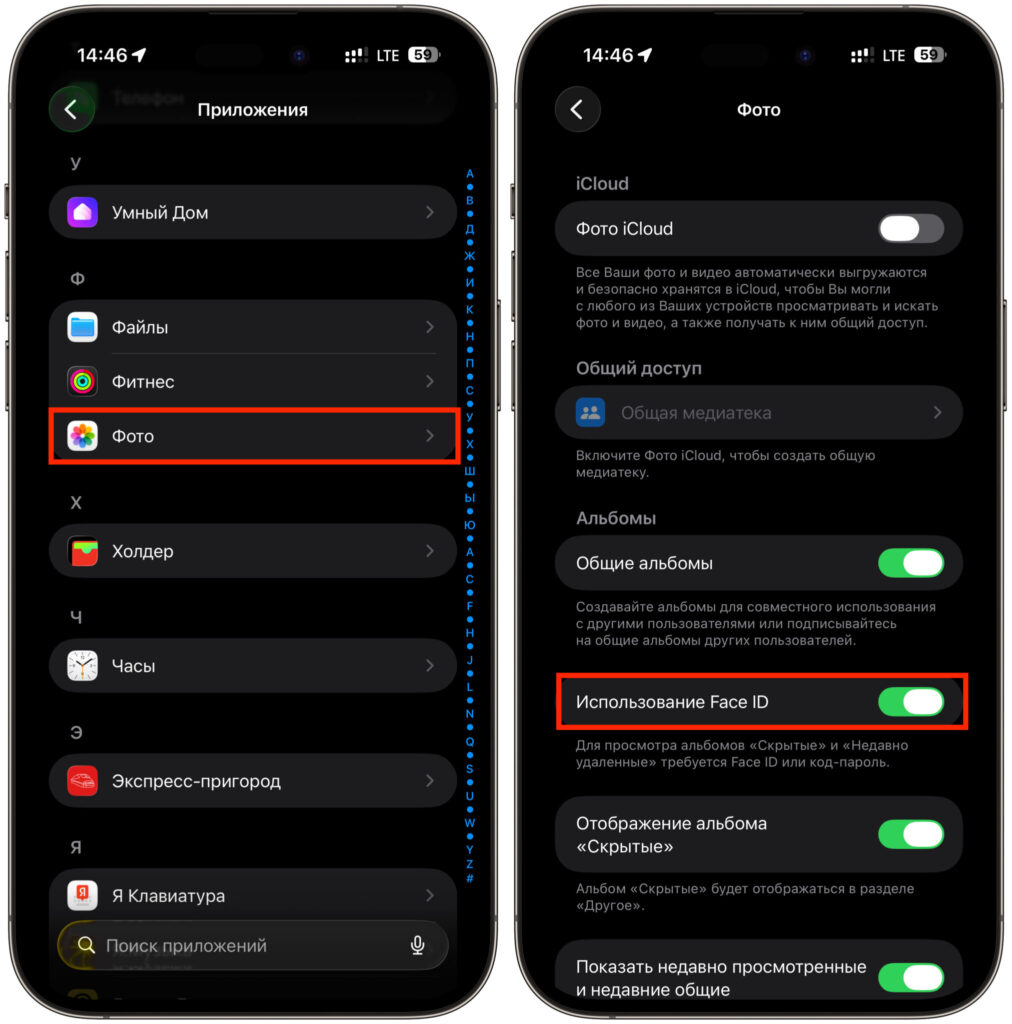
Use Face ID to lock the Hidden and Recently Deleted albums
It’s also worth locking the rest of the gallery entirely. Here’s how to set up protection for an individual app:
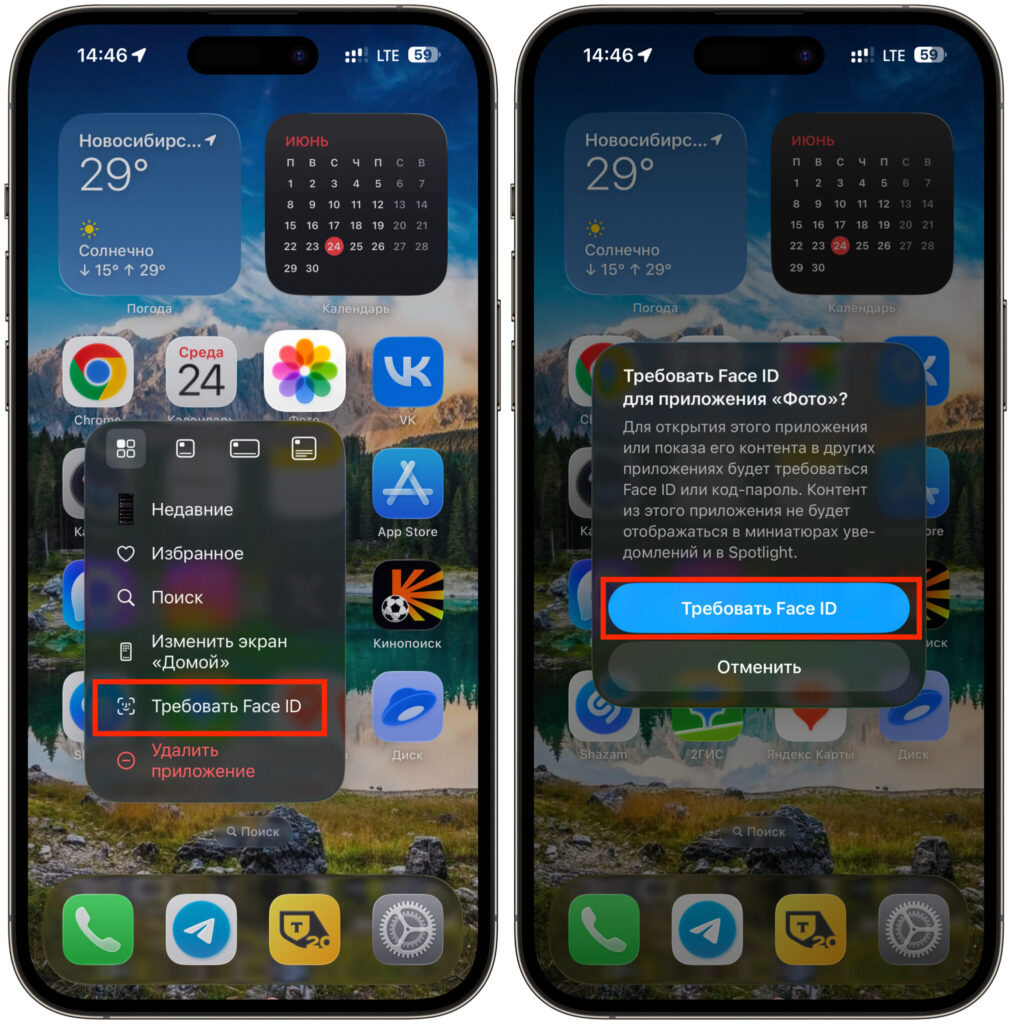
Setup in a couple of taps
- On the home screen, press and hold the Photos icon.
- In the menu that appears, select “Require Face ID.”
- Confirm your choice by tapping “Require Face ID” again.
After this, the gallery will only open with your face, and its contents will stop appearing in general search. You can lock notes or a messenger the same way, and if you wish, hide the app in a hidden folder.
How to Lock Down Your iPhone So Nothing Can Be Accessed
Start with notifications, since most data leaks through them:
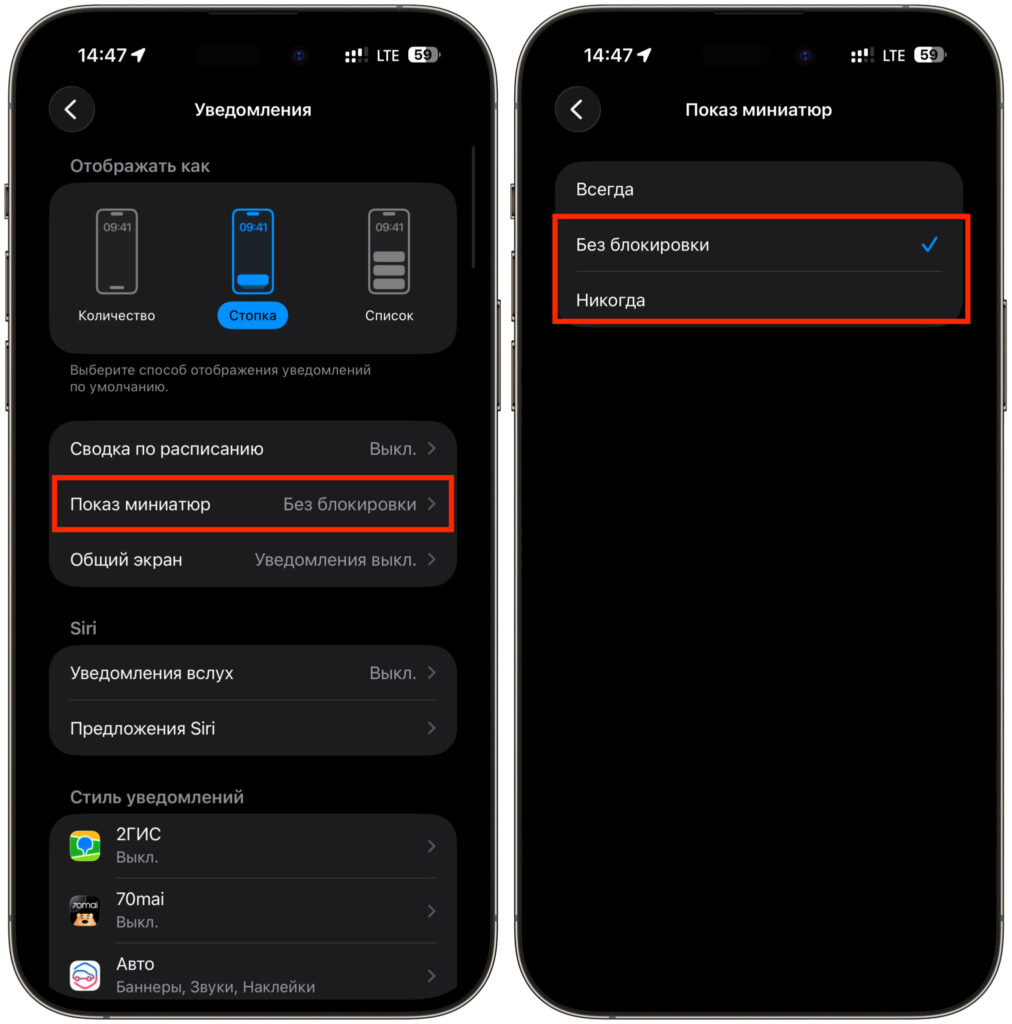
First, hide notifications
- Open “Settings,” then “Notifications.”
- Go to “Show Previews.”
- Select “When Unlocked” or “Never.”
Now message contents and one-time codes will only appear after unlocking. Next, close off unnecessary access from the lock screen.