iPhone announces the caller’s name out loud right through the speaker, even though your headphones are sitting in your pocket. It used to seem like only AirPods could do this, but now the voice activates without them too. This long-standing feature still annoys a lot of people. Let’s look at where it came from, how to customize it, and how to turn it off completely.

Your iPhone can announce things you don’t need
How Incoming Call Announcements Work on iPhone
The feature is called “Announce Calls”, and in older versions of iOS it was called “Call Announcements.” It first appeared back in iOS 10, so it’s hardly new. It works simply: when someone calls you, the assistant speaks the caller’s name from your address book. If the number is unknown, Siri will say that an unknown caller is calling.
It’s important to understand one thing here. This is not AirPods magic. The announcement is performed by Siri, and headphones are just one scenario. There’s a separate “Always” mode where the name is spoken even through the loudspeaker, without any headset. This is exactly the mode many people accidentally turned on, and then they wonder why their phone suddenly started talking on a crowded bus.
The feature has four operating modes. “Always” announces the name in any situation. “Headphones & Car” activates when connected via Bluetooth: to a headset, speaker, or car stereo. “Headphones Only” keeps the voice exclusively in the headset, whether wired or wireless. “Never” turns off the announcement entirely.
The name is taken from the contact card, so Siri sometimes hilariously mispronounces unusual names. This can be fixed: in the contact there’s a separate pronunciation field where you can type how the name is actually pronounced. The same announcement also works for incoming FaceTime calls, and on newer firmware versions it covers some third-party apps as well.
The benefits are clear from the use cases. While driving, you hear who’s calling without reaching for the screen. While jogging, you decide whether to answer without taking out your phone. But at home, the announcements often get in the way in the evenings, especially when children are sleeping nearby.
How to Make iPhone Announce Calls Only Through Headphones
If you like Siri naming the caller in your AirPods but are annoyed by the voice from the speaker, you need the “Headphones Only” mode. The phone will stay silent as long as no headset is connected.
Setting this up takes just a couple of steps.
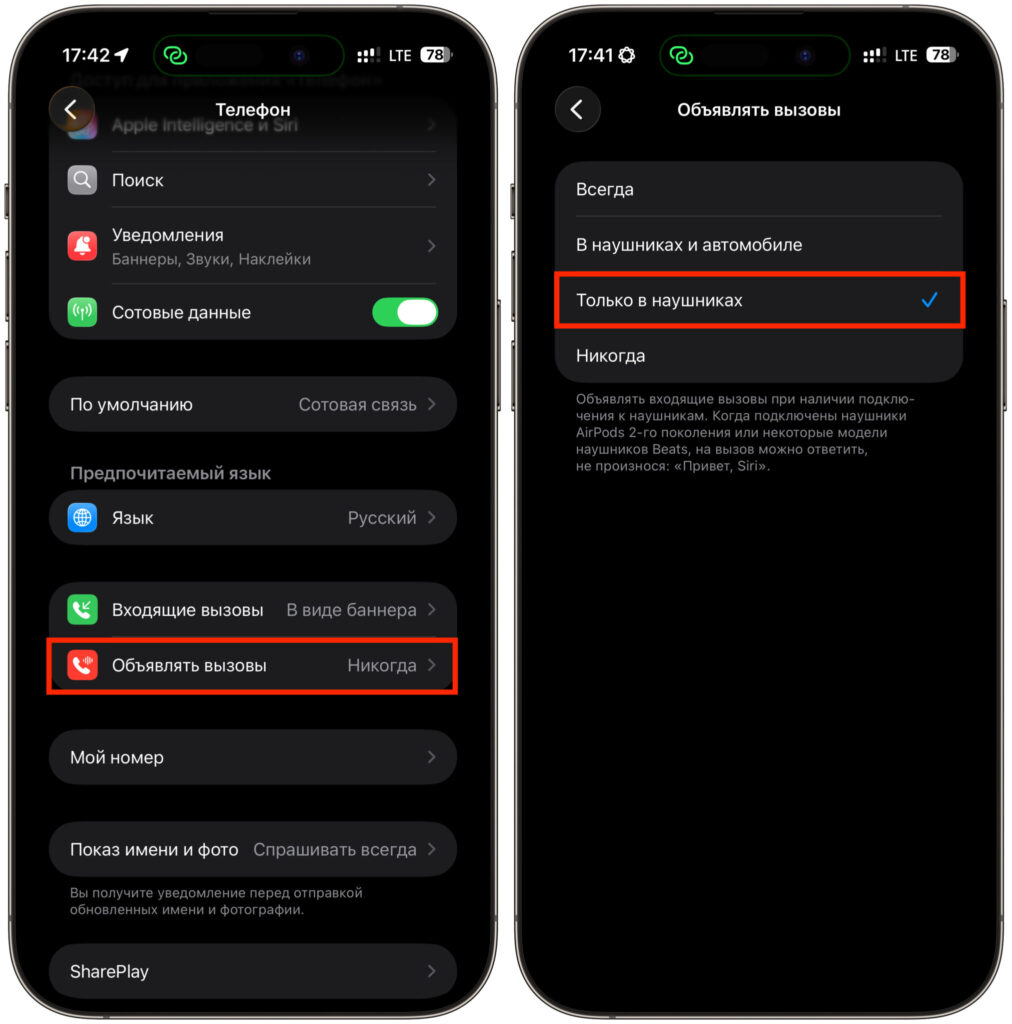
You can switch to headphones like this
- Open Settings and scroll down to the “Apps” section.
- Select “Phone”. In recent versions of iOS, app settings are gathered there.
- Go to the “Announce Calls” option.
- Check the option next to “Headphones Only”.
Changes take effect immediately — no need to save anything. There’s also a second way, through the assistant settings.
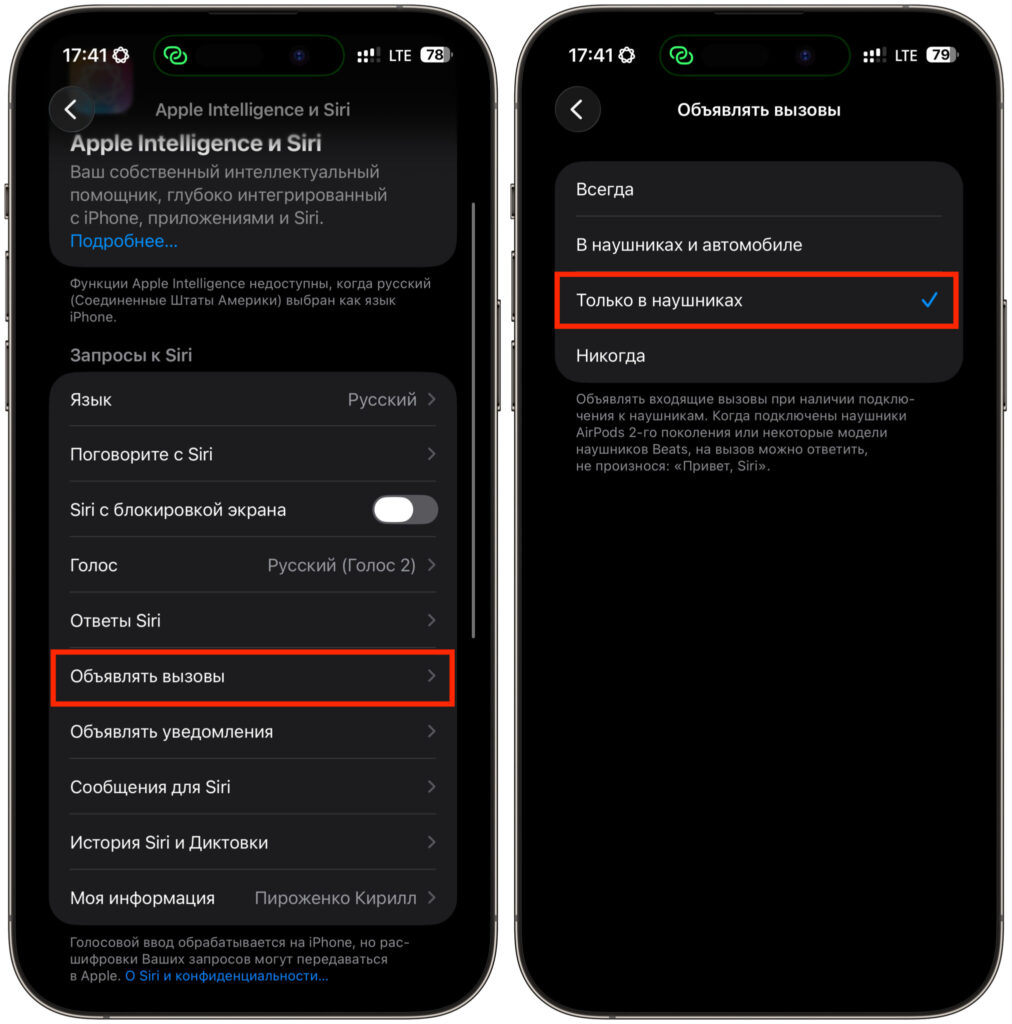
Or like this, if it’s more convenient
- Open Settings and find the Apple Intelligence and Siri section (on older firmware this is “Siri & Search”).
- Go to “Announce Calls” and select “Headphones Only.” The list of modes is exactly the same there.
After this, the name will only be spoken when headphones are in your ears. Take out the AirPods, and the phone rings with a regular ringtone again. This is the option I keep enabled all the time: it’s convenient on the go, and at home no one jumps at the sudden voice.
How to Remove Incoming Call Announcements on iPhone
When you don’t need announcements at all, choose the “Never” mode. This is the direct answer to the question: the phone will stop announcing the caller’s name in any situation, whether with headphones or without.
Everything is done in the same Phone app settings.
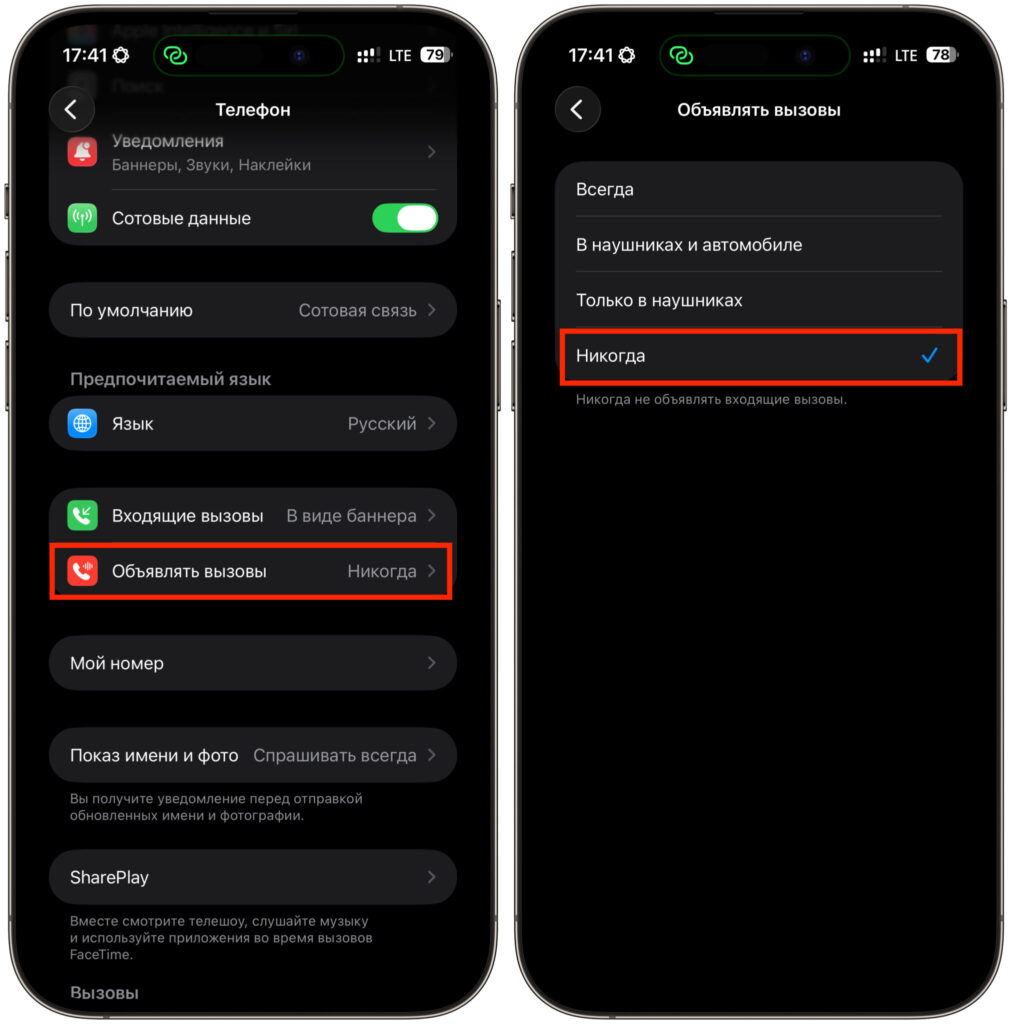
You can completely disable it in the same place
- Open Settings and go to the “Apps” section.
- Select “Phone”, then “Announce Calls.”
- Check the option next to “Never”.
If you went through Siri settings, the steps are exactly the same. It’s easy to verify: wait for an incoming call or ask someone to call you. Now you’ll only hear the ringtone, without any voice. The name still appears on the screen, so you’re not losing anything.
A small note. If after selecting “Never” the announcement still occasionally triggers, restart your iPhone. Sometimes the setting doesn’t apply on the first try, especially right after a major update.
How to Completely Turn Off Siri on iPhone
Sometimes it’s not just about calls. If the voice assistant bothers you entirely, you can turn it off, and call announcements will disappear on their own, without going into phone settings.
Open Settings and go to the Apple Intelligence and Siri section. Turn off the activation toggles: “Listen for ‘Siri'” and “Side Button for Siri.” On iPhones with a Home button, the latter option is called “Home Button for Siri.” The system will ask if you really want to turn off the assistant — confirm.
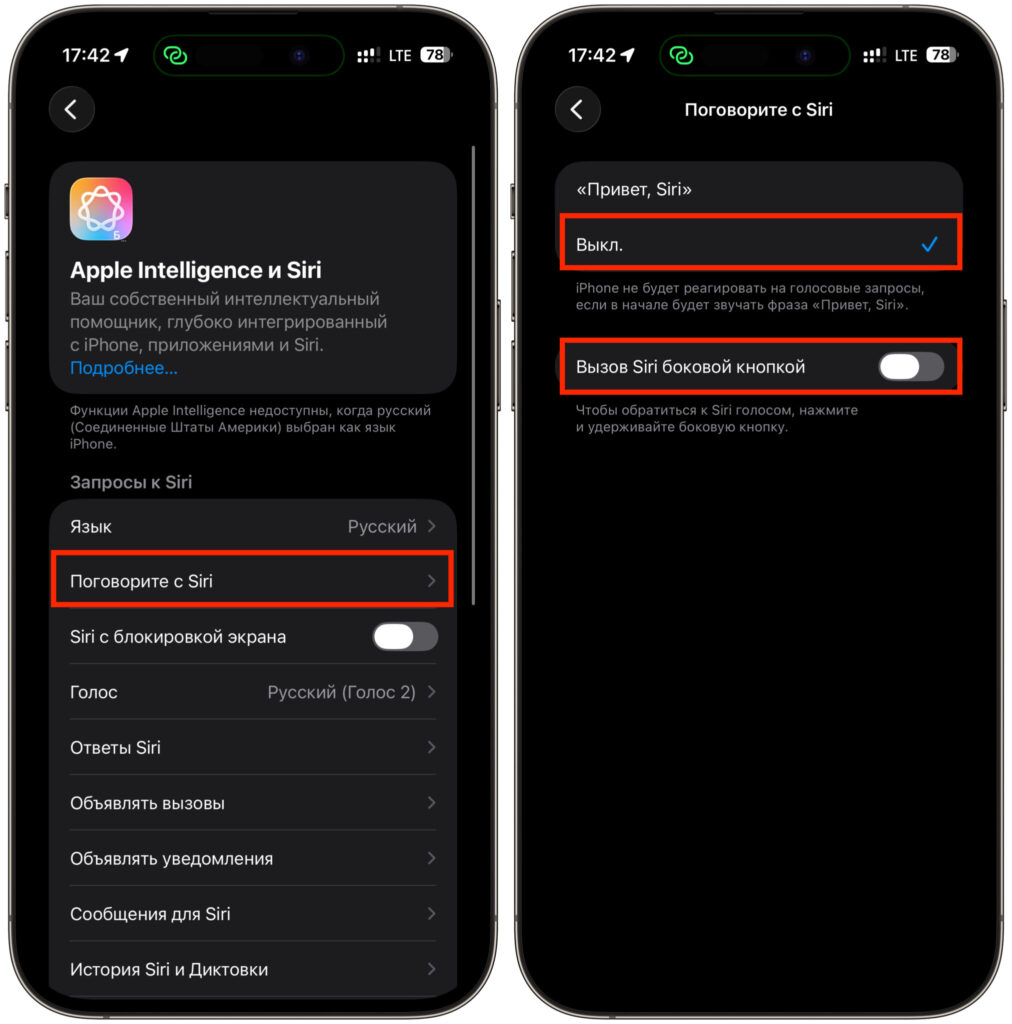
Full disable is here
After this, Siri won’t respond to voice or button presses, and caller names will no longer be spoken. Keep in mind that along with the assistant, voice commands and shortcuts will also be disabled, as well as some suggestions.
In most cases, the “Never” mode in phone settings is sufficient. It removes specifically the call announcements without affecting other features.