The home screen is the part of a phone people see dozens of times a day, yet most Samsung Galaxy home screens look much the same: default wallpaper, default icons, default grid. A guide from the Russian outlet AndroidInsider describes five ways to change that. You can set a motion photo as a live wallpaper in One UI 9, build tilt-reactive layered wallpapers with Good Lock’s Wonderland module, generate wallpapers with Galaxy AI, restyle every app icon with Theme Park, and set a custom grid with large folders using Home Up. Below are the steps the source provides, along with the limitations it notes.
What you need to know
- Three of the five methods rely on Good Lock, Samsung’s official customization app. The availability of the app and its modules varies by region.
- Setting a motion photo directly as a home screen wallpaper requires One UI 9. According to the source, Samsung has so far officially confirmed the feature only for the Galaxy Z Fold8, Z Fold8 Ultra and Z Flip8.
- Wonderland allows only one video layer and one particle-effect layer per wallpaper, but an unlimited number of image and text layers.
- The Home Up module can unlock grids such as 7×7. It also adds resizable large folders that show their contents directly on the home screen.
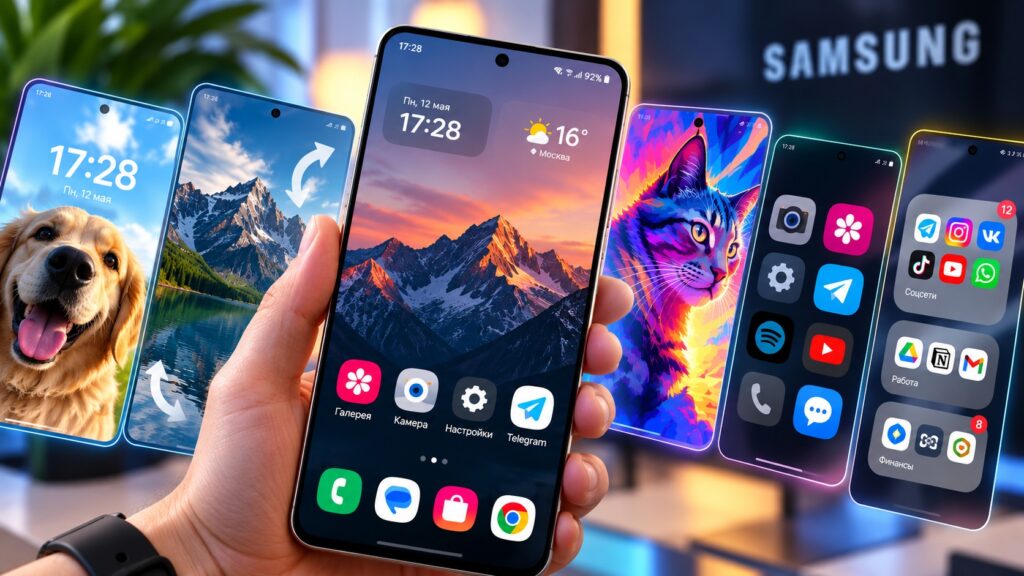
Samsung smartphone home screen settings
What you need before you start
According to the source, all five methods work on Samsung Galaxy smartphones. Some of them require recent firmware, and some require Samsung’s own apps. Check that you have:
- One UI 9, for live wallpapers made from your own photos;
- the Good Lock app, for three of the five methods;
- Galaxy AI features and a Samsung account, for AI-generated wallpapers.
Good Lock is an official Samsung app for in-depth customization of the One UI interface. It is made up of separate modules, and each module controls a different part of the interface. The source describes installing it as follows:
- Open Galaxy Store or Google Play.
- Find the Good Lock app and install it.
- Launch Good Lock and open the tab that lists the modules.
- Tap the download icon next to the module you want.
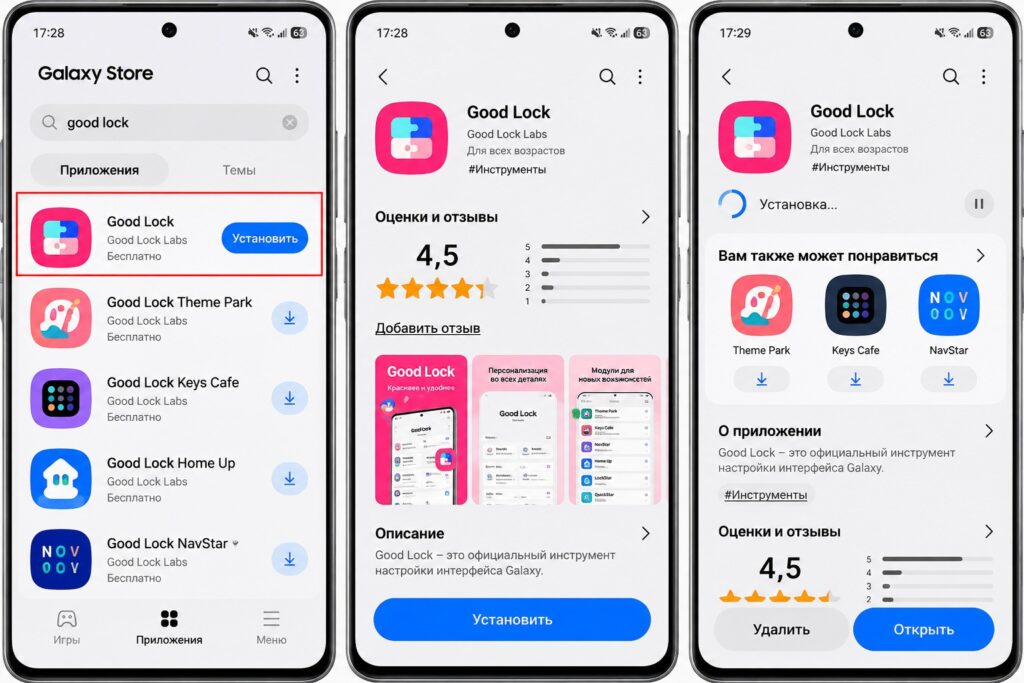
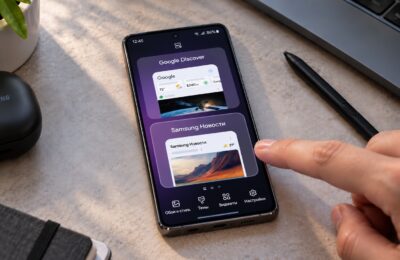
Installing Good Lock from Galaxy Store
Good Lock and its modules are not available in every region. If you can’t find the app in Galaxy Store, the source suggests trying Google Play. Menu items inside the modules are often left in English. Menu names in the steps below are translated from the source and may not exactly match the labels on your device.
1. Live wallpaper from your own motion photo
The source calls this the simplest way to bring the screen to life. It uses a motion photo, the short clip that the Samsung camera records along with a still shot. In One UI 9, a motion photo can be set as the home screen wallpaper without first converting it to a video. The steps are:
- Open Camera and turn on Motion Photo mode using the icon at the top of the screen.
- Take a photo, for example of a pet, the sea or a city street.
- Open the photo in Gallery and tap the three-dot menu.
- Choose Set as wallpaper, then Home screen.
- Make sure the animation toggle is on, then save the wallpaper.
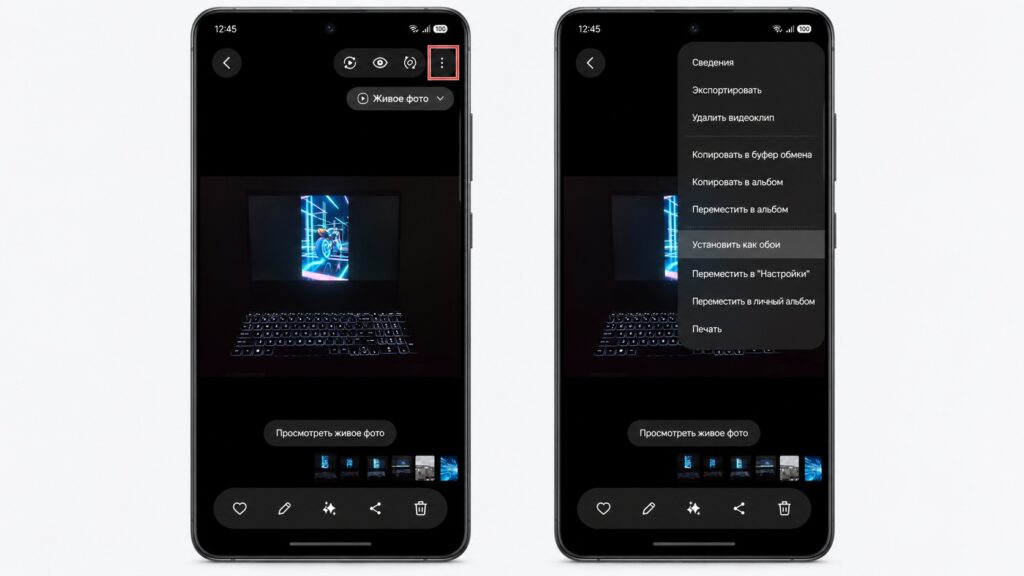
Setting a live wallpaper on a Samsung home screen
Device caveat: The source says Samsung has so far officially confirmed this feature only on the Galaxy Z Fold8, Z Fold8 Ultra and Z Flip8 foldables. Other models receiving One UI 9 may get it later. Check whether the animation toggle appears on your phone.
2. Layered wallpapers that move as you tilt the phone
Good Lock’s Wonderland module creates multi-layered wallpapers. Images, video, text and particle effects are stacked on top of each other and shift when you tilt the phone. The source says this creates a sense of depth, as if there were space behind the glass. To build one:
- Install the Wonderland module through Good Lock.
- Open it and tap the option to create a wallpaper.
- Pick a base layer, such as a photo or image from your gallery.
- Tap the option to add a layer, then add text, a second image or a particle effect such as snow or stars.
- In each layer’s settings, adjust transparency and the strength of the motion.
- Save the result and set it as your home screen wallpaper.
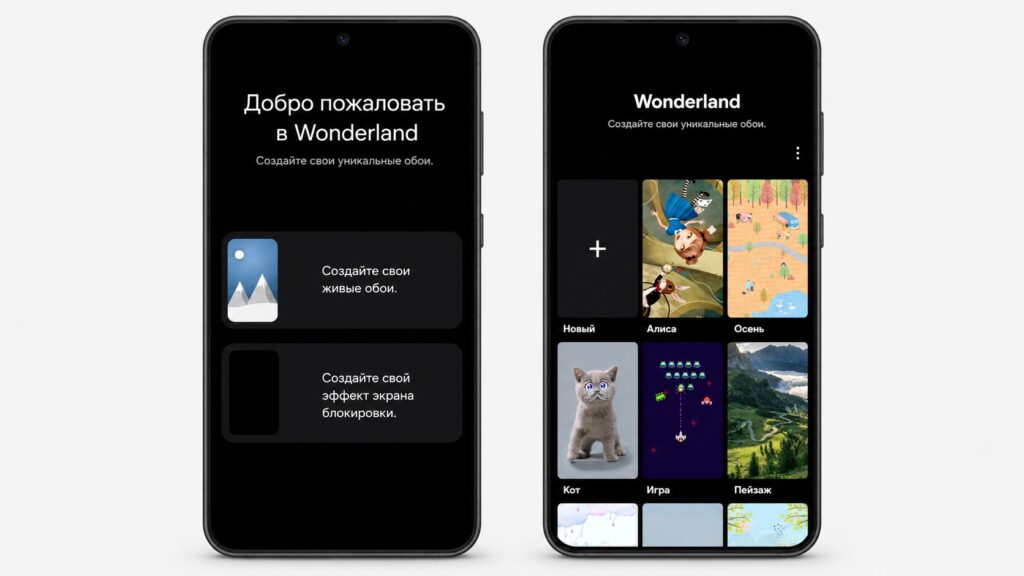
Creating a wallpaper with the Wonderland module

Limitation: Each wallpaper can contain only one video layer and one particle layer. You can, however, add as many image and text layers as you like.
3. Wallpapers generated by AI
If you don’t have a suitable image, you can generate one. Samsung phones with Galaxy AI include a drawing assistant that creates wallpapers from a text description, a sketch or a photo. It requires a Samsung account. The source lists these steps:
- Go to Settings, then Galaxy AI, then the drawing assistant, and turn the feature on.
- Launch the assistant from the Edge panel by swiping it in from the edge of the screen.
- Choose the Wallpaper template.
- Describe what you want to see, or add a sketch or photo.
- Pick a style and tap Create.
- Save the version you like and set it as your wallpaper.
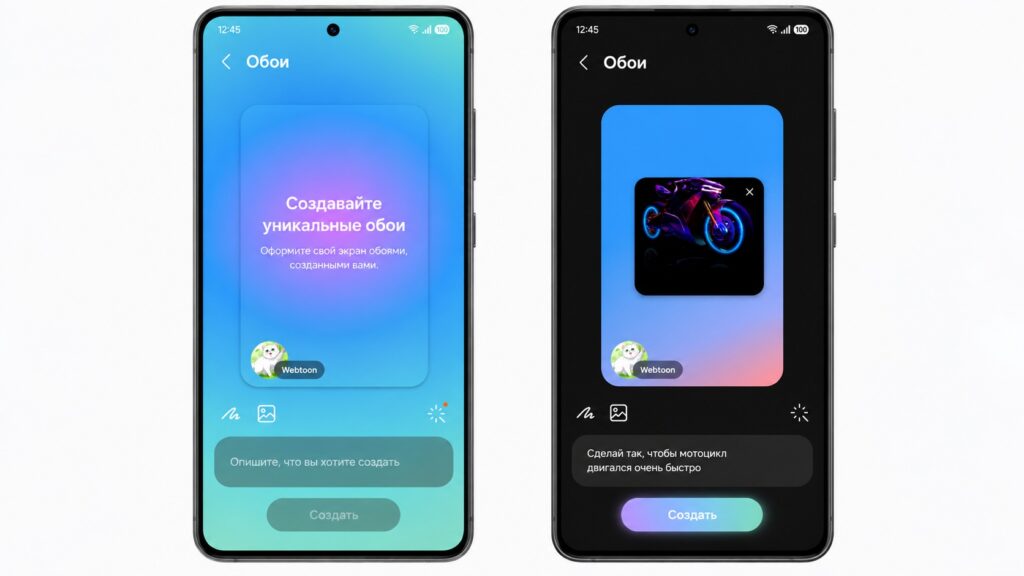
Generating a wallpaper with AI on a Samsung phone
The AI produces different results each time. If you don’t like the first one, you can simply generate again. The finished image may carry a watermark indicating that it was created by AI. The source also notes that an image from the assistant can be used as a layer in Wonderland to create a unique moving wallpaper.
4. Restyled icons for every app
Good Lock’s Theme Park module changes the shape and style of all icons at once. This includes third-party apps, which usually don’t adapt to themes. To apply a new style:
- Install the Theme Park module through Good Lock.
- Open the icons section and tap Create.
- Go to the effects section and choose a style: glass, gradient, 3D or two-tone Duotone.
- Adjust the icon colors and shape.
- Apply the theme.
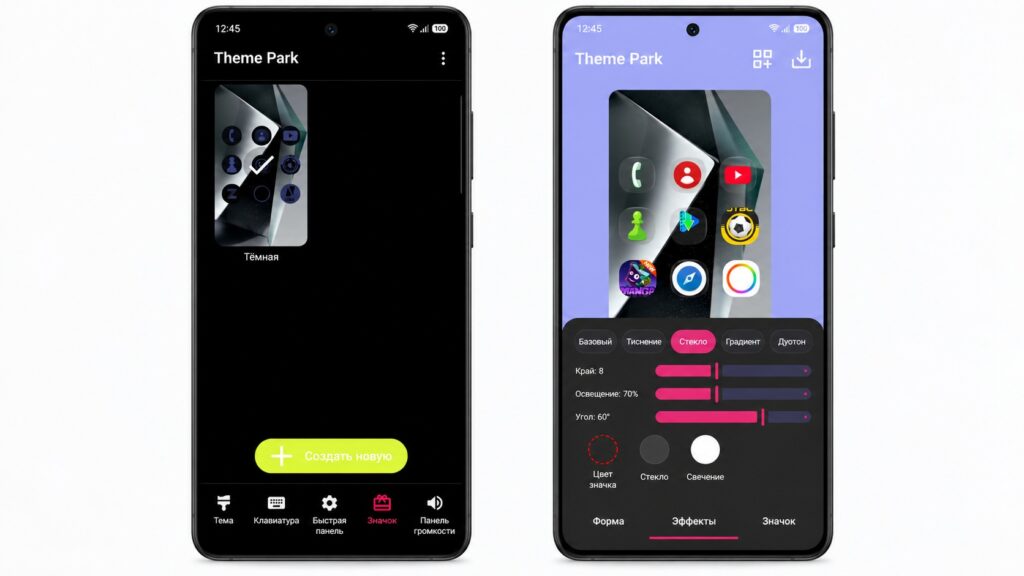
Creating custom icons for a Samsung smartphone
The effect applies to every icon on both the home screen and the app drawer, so the interface looks consistent.
5. A custom grid and large folders
By default, Samsung offers only a few home screen grid options. The Home Up module removes those restrictions. You can choose a grid such as 7×7 and adjust folder sizes. The source highlights large folders as especially useful because they show their contents directly on the home screen. To turn them on:
- Install the Home Up module through Good Lock.
- Open it and go to the home screen settings.
- Find the Large folder option and turn it on.
- Change the size.
- Go back to the home screen, long-press the folder and drag its handles to the size you want.
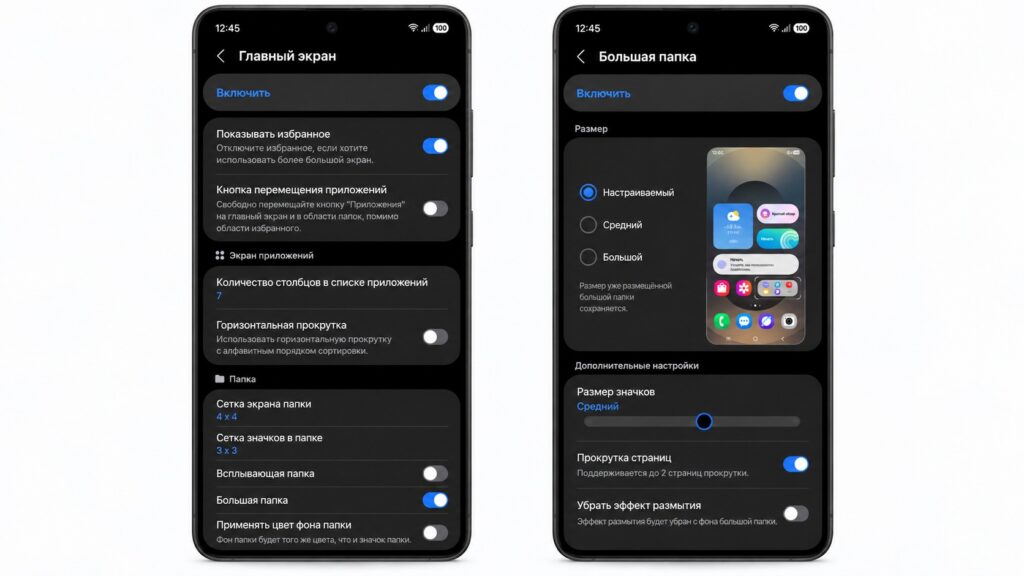
Changing the grid and folder size on a Samsung phone
A large folder works almost like a widget. The apps inside are visible right away, and any of them opens with a single tap. According to the source, this lets you fit noticeably more of what you need on one screen without visual clutter.