Missed calls and messages on iPhone are one of the most common complaints from Apple smartphone owners. The phone stays silent, calls go to voicemail, and SMS and iMessage arrive with a delay or don’t arrive at all. There can be more than a dozen reasons: from an accidentally activated Focus mode to carrier issues. In this article, we’ll go through each of them and show you how to get your iPhone back to normal so you no longer miss important calls and messages.
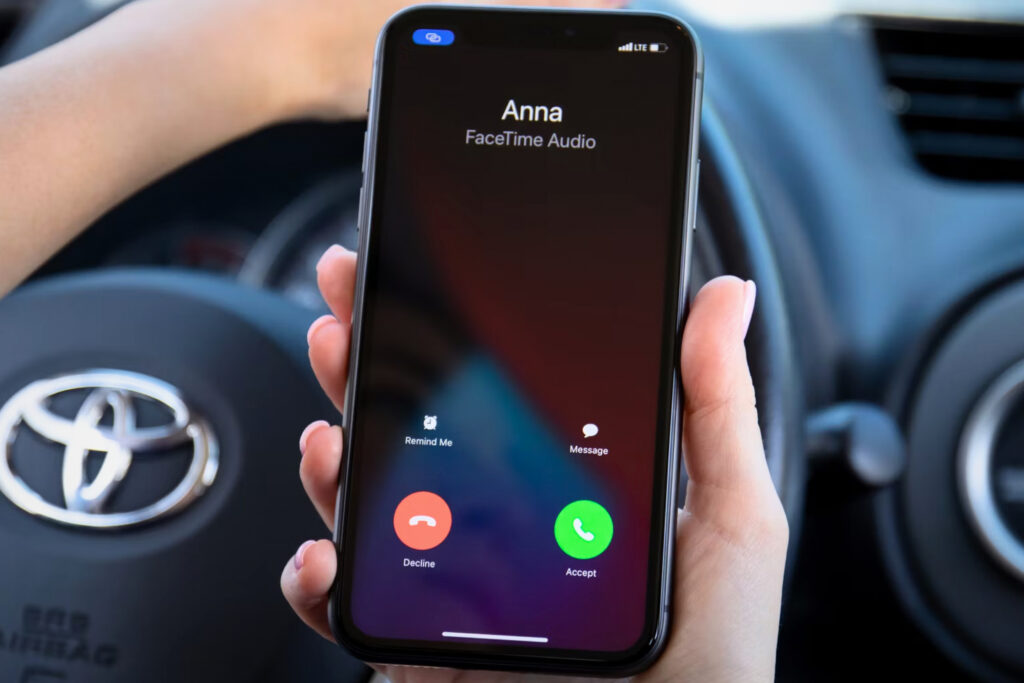
Calls may not go through on iPhone, and that’s frustrating, to say the least
Reasons for Missed Calls and Messages on iPhone
Before going through the settings, it’s helpful to understand the logic behind the problem. An iPhone can “stay silent” for two groups of reasons: either the sound is turned off programmatically or physically, or the call doesn’t reach the device at all. It’s also possible that the problem appeared after an iOS update.
Main causes of the problem:
- Do Not Disturb or one of the Focus modes is enabled.
- Airplane mode is activated — the phone is completely disconnected from the cellular network.
- The silent mode switch on the side of the iPhone is set to “silent.”
- Ringer volume is turned all the way down.
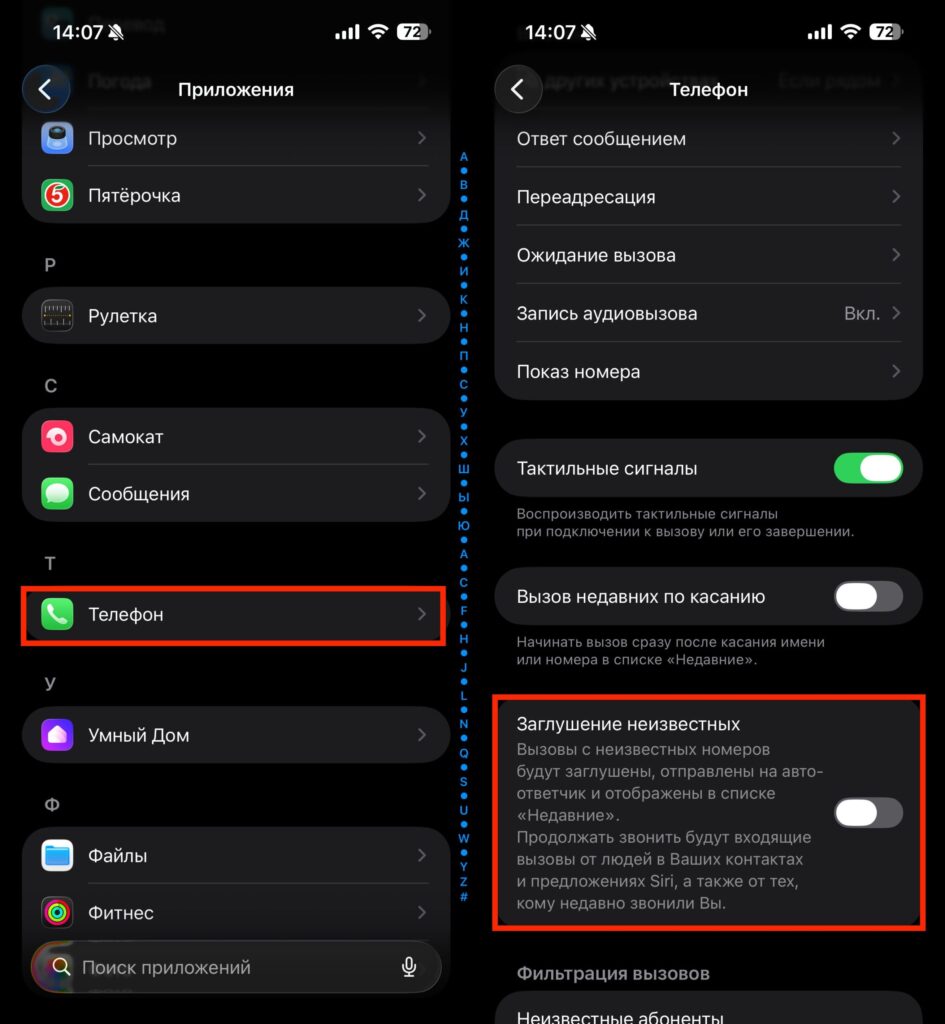
- The “Silence Unknown Callers” feature is enabled.
- Call forwarding is directing calls to another number.
- Issues with the SIM card or eSIM.
- Carrier network failure or weak signal.
- iOS software glitch.
Below we’ll cover each cause separately — with specific steps so you can quickly find and fix your particular problem.
How to Turn Off Do Not Disturb on iPhone
Do Not Disturb mode and its expanded version — Focus — is the number one reason for missed calls. When one of these modes is active, the iPhone blocks calls, notifications, and sounds from most contacts. The problem is that you can enable it with one accidental swipe, and it’s hard to notice: only a small icon appears on the lock screen.
Here’s how to check and disable this mode:
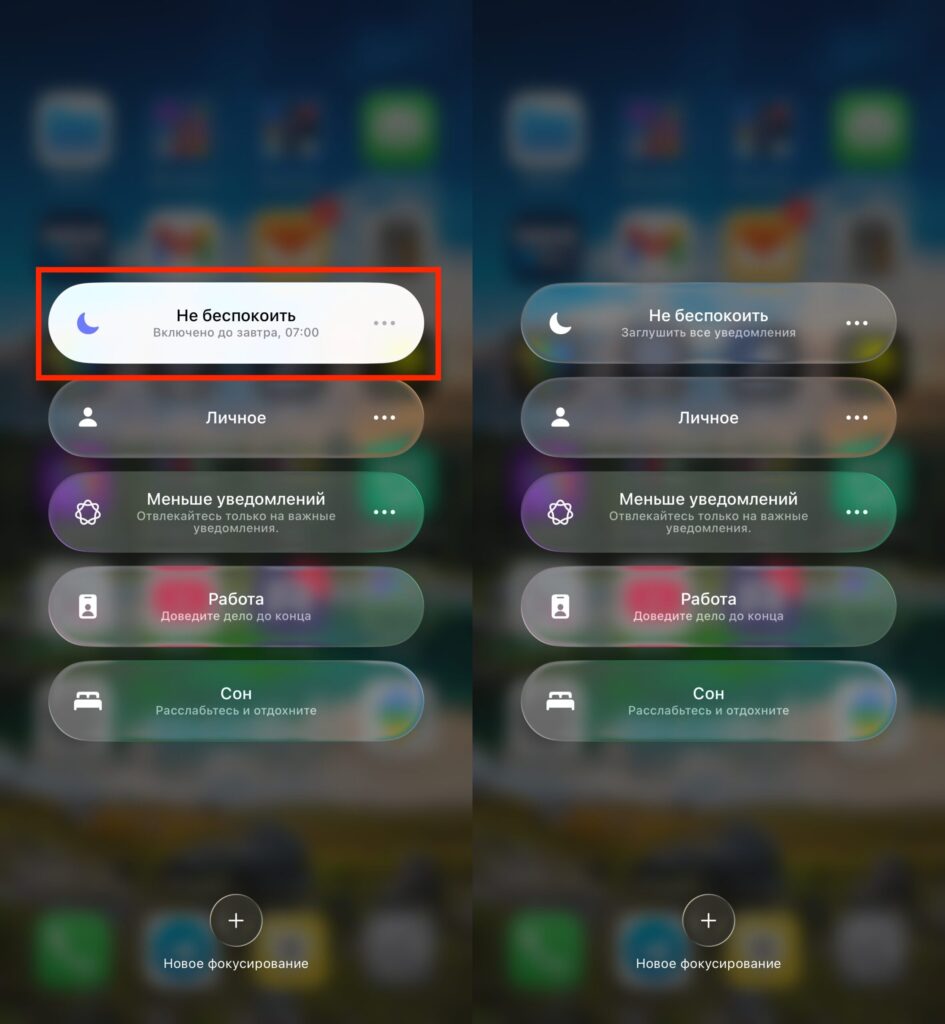
The easiest way to disable Do Not Disturb is through Control Center
- Open Control Center: swipe down from the top-right corner of the screen (on iPhones with Face ID) or swipe up from the bottom edge (on iPhones with a Home button).
- Find the “Focus” button. If it’s highlighted — a mode is active.
- Tap the button to see the list of modes: “Do Not Disturb,” “Sleep,” “Work,” “Personal,” and others.
- If one of the modes is highlighted in color, tap it again — it will turn off.
Alternative method — through the Settings app:
- Open “Settings” — “Focus.”
- Select the active mode (it will be marked as enabled).
- Toggle the switch to the off position.
Please note: the interface of this feature has changed across different iOS versions. In iOS 14 and earlier, it was a simple “Do Not Disturb” toggle with a crescent moon icon. Starting with iOS 15, Apple combined it into the “Focus” system with multiple modes. If you’re helping someone over the phone, ask which icon or label they see on the screen.
Tip: if you frequently activate this mode accidentally, delete unnecessary Focus modes and keep only the ones you need. This will reduce the chance of accidental activation.
Silent Mode on iPhone: How to Turn It Off
The next most common cause is the physical switch on the left side of the iPhone. If you see an orange stripe next to the switch, it means the iPhone is in silent mode: it won’t play the ringtone or notification sounds, although vibration usually remains.
Simply slide the switch toward the screen (away from you when looking at the screen) — the orange stripe will disappear, and the iPhone will return to normal sound mode.
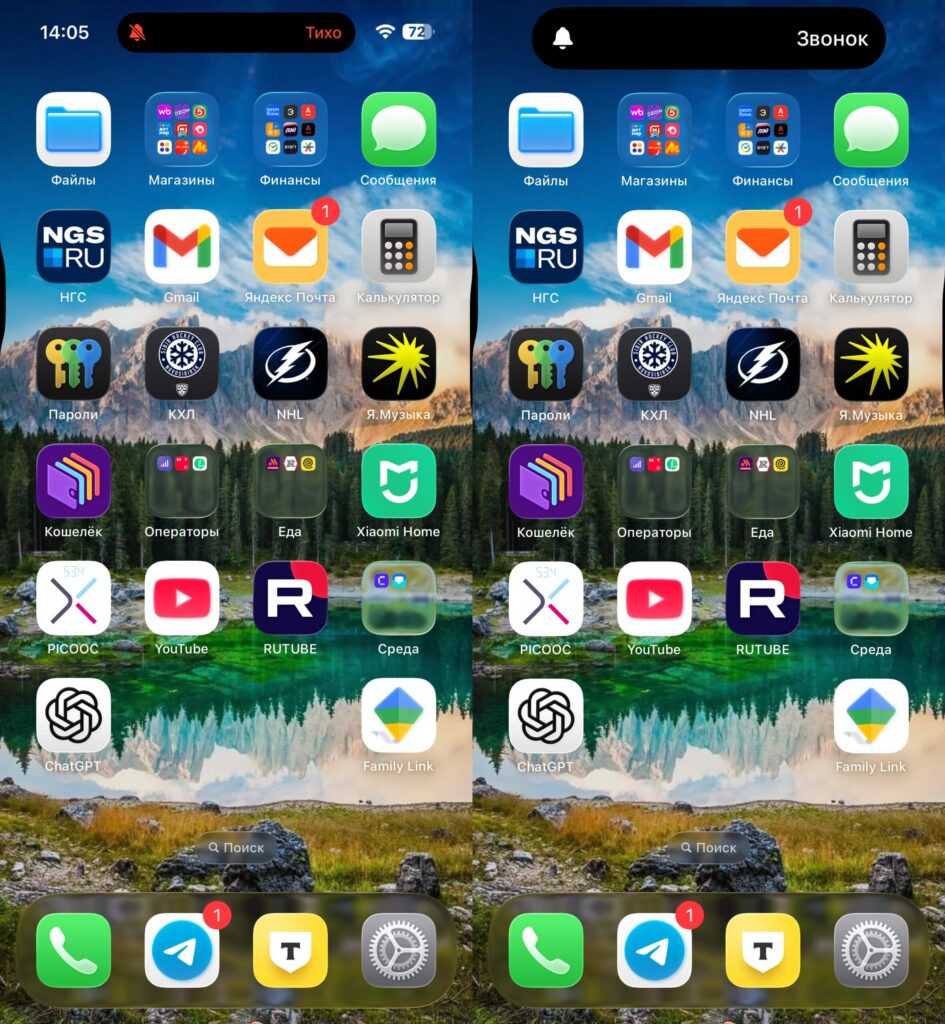
You can disable silent mode with the Action Button
On iPhone 15 Pro, iPhone 15 Pro Max, and newer models (iPhone 16 and later), the physical switch has been replaced with the Action Button. By default, it works the same way — toggling silent mode on and off. Press and hold the button: if a crossed-out bell appears on the screen — silent mode is activated. Press again to turn it off.
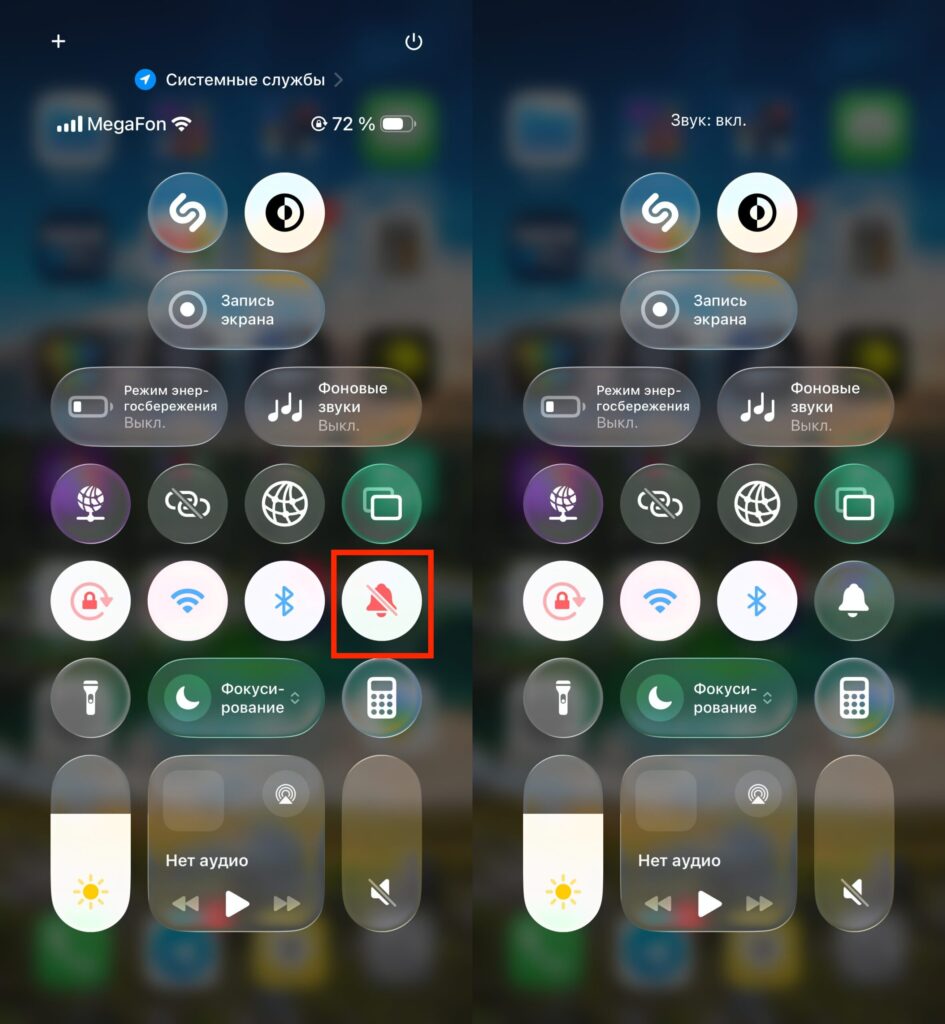
Alternatively, you can use Control Center
Also check the ringer volume:
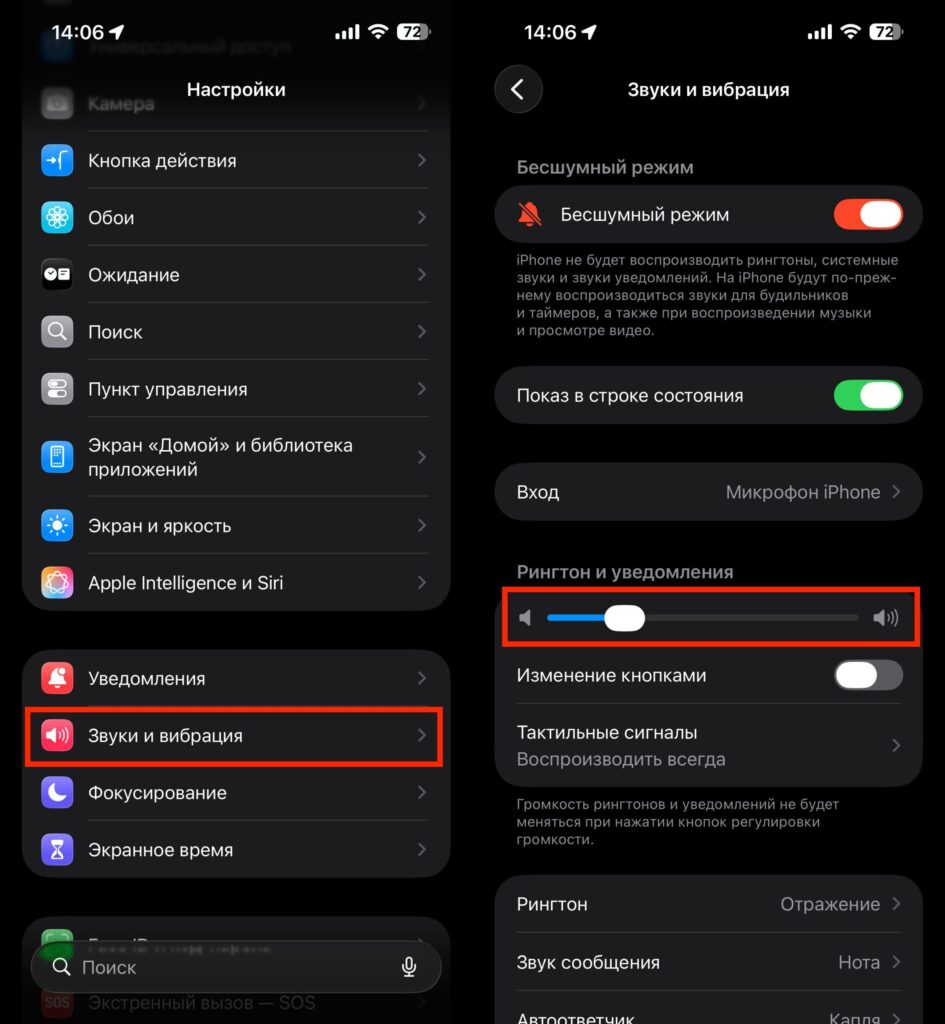
Make sure to check this slider
- Open “Settings” — “Sounds & Haptics.”
- Find the “Ringer and Alerts” slider — move it to the right.
- Make sure the “Change with Buttons” toggle is enabled if you want to control ringer volume with the physical buttons.
It happens that the media volume (music, video) is at maximum while the ringer volume is at zero. These are separate controls, and one doesn’t affect the other.
Airplane Mode on iPhone: How to Check and Disable
Airplane mode completely disables cellular connectivity, Wi-Fi, and Bluetooth (although Wi-Fi and Bluetooth can be turned back on separately). If airplane mode is active, incoming calls and SMS simply won’t reach your iPhone — the carrier will route calls to voicemail.
How to check:
- Look at the top-left corner of the screen. If you see an airplane icon instead of the network signal indicator — airplane mode is on.
- Open Control Center and tap the airplane icon to disable it.
- Wait 10–15 seconds — the iPhone will connect to the cellular network.
Toggling airplane mode on and off is also a good way to reset the network connection if you have signal but calls still aren’t going through.
Blocking Calls from Unknown Numbers on iPhone
Starting with iOS 13, the iPhone has a “Silence Unknown Callers” feature. It automatically sends all calls from numbers not in your contacts, call history, or Siri suggestions to voicemail. The feature is useful for fighting spam, but if you’re expecting a call from a courier, clinic, or new acquaintance — you’ll miss it.
How to disable: