Android Auto does not need mobile internet to talk to your car. It connects to the head unit by cable or directly over Wi-Fi. The apps running on it are different: most navigation and music services pull data from the network by default. If coverage drops on a highway, in a remote area or during connectivity restrictions, the map can freeze and the music can cut out. The fix is to download maps and music before you leave. Here is what that preparation achieves, and what you still lose without a signal.
What you need to know
- Android Auto links to the car by cable or direct Wi-Fi, so the phone-to-car connection does not need mobile data. Navigation and streaming apps usually do.
- With maps and music downloaded in advance, route navigation with voice prompts, search within downloaded maps, and music and podcasts stored on the phone keep working offline.
- Without a connection you lose live traffic and road-closure data, online streaming and voice assistants.
- Google Maps offline areas work on the car screen. Organic Maps is a free, offline-first navigator that supports Android Auto.
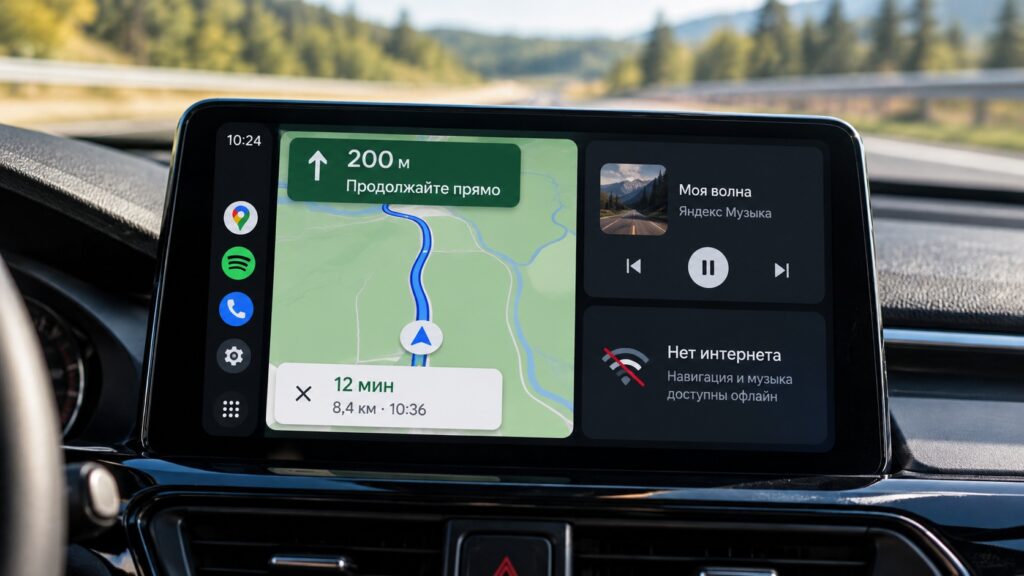
Android Auto working without an internet connection
What works in Android Auto without internet, and what doesn’t
The link between your phone and the car’s head unit runs over a cable or direct Wi-Fi, so it stays up when mobile data disappears. The weak point is the apps. Most navigators and music services fetch their data online by default.
If you download maps and music in advance, these features keep working offline:
- route navigation with voice prompts;
- searching for addresses and businesses within the downloaded maps;
- music and podcasts stored on the smartphone.
Without a network, you cannot get traffic and road-closure information, stream music or use voice assistants. This matters for route choice: the navigator will send you along the shortest road with no way of knowing it is jammed.
Google Maps can work without a signal
Google Maps has an offline mode, and downloaded areas also work on the car’s screen. To download a map:

- Open Google Maps and tap your profile picture.
- Select “Offline maps.”
- Tap the option to select a map.
- Frame the area you need and tap “Download.”
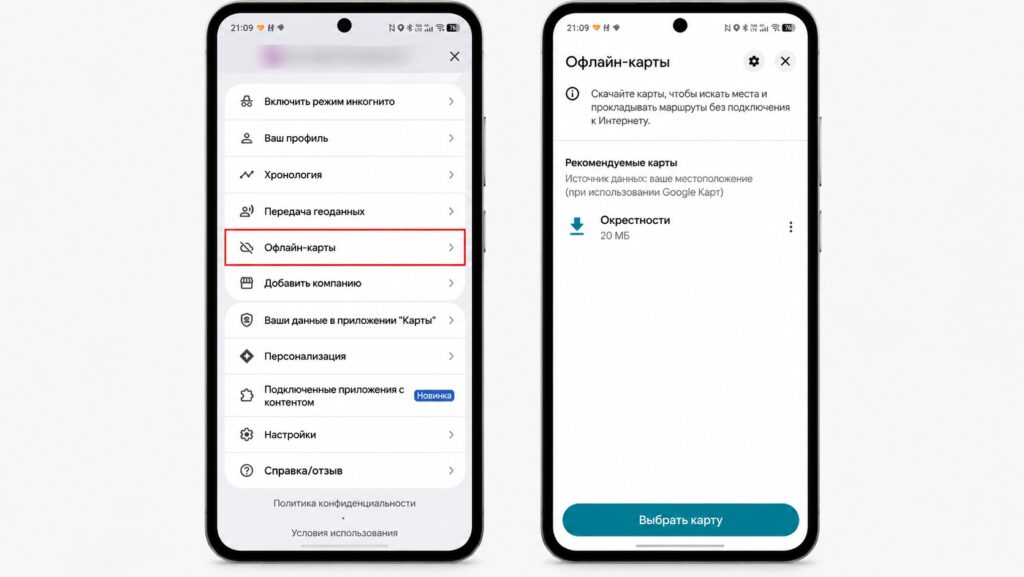
Offline maps in Google Maps on Android
Menu labels may differ slightly depending on the app version. Before each trip, make sure your offline maps are up to date, because an old map may not include new interchanges. You won’t see traffic in offline mode, but you can still follow the route.
Organic Maps: a backup navigator that doesn’t need internet
It is worth keeping a second navigator on your phone in case the first one fails. One option is Organic Maps, a free app built on OpenStreetMap data. It was designed to work fully offline: maps, search and route planning are all stored on the smartphone.
Organic Maps supports Android Auto and guides you along a route with voice prompts. Maps are downloaded by region, so you only need the areas along your route. According to the source, the app has no ads and does not track users.
If you use Yandex Navigator or Yandex Maps
Yandex Navigator and Yandex Maps can also build routes and search for places without internet if you download the relevant city map in advance. In Navigator, open the settings menu, choose “Offline maps,” type the city name and tap it to start the download. In Yandex Maps, the “Offline maps” section is in the profile.
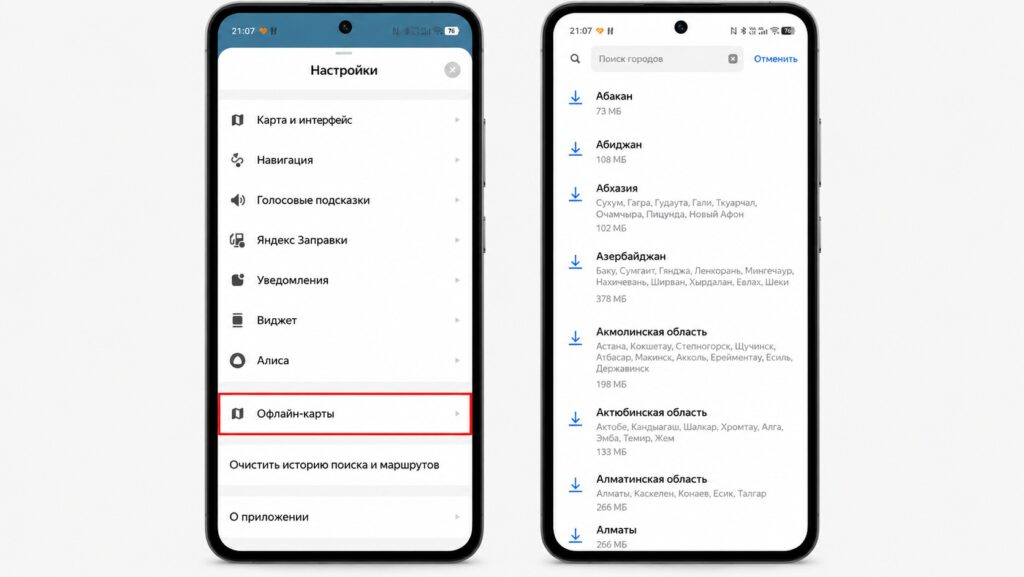
Downloading offline maps in Yandex Navigator

There is an important caveat. According to Yandex’s help page, Navigator and Maps work in Android Auto only with a Yandex Plus multi-subscription. They also require Navigator version 6.00 or later, or Maps version 10.5 or later.
Download music and podcasts in advance
Music is also best prepared before you set off. Downloaded music and podcasts stored on the phone keep playing without a connection. In Yandex Music, for example, downloads require a Plus subscription: open a playlist or album, tap “Download” and wait until the download icon appears next to the tracks. Individual tracks can be downloaded from their menu, and an offline mode in the settings stops the app from trying to reach the network.
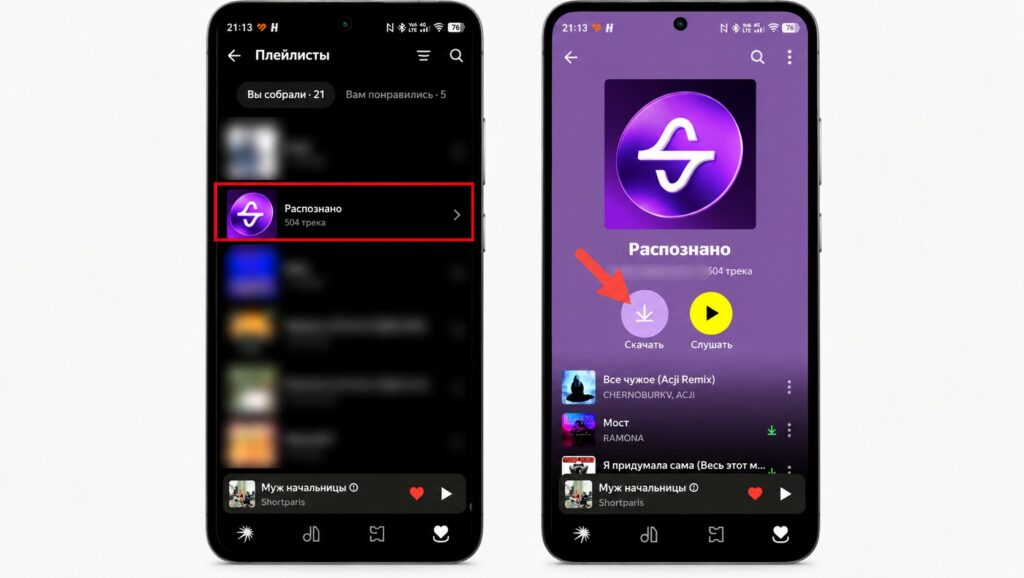
Downloading a playlist in Yandex Music on Android
Yandex Music stores downloaded tracks in encrypted form. They play only in Yandex Music, and only on the phone they were downloaded to.
Without a subscription, you can copy music files to your phone and play them in a regular music player. Before the trip, check that your chosen player appears in Android Auto.
Is it worth preparing Android Auto for driving without a signal?
Yes, especially if you drive out of town or across regions with patchy coverage. Downloaded maps and music don’t get in the way when you have internet, and they help a lot when it drops. The main limitation is that you can’t see traffic without a connection, so where possible, check road conditions before you leave. If you rely on Yandex Navigator, factor in the Plus subscription requirement, and consider keeping Organic Maps on your phone as a free backup.


