If your Android phone still shows 4G after you enable 5G, the cause is usually one of five things. The phone may not support the frequency bands used in Russia, the network type may be set incorrectly, your area may have no 5G coverage, or the firmware or carrier settings may be outdated. In other cases, the network is working but offers only a modest speed gain. This guide covers each cause, from the simplest to the most technical. It applies to Russia’s 5G rollout, which the source says launched on 11 September in 16 cities. Common symptoms include a missing 5G icon, a 5G icon with 4G-like speeds, or 5G that works at home but drops outdoors.
What you need to know
- Russia’s current 5G uses bands n1, n3, n7, n8 and n20. A phone that supports none of them cannot connect, and no setting will change that.
- Coverage in the 16 launch cities is patchy. City centres, large shopping malls and railway stations are covered, but most residential districts are not yet.
- The current network reuses LTE frequencies and gives roughly an 18-20% speed increase over 4G. Gigabit speeds are expected once carriers deploy band n79, which is planned by the end of 2028.
- Russia’s Ministry of Digital Development plans to launch 5G in 50 more cities by the end of 2026.
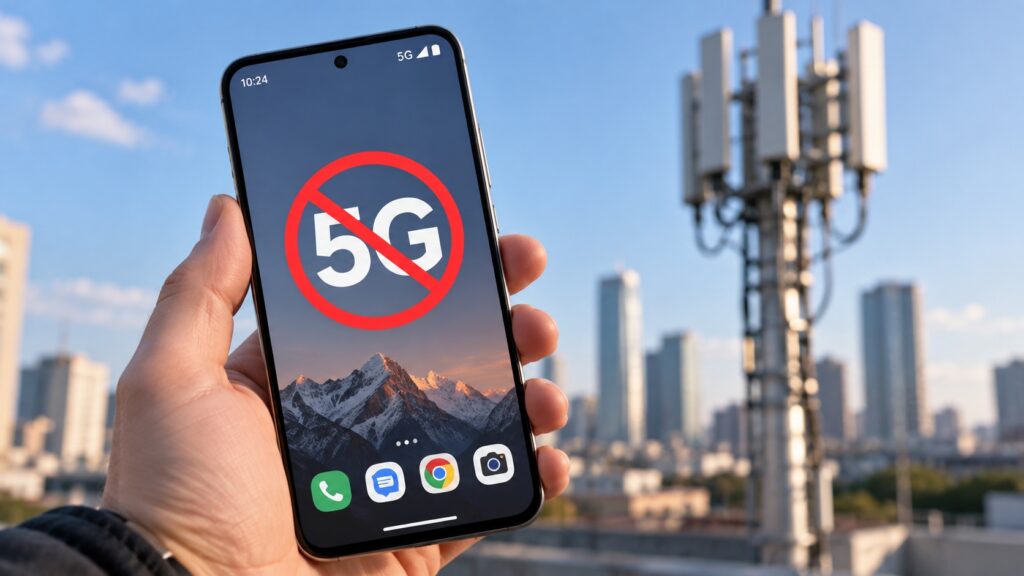
No 5G access on an Android phone
Step 1: Check whether your phone supports the right 5G bands
This sounds obvious, but it is a frequent cause. A “5G” label in advertising or on the box does not always mean that a specific version of a phone supports the bands a given network uses.
To check your phone:
- Open Settings, then About phone, and find the exact model name, including any letter suffix.
- Search for that model on GSMArena.com.
- Find the “Network” section and look for the “5G bands” line.
- Check whether at least one of these bands is listed: n1, n3, n7, n8 or n20. These are the bands Russia’s current 5G uses.
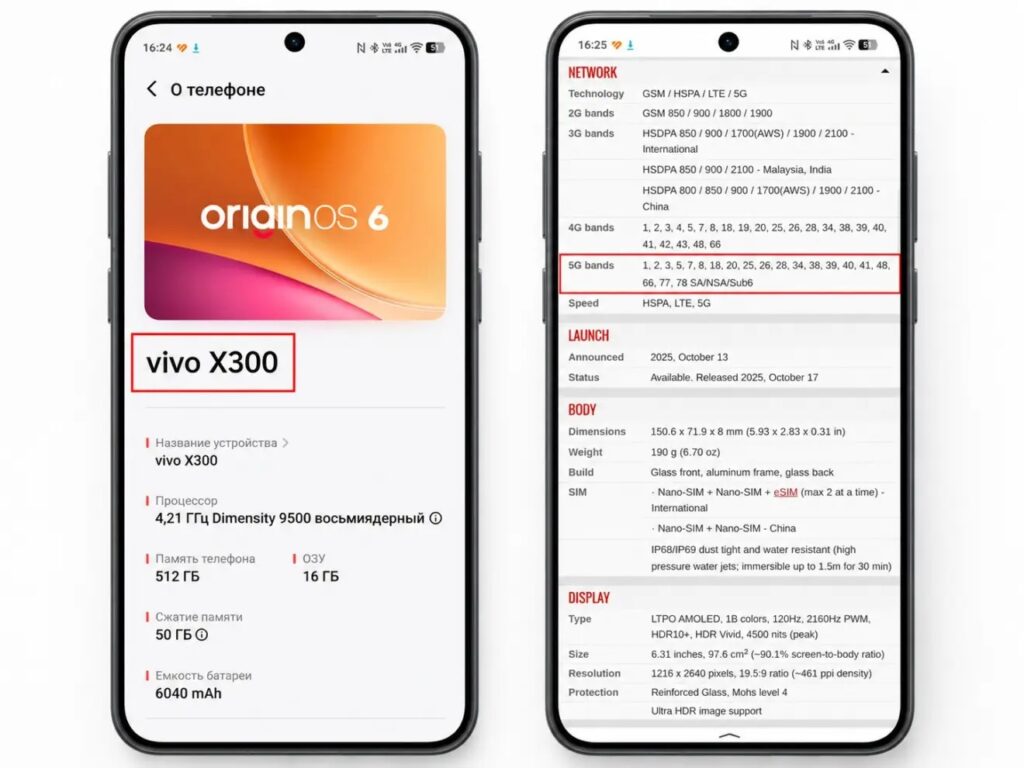
Checking a phone for 5G support on GSMArena

If the listing has no 5G bands, the phone lacks 5G hardware, and no setting will fix that. The result is the same if the phone lists 5G bands but none of those used in Russia.
Dual-SIM phones: on some dual-SIM models, 5G works only through the first SIM slot. Try moving your SIM card to the other slot and restarting the phone. The source says this fixes the problem more often than people expect.
Step 2: Check the network type setting
The most common reason 5G does not appear, even where coverage exists, is the wrong network type setting. On some phones, the default setting is “4G/3G/2G,” which leaves out 5G.
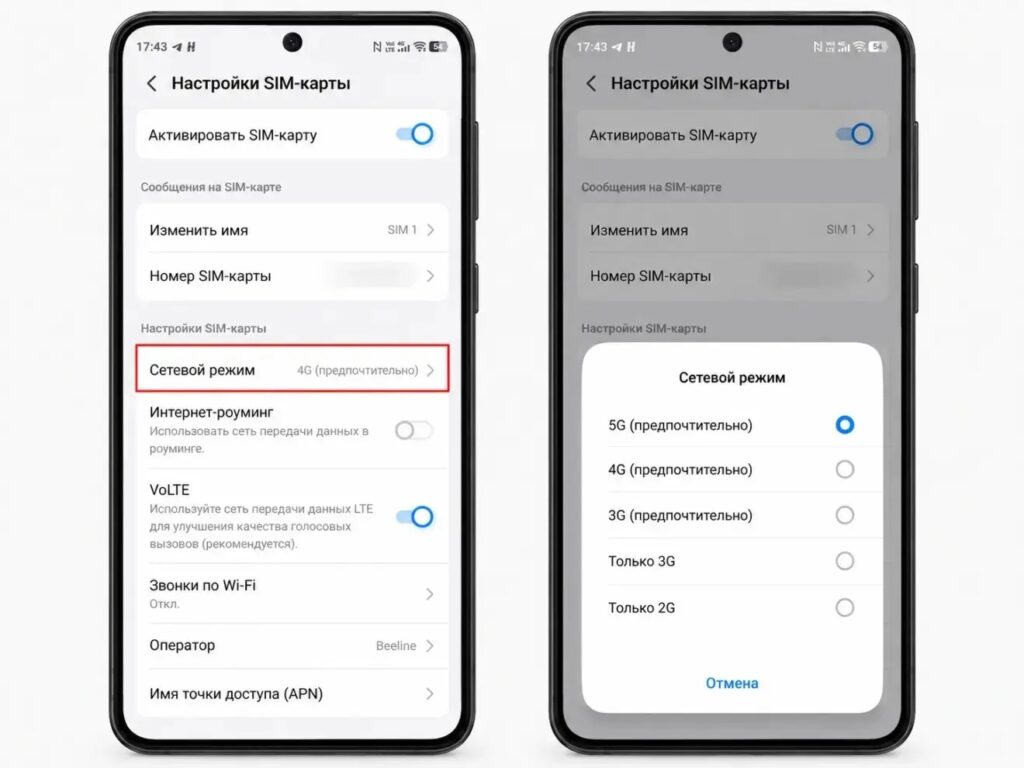
Choosing the network type on Android

The source gives these menu paths for different Android skins. Exact menu names may vary with language and software version.
- Xiaomi, REDMI, POCO (HyperOS/MIUI): Settings → SIM cards and mobile networks → select the SIM → Preferred network type → 5G.
- Samsung (One UI): Settings → Connections → Mobile networks → Network mode → 5G/4G/3G/2G (auto).
- HONOR (MagicOS): Settings → Mobile network → select the SIM → Preferred network type → 5G.
- vivo (OriginOS): Settings → SIM card and mobile network → Preferred network type → 5G.
- realme (realme UI): Settings → SIM card and cellular → Preferred network type → 5G.
After selecting 5G, wait 30-60 seconds for the phone to reconnect to the network. If 5G is not listed, either the phone does not support it or its firmware needs updating.
Step 3: Confirm there is 5G coverage where you are
Since the 11 September launch, 5G has been available in 16 Russian cities, but coverage is patchy even there. City centres, large shopping malls and railway stations are covered. Most residential districts are not yet covered.
To check coverage:
- Go to your mobile carrier’s website.
- Open the coverage map and turn on the 5G layer, which is usually separate from the 4G layer.
- Look up your address on the map.
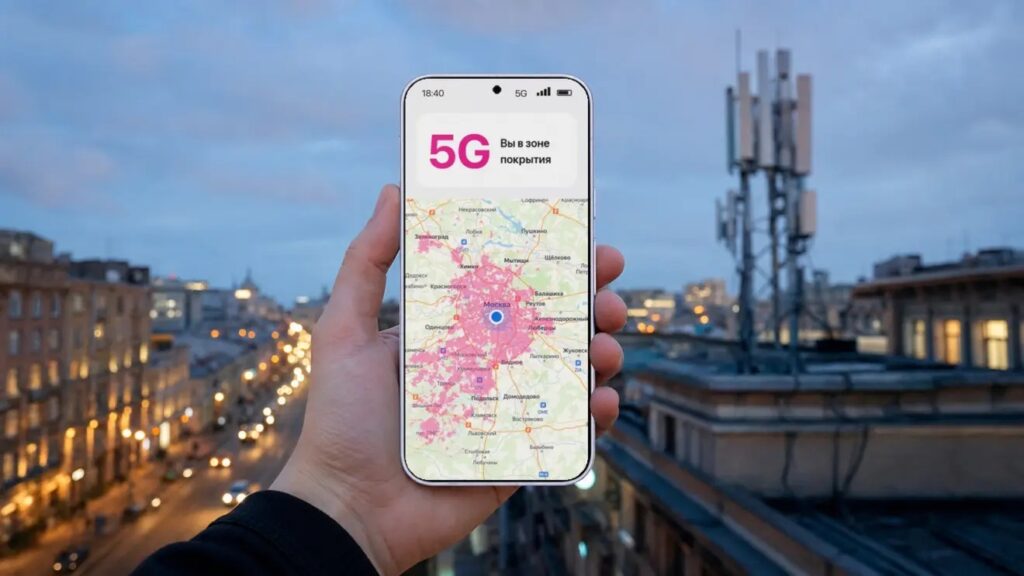
Checking the 5G coverage area on a map

If your area has no coverage, the phone is not at fault. 5G simply has not been deployed there yet, and you will need to wait for the network to expand. The Ministry of Digital Development plans to launch 5G in 50 more cities by the end of 2026. That is a stated plan, not a completed rollout.
Step 4: Rule out firmware and carrier settings
Sometimes a phone supports 5G, coverage exists and the network type is correct, but 5G still does not appear. Outdated firmware or carrier settings can cause this.
Things to try:
- Update the firmware: go to Settings → About phone → System update. According to the source, manufacturers are releasing updates that support the new Russian networks. This matters especially for Samsung, whose support for Russian 5G arrived through a firmware update.
- Refresh the APN settings: carriers usually offer automatic access point setup by SMS through their customer account or support line. An outdated APN can stop 5G from working properly.
- Reinsert the SIM card: turn off the phone, remove the SIM, put it back and turn the phone on. This sometimes helps with sudden connection failures.
- Restart the phone: after you change the network type, the phone sometimes needs a restart to reconnect correctly.
Step 5: Check the connection in the testing menu
If nothing else has worked, Android’s engineering (testing) menu shows which network type the phone is using right now. This helps you pinpoint where the problem is:

- Open the standard Phone (dialer) app.
- Dial *#*#4636#*#*. The menu should open automatically.
- Go to “Phone Information.”
- Find the “Voice network type” or “Data network type” line, which shows the current connection type.
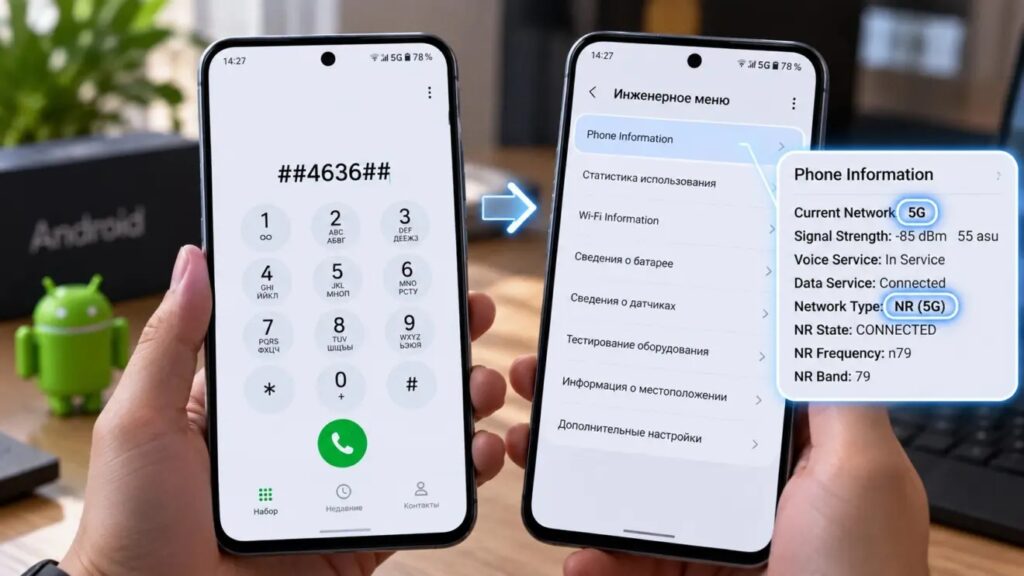
Checking the 5G connection in the Android testing menu
If the menu shows “NR” or “5G,” the phone is connected to 5G, and the status bar icon may just be slow to update. If it shows “LTE,” either there is no coverage or the phone cannot register on the 5G network.
5G icon on but 4G-like speeds: why it happens
This is a separate and common situation: the 5G icon is lit, but a speed test shows 80-150 Mbps, typical of a good 4G connection. The source explains that Russia’s current 5G runs on reused LTE frequencies and gives a speed increase of about 18-20% over 4G.
According to the source, this is neither an error nor a fault. It is a design choice for the first phase of the rollout. True gigabit speeds are expected when carriers deploy 5G on band n79, which is planned by the end of 2028.
When low speed signals a real problem: if speeds are very low (under 30-50 Mbps) while connected to 5G, switch to 4G and compare. If 4G is faster, check your settings or contact your carrier.


