As soon as I updated macOS to the latest version, my colleague immediately ran into an unexpected time issue. In the morning, he opened his MacBook and thought he was still dreaming: the menu bar showed a time five hours ahead — as if he wasn’t in Moscow but somewhere near Shanghai. The laptop had been running all night, and by morning the calendar, mail, and reminders had shifted by several hours. Where did the Chinese time zone come from, and how do you get the correct time back? Let’s figure it out.
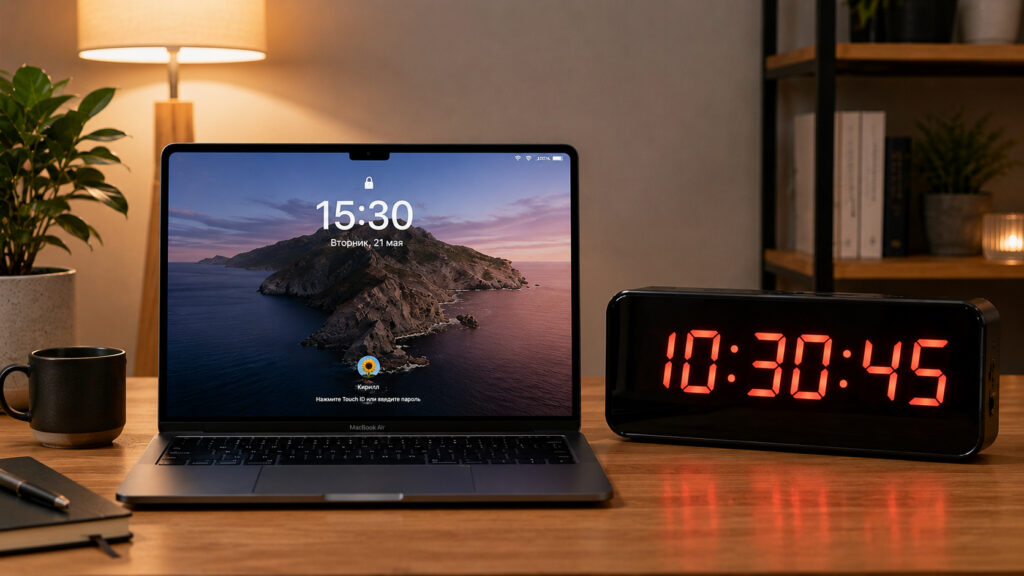
This is how easily a Mac can jump several hours into the future or the past
Why Mac Shows the Time of Another City
It all comes down to the automatic time zone detection feature. By default, macOS doesn’t ask you where you are — it figures it out on its own. To do this, it uses “Location Services” — the same mechanism used by Maps.
A laptop doesn’t have a GPS module like an iPhone does. So the Mac determines its location differently: it scans nearby Wi-Fi networks and cross-references them with Apple’s database. If it recognizes familiar access points, the system understands that you’re at home in Moscow and sets UTC+3. This usually works seamlessly and accurately.
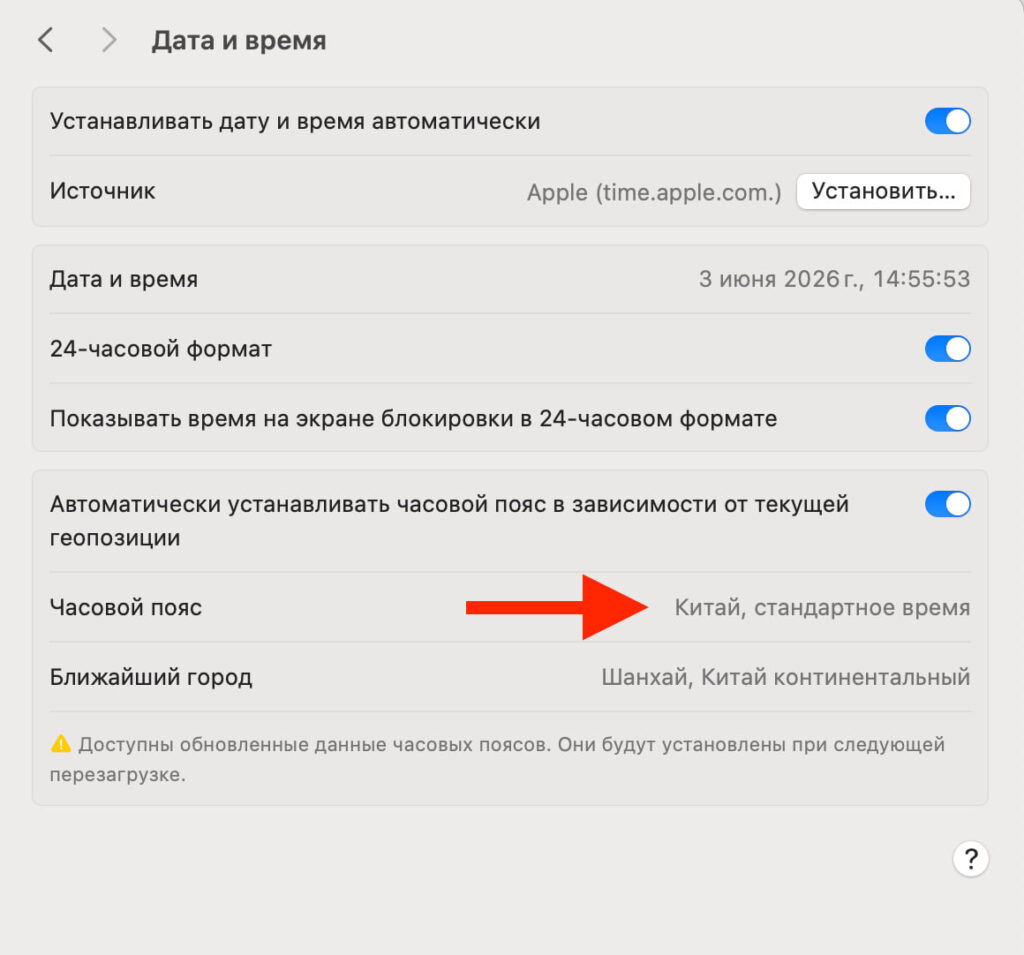
This is how easily you can end up in China instead of Moscow
Problems start when the system can’t determine the exact location. At night, the laptop goes to sleep, the Wi-Fi module behaves differently, and neighboring networks disappear from view. When you unlock your Mac with Apple Watch in the morning, it wakes from sleep and tries to figure out where it is again. If there’s no clear answer from Wi-Fi positioning, the system sets the time zone almost at random — and it ends up on the other side of the map. Most often it’s Cupertino or, as in my colleague’s case, an Asian time zone with a five-hour difference.
What Affects Automatic Time Detection in macOS
It’s hard to name a single cause here — it’s usually a combination of circumstances. Here’s what most commonly leads to a time zone change.
- The most common cause is a Wi-Fi positioning failure. After waking from sleep, the Mac doesn’t have time to rescan networks or temporarily loses connection to Apple’s database. Without fresh data, the system sets the time zone based on an outdated cache or fallback signals.
- Second is a system glitch after sleep. This is known macOS behavior: after running overnight or after an update, the time zone sometimes resets on its own, for no apparent reason. A simple restart usually fixes it.
- Third is a geolocation database error. Apple occasionally misidentifies the same set of Wi-Fi networks, and the system receives coordinates for a completely different country.
- And only fourth on this list is VPN. If the system relied on a network address instead of Wi-Fi when determining location, it could have taken the VPN server’s coordinates instead of the real ones. This is just one possible cause, not the main one: VPN itself doesn’t break the time — it just sometimes adds to the overall confusion.
How to Manually Change the Time Zone on Mac
The most reliable solution is to take away the Mac’s right to choose the time zone on its own and set the one you need manually. Then neither a geolocation failure nor a VPN will affect your time.
- Open the Apple menu in the upper left corner and go to “System Settings.”
- In the sidebar, select the “General” section, then the “Date & Time” option.
- Turn off the “Set time zone automatically using your current location” toggle.
- In the “Closest City” field, start typing “Moscow” and select it from the suggestion. The time zone will change to UTC+3.
- Check the time in the menu bar — it should become correct immediately.
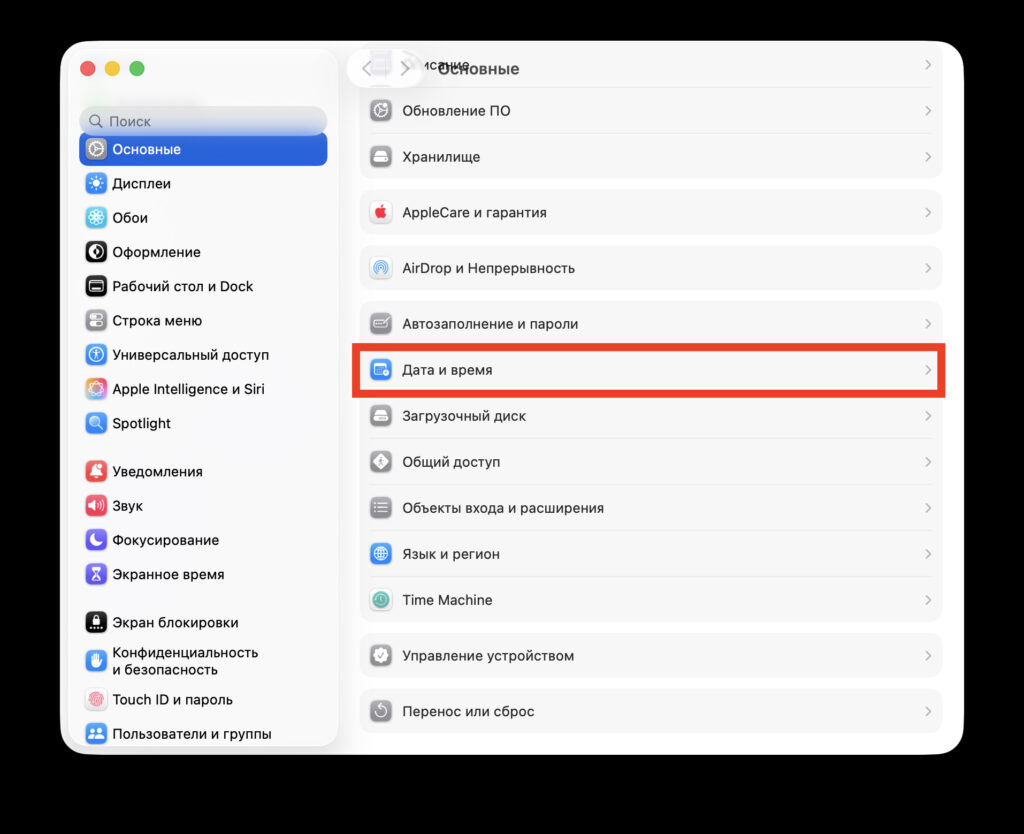
Select this option in settings
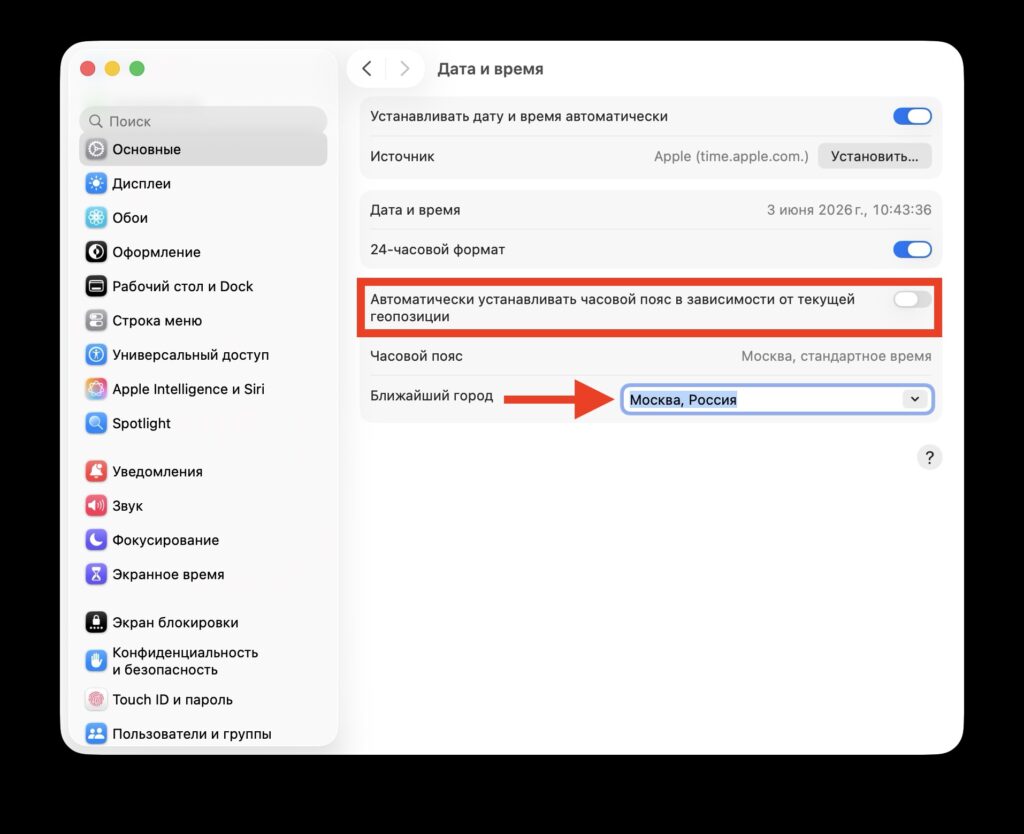
Turn off the toggle and start typing your city
If you want to keep automatic detection enabled but need to fix the time right now, there’s a second approach — force the system to recalculate the time zone.
- Make sure Wi-Fi is on — without it, geolocation on Mac doesn’t work.
- Open “System Settings,” then “General” and “Date & Time.”
- Toggle the automatic time zone detection off and then back on.
- Wait a few seconds: the system will rescan networks and restore the correct time zone.
- If the time hasn’t corrected itself, restart your Mac — this resolves most post-sleep glitches.
What to Check So the Time on Your Mac Never Goes Wrong Again
To prevent the morning surprise from happening again, you just need to properly configure Location Services once and leave the system no room for error.
- Go to “System Settings,” then “Privacy & Security” and “Location Services.”
- Make sure that “Location Services” is turned on.
- Scroll to the bottom of the list and click “Details” next to “System Services.”
- Make sure the “Setting Time Zone” option is enabled.
- If you want to be completely safe, leave the time zone set manually — this way your Mac won’t depend on external signals at all.
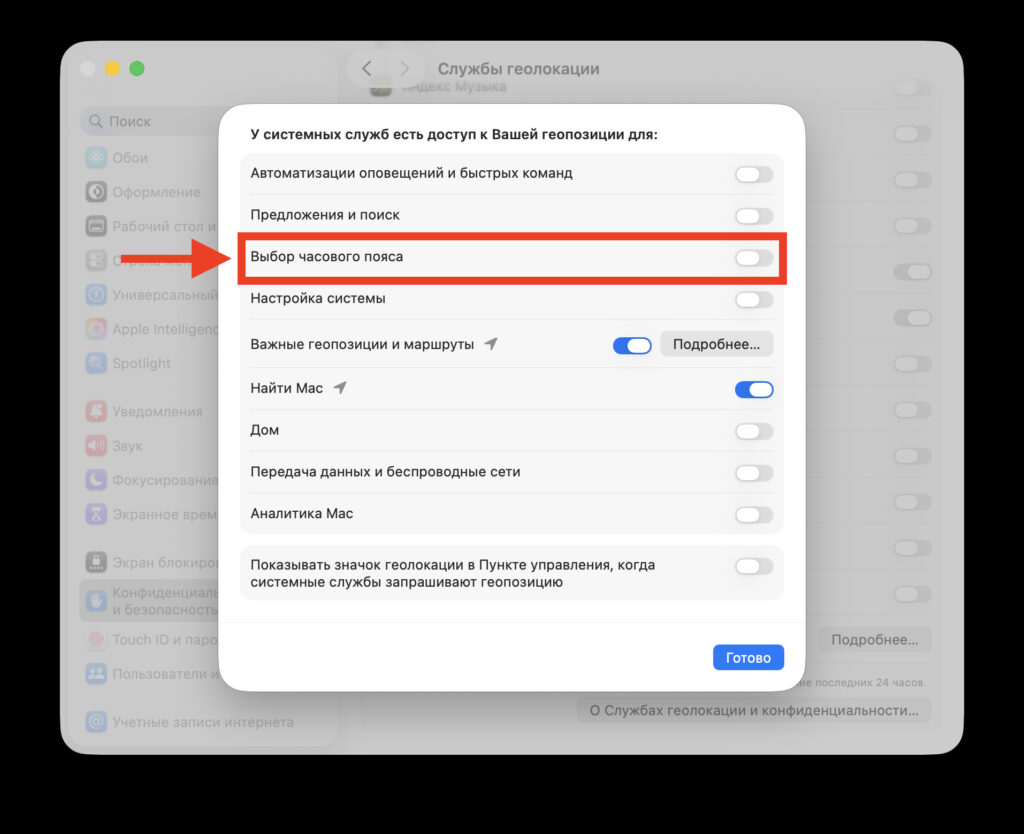
Activate this toggle
Manually selecting the time zone will let you forget about the problem. Your mornings will no longer start with Chinese time, and your meetings and alarms will be right where they belong.


