For a long time, I was convinced that full Wi-Fi bars on my smartphone screen were synonymous with good internet. Turns out, they mean almost nothing. At home, I have a ton of devices: security cameras, TVs, set-top boxes, and phones for the whole family, and the network was constantly choking. I honestly tried to fix the weak Wi-Fi signal. It got better, but background lag never went away. And yet I had already learned that sometimes one precise tweak changes everything. So here too, it wasn’t a new piece of hardware that helped, but one free app that showed what was really going on behind those pretty signal bars.
How I found out that neighbors were stealing my internet
The Best Free App for Wi-Fi Analysis
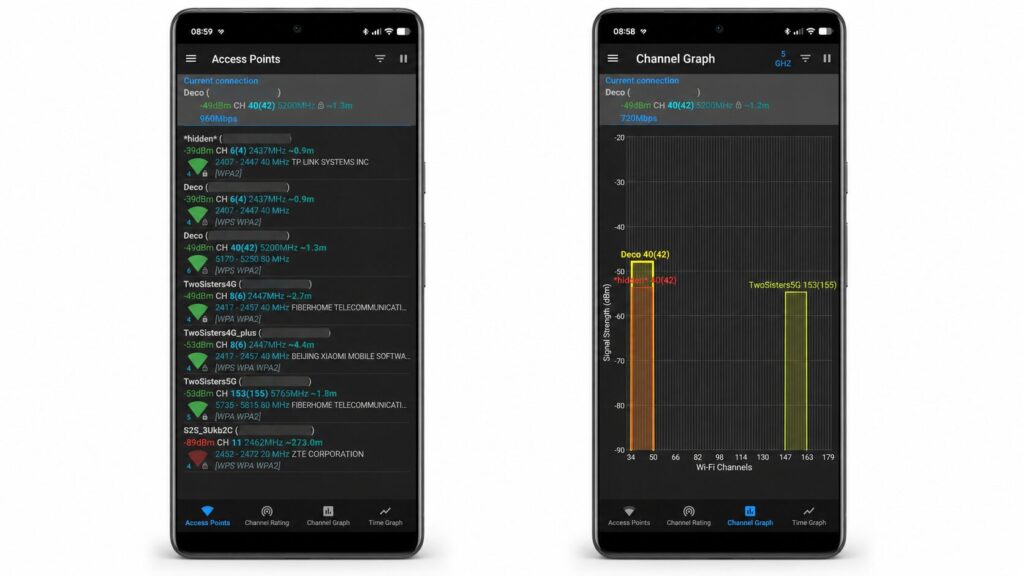
The app is called WiFi Analyzer by developer VREM. It’s a completely free Wi-Fi analysis app with open source code, used by millions of people. No ads, no in-app purchases, no questionable privacy policies, and most importantly, not a single useful feature is hidden behind a subscription. Compared to many diagnostic apps on Google Play that lock everything useful behind a paywall, this is already a rarity.
A Google Play app helps determine signal strength
Essentially, the app shows what’s really happening in the radio airwaves around you. It picks up neighbors’ networks, hidden access points, and Wi-Fi interference that you can’t see with the naked eye. The main feature is clear real-time signal strength graphs by channel, and you can switch between the 2.4 GHz, 5 GHz, and newer 6 GHz bands. It’s convenient when you need to separate older smart gadgets from devices that need speed.
There’s one caveat before you start. In newer system versions, including Android 16 and 17, you need to go into developer mode and disable the Wi-Fi scanning restriction. After that, the app starts updating data without delays.
How to Find Wi-Fi Interference and Dead Zones in Your Apartment
This is where it gets really interesting. The app doesn’t just draw a list of networks — it explains why your connection drops in a specific room. I walked around my apartment with my phone and watched where the signal dropped the most. And the app immediately highlighted the main problem: channel overlap with neighbors. When a dozen routers around you are sitting on congested Wi-Fi channels, a traffic jam forms and speeds drop for everyone at once.
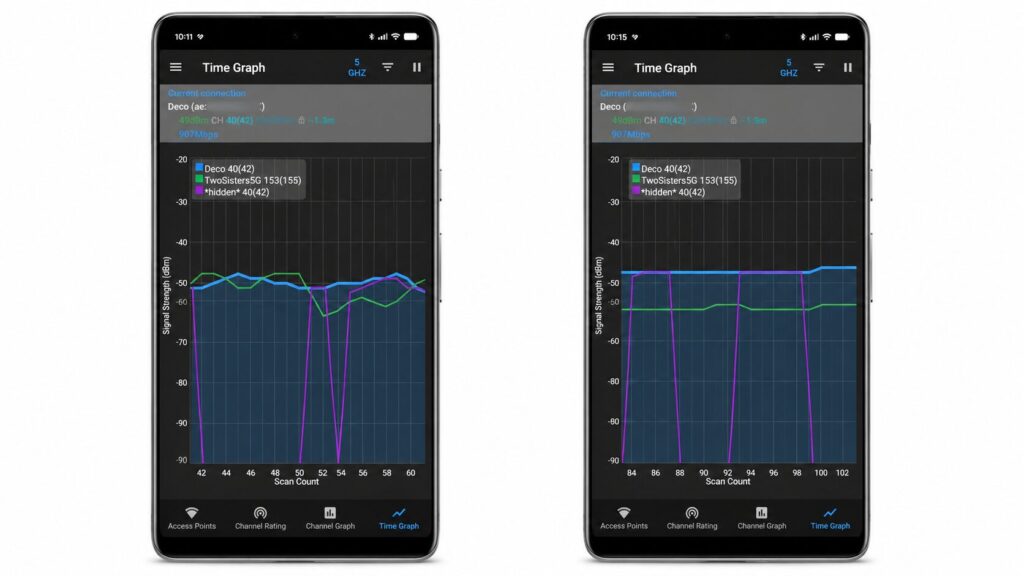
Everything is visible on the graphs, and there’s no more doubt about what’s causing the slowdowns
Imagine a channel as a lane on a road, and access points as cars. When everyone rushes into one lane, traffic stops. By the way, another common cause of signal drops is plain old walls.
Signal strength is measured in negative values, in dBm, and the closer the number is to zero, the better. My router was showing a weak minus 48 dBm with an unstable, jumping graph. I simply moved it higher and to an open spot, away from the wall, so the signal wouldn’t bounce off concrete and furniture. The graph in the app immediately confirmed it: the connection leveled out and stabilized at minus 46 dBm. A small change, but the difference in experience is huge.
How to Boost Your Wi-Fi Signal at Home Without Spending Money
The main lesson is this: don’t rely on the Wi-Fi indicator in the notification shade — it’s like chasing your own shadow. The picture looks nice, but behind it hides a bunch of problems like interference and congestion that you can’t see. And to boost your Wi-Fi signal at home, you first need to see it in numbers.
You can boost the signal on your own
If you really want to improve your home internet, experience fewer timeouts, and eliminate delays, don’t rush to spend money. WiFi Analyzer fixes most problems for free, and paying for fancy heat maps in premium apps for a couple of uses per year definitely doesn’t make sense.