Capturing the perfect moment in a video and saving it as a photo seems like it should take just a couple of seconds. Take a screenshot, and you’re done. But if you look closely, everything unnecessary creeps into the frame: the status bar, clock, battery level, and sometimes even player controls. Then you have to crop it manually. If you’ve already installed iOS 27, you can try an interesting feature that extracts a clean frame from a video without any clutter around the edges. Here’s how it works and where to find it.
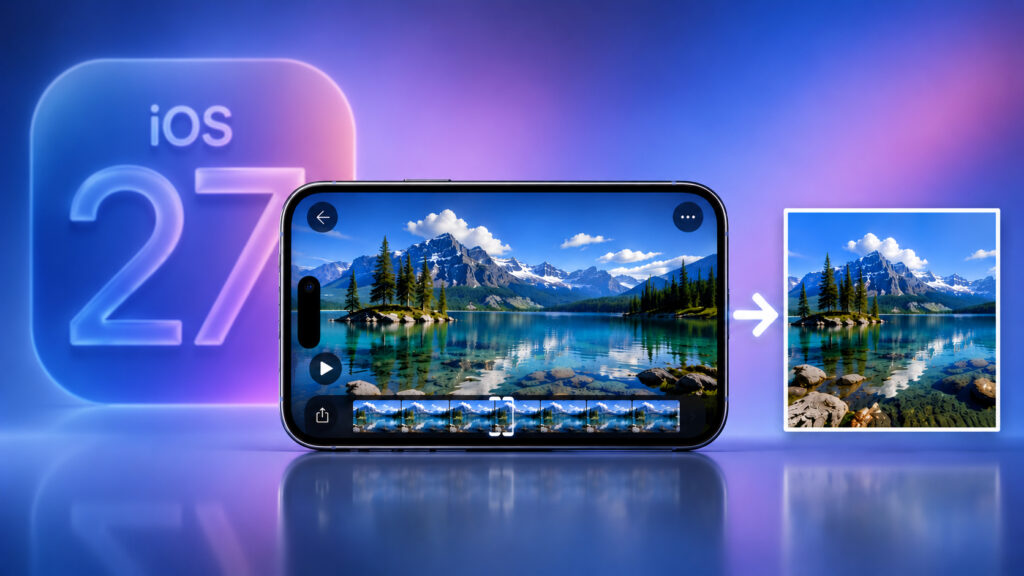
With one button you can turn a selected frame into a full-fledged photo
How a Saved Frame Differs from a Screenshot on iPhone
A screenshot is convenient, no argument there. But it captures the entire screen. That means along with the scene you need, the image includes the clock, signal indicator, camera notch, and playback controls. On a large iPhone display, this is especially noticeable. As a result, you get not a frame, but a screenshot of the interface that still needs to be cleaned up in an editor.
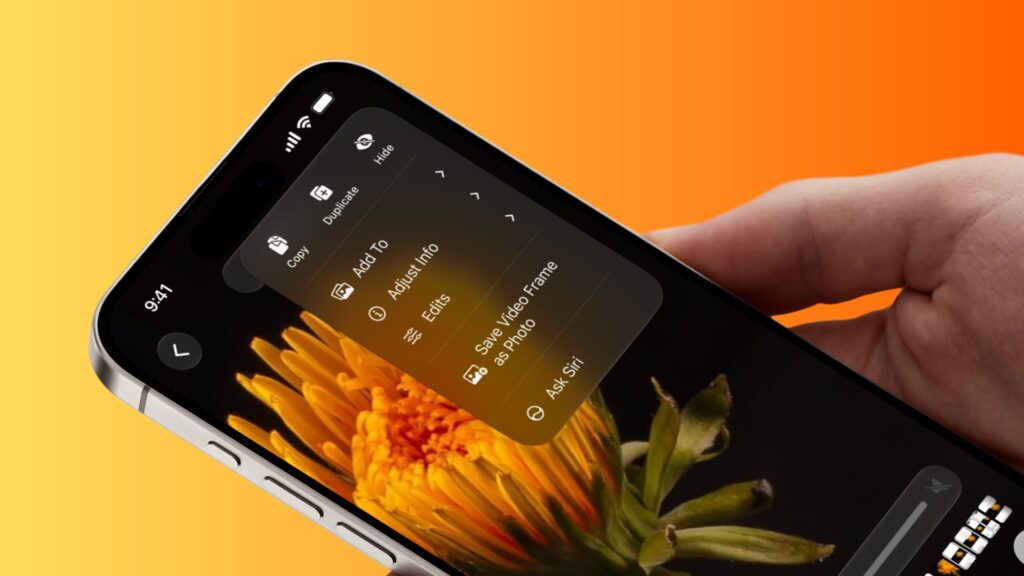
A new toggle has appeared in the Photos app
The new feature works differently. It takes exactly the frame currently on the screen and saves it as a full-fledged photo. No bars at the top, no icons, no subsequent cropping. Essentially, it’s the same image as in the video itself, just extracted into a separate file.
There’s another point that’s easy to forget. A screenshot is always scaled to match your device’s screen size. But a frame from a video is saved in the native aspect ratio of the clip. If you shot in 4K, the frame will be in that resolution, not in the size of the iPhone display. For those who later post such images or print them, the difference is significant. Sharpness directly depends on the quality of the source video.
So for one task, there are now two tools. A screenshot, when you need to capture the entire screen with the interface. And frame saving, when only the scene from the video matters.
How to Save a Photo from Video on iPhone and iPad
The process itself is simple — everything is done within the standard Photos app. No third-party apps are needed. Here are the steps.
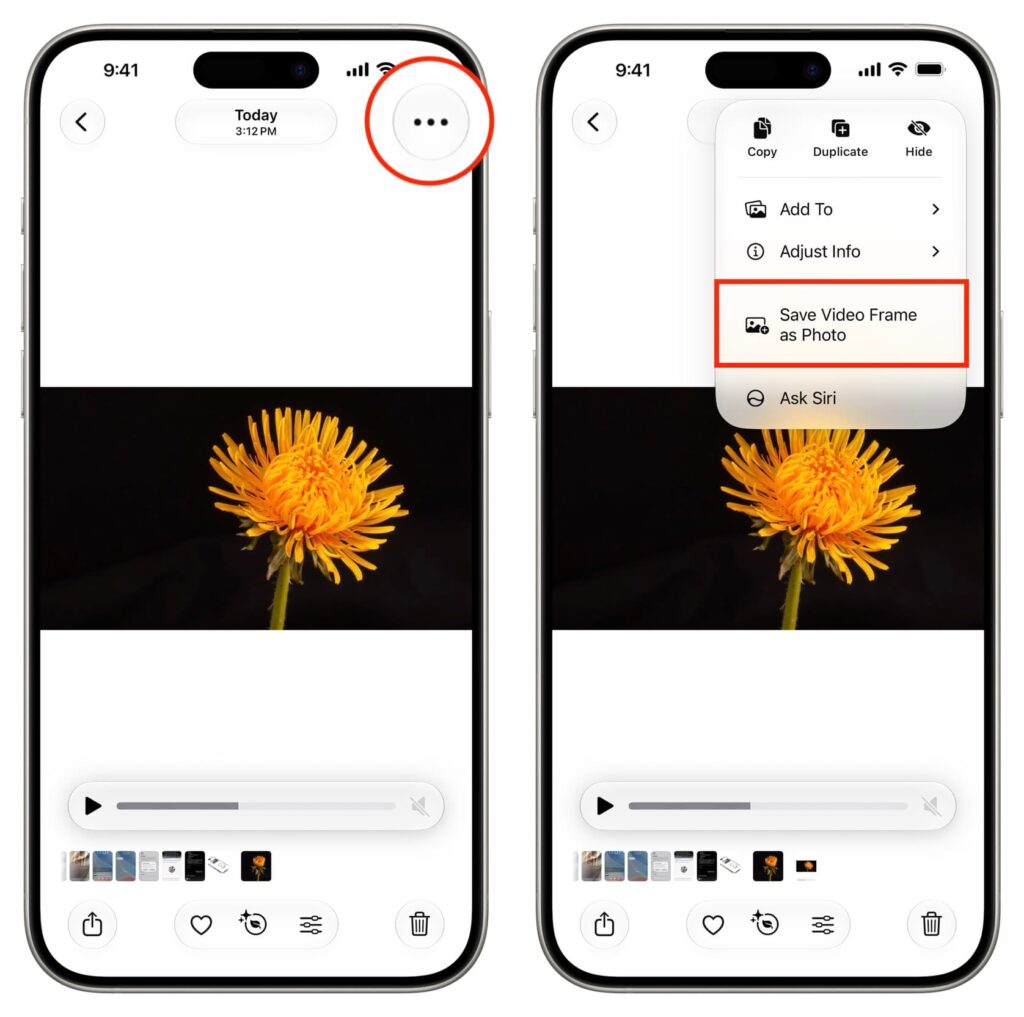
On iPhone, everything works as simply as possible
- Open the Photos app on iOS 27 or iPadOS 27 and play the desired video directly in it.
- Advance the video to the desired moment and pause it. Technically, the feature works even without pausing, right during playback. But if you need a specific frame, it’s better to stop the video so you’ll definitely capture what you intended.
- Tap the three-dot menu at the top and select “Save Video Frame as Photo.” In other localizations, the wording will be similar, with the same meaning.
- Return to the main media library. The freshly saved frame will be the last image in the feed.
That’s it — the photo can be opened, edited, sent in a chat, or set as a wallpaper. A small tip for those who need a very precise moment: when paused, scrub through the video frame by frame — slowly drag your finger along the scrubber bar, and the video will advance literally one frame at a time. This helps when you need to catch a sharp movement, a jump, a splash of water, or a great facial expression. It’s nearly impossible to catch such a moment with regular scrubbing.
How to Save a Frame from Video on Mac
On a computer, the logic is exactly the same. Open the video in the Photos app on macOS 27 Golden Gate, pause at the desired moment, and save the frame through the same contextual menu. No Terminal commands and no converters. The finished photo will appear in the library alongside the rest of your images.
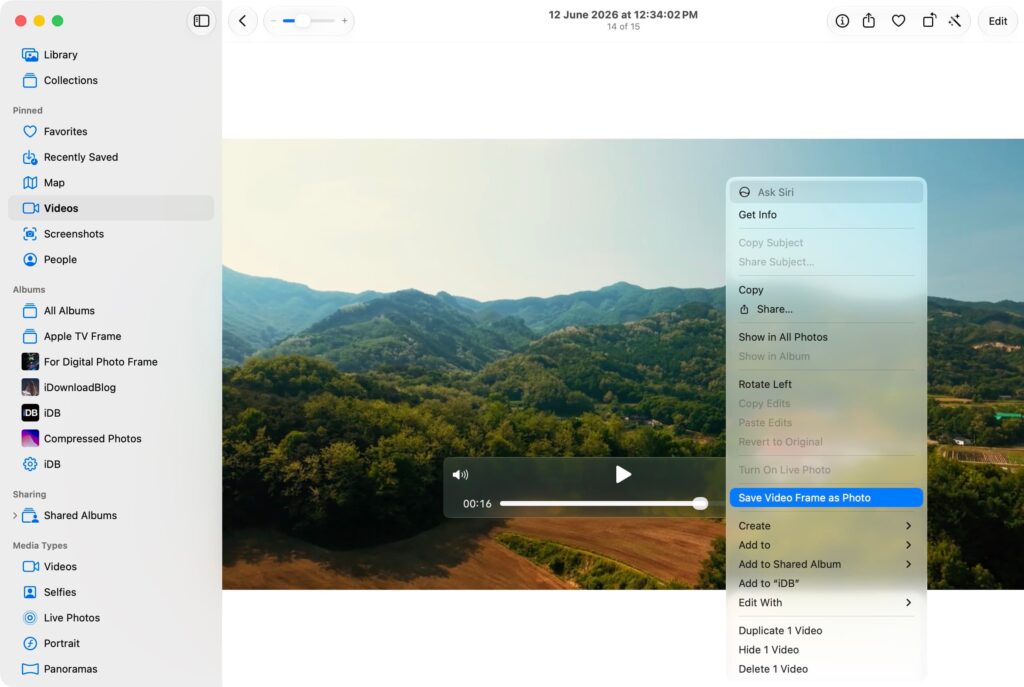
On Mac, everything also works through the Photos app
This is convenient if you shoot on an iPhone but do your editing on a Mac. The video syncs via iCloud anyway, so you can extract a frame from whichever device is currently at hand.
Where Frame Saving from Video Works in iOS 27
A couple of limitations, so you don’t look for the button where it doesn’t exist yet.
- First, the feature lives only in the Photos app. In third-party players, in the browser, in Telegram, or other messengers, it won’t be available. If you want to extract a frame from a video someone sent you, first save the clip to your media library and then work with it in Photos.
- Second, this is all part of iOS 27, iPadOS 27, and macOS 27 Golden Gate. At the time of writing, these versions are in the developer beta stage. Apple traditionally rolls out the stable release in September, alongside the new iPhone lineup. That means the feature will appear on mainstream devices closer to fall, when the update reaches everyone.
And a small note about quality. The frame is saved at the resolution the video was recorded in. If the clip is compressed or shot in low quality, don’t expect miracles — the image will be exactly the same as the source. However, from a 4K video, you’ll get a perfectly decent photo.
In short, screenshots for saving scenes from video can gradually be forgotten. The new tool in iOS 27 does the same thing, only cleaner and faster — without cropping and without unnecessary elements in the image. For now, the feature is available in beta, but by fall it will reach everyone. Once you update, check the three-dot menu in Photos, and extracting the frames you need will become second nature.