After updating to iOS 27, many users have noticed their iPhone running hot and draining battery faster than usual. Apple has now published a support document explaining the cause: a full re-indexing process for Spotlight search and Siri that runs in the background after every major OS update. The process builds a local search catalog of everything on your device — apps, files, messages, photos, contacts, notes, music, and even system settings — so that Spotlight and the revamped Siri can return results instantly. The initial indexing run is the most intensive and can take hours or even days, depending on how much data is stored on the device. The good news: it is a one-time heavy lift, and subsequent index updates are far lighter.
What you need to know
- Apple confirms that iOS 27, iPadOS 27, and macOS 27 trigger a full search-and-Siri re-indexing that can last hours or days.
- The index is stored locally and privately — it is not uploaded to Apple’s cloud and does not sync between devices, so each device indexes separately.
- Apple began preparatory index optimization as early as iOS 26.6 to reduce the post-update load.
- To speed up the process, Apple recommends leaving the device on a charger, connected to Wi-Fi, and not actively in use.
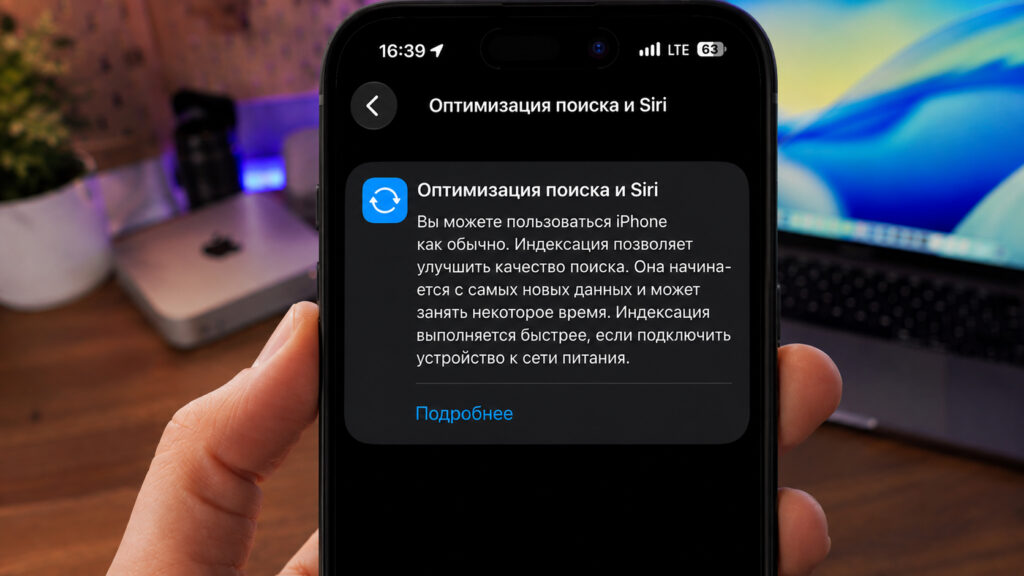
This is the message you will see after updating to the new OS
What the search-and-Siri optimization actually does
According to Apple’s support document, the indexing process creates and continuously maintains a search catalog of everything stored on the device. This catalog is what allows Spotlight and the new Siri to quickly surface apps, files, messages, photos, contacts, notes, music, and system settings.
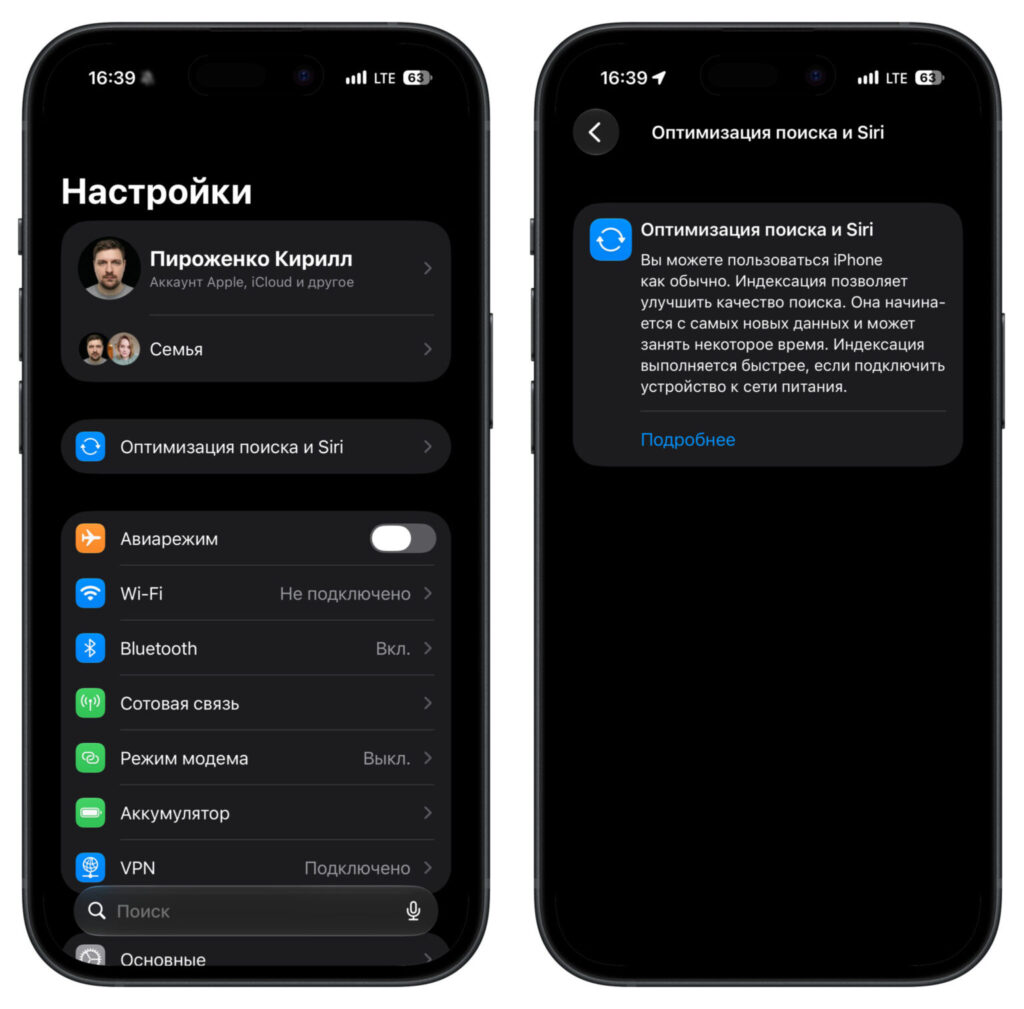
How the search-and-Siri optimization appears on recent iOS 27 betas
A key privacy detail: the index is stored entirely on-device. It is not sent to Apple’s servers and does not sync across your devices. That means every iPhone, iPad, and Mac indexes itself separately. If you update three devices, each one will go through the optimization process on its own schedule.
Apple apparently began laying the groundwork before the iOS 27 release. According to the source, iOS 26.6 already included background index optimization to prepare for the major update. Users who noticed mild background activity and warmth after recent minor updates were likely seeing this preparatory work.
In the Russian localization, the feature appears as “Optimize Search and Siri” and is displayed at the top of the Settings screen, above the Airplane Mode and Wi-Fi toggles.
How long indexing takes and how to check progress
Apple warns that the initial indexing can take hours or even days, depending on the volume of data. The first pass is the longest because the catalog is built from scratch. After that, the system only needs to add new content — fresh emails, newly installed apps, incoming messages — so routine updates are much faster.
On iPhone and iPad, a notification appears in Settings indicating that search and Siri are still being optimized. The Mail app may also display a separate notice if email indexing has not yet completed. Apple reassures users that the device remains fully usable during indexing; the system prioritizes the most recent data first.
On Mac, there is a more detailed progress indicator that can show a specific completion percentage.
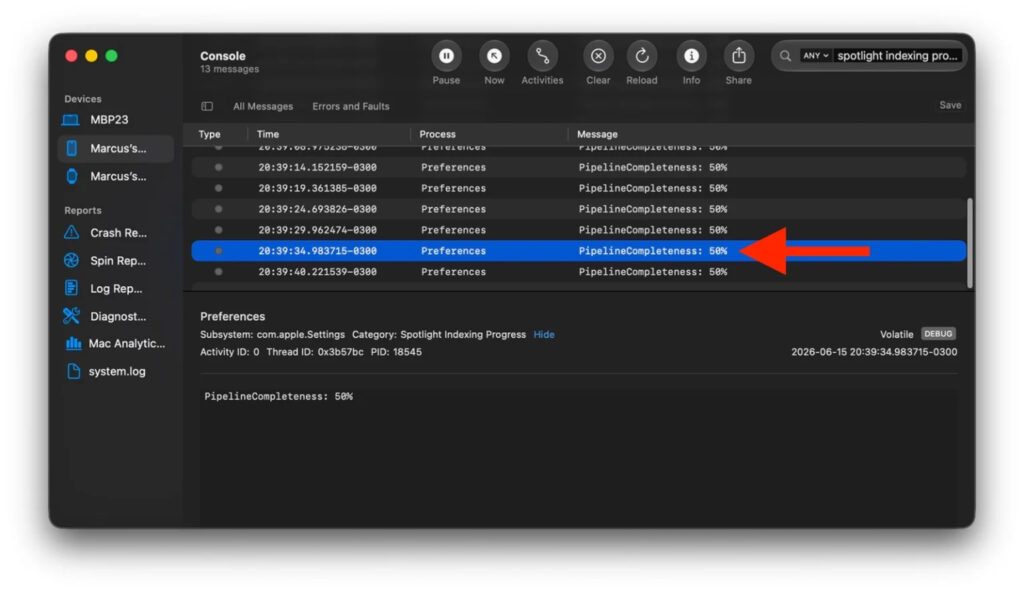
On Mac you can see the specific optimization percentage
Three tips from Apple to speed up indexing
Apple’s support document lists three specific conditions under which indexing completes faster:
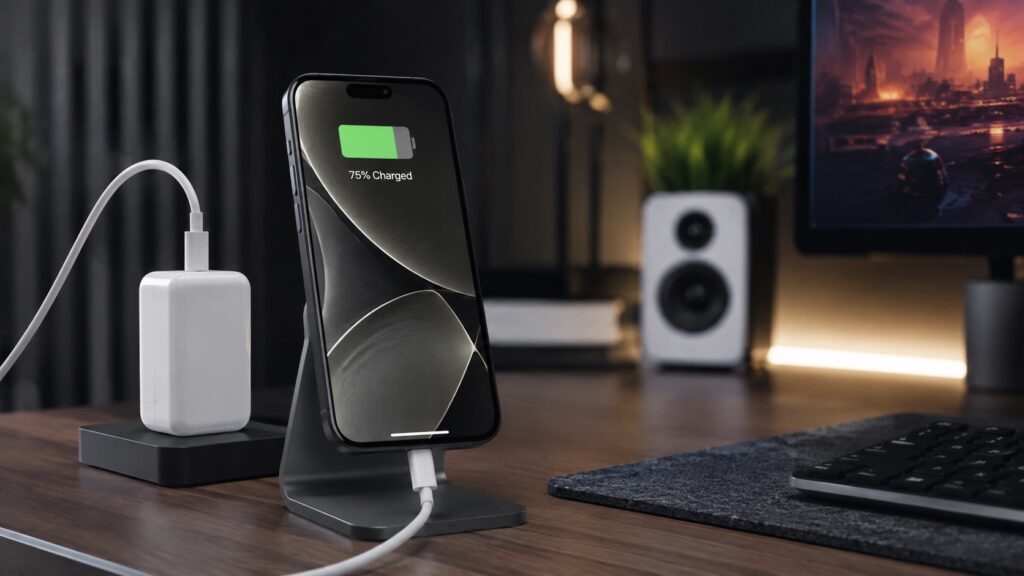
Put your device on a charger and leave it idle to speed up optimization
- Leave the device idle — not actively in use, so the system does not have to share resources with foreground apps.
- Connect to power — on a charger, the system does not throttle background tasks to conserve battery.
- Connect to Wi-Fi or Ethernet — so the device can download any additional data (such as emails) needed for the index.
The logic is straightforward: when idle and charging, the system can devote its full resources to processing data in the background without competing with your taps and open apps. The ideal scenario is to plug your iPhone in to charge overnight immediately after updating. By morning, the search index should be mostly or fully built. There is no manual button to force-complete the process — creating the right conditions is the only way to help it along.
What to do if search returns wrong results
If indexing has finished but Spotlight still fails to find what you need or returns unexpected results, Apple’s document offers additional guidance. First, install the latest software updates, as some search bugs are fixed in subsequent patches.
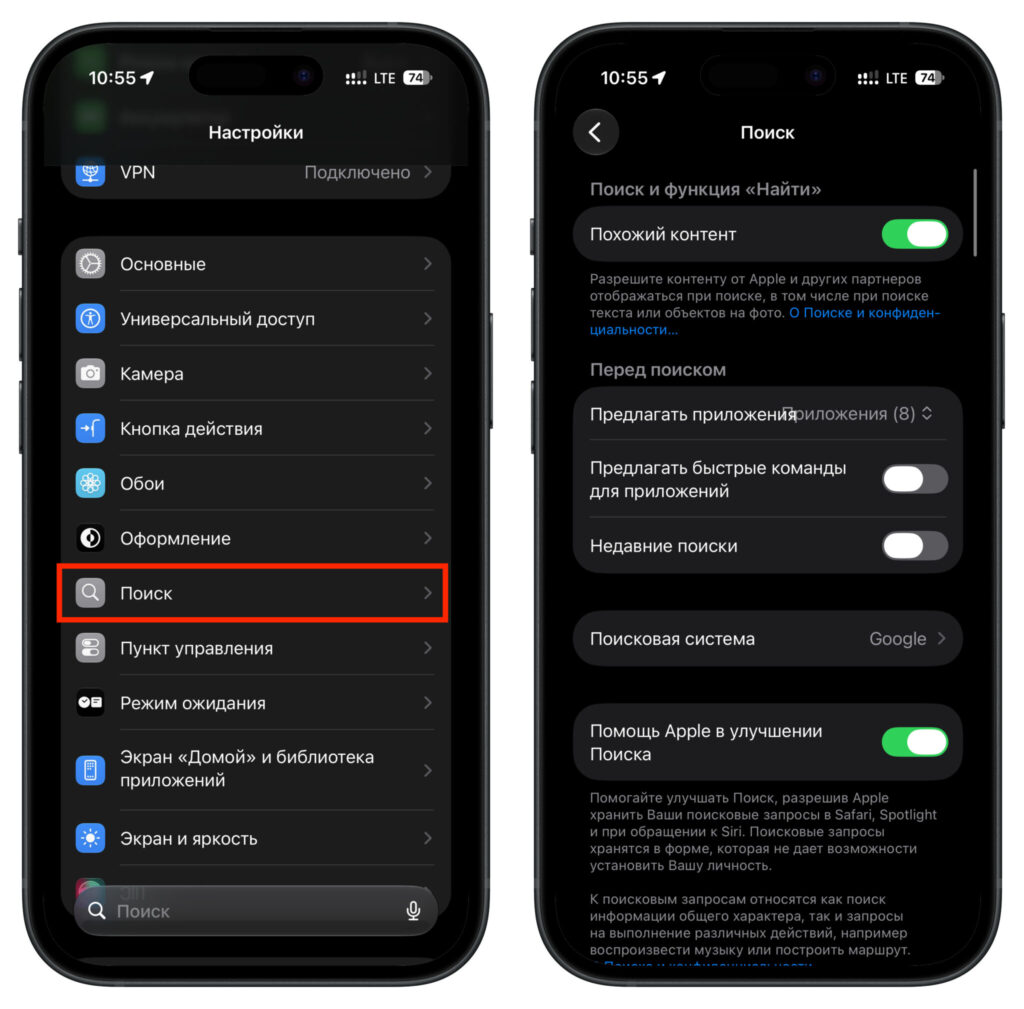
Check your Search settings — a needed app may simply be excluded from Spotlight
Next, check your search settings to make sure the relevant content types are enabled. On iPhone and iPad, go to Settings → Search, where all searchable categories are listed. An app you are looking for may simply be toggled off from Spotlight.
On Mac, there is a more targeted fix: you can force a partial re-index through Spotlight’s privacy settings. Add the drive or folder in question to the exclusion list, wait a few seconds, then remove it. The system will re-index that content from scratch. This is useful when search misbehaves for specific files or folders rather than the entire device, and avoids wiping the full index.
For the complete set of troubleshooting steps, Apple’s full support document covers additional scenarios beyond what is summarized here.


