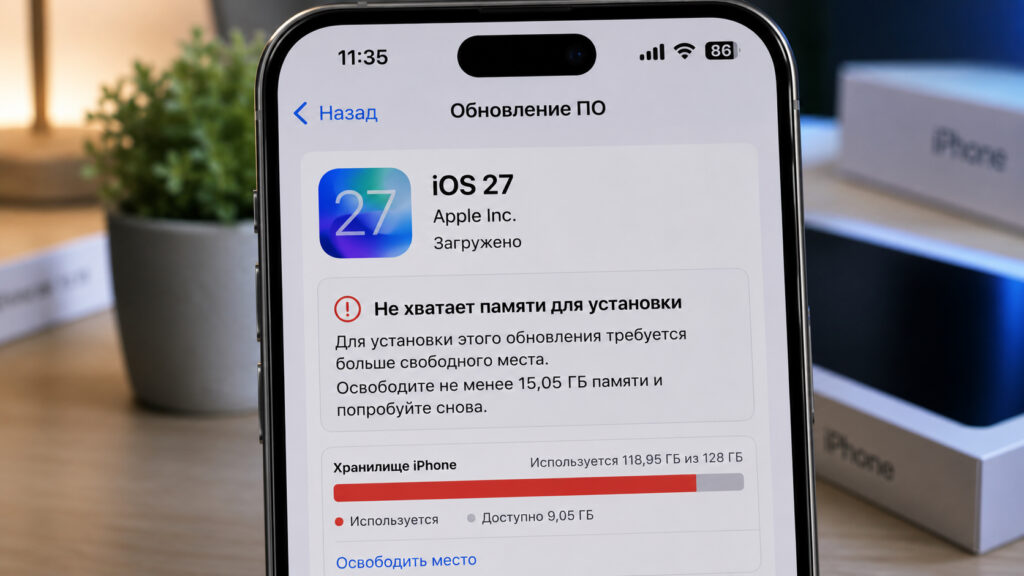
When your iPhone says it needs 12 GB of free space for an update that’s only a 6 GB download, it’s not an error. iOS firmware arrives as a compressed archive, and the phone needs room to decompress it, verify its integrity, and assemble the new system alongside the old one. That’s why the free-space requirement is roughly double the download size. Here’s a detailed look at where that storage goes and how much you should keep in reserve.
What you need to know
- iOS keeps both the old and new system files simultaneously during installation, along with temporary working files — creating peak storage demand.
- The iPhone’s APFS file system creates a snapshot before updating, acting as a safety net for rollback, which consumes additional space via copy-on-write.
- For major annual updates (e.g., iOS 26), the download is typically 5–8 GB, but 10–20 GB of free space is recommended for a smooth installation.
- All temporary files and snapshots are automatically deleted after a successful update — no manual cleanup is needed.
Understanding how much storage is needed for iOS updates
Where does the storage go during installation?
The file your iPhone downloads through Settings is a compressed archive. Inside are system components, device-specific drivers, high-resolution graphics, and on newer iPhones, Apple Intelligence models. Everything is compressed to save bandwidth, but a compressed archive can’t be installed directly — it must first be unpacked. That decompression alone accounts for the first chunk of extra storage beyond the download size.
Then comes the critical part. iOS does not erase the old system to install the new one in its place. Instead, the phone temporarily maintains both systems simultaneously: the current one you’re updating from, and the new one being assembled. On top of that, there’s a working area for temporary files. These three things exist in parallel, and this is the moment when storage demand peaks.
This explains the familiar situation where an update downloads successfully, but the phone stalls at “Preparing Update” and asks you to free up space. The archive is already on disk, but there’s nowhere to unpack it.
What is a snapshot and why does it matter?
The technology behind this “double bookkeeping” is the iPhone’s file system, APFS, and its snapshot mechanism — instant captures of the system’s state.
Before applying an update, iOS creates a snapshot of the current system. This is a safety net: if anything goes wrong, the phone can roll back to the saved snapshot and return to exactly the state it was in before the installation began. Nothing is lost, and the device won’t be bricked. The clever part is that at the moment of creation, a snapshot takes up almost no space — it simply records where all data currently resides.
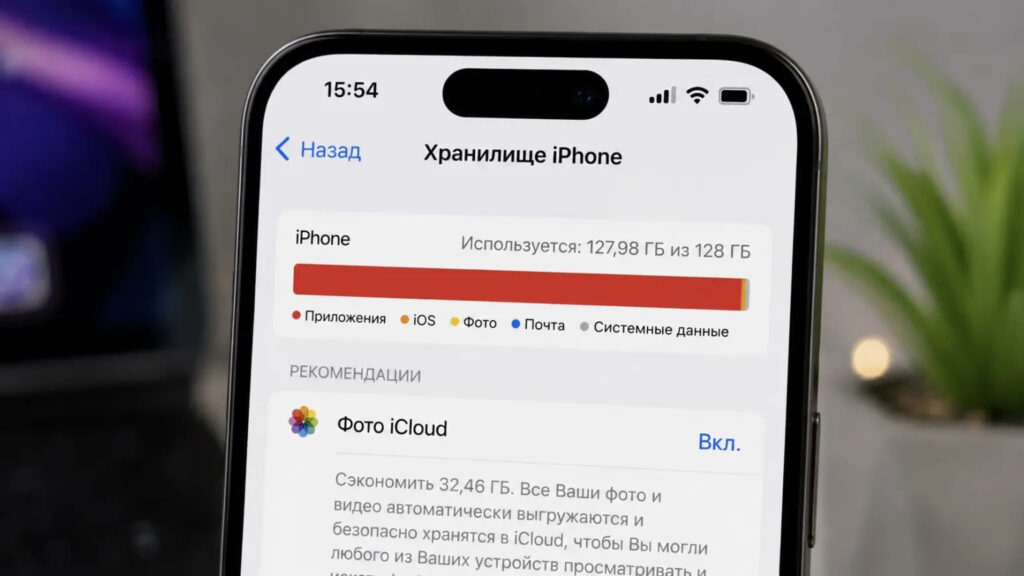
With storage this full, you definitely won’t be able to update
Space starts being consumed as the installation progresses. APFS uses a copy-on-write principle: when the system modifies or deletes data that’s part of the snapshot, it doesn’t overwrite the old blocks. Instead, it writes the new version to free space while preserving the old data intact, because the snapshot must remain whole. The more the system changes during the update, the more old data accumulates alongside the new. This is the second major source of storage appetite.
The good news: once the installation completes successfully and the phone reboots, the snapshot and temporary files are automatically deleted, and the space they occupied is returned. No manual cleanup is required.
How many gigabytes should you keep in reserve?
There is no single universal number. The update size depends on the iPhone model, the version you’re updating from, the region, and the installation method. Two people with identical iPhones may see different sizes for the same update.
For a major annual update like iOS 26, the over-the-air download typically weighs around 5–8 GB when coming from the previous version. However, the system will request significantly more free space. In practice, keeping 10–20 GB of empty storage is advisable for a smooth installation. Anything less is a gamble — it might work, or it might stall midway.
Jumping across multiple versions is a separate matter. If you haven’t updated in a long time and are leaping from, say, iOS 18 to the current release, the file will be larger and the storage reserve needs to be greater. The same applies to iPhones that support Apple Intelligence: additional AI models are bundled into the firmware, adding extra gigabytes to the total.
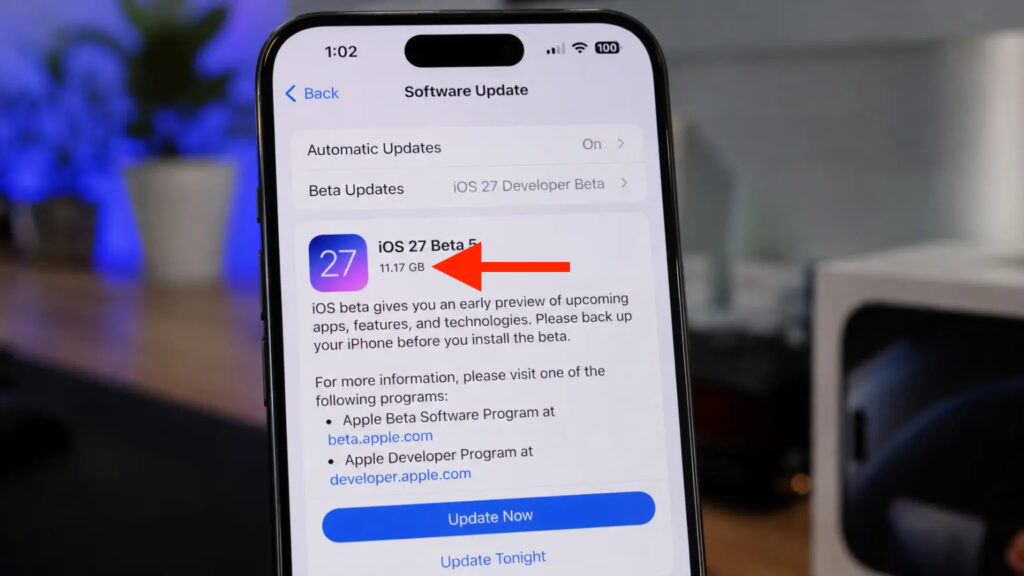
Each firmware version shows its download size
To check the exact size for your phone, go to Settings → General → Software Update, where the specific package size offered to your device will be displayed. This is more reliable than any average figure.
What to do if you still don’t have enough space
The most straightforward step is to tidy up your storage. Open Settings → General → iPhone Storage and see what’s taking up the most room. Usually it’s 4K videos, large games, and old downloads from streaming services. A single high-resolution video can easily weigh 1–2 GB, so deleting three or four such files can free up the necessary space.
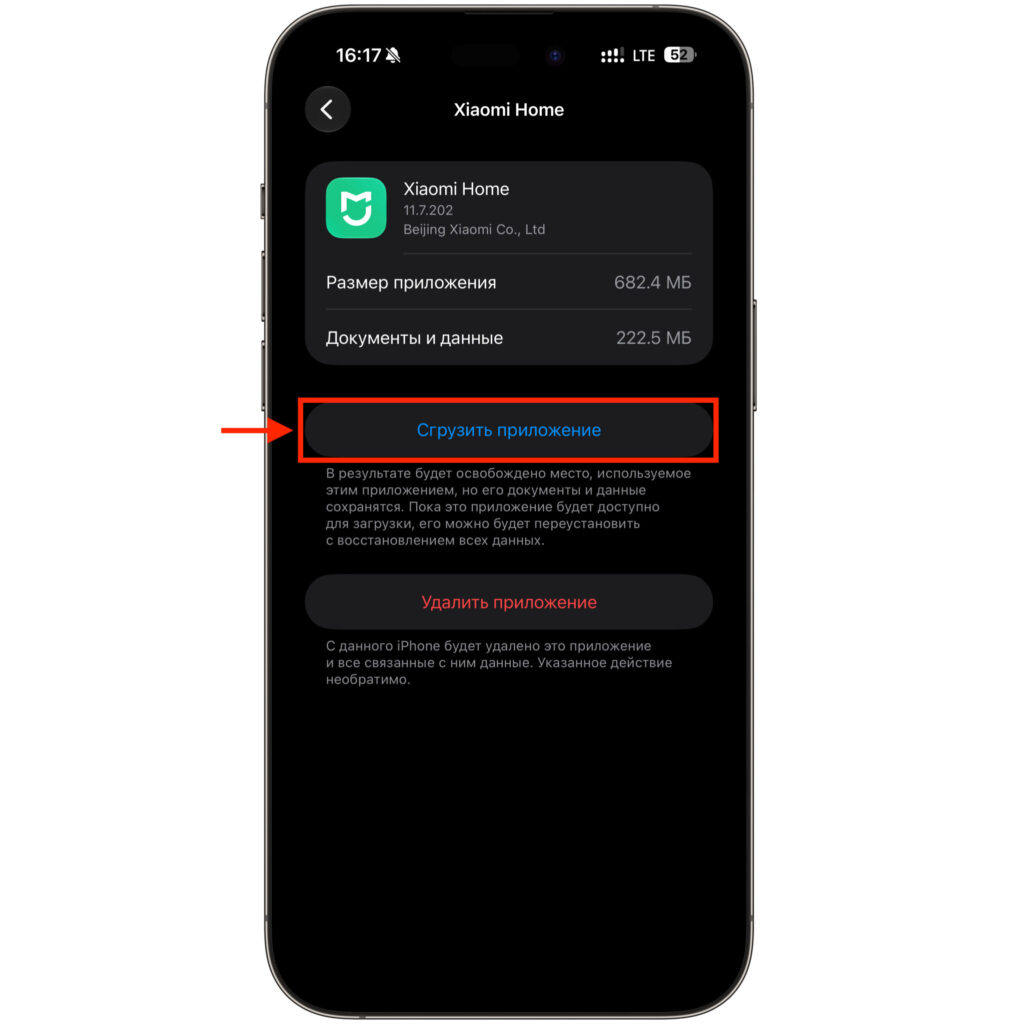
Start by offloading apps. Only offload apps that are available in the App Store, otherwise you won’t be able to restore them
A useful trick is offloading apps. In the same storage menu, tap on a rarely used game and choose “Offload App.” The app itself is removed, but its data and settings are preserved — after the update, you can reinstall it from the App Store and pick up right where you left off. This frees up a significant chunk of storage without real losses.
There’s also a common trap: deleted photos and videos don’t free up space immediately. They sit in the “Recently Deleted” album for about 30 days. Until you manually empty that folder, not a single megabyte is recovered. After deleting media, be sure to go to Photos → Albums → Recently Deleted and permanently erase everything. The source author notes that this album typically occupies around 1.5–2 GB.
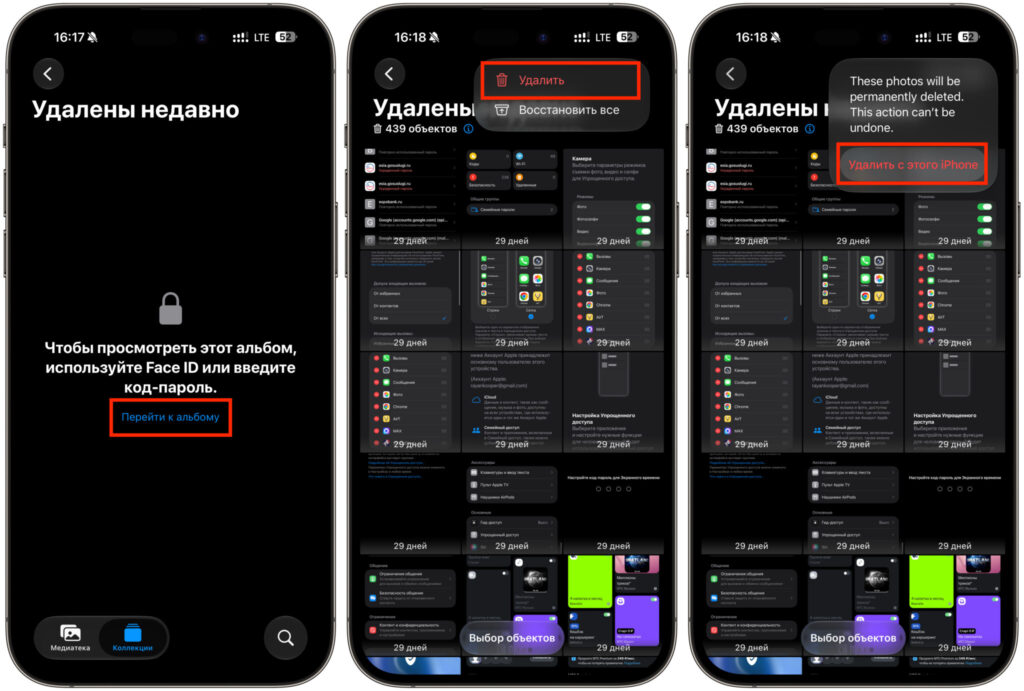
Be sure to clear the Recently Deleted album
If you’d rather not spend time cleaning up, there’s a workaround via computer. Installing through Finder on a Mac or the Apple Devices app on Windows performs the unpacking on the computer rather than on the phone. This reduces the free-space requirements on the iPhone itself, since the most storage-hungry decompression stages happen off-device. Sometimes this is faster than repeatedly deleting files gigabyte by gigabyte and hitting the same error.


