Before replacing headphones that sound muddy or lack detail, it may be worth trying a software fix first. The source author reports that the free Android app Wavelet significantly improved audio quality across multiple headphone models — not by acting as a simple in-app equalizer, but by processing sound at the system level for any connected audio device. The key feature, AutoEq, applies measurement-based correction profiles tailored to specific headphone models, and the app works across streaming, video, and podcast playback without requiring root access.
What you need to know
- Wavelet processes audio system-wide on Android — it works across all apps, not just a single music player.
- The AutoEq feature includes over 5,000 headphone profiles built from real frequency-response measurements.
- The app automatically detects connection type (Bluetooth, wired, USB, external DAC) and remembers settings per device.
- A manual 9-band equalizer, bass tuner, volume limiter, and channel balance are also available for further adjustment.
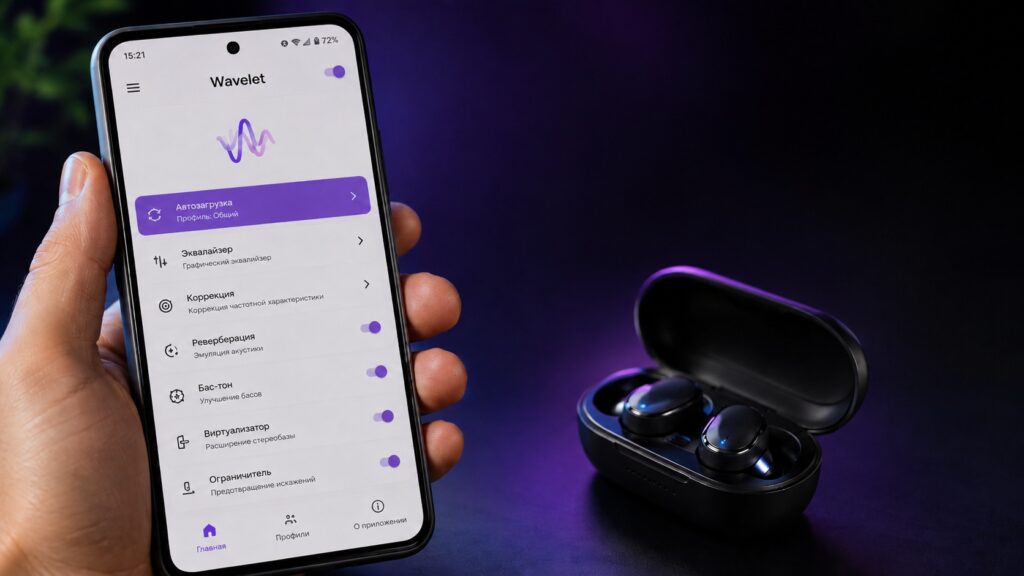
Wavelet can improve headphone sound on Android without any hardware changes
What Wavelet does and how it differs from a regular equalizer
Unlike equalizers built into individual music players, Wavelet operates at the level of the connected audio device. This means its corrections apply universally — whether you are streaming music, watching a video, or listening to a podcast. The app is available on Google Play and does not require root access.
Wavelet automatically detects what type of audio device is connected — wired headphones, Bluetooth, USB, or an external DAC — and presents the appropriate settings for that connection type.
Set it once: automatic profile switching
One of Wavelet’s practical strengths is that it remembers settings per headphone model. Once configured, the app automatically loads the saved profile whenever a previously set-up pair is connected. It runs in the background, processing audio transparently without requiring user intervention after initial setup.
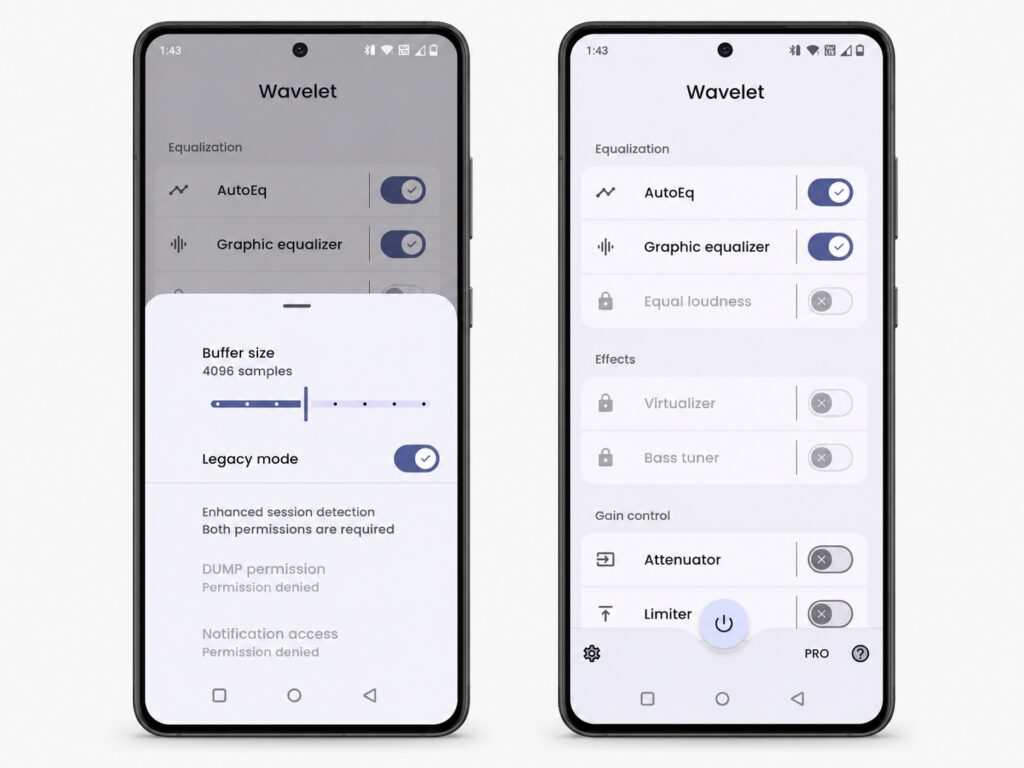
A single setup is enough for the app to work automatically going forward
AutoEq: measurement-based profiles for over 5,000 headphone models
The standout feature is AutoEq. Rather than requiring users to manually adjust frequency bands, it offers a database of more than 5,000 headphone profiles. Each profile is built on real frequency-response measurements and is designed to compensate for the specific sonic characteristics of that model.

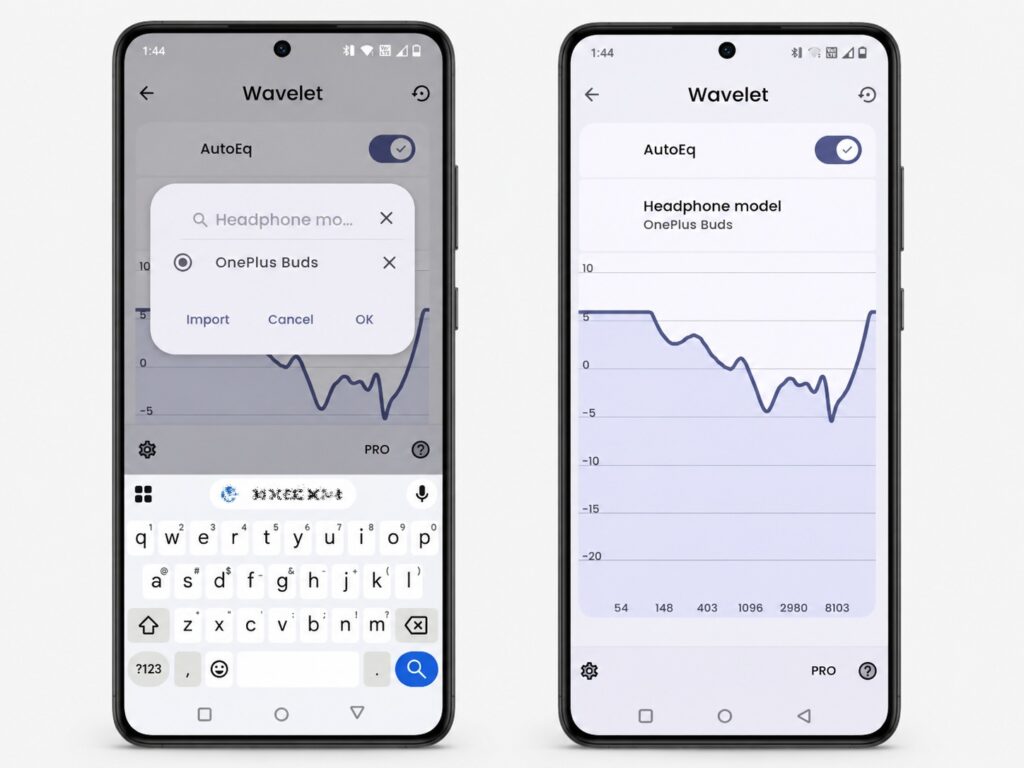
Sound can be tuned individually for each pair of headphones
According to the source, setting up AutoEq is straightforward:
- Open the AutoEq section in the app.
- Tap the headphone model field and search for your model.
- Enable AutoEq and select the correct model.
Important caveat: The AutoEq option only appears when headphones or an audio device are actively connected. If your model is not in the database, you will need to use the manual equalizer instead.
Manual tuning with the 9-band equalizer
If your headphones are not listed in the AutoEq database, Wavelet provides a 9-band graphic equalizer for manual adjustment. The source author reports starting with a familiar song, making small adjustments, and evaluating the result in real time. You can begin with a preset or move individual sliders — for example, raising the lower frequencies slightly if bass feels lacking.
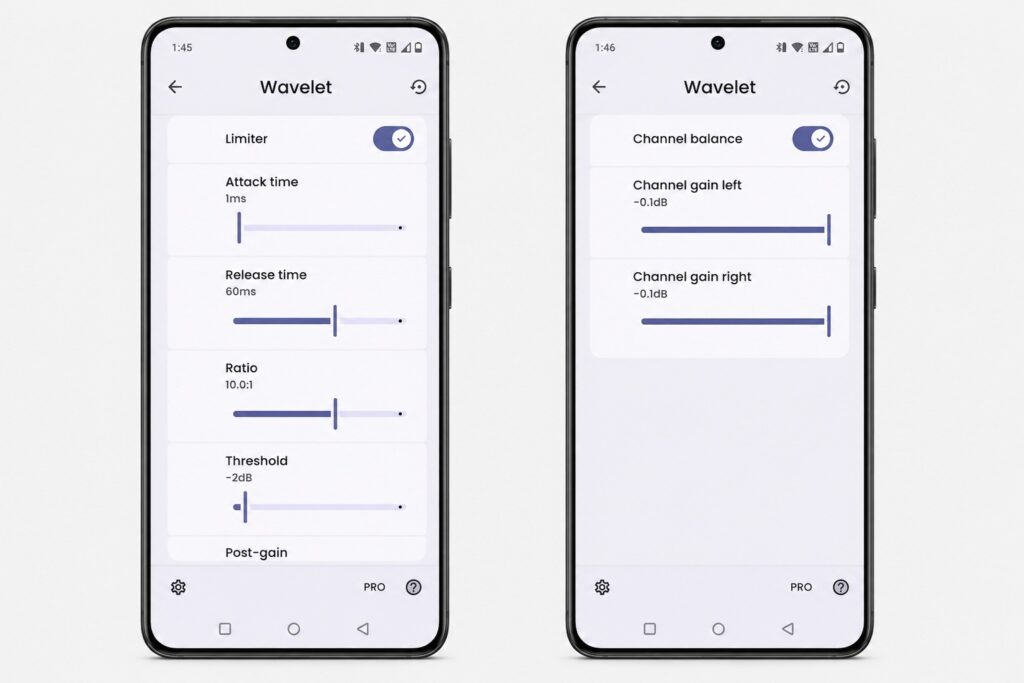
All parameters can be adjusted manually if needed
Additional tools: bass tuner, limiter, and channel balance
Beyond AutoEq and the graphic equalizer, Wavelet includes several supplementary features:
- Bass Tuner — Provides more precise control over low frequencies than a simple bass boost. According to the source, it can emphasize kick drums or deep sustained bass without muddying the overall sound.
- Limiter — Smooths out sudden volume spikes. This is particularly useful when listening in noisy environments where you may raise the volume for quiet passages only to be hit by loud sections.
- Channel Balance — Allows independent adjustment of left and right channels, helpful if one side of your headphones sounds slightly louder than the other.
Worth trying before buying new headphones
The source author’s conclusion is that what initially seemed like a hardware limitation turned out to be addressable through software tuning. Wavelet is free, and the AutoEq feature provides a convenient starting point for users who do not want to manually configure an equalizer. If your current headphones sound underwhelming, it may be worth trying this app before investing in a new pair — though results will naturally vary depending on the headphones and personal listening preferences.


