Transferring files between a phone and a computer is a task everyone solves differently: you can use a cable, a messenger, or the cloud. But Quick Share for Windows makes it simpler: it can be installed on any PC, doesn’t require the Microsoft Store, and works with the same Google account you use on your phone.
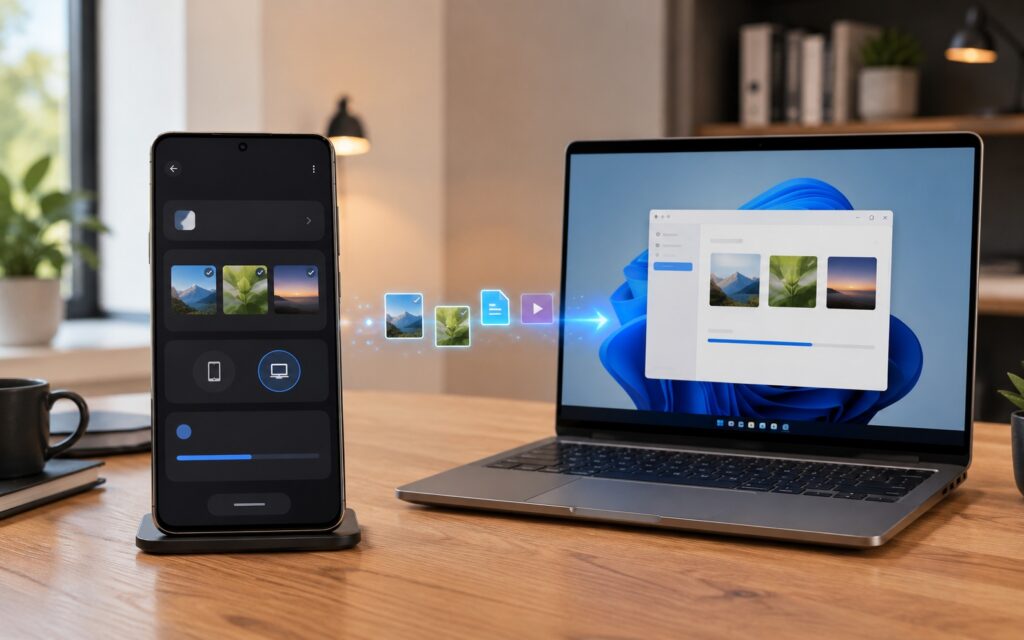
Nothing is more convenient than this method yet
What Is Quick Share for Windows and Where to Get It
Quick Share is a built-in file sharing method on Android. It’s essentially an analog of Apple’s AirDrop. Google created a separate client for Windows that can be installed on any computer. You can download it directly from the android.com website, without the Microsoft Store.
Download Quick Share for Windows
There’s one limitation worth knowing about in advance: you need a 64-bit version of Windows 10 or Windows 11. The app works on standard x86 processors — there’s no version for Arm-based devices yet, so Arm laptops are left out for now.
How Quick Share Differs from Microsoft’s “Phone Link”
Microsoft has its own alternative — “Phone Link” (Link to Windows). But it’s a tool for a different purpose: it displays notifications, messages, and your phone’s screen on a PC. If you simply need to transfer files from Android to a computer, Quick Share handles this more reliably and without the extras.
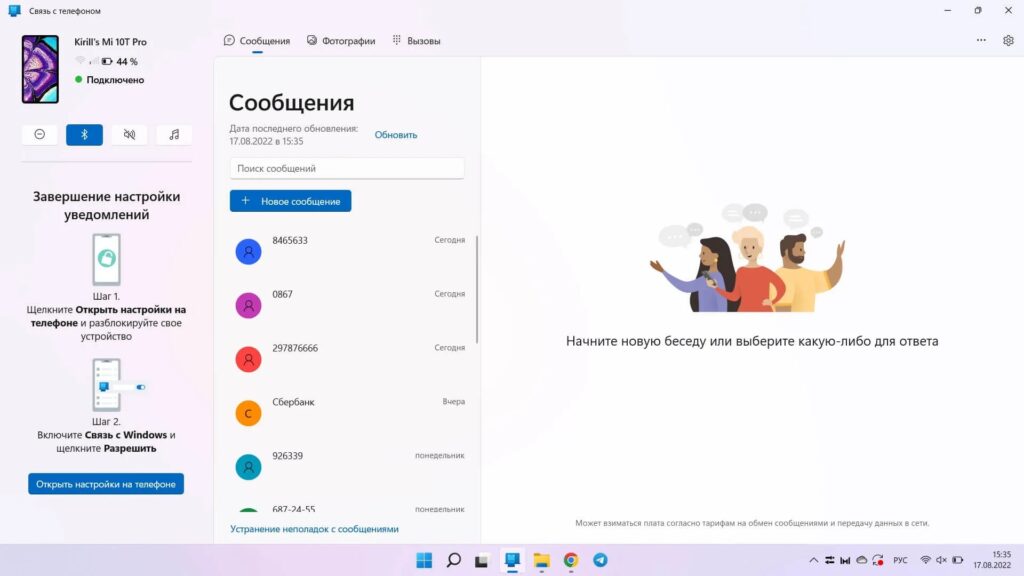
Link to Windows is for connecting to your phone, not for file transfers
Another advantage is that less data goes to third-party services. Quick Share is tied to your Google account, and for Android users, this is often more familiar than deep integration with the Microsoft ecosystem. If you’re already used to Quick Share on your phone, it works with the same logic on your computer — it’s the simplest way to transfer a file without clouds or cables.
How to Transfer a File from Phone to PC via Quick Share
Setup is simple and doesn’t require any special knowledge. After installation and signing into your account, the computer will appear in the list of devices for sharing right on your phone:
- Download Quick Share for Windows from the android.com website and install the app.
- Sign in with the same Google account you use on your phone.
- On your phone, select files, tap “Share,” and then Quick Share.
- In the list of devices, select your computer and confirm the transfer.
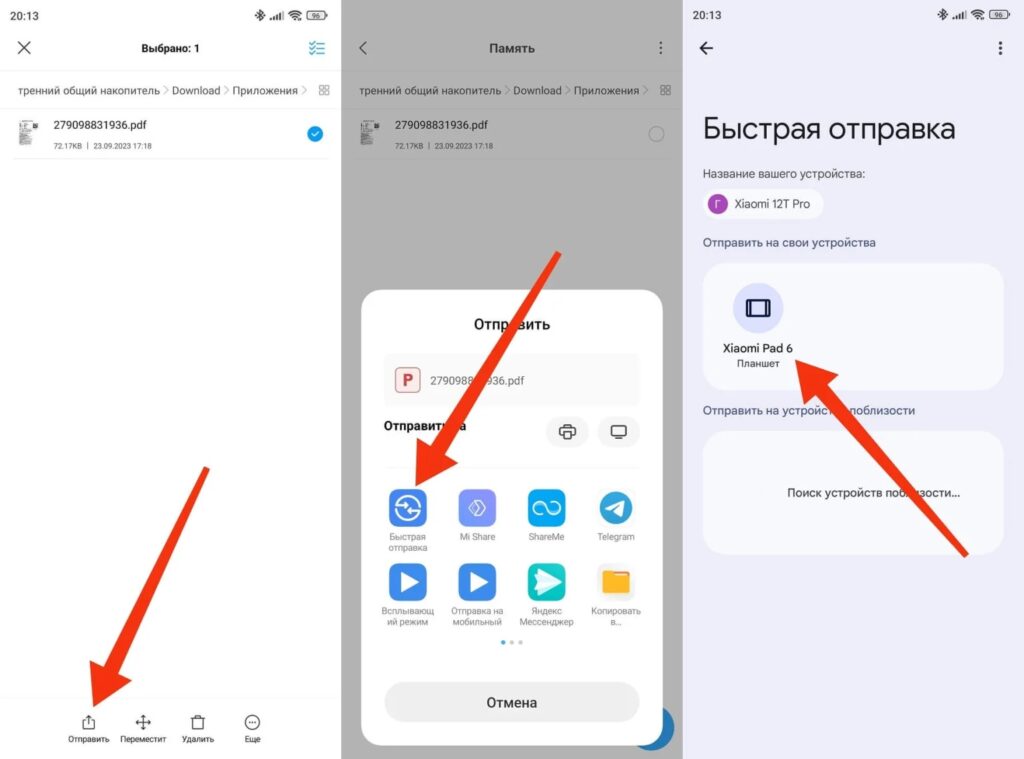
Here you’ll need to select your computer
It also works the other way around — you can send documents, photos, and videos from your computer to your phone. You can even transfer entire folders, not just individual files.
Who Should Install Quick Share and Who Doesn’t Need It
Quick Share for Windows is useful for those who regularly transfer files between their phone and PC and don’t want to deal with cables or cloud services. It’s a convenient option if you don’t use Microsoft’s “Phone Link.” The only limitation is speed.
If you need to mirror your phone’s screen, reply to messages from your computer, or take calls — Quick Share can’t do that, and in that case, it makes more sense to stick with Microsoft’s solution. But for everyone who needs reliable file transfer, this is a free and straightforward tool that installs in a couple of minutes and is immediately ready to use.