After the release of iOS 27, messages started flooding in again about the T-Bank app refusing to open. It’s a familiar story with every major update: the new system breaks yet another build that the bank hides in the App Store under a fake developer name. The good news is that there is a working method to get everything back to normal.
New T-Bank apps don’t work on iOS 27
The trick is that older versions of the T-Bank app launch on iOS 27 without crashing. The reason is unclear, but it works. All you need to do is pull up the build you once installed on your phone and push it back via a computer. It sounds like magic, but in practice it takes about five minutes.
Why T-Bank Won’t Open on iPhone After an iOS Update
The bank has long stopped publishing its app under its real name. In the App Store it regularly pops up under names like T-Case, T-Catch, or some other neutral title. Apple finds and blocks these accounts, so every build has a short lifespan.
When a major system update comes out, the problem compounds. The fresh build you managed to grab a couple of weeks ago worked fine on iOS 26, but after upgrading to iOS 27 it starts crashing on launch. The reason is simple: the app was built for the old system, and on the new version its checks and dependencies break.
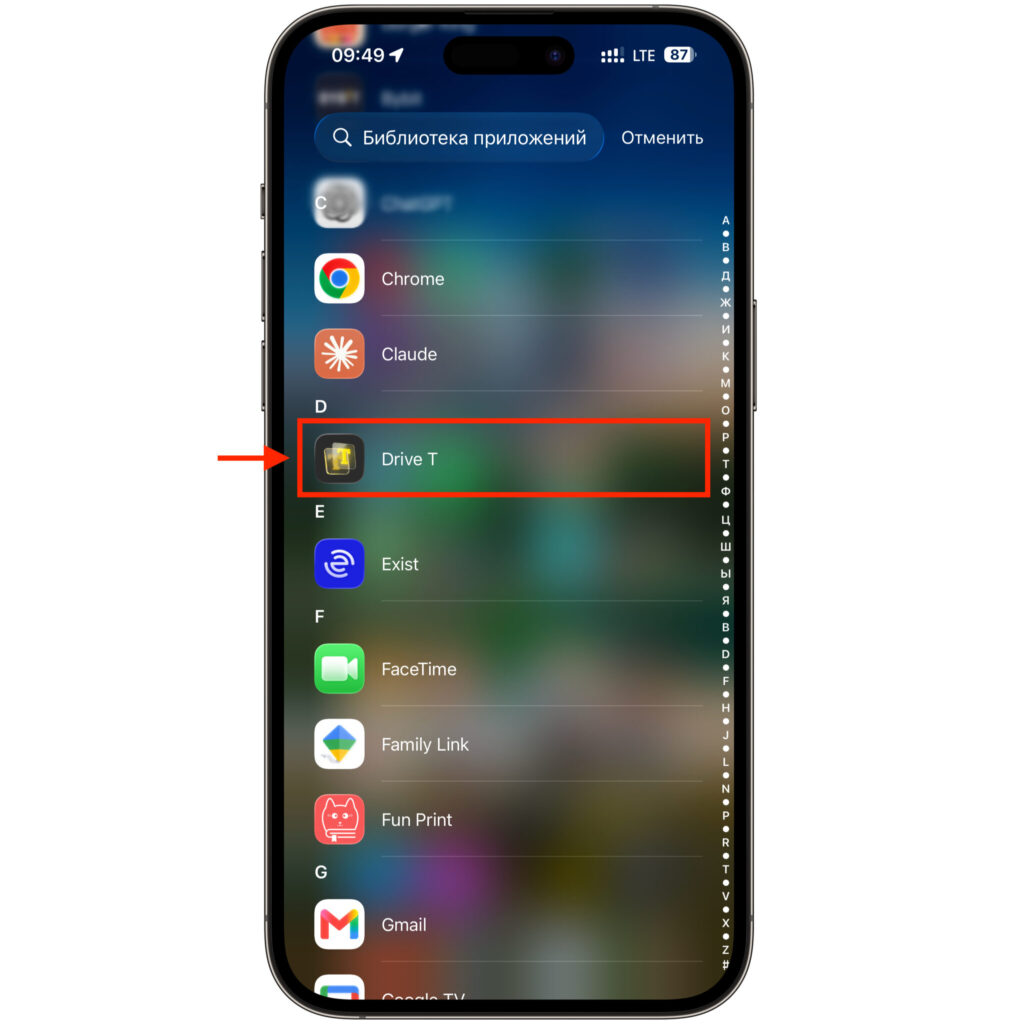
The current Drive T doesn’t work on the new OS
And here’s where it gets interesting. In practice, it turns out that very old builds released a year or more ago behave more stably than the recent ones. The same T-Case opens just fine on iOS 27 and doesn’t crash right after launch. There isn’t much logic to it, but the fact remains, and you can take advantage of it.
Most likely, the reason is that very old versions have fewer ties to newer system libraries, which are exactly what gets rewritten in major updates. The simpler the app is internally, the less likely it is to trip over a fresh iOS. So going through builds from the oldest to newer ones often yields results faster than you’d think.
What You Need to Restore the T-Bank App on iPhone
The app opens up many interesting possibilities
The main tool here is iMazing, a program for managing an iPhone from a computer. It’s available for both Mac and Windows. In addition to it, you’ll need a cable and the same Apple ID you previously used to download the bank’s app. This is a crucial point: iMazing pulls builds from your personal media library, i.e., from your account’s download history.
If you’ve downloaded several different T-Bank clients over the years, consider yourself lucky. The more options you have in your media library, the higher the chance that at least one of the old builds will work on the new system. Those who installed the app only once aren’t left empty-handed either — they’ll just have fewer choices. However, if your account has no T-Bank apps at all, unfortunately this trick won’t work.
I recommend figuring out in advance which builds you actually have. In the media library list, you can see the file size and a note about available versions next to the name, so it’s easy to navigate. Names change from update to update, so keep the full set of masks in mind: T-Case, T-Catch, and any other short names starting with the letter T.
Installing an Old Version of T-Bank on iPhone via iMazing
The process is straightforward — it’s hard to make a mistake. Here are the steps:
- Connect your iPhone to your computer with a cable and open iMazing.
- Select your device in the sidebar on the left.
- Go to the “Manage Apps” section and switch to the “Library” tab.
- Scroll through the list and look for old T-Bank builds. Focus on names like T-Case or T-Catch rather than the icon.
- Click the download arrow to save the build to your computer.
- Right-click the app and select “Install”.
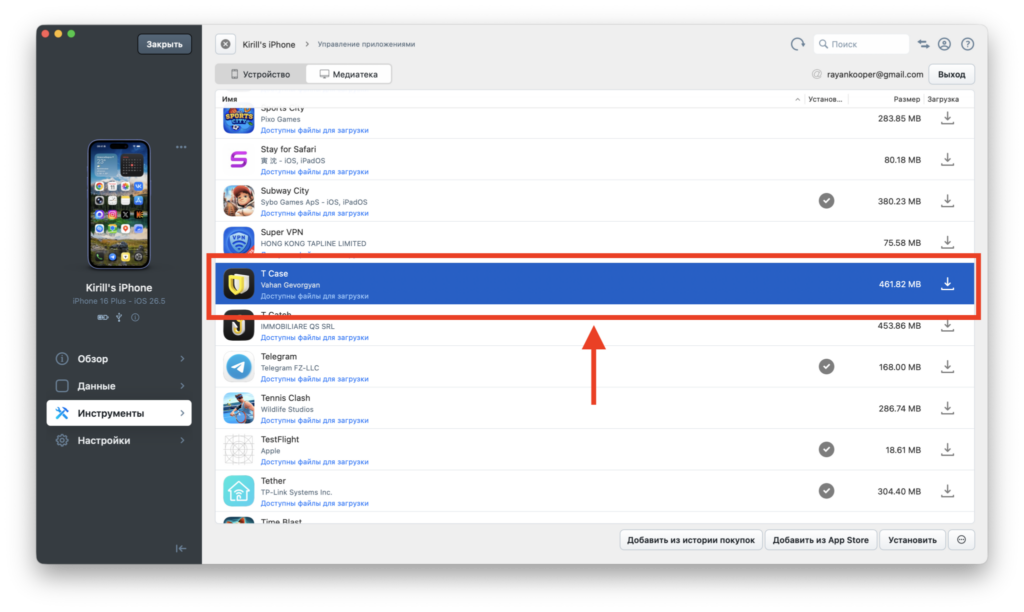
Find the right app
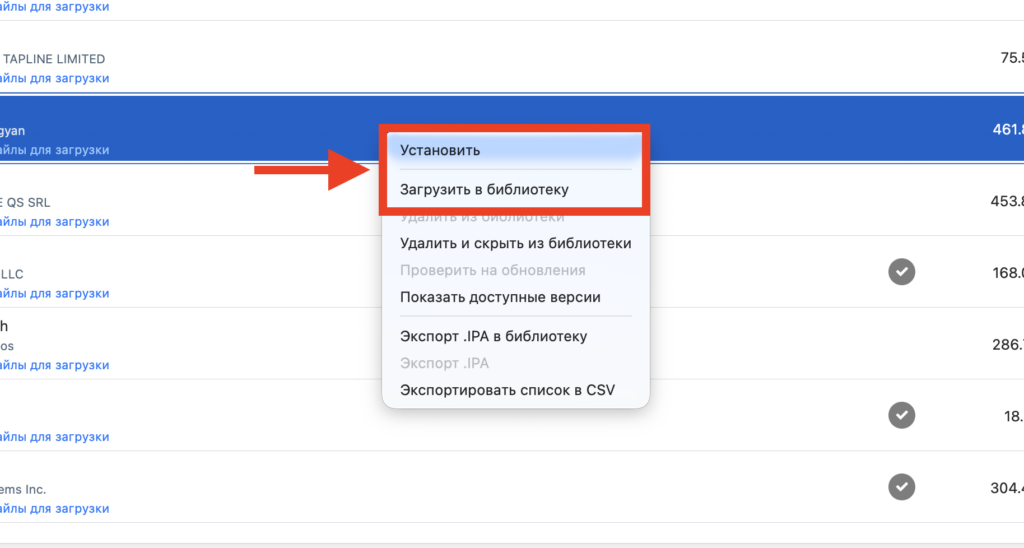
Download and install it on the iPhone
Within a minute, the icon will appear on your iPhone home screen, and the app will open as if nothing happened. If the first build still crashes, don’t give up — try the next one on the list. Different versions behave differently, and the trial-and-error method works reliably here.
I should also note that you don’t need to delete a working client. If an old version is already installed and opens fine, leave it alone and simply don’t touch it. There’s no point in swapping builds back and forth — you might just end up with a newer one and get crashes again.
Is It Worth Installing an Old Version of T-Bank on iPhone
I’ll be honest right away: this is a temporary solution, not a real fix. An old build is an old build, so some newer features may be missing, and parts of the interface may look different from what you’re used to. But the basic operations are all there, and the app doesn’t close on launch — which is exactly what many people need right now.
There’s also a second consideration. Apple continues to purge the accounts under which the bank publishes its clients, so a specific build may eventually disappear from your media library entirely. So if a working version is already installed and everything suits you, I wouldn’t rush to delete it for the sake of experimenting with yet another update.
The bottom line is this: while there’s no official client for iOS 27, old builds installed via iMazing cover the immediate need. It’s not ideal and not permanent, but if you need the app right now, there’s no better option without jailbreaking or using third-party app stores.