Many people use Finder as just a regular folder: open it, find a file, close it. But hidden inside macOS is a full-fledged file management tool that can remove backgrounds, create PDFs, search files by conditions, and rename hundreds of images at once. Most of these features replace paid applications and don’t require a single download.

It turns out Finder can do a lot
How to Open a File on Mac Without Launching an App
The most well-known feature: select a file and press the spacebar to view it without launching an application. This opens a preview for photos, videos, documents, and audio. Quick Look has been in macOS for almost 20 years, but not everyone knows that you can edit files right in this window.
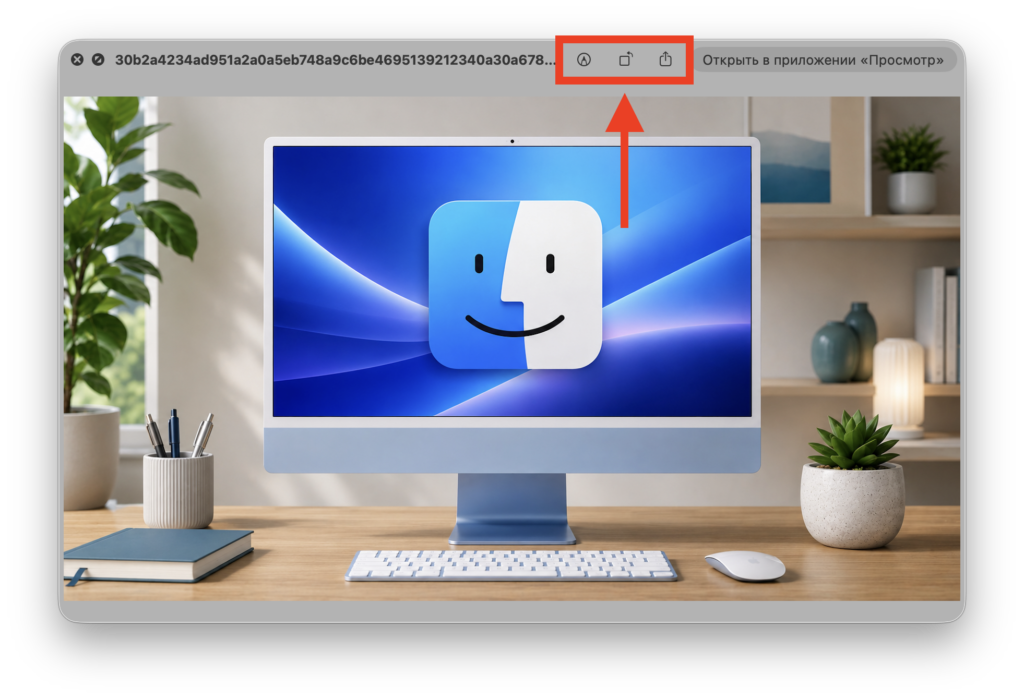
Press spacebar and get access to quick editing
What’s available right from the preview window:
- Images: rotation, cropping, adding text and arrows
- PDF: add or remove pages, fill out forms, insert an electronic signature
- Video and audio: trim by length
- Text: selection and copying
- Live Photo: automatic playback of the video fragment
The Live Text feature is especially useful on its own. It allows you to copy text directly from an image in the Quick Look window. Handy when you need to extract a phone number or address from a screenshot.
How to Automatically Sort Files on Mac
A Smart Folder differs from a regular one in that you don’t manually place files into it. It finds them on its own based on set conditions. For example, you can gather all videos from a single trip, even if they’re scattered across different locations on the drive.
To create a Smart Folder:
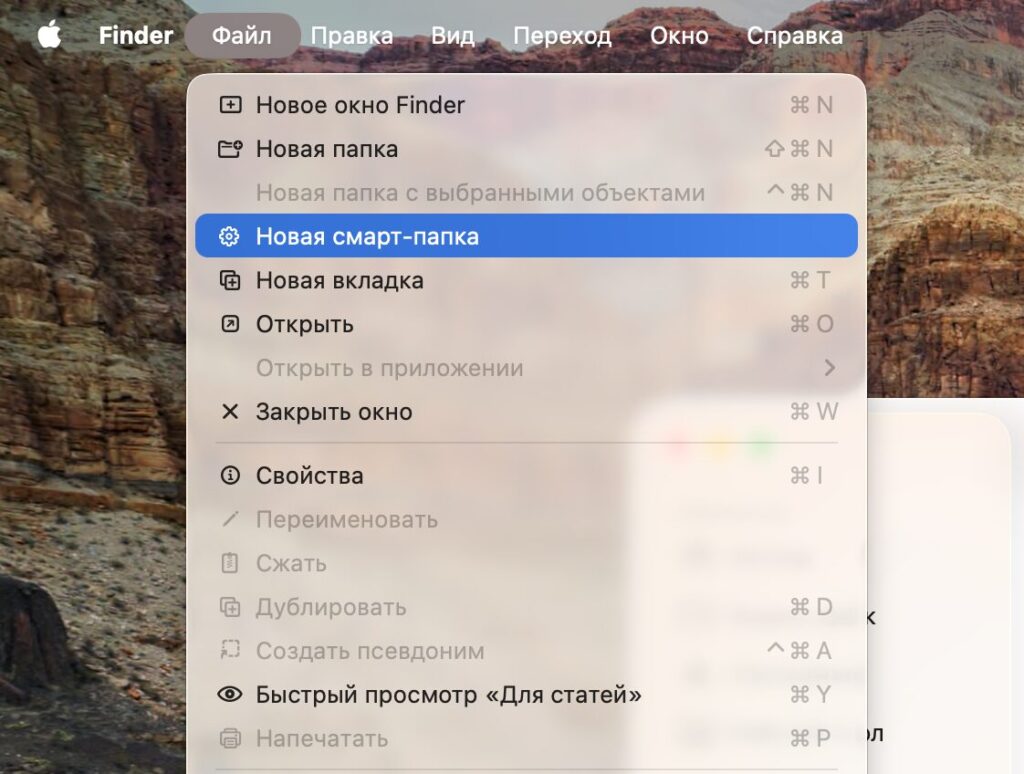
A Smart Folder is very easy to create
- In Finder, select “File,” then “New Smart Folder”
- In the top-right corner of the search window, click the plus sign and add parameters: file type, date, shooting location, and more
- Click “Save” and choose where the folder will be stored
If you hold the Option key while adding conditions, a complex logic mode opens up. It allows you to specify whether a file must match all conditions at once, at least one of them, or conversely, match none. The latter is handy for excluding unwanted categories. This feature is a lifesaver in long projects where files are added gradually.
Quick Actions in Finder: Remove Background, Create PDF, Convert
This is perhaps the most underrated part of Finder. Quick Actions perform simple file operations without launching separate programs. Many people install paid software specifically for tasks like these.
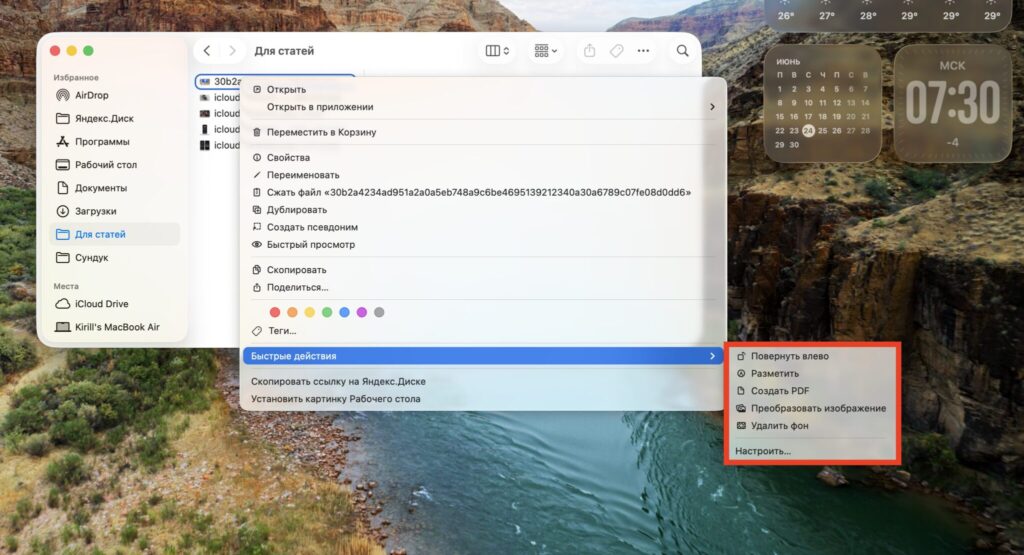
Quick Actions are very convenient
What Finder can do out of the box:
- Rotate an image or video
- Trim video or audio
- Create a PDF from multiple files
- Remove an image background
- Convert an image to another format
To use these, select a file (you can select multiple), right-click and choose “Quick Actions,” then the desired operation. Free Finder tools are especially valuable.
Useful Finder Keyboard Shortcuts on Mac
All of macOS is built around keyboard shortcuts, and Finder is no exception. Everyone knows copy and paste (Command+C and Command+V), but there are also less obvious combinations.
- Option+Command+V pastes the file into a new folder and removes it from the old one. This is the equivalent of “Cut” from Windows
- Command+Delete sends a file to the Trash
- Option+Command+Delete deletes a file immediately, bypassing the Trash
Another subtlety concerns drag and drop. By default, macOS moves files within the same drive and copies them when transferring to another. Holding Command while dragging forces the system to move files between drives immediately, while Option, conversely, copies them within the same drive.
Color-Coded File Tags in macOS
Tags let you organize files by color without creating new folders. For example, mark personal files red, work files blue. All tags are displayed in the Finder sidebar, and clicking on one shows all files of that color.
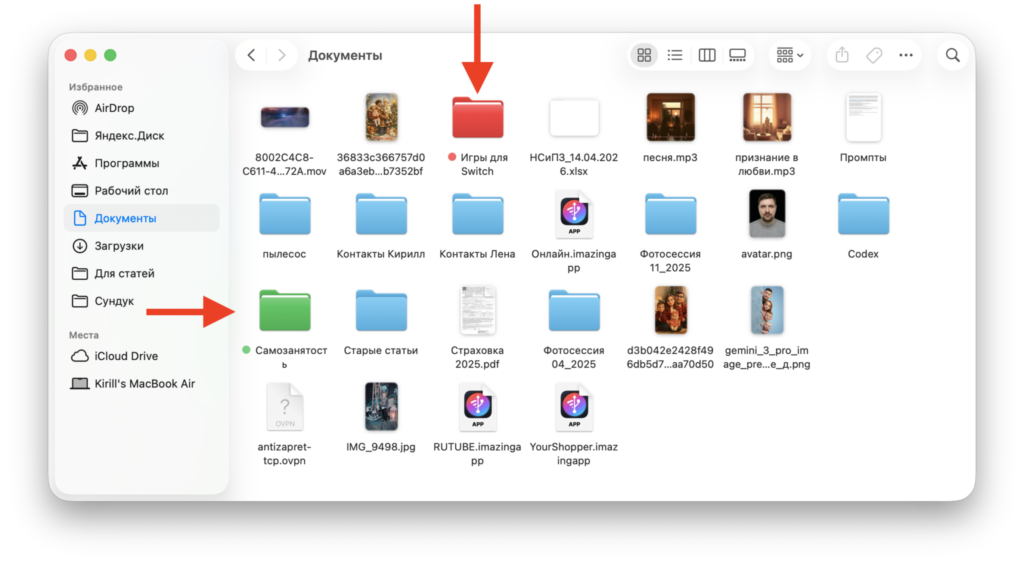
Files and folders can be assigned colors
Tags can be renamed to suit your needs so you don’t get confused. And if you assign a tag to a file in iCloud, tags sync across all your devices, including iPhone and iPad.
How to Tidy Up Your Mac Desktop
If your desktop is constantly cluttered with files, Finder can tidy it up automatically. Right-click on the desktop and select “Use Stacks.” Files will be grouped by type: images, videos, audio, and screenshots separately. Your desktop will stop looking like a junkyard.
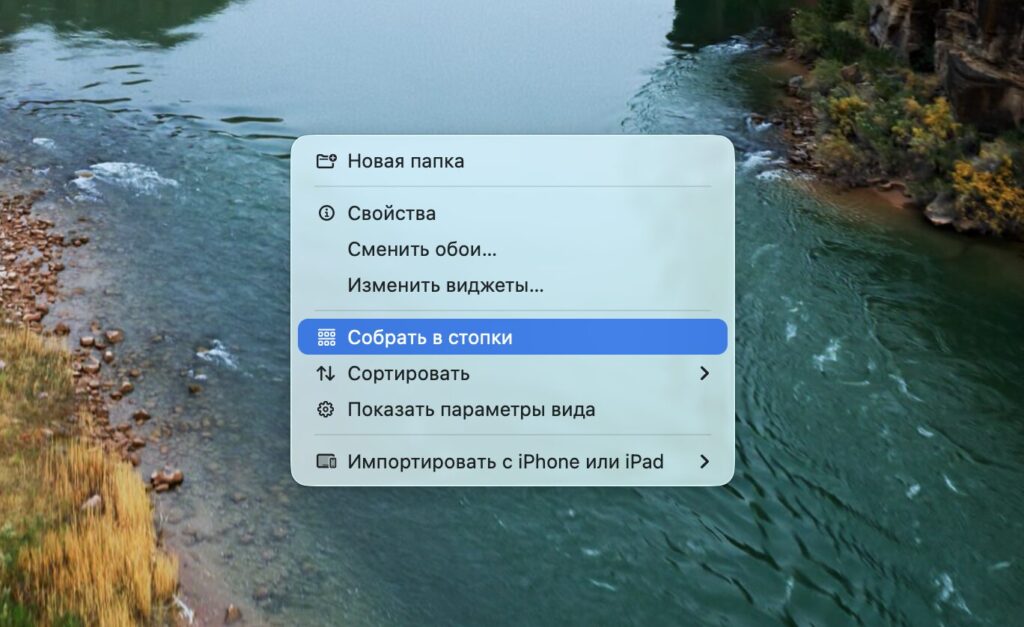
Files can be grouped into stacks
Stacks can also be customized. In the same context menu, there’s a “Group Stacks By” option, where files can be sorted not only by type but also by date added, date modified, or by tags. A stack opens with a single click, and the system automatically distributes new files into the right piles, so order is maintained without any effort on your part.