Samsung’s Gallery app on One UI contains a hidden Gallery Labs menu — a set of experimental features that have not yet been rolled out to everyone officially. It works much like Android’s developer options: you unlock it by repeatedly tapping the app’s version number in the "About Gallery" screen, and it then exposes toggles for functions such as private albums, saving photos directly as PDF, AI Zoom and EXIF display. Some of these arrive in Gallery Labs before they appear in the regular interface, and everything can be switched off again with a single master toggle.
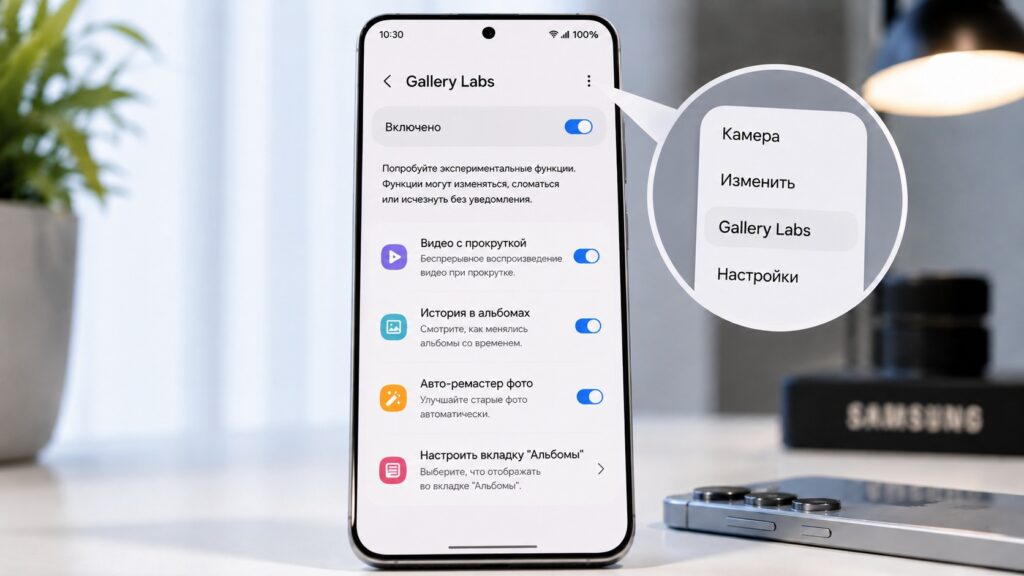
The hidden Gallery Labs menu
What you need to know
- Gallery Labs is unlocked by tapping the version number in Gallery > Settings > About Gallery repeatedly — the source author reports it took roughly 10 taps.
- Private albums, which hide a folder behind biometrics or a password, appeared in Gallery Labs before becoming a standard feature in One UI 8.5.
- Other toggles include saving a photo directly as a PDF, AI Zoom for sharper on-screen zooming without altering the file, EXIF data in photo properties, a file manager with ZIP preview and custom collection tags.
- The menu is optional: with it left off, the phone and Gallery app behave exactly as before, and a master switch disables everything at once.
How to enable Gallery Labs manually
The process mirrors the way Android’s developer options are unlocked — by tapping one item several times in a row. According to the source, nothing risky happens, and if anything goes wrong the whole menu can be turned back off with one switch.
- Open the Gallery app and go to its settings (tap the three-line button at the bottom of the screen).
- Find the "About Gallery" entry and open it (this is the section that also contains the terms of use).
- Locate the app’s version number and tap it repeatedly. A countdown appears, followed by a message that Gallery Labs has been enabled.
- Go back to the same "About Gallery" section — a new "Gallery Labs" entry now appears at the bottom.
- Inside, a master toggle sits at the top, with a list of individual features and their own switches below it.
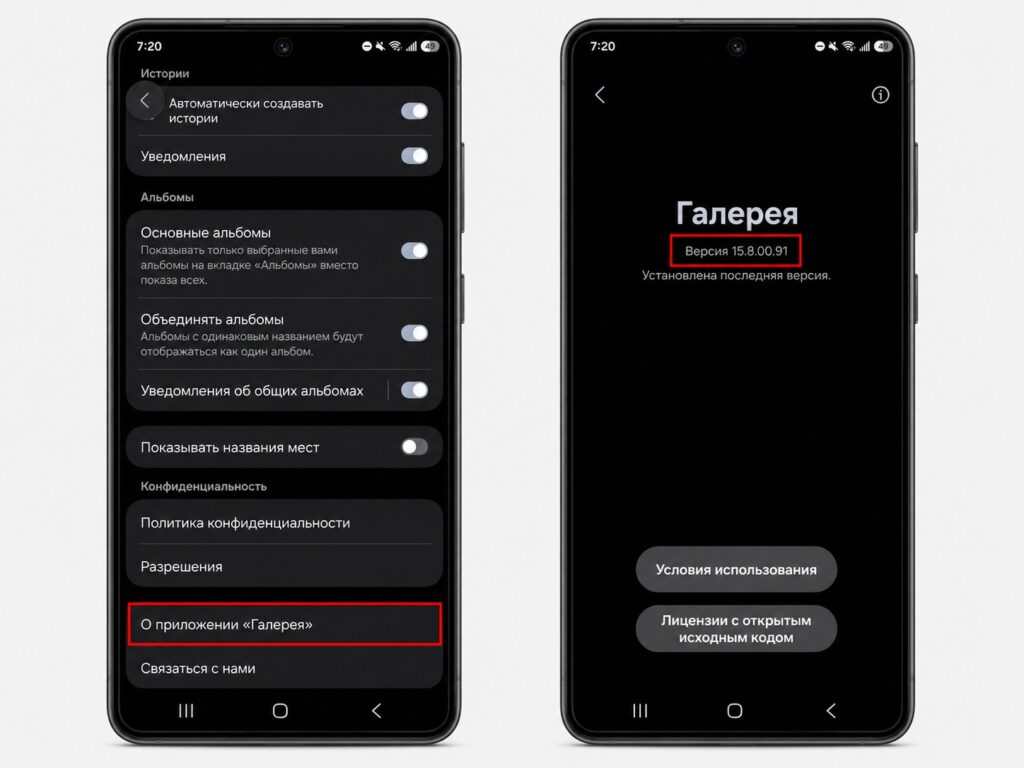
This is how the hidden menu itself is switched on

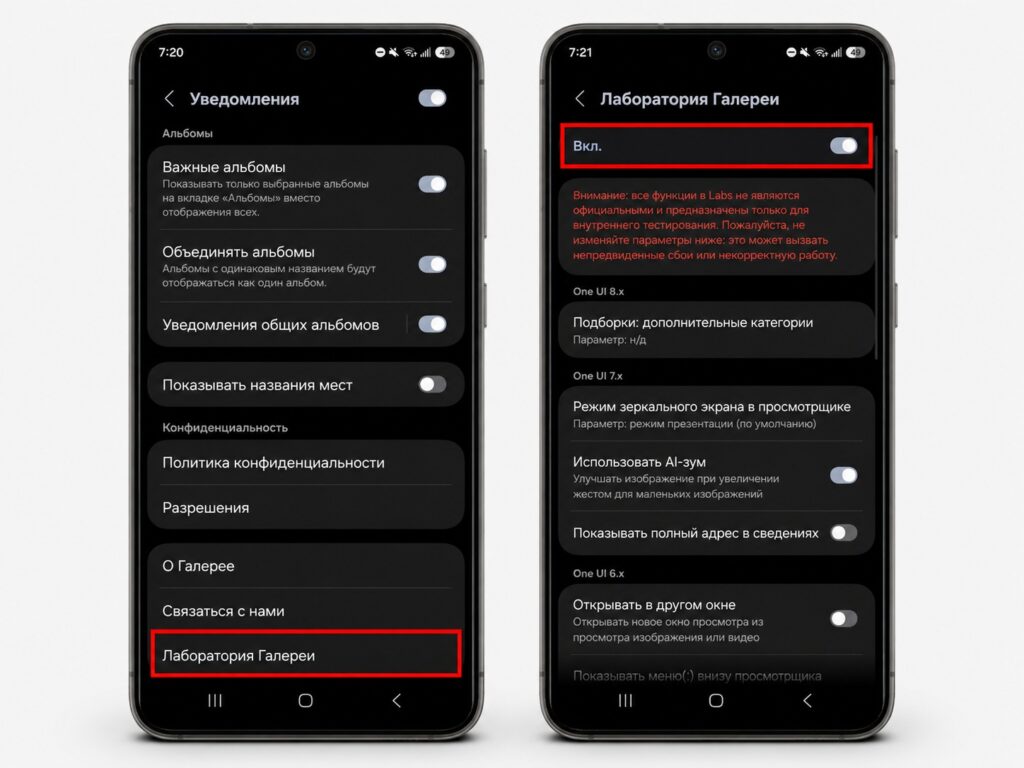
Now enable the master toggle and switch on the features you need
The source author reports that unlocking the menu took about 10 taps, and stresses that you must hit the version number itself — tapping elsewhere will not advance the counter. The same logic applies to other hidden sections on Samsung phones, such as the separate hidden quick-settings menu, which is enabled in a similar way.
Private albums — and a recovery option worth knowing about
One of the headline features is private albums. They officially shipped with the One UI 8.5 update, but were available in Gallery Labs earlier. The idea is straightforward: you hide a specific album so that only you can see it, after confirming with biometrics or a password.
The source author describes using this for a folder of AI-generated images, some of which look unsettling — rather than deleting them outright, they go into a locked collection. A related toggle enables file recovery within a private album: if a picture was deleted by accident or you change your mind, it can be restored after a fingerprint or password check. The author notes often reconsidering similar shots a few hours later, which makes the option valuable even if it is used rarely.

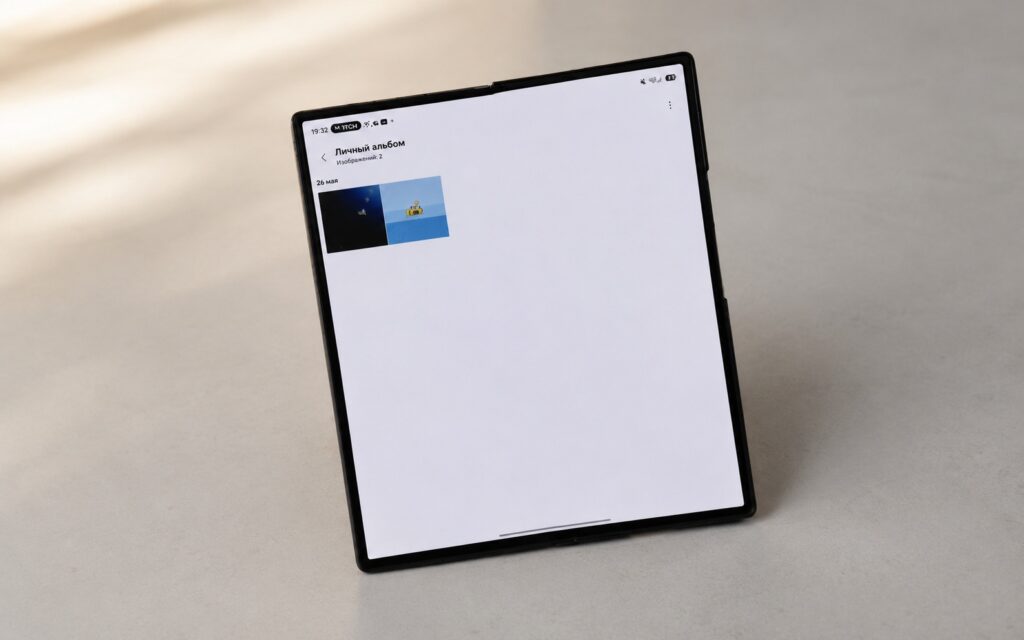
The feature only became generally available in One UI 8.5
There is one caveat for people who kept private albums inside Samsung’s Secure Folder. According to user reports cited by the source — not an official Samsung statement — such albums could disappear after updating to One UI 8.5, and one suggested way to get them back is the private-album recovery function in Gallery Labs on One UI 9.0. If that matches your situation, Gallery Labs is the place to check, though the source does not confirm that this method works in every case.
Save to PDF and AI Zoom: the everyday tools
Two other toggles are described as the most practical. The first is saving a photo directly as a PDF. The source author, a freelancer who photographs paper documents and receipts for bookkeeping and tax purposes, notes that attaching a plain phone photo to forms looks untidy; previously the image had to be converted to PDF separately, whereas now it can be done inside the Gallery app.

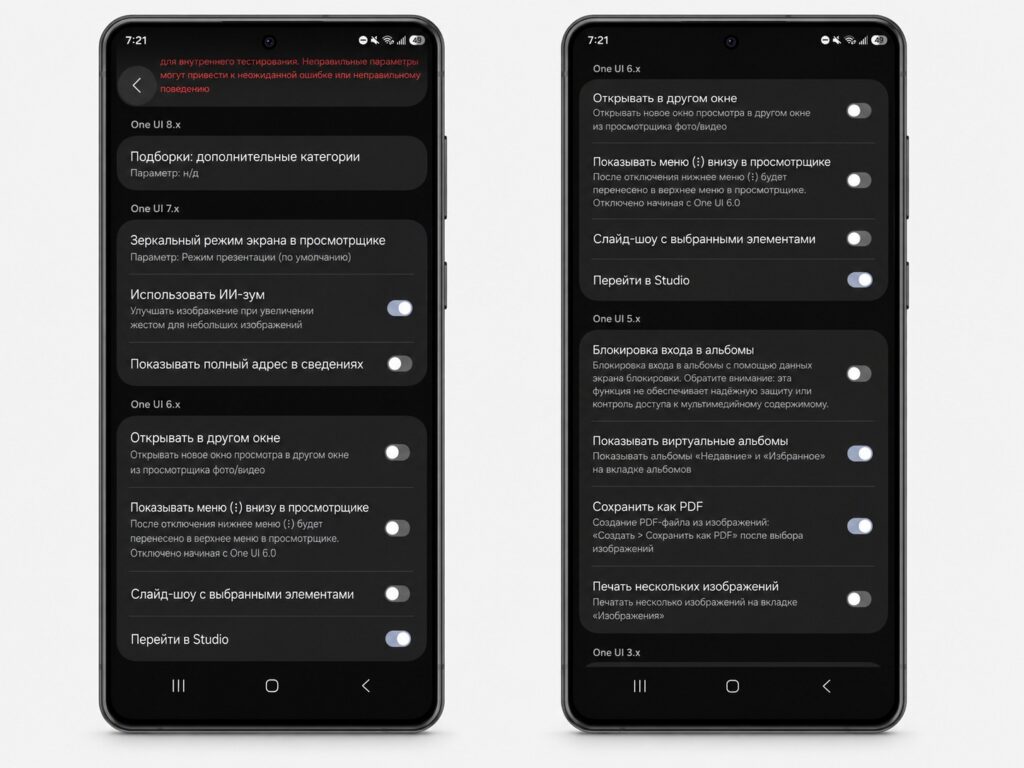
Gallery Labs also contains many other useful features
The second is AI Zoom. It sharpens older photos when you pinch to zoom, without modifying the underlying file. The author says albums more than seven years old, which are noticeably lower in quality than recent shots, look visibly crisper with it enabled, and that it also helps with blurry screenshots by making zoomed-in text easier to read. More niche additions listed in the menu include:
- a file manager and preview for ZIP archives;
- EXIF data in photo properties (technical details such as camera, date and shooting settings);
- a timeline view inside an album;
- a screen-mirroring mode in the image viewer;
- extra categories and custom tags for collections.
Who should bother — and who can skip it
Gallery Labs is not a revolution but a collection of convenient extras and an early look at what is expected to appear in Gallery later. Because these are experimental features, their behaviour and availability may change between One UI versions, and the exact list of toggles you see may differ from the one described here. If you never touch settings and basic photo viewing is enough, you can safely ignore it: without the menu, the phone works exactly the same.
If, on the other hand, you like fine-grained control over your photos, want to hide private albums, turn documents into PDFs or improve how old shots look on screen, enabling the menu is worthwhile. Left switched on, it does not get in the way, and according to the source it gradually gains new entries over time.


