Samsung’s DeX mode can turn a compatible Galaxy phone into a passable desktop workstation — but thermal throttling and app-scaling issues still hold it back from fully replacing a laptop. The source author reports spending several days working exclusively from a Galaxy Z Flip 7 connected to an external monitor via DeX, handling 10–15 Chrome tabs alongside Google Sheets and Spotify without the slowdowns experienced on a Windows laptop. The setup worked well for browser-based productivity, but hit a hard limit when the phone overheated during heavy graphical load while charging, forcing DeX to shut down.
What you need to know
- Samsung DeX (Desktop eXperience) outputs a windowed desktop interface from a Galaxy phone or tablet to an external display, with mouse and keyboard support.
- The Galaxy Z Flip series gains DeX support for the first time with the Z Flip 7; previous Flip models did not support the feature.
- DeX Pad and DeX Station docking accessories are no longer supported on Android 16 / One UI 8, and the DeX-for-PC mode is discontinued on devices shipping with or updated to One UI 7.
- Thermal throttling remains a significant limitation: the source author reports the Z Flip 7 forcibly closed DeX during heavy use while charging.
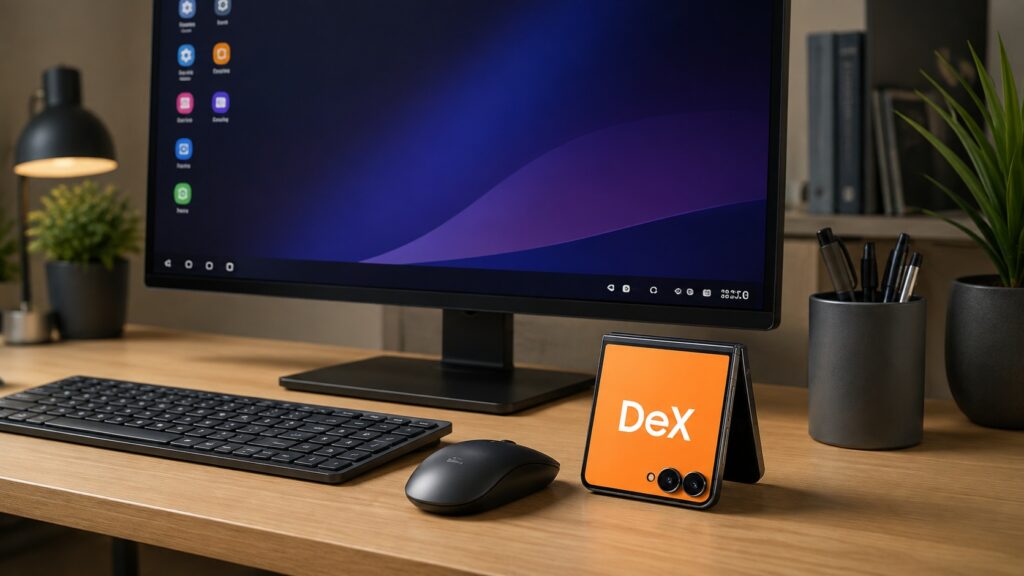
An overview of Samsung’s DeX feature
Why the source author chose a phone over a laptop
The source author reports that an aging laptop struggled with a heavy multitasking workload — more than a dozen Chrome tabs plus streaming and editing tools. Upgrading to an HP Omen 14 with a faster processor and more RAM did not solve the problem: the Windows system still bogged down under sustained parallel workloads. That prompted an experiment: offloading the work to a Samsung phone running DeX.
A Galaxy Tab S10 FE was tried first. The source author reports it handled the same tab count smoothly in its built-in DeX mode, but that particular tablet model could not output DeX to an external monitor — it only runs DeX on its own screen. The Galaxy Z Flip 7, which supports wired DeX output, became the working solution.
What is Samsung DeX?
DeX (Samsung Desktop eXperience) is a built-in mode that projects a windowed, taskbar-equipped desktop interface from a Galaxy device onto a monitor or TV. You connect via USB-C-to-HDMI cable (or wirelessly to compatible displays), pair a Bluetooth mouse and keyboard, and work in resizable app windows much like a traditional PC.

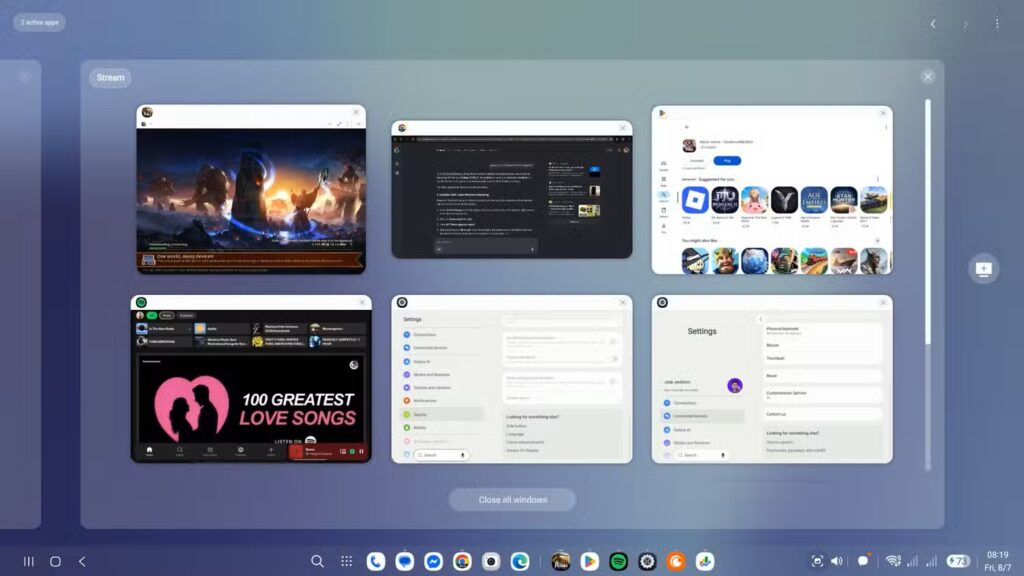
The Samsung DeX interface on an external display
The platform recently received an interface overhaul that brings it closer to Android’s standard desktop mode. According to the source, the update removed some previous features — such as flexible limits on active apps and snap-to-edge window management — but the core desktop experience remains functional.
Which Samsung devices support wired DeX output
According to Samsung’s support documentation, wired DeX to an external monitor is available on the following device lines:
- Galaxy S8 through Galaxy S26
- Galaxy Note8, Note9, Note10, Note20
- Galaxy Z Fold through Galaxy Z Fold 7
- Galaxy Z Flip 7 (first Flip model to support DeX)
Galaxy Tab tablets also support DeX, but some models — including the Tab S10 FE — run it only on the tablet’s own screen and cannot output to an external display.

Important compatibility notes: DeX Pad and DeX Station docking accessories are no longer supported on Android 16 with One UI 8. The DeX-for-PC mode (which mirrored DeX inside a desktop app) is no longer supported on devices that shipped with or were updated to One UI 7.
DeX under real workloads
The source author reports running 10–15 active Chrome tabs on one virtual desktop while simultaneously running a second browser session, Spotify, and Google Sheets on another desktop — all on the Galaxy Z Flip 7. Switching between tabs and desktops was smooth, without the stuttering experienced on the Windows laptop.
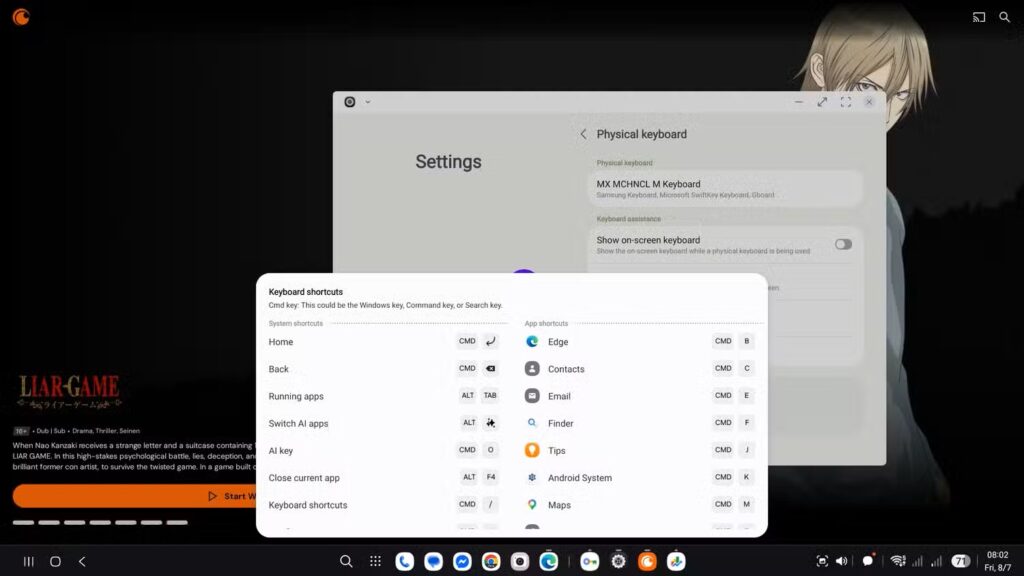
DeX mode comfortably handles multiple browser tabs
Peripheral support also worked well in the source author’s experience: a Logitech wireless mouse and keyboard plus an Edifier speaker all connected quickly via Bluetooth and maintained stable connections simultaneously. When no peripherals are available, DeX can turn the phone’s screen into a virtual touchpad or on-screen keyboard. An audio output switcher lets you route sound to the monitor’s speakers by default.
How to set up Samsung DeX
Wired connection (monitor or TV)
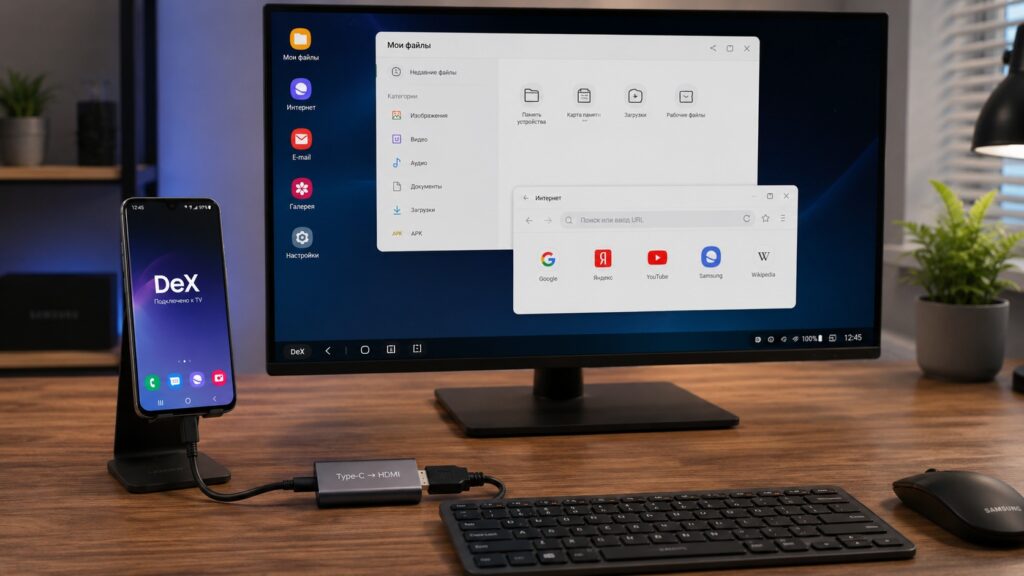
A wired connection is less convenient but more reliable

- Use a USB-C-to-HDMI cable (or a Samsung DeX cable) to connect the phone to a monitor or TV.
- DeX should prompt you to launch automatically once connected.
- Pair a mouse and keyboard via Bluetooth, or connect them through a USB adapter.
- To adjust resolution, go to Settings → Connected Devices → Samsung DeX and select the connected display.
Wireless connection (Samsung smart monitor or TV)
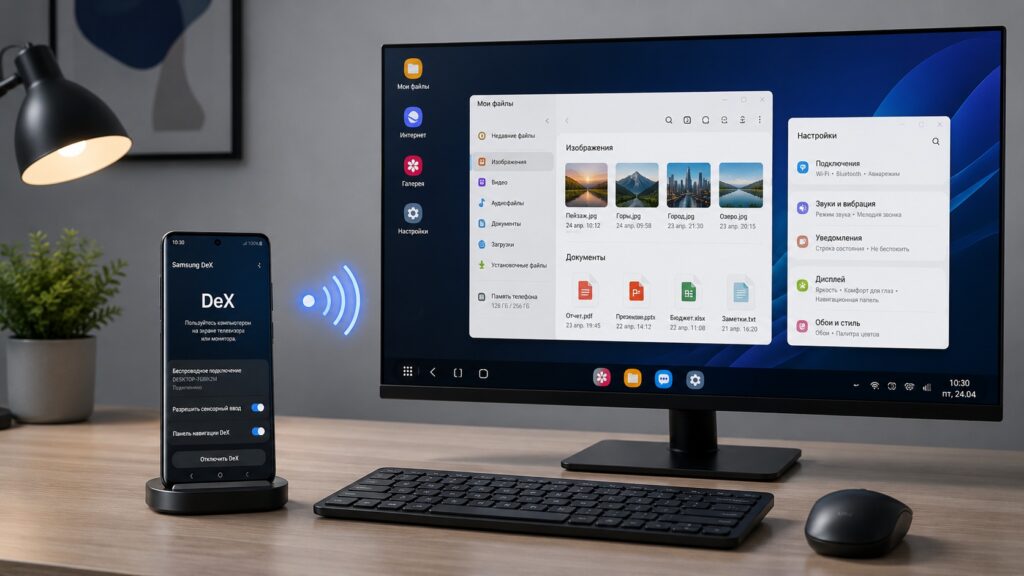
The most convenient way to connect Samsung DeX
- Swipe down with two fingers from the top of the phone screen to open Quick Settings, then tap the DeX icon. Alternatively, go to Settings → Connected Devices → Samsung DeX → Connect wirelessly.
- Select your monitor or TV from the list and tap Start.
- Confirm the connection request on the display using its remote.
Wireless DeX requirements: Samsung TVs from 2018 or newer, Samsung smart monitors, or any display supporting Miracast.
Where DeX still falls short
The source author identifies several limitations that prevent DeX from being a full laptop replacement:
Thermal throttling. During heavy graphical workloads while simultaneously charging, the Galaxy Z Flip 7 hit its thermal limit and forcibly shut down DeX. The source author had to disconnect and let the phone cool for several minutes. Working under heavy load and charging at the same time remains problematic.

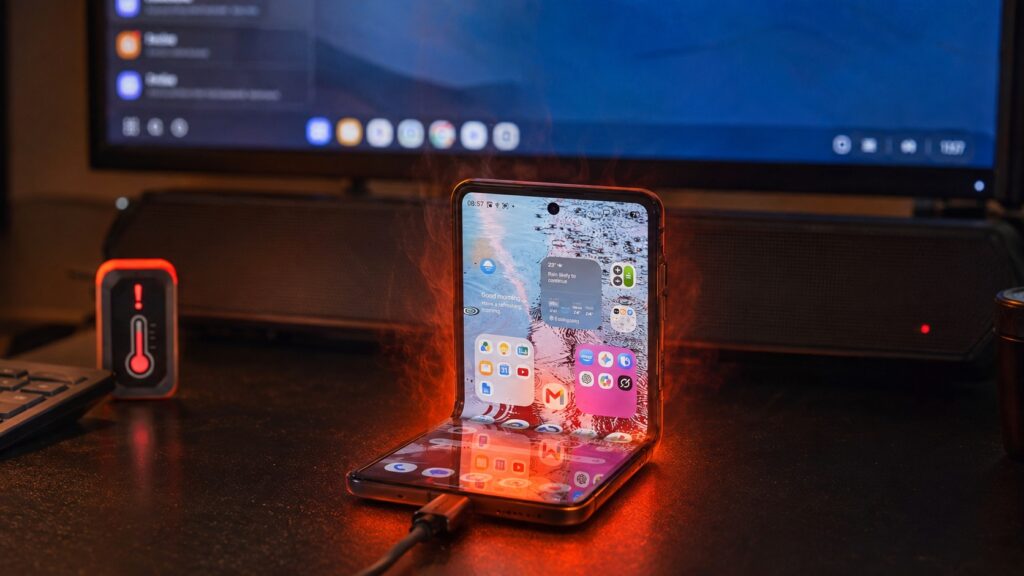
The phone got noticeably hot during intensive DeX sessions
App scaling. Many third-party Android apps still do not scale properly for a desktop-sized interface. They remain locked in a phone-style layout, with menus and UI containers looking stretched in larger windows.
Peripheral quirks. The source author notes that the side scroll wheel on a Logitech MX Master mouse does not switch Chrome tabs in DeX, and One UI does not natively allow remapping or disabling system keyboard shortcuts.
Who should consider this setup
If your work revolves around a browser, spreadsheets, documents, and messaging apps, a Samsung phone with DeX can realistically serve as a laptop substitute for travel or remote work. The source author reports working this way for several days without a loss in productivity. All you need is a monitor or TV and a Bluetooth mouse and keyboard.
However, if your workflow depends on heavy desktop applications, video editing, or gaming — especially while the phone is charging — DeX will hit thermal and app-compatibility walls. It works best as a lightweight portable office or backup workstation, not as a full replacement for a powerful PC across all use cases.


