My Android TV has been working for years and still doesn’t lag (so far), even though my neighbor’s TV of the same age is already struggling. The secret isn’t magic — it’s a couple of habits I’ve made automatic. By the way, half of all problems are already baked in right after purchase, so it’s important to avoid bringing home junk instead of a decent TV. But still: here’s how to maintain a Smart TV so everything stays fine.
How I take care of my Android TV and get the most out of it
Restarting Android TV: Why You Should Unplug Your TV
Once a week I simply restart the TV, and once every couple of months I completely unplug it from the outlet for a minute. Regular sleep mode doesn’t really clear the RAM, but a full power-off resets all the accumulated junk, and afterwards the TV feels noticeably snappier.
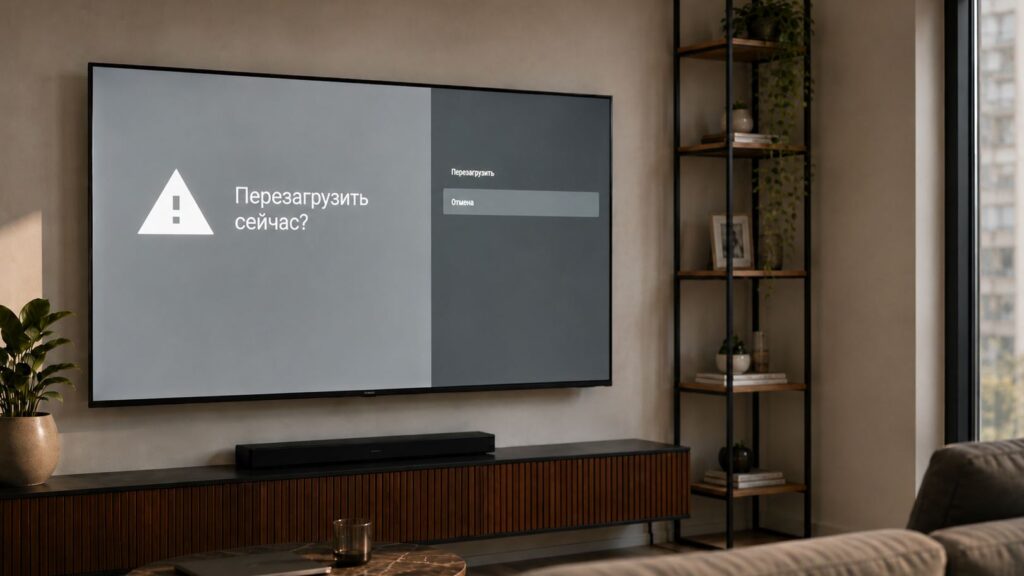
I restart it just like Android on a smartphone. About once a week
This is the first thing I do when Android TV lags for no obvious reason. It’s a dirt-cheap habit that works flawlessly, whether you have a TV or an Android set-top box.
Manually Updating Apps on Android TV
Auto-update on a TV often gets stuck: apps sit on old versions, glitch, and eat up memory. So once a week I manually go into Google Play on the TV and update everything myself. This is especially important for services you use constantly — to update Android TV apps to fresh, stable builds.
My main rule: I install them manually so that updates don’t start downloading the moment I open an app. This way, for example, I get lag-free sports viewing, which I set up separately.
Reconnecting the Bluetooth Remote on the TV
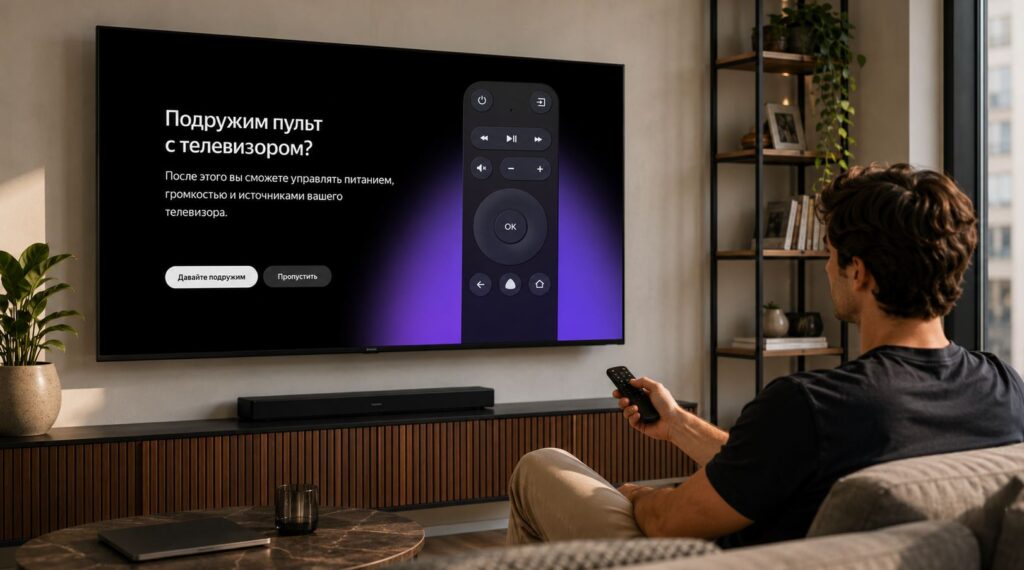
You should reconnect the remote at least once every 2-3 months. Especially on Yandex TVs!
A separate headache is the Bluetooth remote: over time it starts lagging, confusing button presses, or disconnecting. The fix is simple — every few months I remove it from connected devices and pair it again.
- On the home screen, I open settings and go to the “Remote & Accessories” section;
- First I select the current one, disconnect it, then choose “Add device”;
- I hold the pairing buttons on the remote until the indicator blinks blue;
- I wait for the TV to find and connect to the remote.
To connect the remote to the TV again, I hold the pairing buttons and wait for the TV to find it. Five minutes, and the controls are crisp again — no phantom presses or delays. I also change the batteries if the remote starts acting up.
Clearing Android TV Memory from Unnecessary Apps
People love to stuff TVs with pre-installed junk and one-time apps. I regularly go through the list and delete everything I don’t use, plus clear the cache of heavy services. This is the best way to clear Android TV memory and restore interface responsiveness.
I keep at least 15 percent of storage free — otherwise lag is inevitable.
Updating the Android TV System: Should You Download Updates?
Android TV itself also needs updating, not just the apps. Fresh firmware fixes bugs, speeds up the system, and adds new features, so I periodically check for updates manually. To update Android TV, look for “About device” or “System update” in the settings. Here’s the full installation guide.
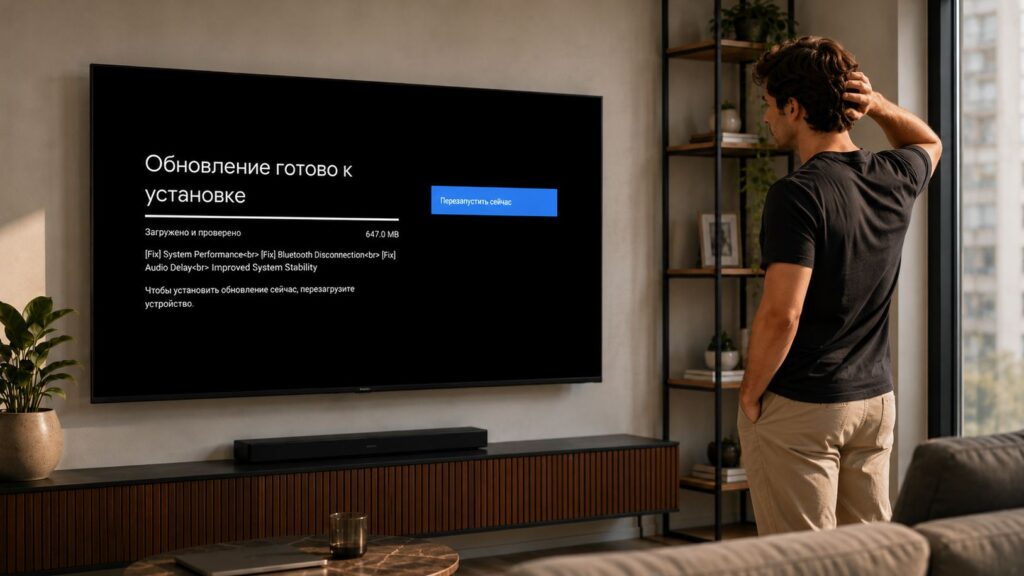
System updates should be checked too, but don’t rush to download them
After major updates, it doesn’t hurt to set up Android TV to your liking again.
Cleaning the TV Screen Without Streaks
You shouldn’t go near the screen with regular wet wipes: they leave streaks on the TV screen and a soapy film that distorts the picture. A dirty screen is harmful both aesthetically and technically — it eats into the contrast and brightness that you bought the TV for in the first place.
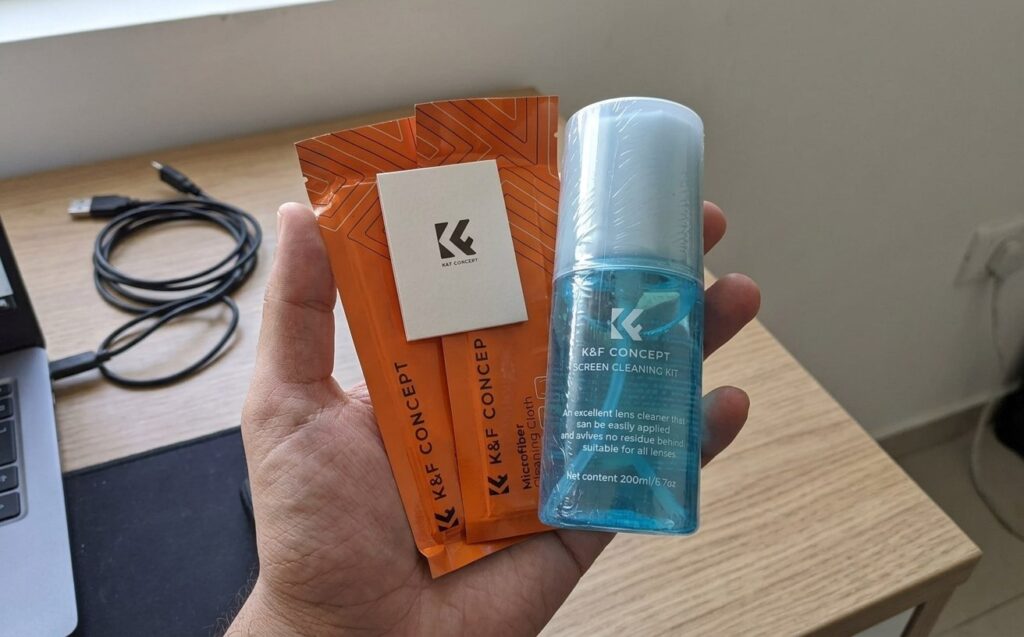
A proper cleaning solution is a must. No wet wipes!
To clean the TV screen properly, I use a soft microfiber cloth and a special display spray — no alcohol and no water directly on the panel. I apply the solution to the cloth, not the screen, and wipe without pressing hard.
How do you take care of your TV, or do you just run it until it starts lagging? Share your habits, especially if you know a life hack that’s not on my list.