Many Muscovites started their morning the same strange way today: the network indicator is on, calls go through, but there’s simply no mobile internet. We’ve been through this before, and some people are fully prepared for days like these. If everything is still working for you, consider yourself lucky to have caught the moment, and spend it preparing your iPhone while it can still see the network.
Muscovites can lose mobile internet at any moment
Why Mobile Internet Isn’t Working in Moscow
Carriers sent out their now-familiar warnings in advance: mobile internet restrictions are possible throughout the day in Moscow. Calls and SMS are promised to remain available, plus access to some government services. Everything else may go down: feeds, messengers, maps, music, banking apps, delivery, and ride-hailing services.
Only websites from a whitelist will open via mobile internet; everything else won’t work in the restricted zones. Disruptions are already noticeable beyond the capital: complaints are coming in from the Moscow region and Samara Oblast, and reports are trickling in from St. Petersburg, Novosibirsk Oblast, and Nizhny Novgorod Oblast. If you’re outside the city or in a neighboring region, it’s too early to relax.
An important detail: home Wi-Fi and wired internet are working normally. They’re blocking specifically mobile data transmission, not connectivity as such. This means at home, in the office, or at a café with Wi-Fi, you can browse the web just fine. The problem is exactly one thing: the moment you step outside and are left with only the cellular network in your hands. That’s what all the preparation is built around. While your iPhone is connected to Wi-Fi, you need to download everything offline that you can’t do without for the day.
Offline Maps on iPhone: What to Download in Advance
The first thing that stops working on the street without internet is navigation. And the first thing that frustrates you the most is also navigation. So start with maps.
Apple Maps has a full offline mode that appeared back in iOS 17 and has only been improved since. Open the app, tap your profile, select “Offline Maps,” and download the area you need. You can highlight a neighborhood with a frame, or you can download all of Moscow at once. After downloading, routes, address searches, and navigation all work without a network.
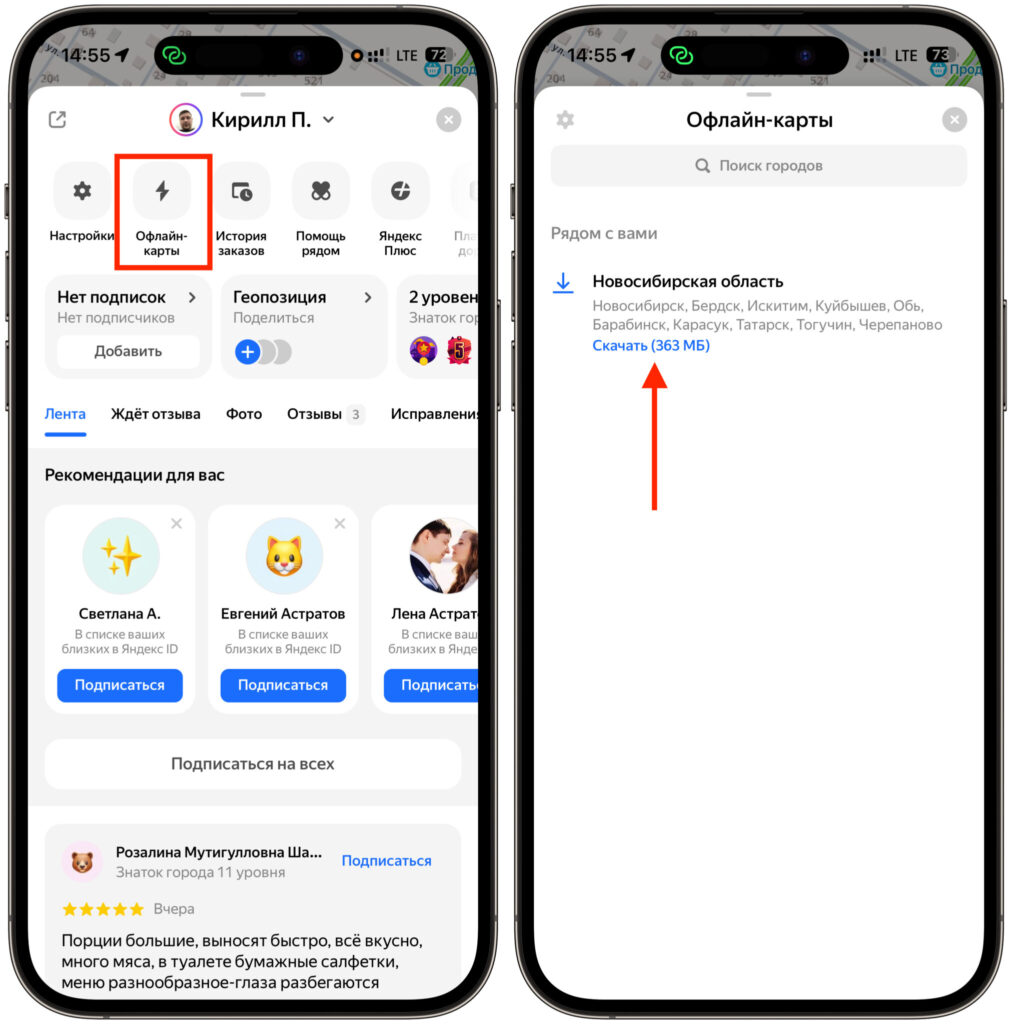
Download maps to your smartphone’s memory
If you’ve been using Yandex Maps or 2GIS for a long time, they also have offline modes. My advice is simple: download two different navigation apps right away. One might miss traffic data, which won’t load without a network anyway, and the other will help with address searches.
Public transit is trickier: many apps keep metro line maps offline, but no one will tell you the bus arrival time without internet. It’s better to plan your route in advance.
How to Listen to Music Without Internet on iPhone
A commute without internet also means silence in your headphones if you don’t prepare ahead of time. On iPhone, this is solved in just a couple of minutes.
In Apple Music, tap on a playlist or album and select download to device — the button with the downward arrow. Downloaded music plays without a network. Yandex Music can do the same: enable caching in settings and download your favorite playlists in advance. If you listen to podcasts, download fresh episodes ahead of time — otherwise, in the morning commute you’ll be greeted by nothing but a spinning loading indicator.
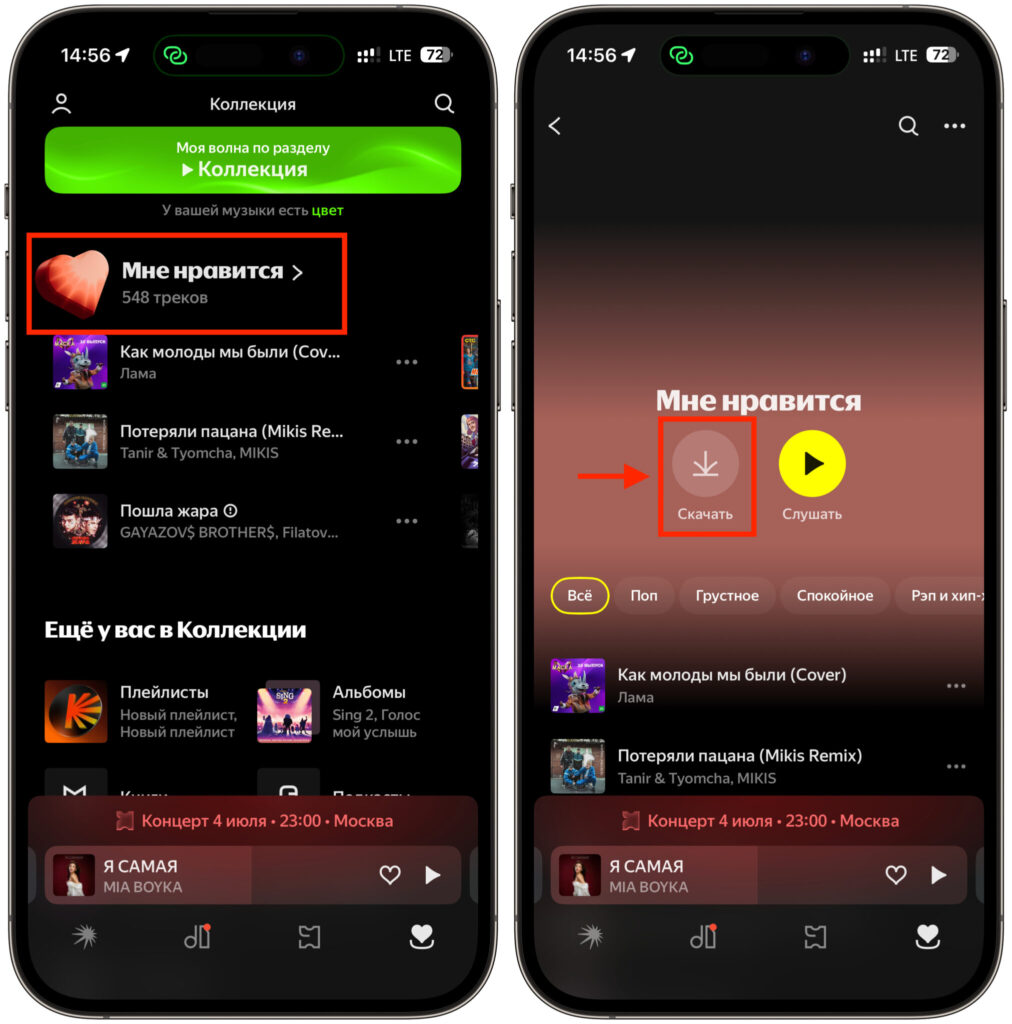
Don’t forget to download music
The same goes for books and videos. Apple Books keeps all purchased content offline by default, and in Kinopoisk you can download a couple of episodes to your device. If you work with documents, export the necessary files from the cloud to the Files app in advance, because iCloud Drive without internet will only show icons.
The logic is the same everywhere: everything that normally loads from the network needs to be physically stored in the phone’s memory on shutdown days.
What to Check on Your iPhone Before the Internet Shutdown
Now about things beyond entertainment. Since there may be no internet, but calls are promised to stay available, check your call settings in advance.
Go to Settings, then Cellular, and make sure VoLTE is enabled. This technology allows you to make calls directly over the 4G network. Without it, calls may not go through: the phone drops down to overloaded 3G or 2G. If you don’t see the VoLTE option, update your carrier settings and install the latest version of iOS.
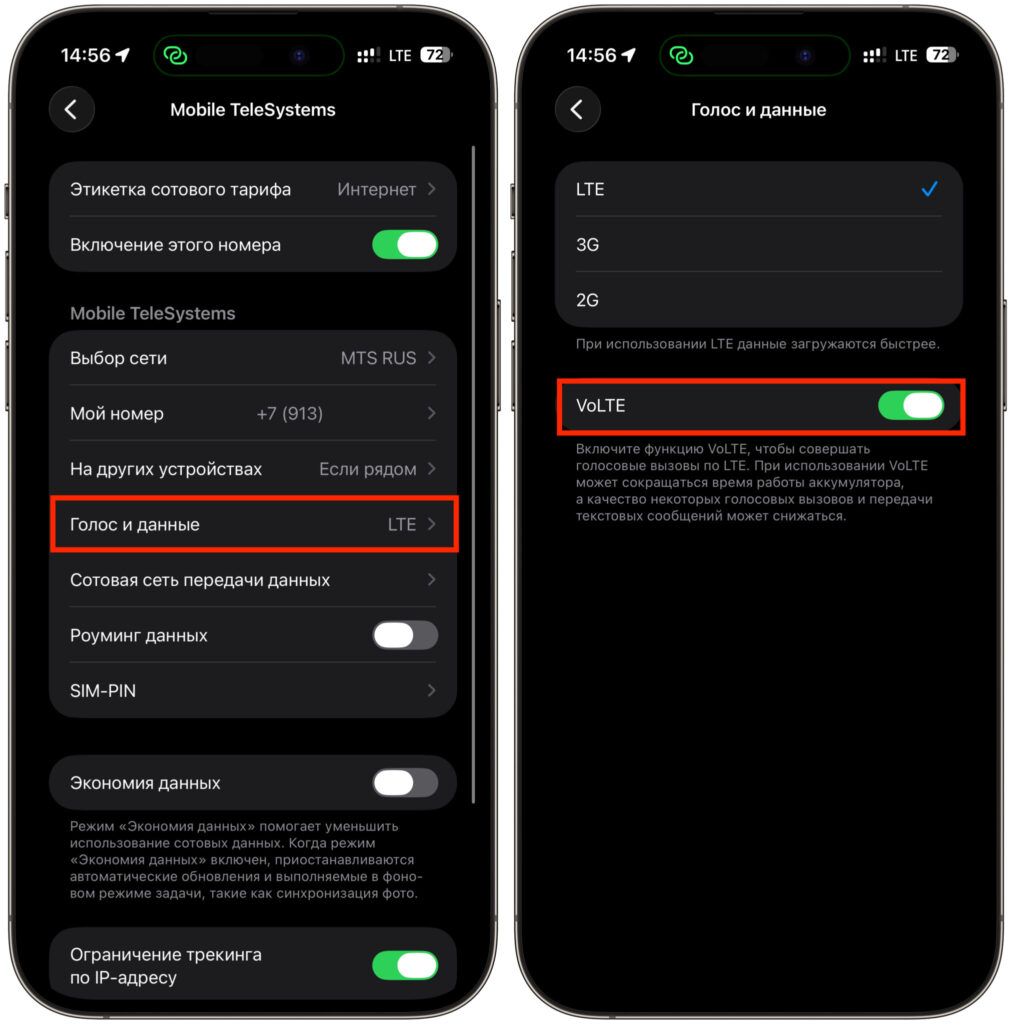
Make sure to activate VoLTE so you don’t have problems with calls
Next, money. Banking apps won’t open without internet, transfers via SBP (Fast Payment System) may hang, and SMS codes sometimes arrive with delays. Withdraw some cash in advance — at least enough for a taxi, coffee, and groceries. Payment terminals in stores also depend on connectivity, so cash won’t be wasted today.
And the little things that are easy to sleep through. Charge your iPhone and power bank the night before, because a phone searching for a network drains noticeably faster. If you need to share an address or file with someone nearby, AirDrop will help — it works directly between devices without internet.
It sounds like a small preparation for a hiking trip, and essentially it is. But by spending ten minutes on your home Wi-Fi, you turn a sudden day without internet into an ordinary day — just a bit more offline. And in the evening, when the restrictions are lifted, everything will return to normal on its own.