For months, the same type of videos have been blowing up on TikTok and Reels — a person seemingly caught on camera during a live broadcast of a football or basketball game. The camera catches their face in the stands, and it looks like real stadium footage. In reality, nobody went anywhere — it’s all done in a couple of minutes, without dedicated video generators. This new AI trend is called the “Korean” trend or “random stadium shot,” and anyone who knows how to write prompts for neural networks can recreate it. Let me show you how to make this video yourself.
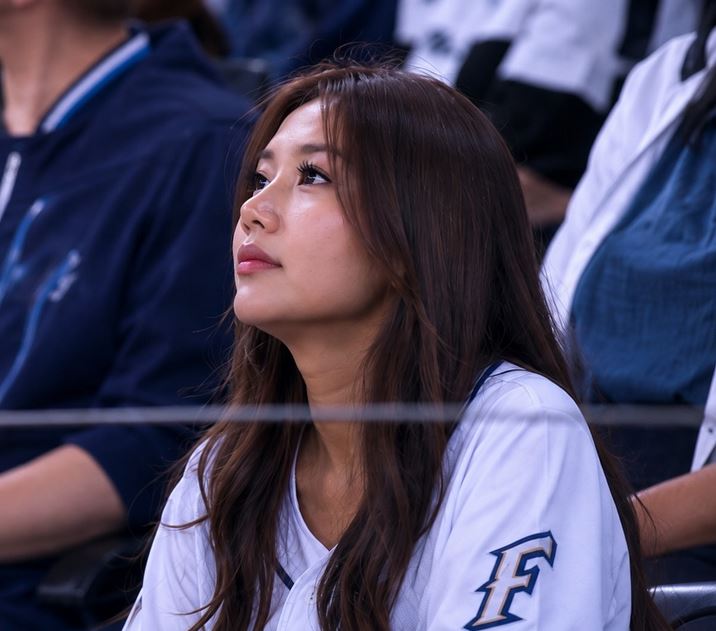
Making photos and videos in the “me in the stadium stands” style
Me at the Stadium — What’s This New Trend
The idea behind the viral video of yourself at a stadium is extremely simple. A sports broadcast camera picks someone out from the crowd — they’re sitting relaxed, sometimes glancing at the lens, sometimes not. Everything looks like a regular stadium shot: slight compression, crowd noise, fans with beer and caps all around. But there’s no actual game and no actual stadium — the person is generated by a neural network from a regular selfie.
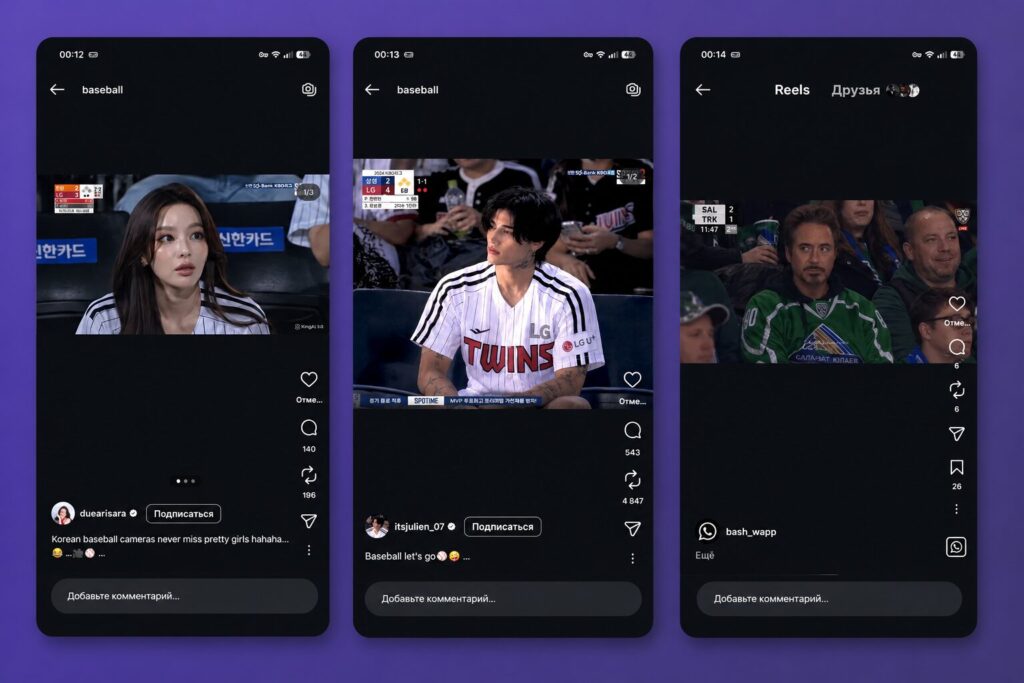
Robert Downey Jr. managed to attend a KHL game
The random spectator trend performs especially well in TikTok, Reels, and Shorts recommendations precisely because of its realism. Viewers don’t realize it’s AI for the first few seconds and watch the clip to the end. Algorithms love this, which is why AI stadium videos rack up tens of thousands of views. However, social networks have already learned to detect that it’s AI — so be careful.
How to Create a Stadium Photo in ChatGPT
The first thing you need to do is turn a photo into a sports broadcast shot. ChatGPT uses its built-in image generator GPT Image 2 for this. You can also use Gemini for this or even try your luck bringing an image to life through Alice. I took a random photo and uploaded it to ChatGPT — here’s what I got.
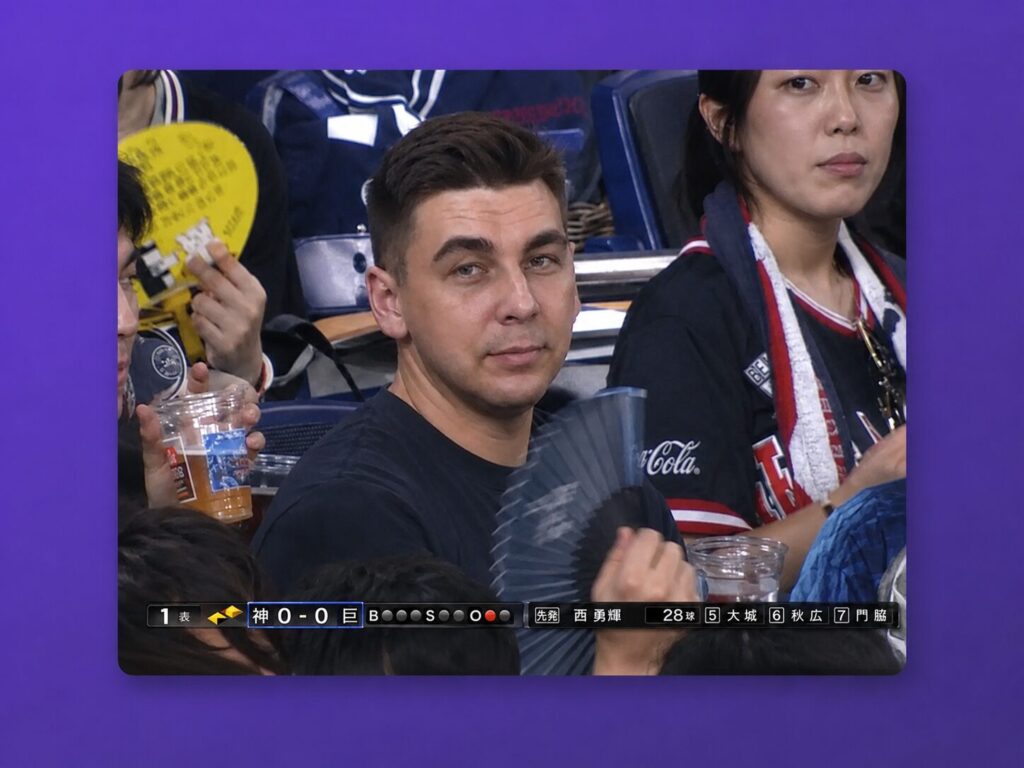
AI slightly distorted the image, but this can be fixed with another prompt
How to make one yourself:
- Open ChatGPT and make sure you have an active Plus subscription or higher — without it, the image generator works with significant limitations.
- Upload your photo using the paperclip icon in the message bar — a front-facing portrait with good lighting and a visible face works best.
- Then paste the following prompt (modify it if you see fit).
Keep the uploaded person s face exactly as it is, no AI beautification. Generate a realistic scene as if this person was accidentally caught on a live sports broadcast camera in the stands. TV broadcast capture feel, stadium crowd angle, natural crowd around them with beer cups, fan gear, portable fans. Important: no face retouching, no eye enlargement, no jaw slimming, no skin smoothing, no influencer or model look. Make it feel like actual live broadcast footage: slightly blurry stream quality, compression noise, subtle motion blur, realistic skin texture, natural hair and sweat. Person sitting relaxed watching the game, natural expression, half-aware of the camera, half not.
Don’t want to use your own face? Simply use the Korean AI trend prompt without the first sentence. ChatGPT will generate a random person for you.
Wait for the result and check out your viral stadium photo. The main rule: the face should remain without smoothing, enlarged eyes, or filter effects. If the neural network still “prettified” the face, type in the chat “preserve original face features 100%, regenerate” and ask it to redo it.
Prompt for “Me at the Stadium” Video — How to Animate the Photo
The finished image needs to be turned into a 5-10 second video. ChatGPT can’t animate images yet, but you can do it through Kling, Runway, and even Alice AI — it can also animate photos. I’ll explain using Runway as an example, showing how to make a stadium video of 5–10 seconds.
- Open Runway or download it from Google Play, and sign in with your Google Account.
- Click Video at the top and add the generated image.
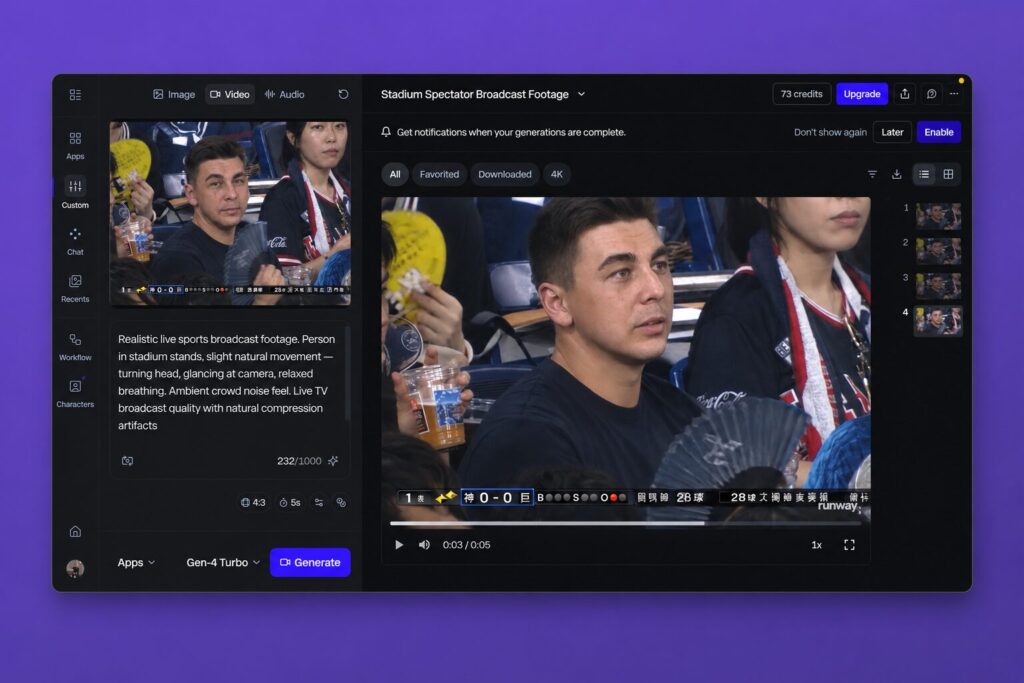
The AI editor is extremely easy to use
- Upload the photo generated in the first step.
- Paste the following prompt into the field below (you can modify it as you see fit).
«Realistic live sports broadcast footage. Person in stadium stands, slight natural movement, turning head, glancing at camera, relaxed breathing. Ambient crowd noise feel. Live TV broadcast quality with natural compression artifacts».
Before generating, choose a duration of 5 seconds for your first test, then you can increase it to 10. Start the generation and wait 1–3 minutes — speed depends on server load. I uploaded the result to Yandex Disk — check it out!
Personally, I liked the getting into a game broadcast via AI option from Alice AI and Runway the most. In the first case, we get a short 5-second video, while in the second, you can make it 10 seconds. The difference is that Runway is slightly more realistic and faster at creating the image. But it didn’t turn out as well as I’d hoped. A lot depends on the photo quality and angle, so choose your selfie for the AI trend carefully.
How to Make a Video as if You’re at a Stadium
The “me in the stadium stands” trend is hard to imagine without stadium noise. If you want to take it to a truly viral format, add a few finishing touches in any mobile editor like CapCut. Using it as an example, I’ll explain how to add realism.
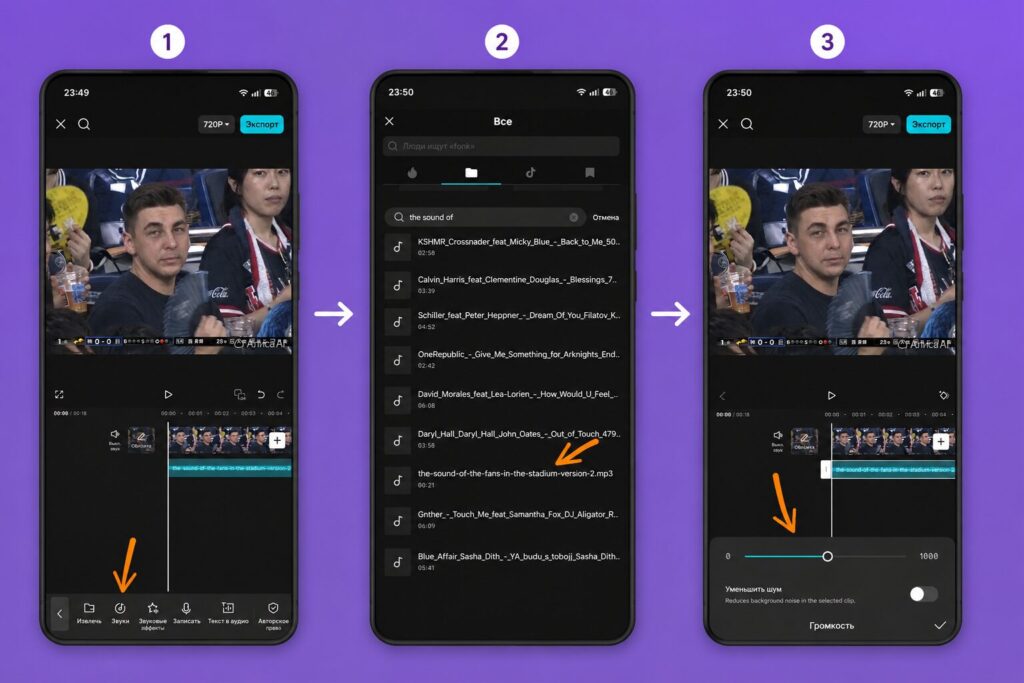
The key is to add stadium noise
- Download background stadium noise or commentator ambience from this link.
- Download CapCut and open it.
- Tap “All Tools” and select “Record.”
- Select the video from your files and after adding it, choose sounds at the bottom. Import the stadium noise.
- Move the stadium noise track and trim it using the edge markers. Lower the volume if needed.
If needed, add a vignette to the image and sports channel titles. Before uploading, use the hashtags #fyp #caughtoncamera #stadium in the video description so algorithms pick up the video faster.