Apple’s upcoming macOS 27 Golden Gate will introduce a dedicated Siri application — a standalone window for interacting with the rebuilt assistant that has never existed as a separate app on the Mac before. The same standalone Siri app is also coming to iPhone with iOS 27, unifying the experience across Apple devices. The app provides a persistent chat interface with conversation history, iCloud sync between devices, and configurable settings for how long chats are retained. Here’s what the new app offers, which Macs support it, and what its limitations are.
What you need to know
- The Siri app appears in the Dock only after you manually enable Siri AI in System Settings — it does not install automatically with the macOS 27 update.
- Conversations sync across devices via iCloud, so a chat started on iPhone can be continued on Mac.
- Advanced features like expressive voice and improved on-device dictation require an M3 chip or newer and at least 12 GB of RAM.
- Users can choose to retain conversation history forever, for 30 days, or for one year.
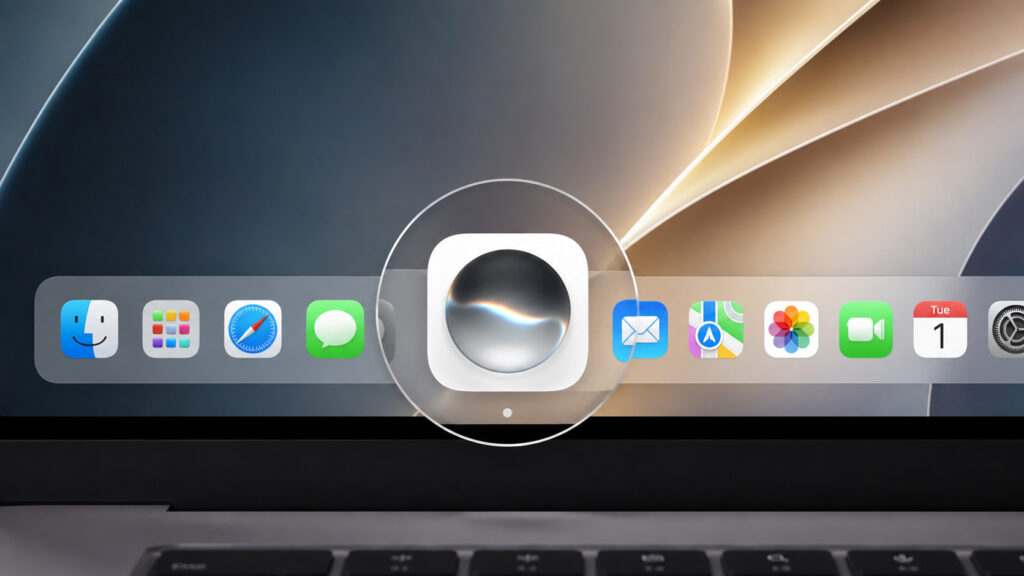
The new app will appear on all Macs after updating
Siri finally gets its own window on Mac
Siri AI is described as the headline change in macOS 27 Golden Gate. Apple has rebuilt the assistant from the ground up with a new architecture, personal context awareness, world knowledge, on-screen awareness, and the ability to take actions inside apps. All of this now has a dedicated Siri app rather than just a query bar.
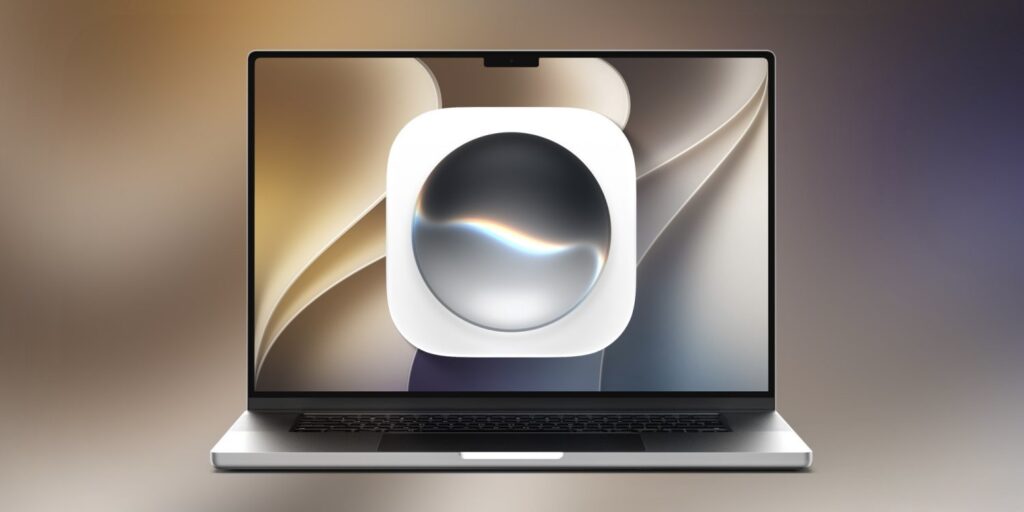
Siri AI will have a separate icon in the Dock
Inside the app, users see a list of past conversations with Siri and can reopen any of them or start a new one. All conversations are synchronized via iCloud, pulling dialogues across your devices. Start a conversation on your iPhone on the way home, sit down at your Mac, and continue from where you left off.
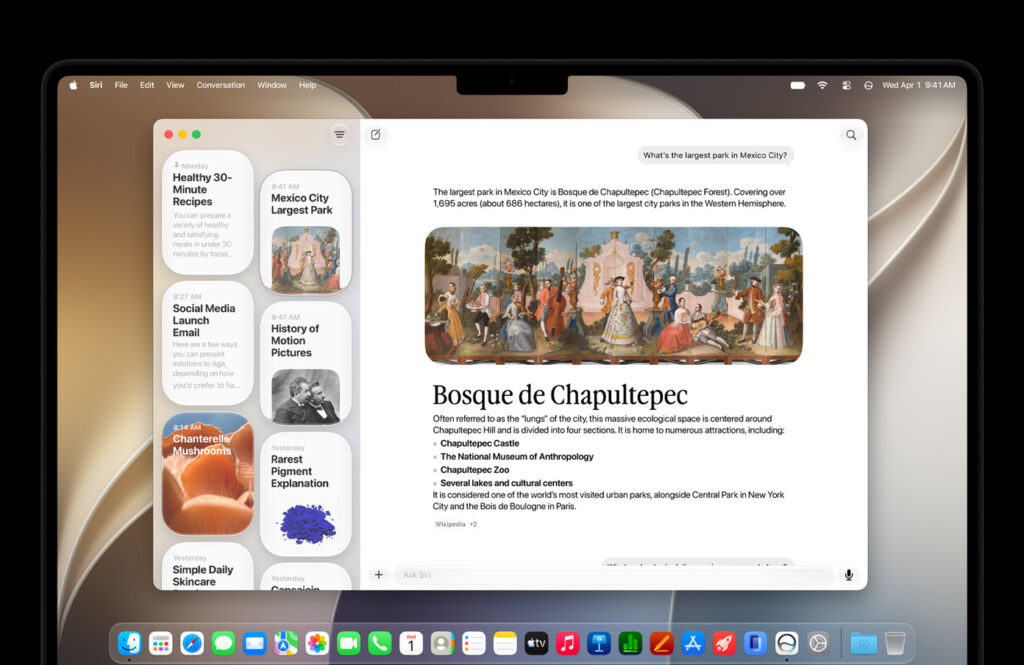
One available chat display style
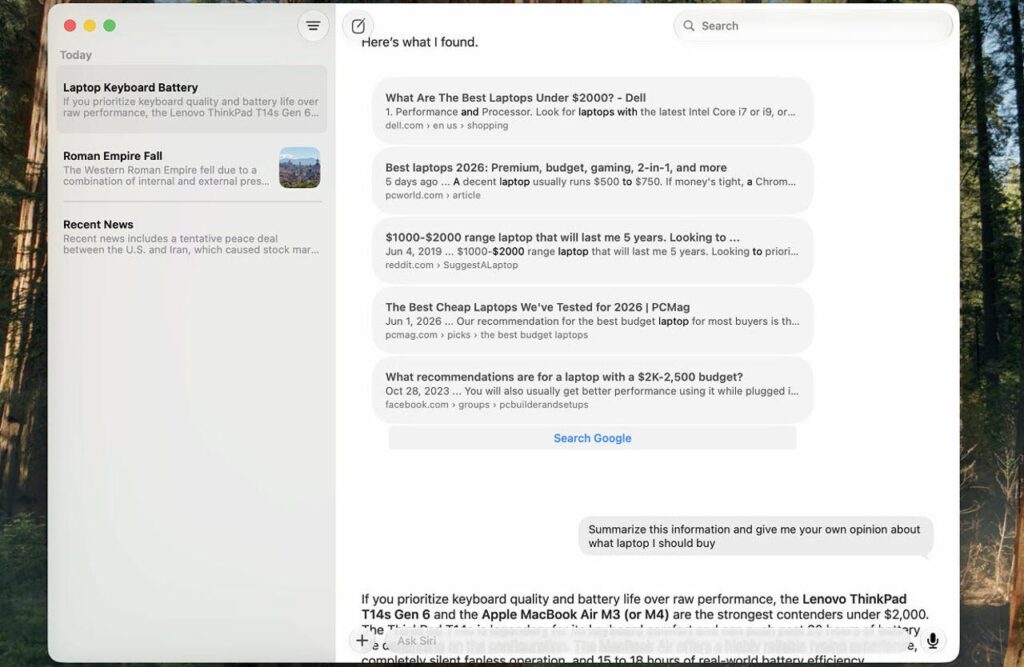
Or a Messages-like layout
There are two interface styles. The first resembles Messages: conversations are listed top to bottom in a familiar layout. The second is a grid view where each conversation becomes a separate floating card. The grid view is more visual when you have many conversations and want to scan through them quickly.
The icon won’t appear until you enable Siri AI
An important detail that many users may stumble over: the app does not install automatically after updating. To get the Siri icon in the Dock, you first need to enable Siri AI in System Settings. As long as the new assistant is turned off, you won’t see the standalone window — and that is expected behavior.
Then there is the question of compatibility. The app and Siri AI itself are available on all Macs that support macOS 27 Golden Gate — models with an M1 chip or newer, plus the MacBook Neo with the A18 Pro chip. Intel-based Macs will not receive the new system at all, meaning the Siri app won’t be available on them. Here is the full list of compatible Macs:

Even the MacBook Air M1 will get the new Siri AI
- MacBook Air (M1 and newer)
- MacBook Pro (M1 and newer)
- MacBook Neo
- iMac (M1 and newer)
- Mac mini (M1 and newer)
- Mac Studio (M1 Max and newer)
- Mac Pro (M2 Ultra)
There is one caveat. The app itself and its basic functions work on all of these machines, but some advanced Siri capabilities require newer hardware. Expressive voice and improved on-device dictation require an M3 chip or newer and at least 12 GB of RAM. On M1 and M2 Macs, the app will open without issues — just without those specific features.
Conversation retention and display settings
All app settings live in System Settings, and there are more options than might be expected at first glance. The first thing worth checking is the conversation retention period. There are three options: keep conversations forever, for 30 days, or for one year. If you choose either of the latter two, dialogues will be permanently deleted once they pass the selected threshold. This is useful for users who don’t want to accumulate a history of queries.
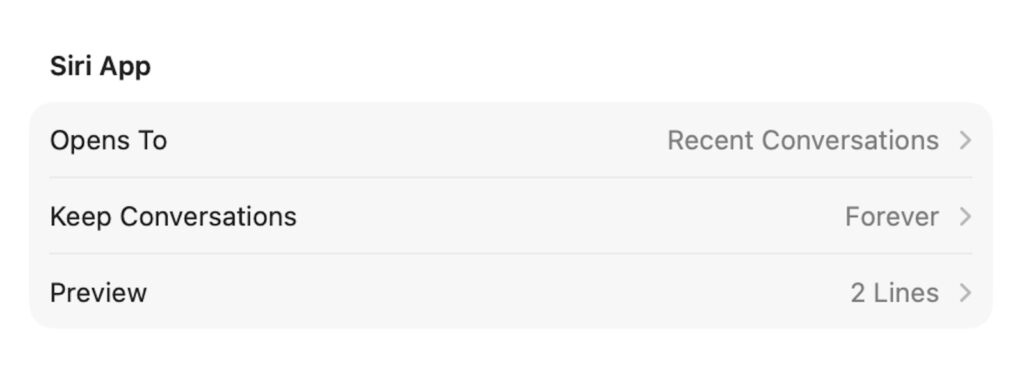
In settings you can choose how long chats are stored and which conversation appears on launch
You can also set what appears on launch: recent conversations or an empty window ready for a new question. Separately, you can configure the conversation preview in the list — from zero lines (showing only the title) to five lines of text. It comes down to personal preference and how dense a list you’re comfortable with.
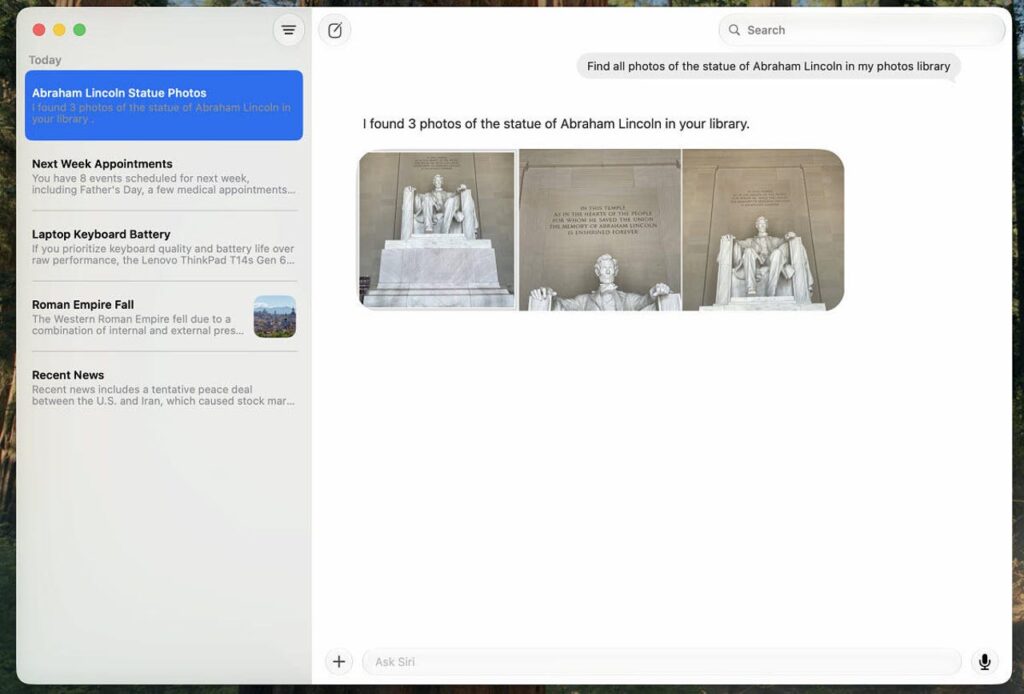
Siri AI can find photos in your own gallery

It can even describe images you send to it
Will Siri replace Claude and ChatGPT on the Mac?
The app is described as straightforward rather than feature-packed — and that isn’t necessarily a bad thing. For a long time, Apple maintained it would not build a separate chatbot but would instead embed the assistant into all system processes. At WWDC this year, the company changed course and decided that a standalone window was the most convenient way to revisit past conversations. The result: Dock-level access to Siri saves time and removes the need to remember where things are.
The bigger question is whether Mac users will switch to Siri instead of Claude and ChatGPT. Based on early impressions described in the source, the new assistant performs well for general-knowledge questions and tasks where personal context matters. However, for more complex queries, users reportedly still tend to turn to third-party AI services. That could change over time as Apple continues to refine Siri AI and Apple Intelligence, but it remains to be seen.


