Apple unexpectedly rolled out a small but curious update — macOS 26.5.1 is now available for download. Based on the description, it’s a typical point update with one fix, but behind the modest release notes lies an interesting story. Apple also updated smartphones at the same time. Let’s break down what’s inside the desktop system, which Macs are getting the update, and what to do if you don’t see it in System Settings yet.
A fresh update has arrived for Mac computers too
What’s New in macOS 26.5.1
The main and only change Apple mentioned in the release notes concerns computers with the newest chip. macOS 26.5.1 fixes a bug that caused Macs with the M5 processor to unexpectedly shut down under certain conditions.
Looking at the new features of macOS 26.5.1
Translating from corporate speak to plain language, the problem occurred when using network extensions for content filtering — the very tools companies use to restrict access to websites and services. In Apple’s wording, the update addresses an issue where a Mac with an M5 chip could spontaneously shut down when certain such extensions were running.
Interestingly, this isn’t the first “enterprise” patch in the lineup. macOS 26.5 itself also fixed several bugs for the business segment: that time it involved Macs that could boot to a black screen after updating, as well as certain MacBook Air and MacBook Pro models that restarted during the mounting of network resources via the SMB protocol.
And this is where things get interesting. The release notes mention only one fix, but that doesn’t mean there are no other changes. Apple traditionally doesn’t list all minor tweaks — under the hood of point updates, there are often hidden performance improvements and patched vulnerabilities. So even if you don’t work at a large company and have never seen an M5 chip, it’s still worth updating. Just don’t rush: sometimes rushing with an update backfires, so making a backup before installation wouldn’t hurt.
List of Macs That Support macOS 26.5.1
Since 26.5.1 is an update within macOS 26 Tahoe, the list of supported devices hasn’t changed. Any Mac that already has Tahoe installed can get the update. Here’s the complete list of compatible models according to Apple:

The list of supported Macs hasn’t changed
- MacBook Pro (2019 and later)
- iMac (2020 and later)
- Mac Pro (2019 and later)
- Mac mini (M1 and later)
- Mac Studio (all models)
- MacBook Air (M1 and later)
From the list, it’s clear that macOS 26 supports all Apple silicon Macs without exception.
A separate story concerns Intel. Only four Intel-based models were able to upgrade to macOS 26 Tahoe, and for them this is the final major system version. Starting with macOS 27, Apple promises to completely drop Intel support. So if you have an Intel Mac, consider this the farewell major update.
Mac Doesn’t See the macOS Update: What to Do
The update may not be available in the first hours after release. For example, my MacBook Air M2 was only able to detect it several hours later. So if the update hasn’t appeared in System Settings on a fully compatible Mac, there’s no need to panic. Here’s what you can check if you want to speed up the process:
- Make sure you have a stable internet connection and enough free disk space.
- Restart your Mac — sometimes this “wakes up” the update check.
- Check the updates section a bit later: the rollout wave may reach you within a few days.
- If your Mac is corporate and managed through MDM, the update may be temporarily blocked by the administrator.
In other words, the absence of the update is normal. No manual workarounds are needed — just wait a bit.
How to Update Your Mac to macOS 26.5.1
The installation process is extremely simple and takes just a few minutes of active steps plus download time:
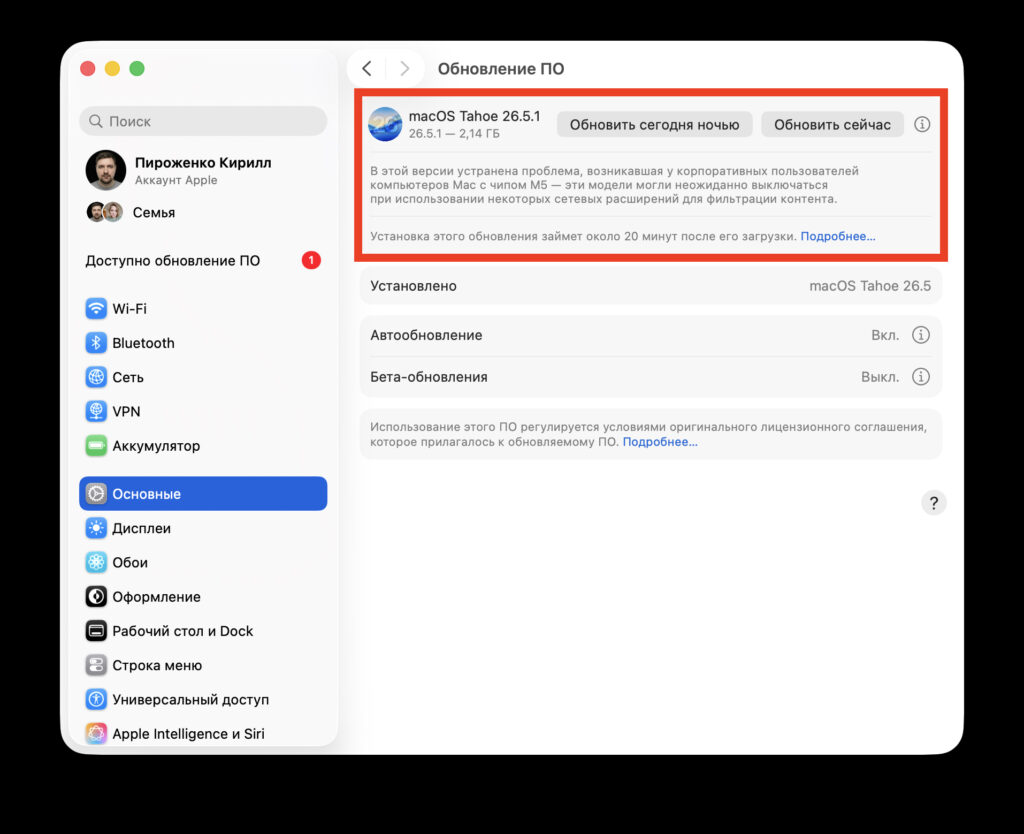
The update is installed the standard way
- Before updating, make a backup via Time Machine — just in case.
- Open the Apple menu in the top left corner and select “System Settings.”
- Go to the “General” section, then — “Software Update.”
- Wait for the system to check for updates and click “Update Now.”
- Don’t close the laptop lid and keep your Mac connected to power until the installation is complete.
If the list is empty for now — go back to the previous section: most likely the rollout wave simply hasn’t reached you yet, and the update will appear within the next few days. Noticed any other changes in macOS 26.5.1 that aren’t in the official release notes? Share in the comments.