If your Mac suddenly freezes and displays a yellow warning triangle saying the system has run out of application memory — along with a list of running apps it wants you to close — don’t panic. This is not a malfunction or malware. It is a built-in macOS safety mechanism that activates when both physical RAM and swap space on the SSD are exhausted. The system is essentially pulling an emergency brake to prevent a complete freeze. The error is most common on Macs with base configurations of 8 GB of RAM, where a handful of browser tabs and messaging apps can quickly consume all available memory.
What you need to know
- The “application memory” warning is a standard macOS safeguard, not a sign of hardware failure or a virus.
- It triggers when both physical RAM and the swap file on the SSD are full, leaving the system nowhere to allocate memory.
- Macs with 8 GB of RAM are especially prone — the source author reports that Telegram alone consumed 1.48 GB, with other apps pushing total usage well past the limit.
- You can monitor memory pressure in real time using the built-in Activity Monitor utility.
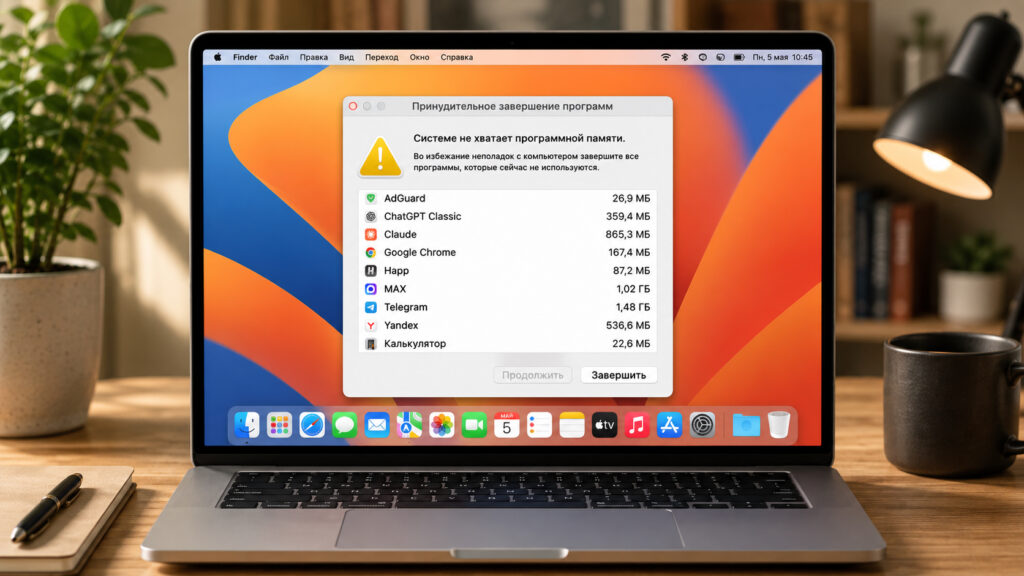
Have you ever seen this error on your computer?
Why the memory error appears on Mac
“Application memory” in this context is not strictly the same as physical RAM. When physical RAM runs out, macOS begins using a swap file — offloading data from memory onto the SSD to free up space for active tasks. This swap mechanism works silently in the background as long as there is room on the drive to accommodate it.
The problem arises when both RAM and available swap space are exhausted. At that point, macOS has nowhere left to allocate memory and displays the forced-quit dialog. It is an emergency measure designed to save the system from a hard freeze.
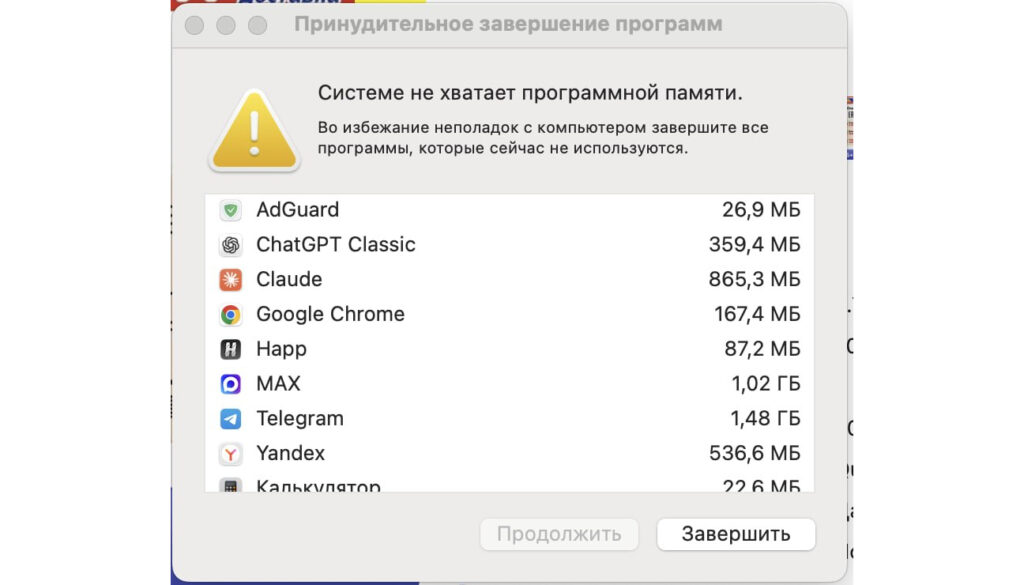
The computer froze completely and apps had to be closed
The source author reports that the error appeared on a MacBook with 8 GB of RAM. The forced-quit dialog revealed the culprits: Telegram was using 1.48 GB, the MAX messenger consumed 1.02 GB, Claude took 865 MB, followed by Yandex and ChatGPT. A dozen browser tabs on top of a couple of heavy messaging apps was enough to exhaust all eight gigabytes.
How to check memory usage on Mac
macOS includes a built-in tool called Activity Monitor that shows real-time CPU, memory, disk, and network usage. Here is how to use it to identify memory-hungry processes:
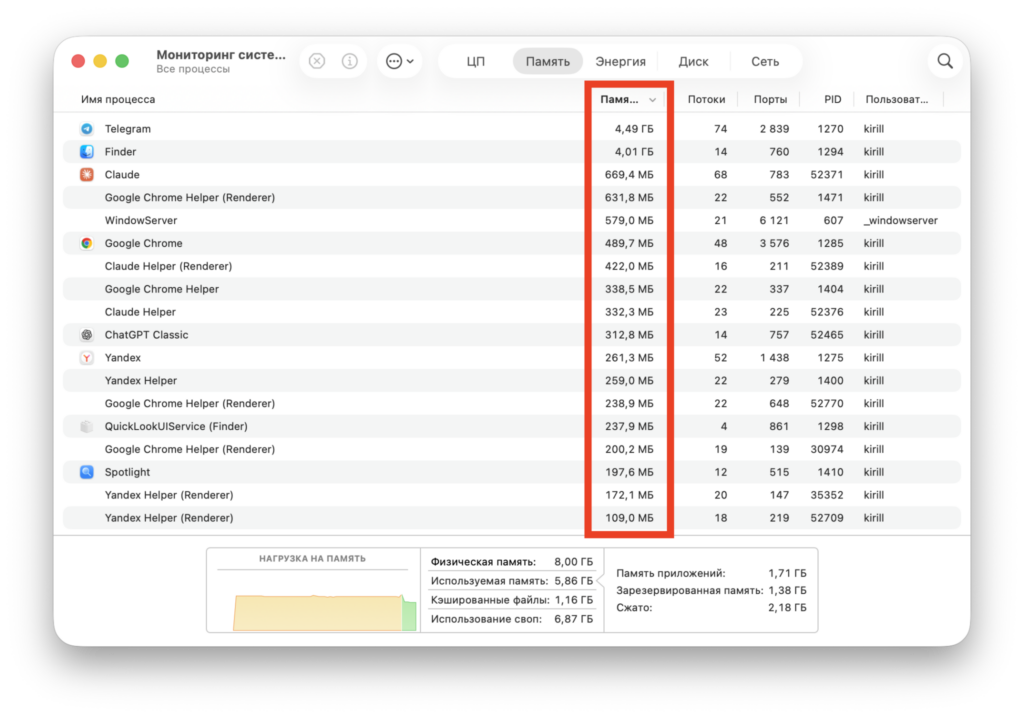
Activity Monitor shows how much memory each process is using
- Press Cmd + Space to open Spotlight.
- Type Activity Monitor and open the app.
- Click the Memory tab at the top of the window.
- Look at the Memory Pressure graph at the bottom: green means everything is fine, yellow means memory is under strain, and red means the system is struggling.
- Click the Memory column header to sort processes by usage, placing the heaviest consumers at the top.
Also check the “Swap Used” line at the bottom of the window. If the swap file has grown to several gigabytes, that is a clear sign that physical RAM is insufficient for your workload. Making a habit of occasionally checking Activity Monitor can help you catch problems before they escalate.
How to force-quit an app on Mac
When the memory warning is already on screen, you need to act quickly. There are several ways to close memory-hungry apps and bring the system back to a responsive state:
- In the forced-quit dialog that appears with the error, select the app consuming the most memory and click “Quit”.
- If the dialog has closed, you can reopen it manually with Cmd + Option + Esc.

You can close an app from the Force Quit dialog
- For more precise control, open Activity Monitor, select the memory-hungry process, and click the X button in the upper-left corner of the window.
- Choose “Quit” for a normal close, or “Force Quit” if the app is unresponsive.
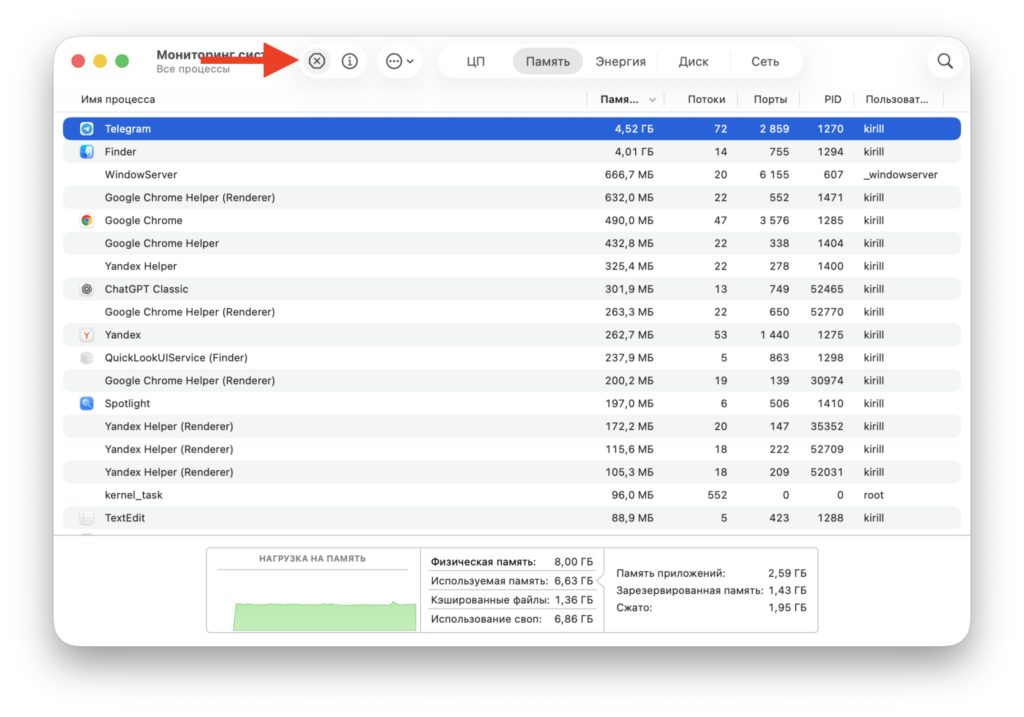
Or by selecting the process and clicking the X button in Activity Monitor
- Close unnecessary browser tabs — each one consumes memory, especially in Chrome.
Important caveat: do not terminate unfamiliar processes whose names you do not recognize. System services are best left alone, as quitting them could cause other problems. Stick to closing apps you recognize — browsers, messaging clients, editors. If the system recovers after closing a couple of apps, you have resolved the issue.
What to do if your Mac constantly runs out of memory
A one-off error is no cause for concern. But if the warning appears regularly, consider changing your usage habits:
- Don’t keep dozens of tabs and apps open that you are not actively using.
- Heavy messaging apps are better fully quit rather than minimized to the background, as they continue consuming memory.
- Restart your Mac every few days. A reboot clears accumulated memory overhead and resets the swap file.
If the error recurs daily even when you are barely running anything, hidden background processes could be to blame — and not all of them are benign. The source author notes that some macOS malware can consume significant memory while running in the background. Check your login items and the process list in Activity Monitor for anything unfamiliar that might be consuming resources.
The bottom line
The “system has run out of application memory” error is not a death sentence for your Mac. It is a signal that you have hit the ceiling of your available RAM. Closing unnecessary apps and monitoring usage through Activity Monitor will resolve the issue in most cases within a minute. If 8 GB consistently proves insufficient for your workflow, consider a higher-memory configuration when purchasing your next Mac — the small upfront cost difference pays off in peace of mind.


