You charge your iPhone 17 to 100% before bed, only to find the battery has dropped 15–20% by morning. Sound familiar? Based on our chat, many readers have encountered this problem. Hundreds of such complaints have appeared on various forums since September 2025, and it’s clearly not the end. We previously covered the main reasons why an iPhone drains quickly, but with the release of iPhone 17, new nuances have emerged. Let’s figure out why the iPhone 17 drains quickly in standby mode and how to fix it.
Let’s figure out why the iPhone 17 drains overnight
How Much Charge Should an iPhone Lose Overnight
First, it’s important to understand what’s considered normal. Any smartphone consumes energy even in standby mode. It maintains a connection to the cellular network, receives notifications, and updates app data in the background. A fully functional iPhone 17 with a good network signal loses 2 to 8% overnight, and in some cases up to 10% charge. This is an absolutely normal figure for 6–8 hours of inactivity.
If 15% or more drains overnight — that’s a reason to investigate. The problem can be either software or hardware related. The good news is that in the vast majority of cases, software is to blame, which means everything can be resolved without a trip to a service center.
Why iPhone 17 Drains Overnight
Before rushing to disable everything, it’s worth understanding what exactly is draining the battery. There can be several causes, and they often overlap.
- Background app refresh. Messengers, social networks, news apps — they all continue working even when the screen is off. Every new message in a Telegram group chat, every Instagram* notification forces the iPhone to wake up and spend energy. If you’re subscribed to dozens of channels and chats, overnight drain can be significant.
- Weak cellular signal. This is one of the most insidious causes. When the iPhone struggles to get a signal, it increases transmitter power to maintain the connection. As a result, 20–30% of charge can disappear overnight. This is especially relevant for those who live in areas with poor reception — city outskirts, basement floors, behind thick walls.
- SIM card or eSIM issues. A worn or damaged SIM card can cause constant network reconnections. Some users on forums noted that the eSIM was the cause of overnight drain — when the second line was disabled, consumption returned to normal.
- Indexing after an iOS update. If you recently updated your firmware to iOS 26.2 or newer, the system actively indexes files, photos, and app data for the first 2–3 days. Apple itself warned that the iPhone may get warm and lose charge right after installing iOS 26. You just need to wait — usually everything stabilizes within a couple of days.
- Background location services. Apps with “Always” access to location continuously track your position. Maps, weather, delivery, fitness trackers — they all use GPS and cellular data to determine your position, even at night.
- Malfunctioning apps. Sometimes a single specific app is to blame. For example, on Apple forums, users massively complained about Reddit — the developers released updates one after another, and some versions abnormally consumed charge in the background.
As you can see, there’s nothing unexpected on the list. Everything seems predictable and straightforward, which means in most cases you can solve the problem yourself.
iPhone Battery Usage: How to Find Out What’s Draining Your Charge
In iOS 26, Apple added a convenient tool — Battery Insights. It shows specific recommendations right in the settings. To access it, do the following:
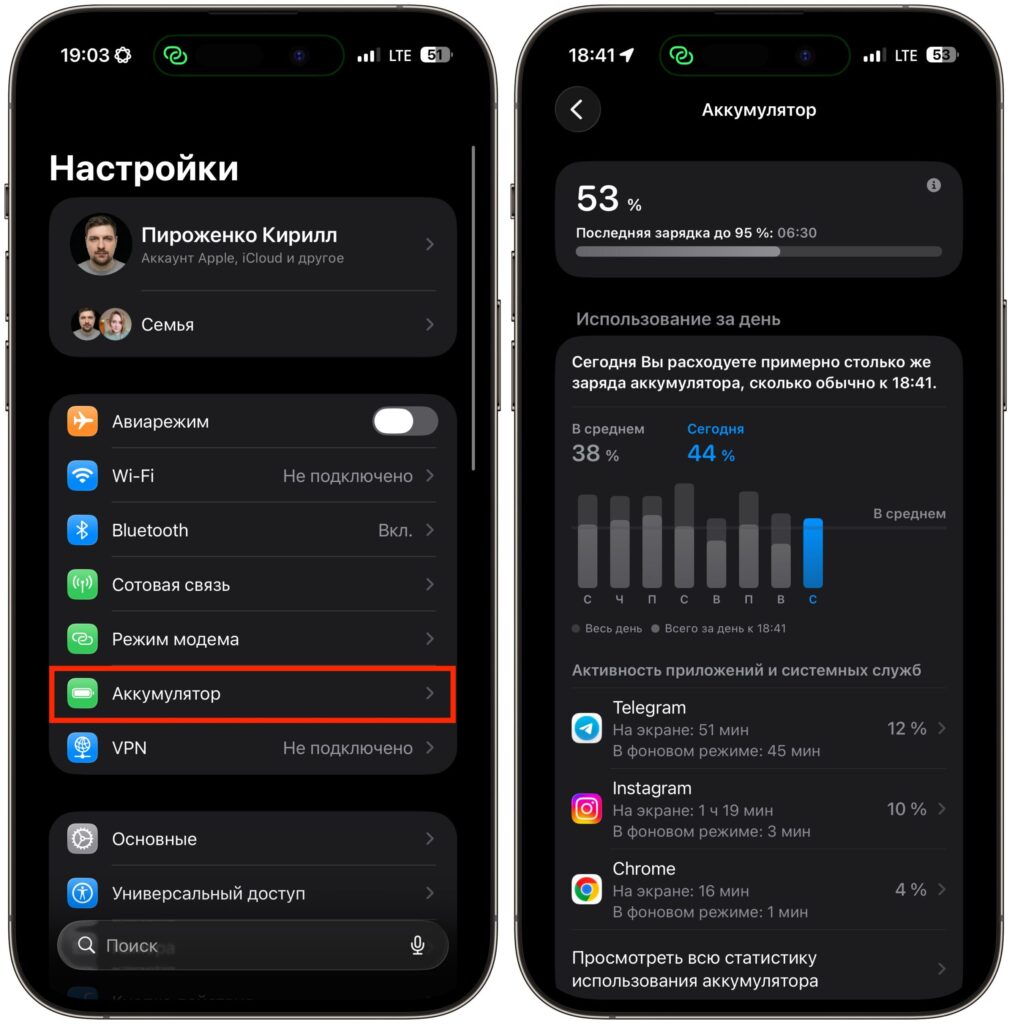
All iPhone battery usage information can be viewed in the phone’s settings
- Open “Settings” on iPhone 17.
- Go to the “Battery” section.
- Study the “Usage per Day” graph — here you can see which apps and processes consumed the most energy.
- Pay attention to the tips at the top of the screen — the system may report high brightness, disabled auto-lock, or excessive background activity.
If “Home & Lock Screen” or system processes are listed as top consumers — it’s most likely due to indexing after an update. Wait 2–3 days.
What to Disable on iPhone to Reduce Overnight Drain
If the problem isn’t related to an update and persists for more than a few days, move on to settings. Here’s what you need to do:
- Open “Settings” — “General” — “Background App Refresh” and disable background refresh for apps you don’t need at night. You can choose “Wi-Fi” instead of “Wi-Fi & Cellular Data” so apps don’t pull data over the mobile network, or better yet, switch the toggle to “Off.” The feature is actually completely useless and only drains the battery.
- Go to “Settings” — “Privacy & Security” — “Location Services.” Review the list of apps and change access from “Always” to “While Using” for all except truly critical ones (for example, “Find My iPhone”).
- Open “Settings” — “Privacy & Security” — “Analytics & Improvements” and turn off all toggles, including “Share iPhone Analytics” and “Improve Siri & Dictation.”
- Go to “Settings” — “Battery” — “Power Mode” and enable “Adaptive Power.” This feature appeared in iOS 26 and on iPhone 17 it’s active by default, but it’s worth checking. It automatically reduces brightness, limits background tasks, and at 20% automatically enables power saving mode.
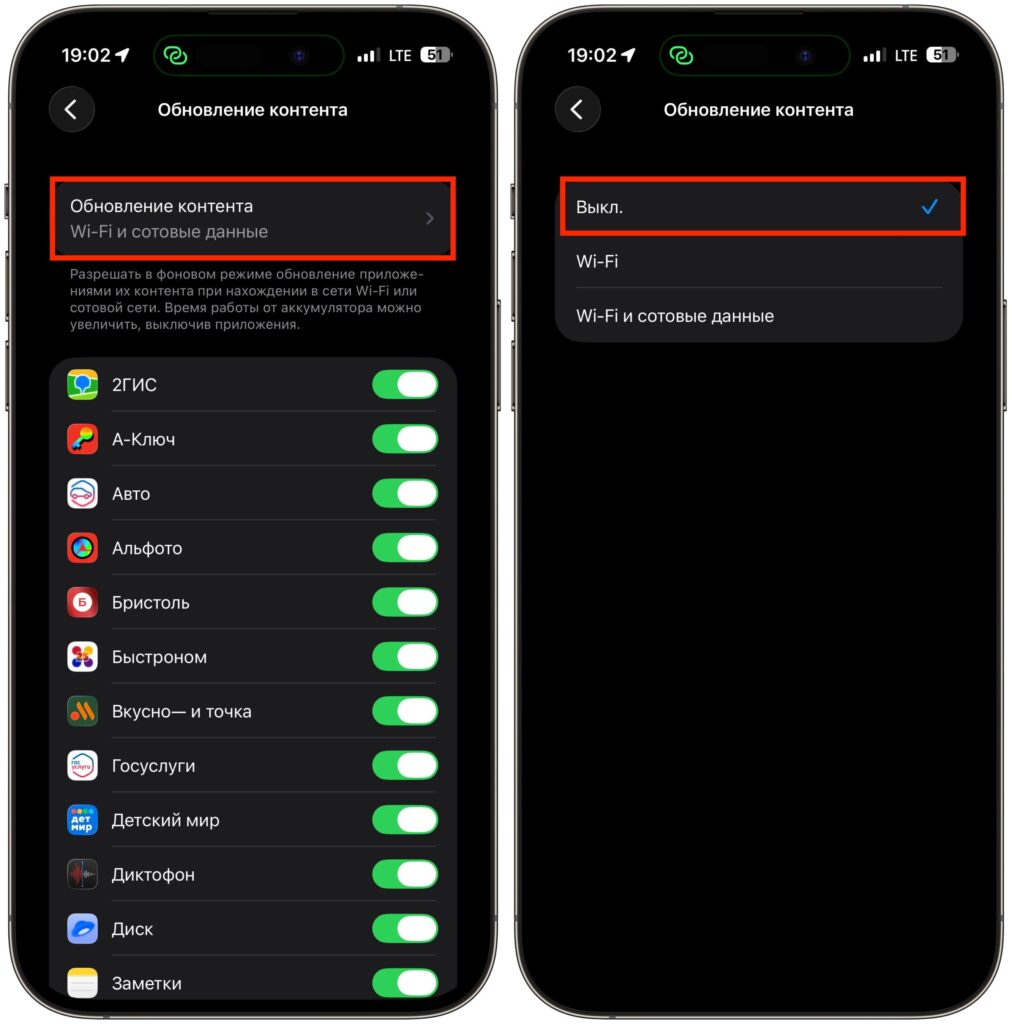
Turn off background app refresh, you don’t need it
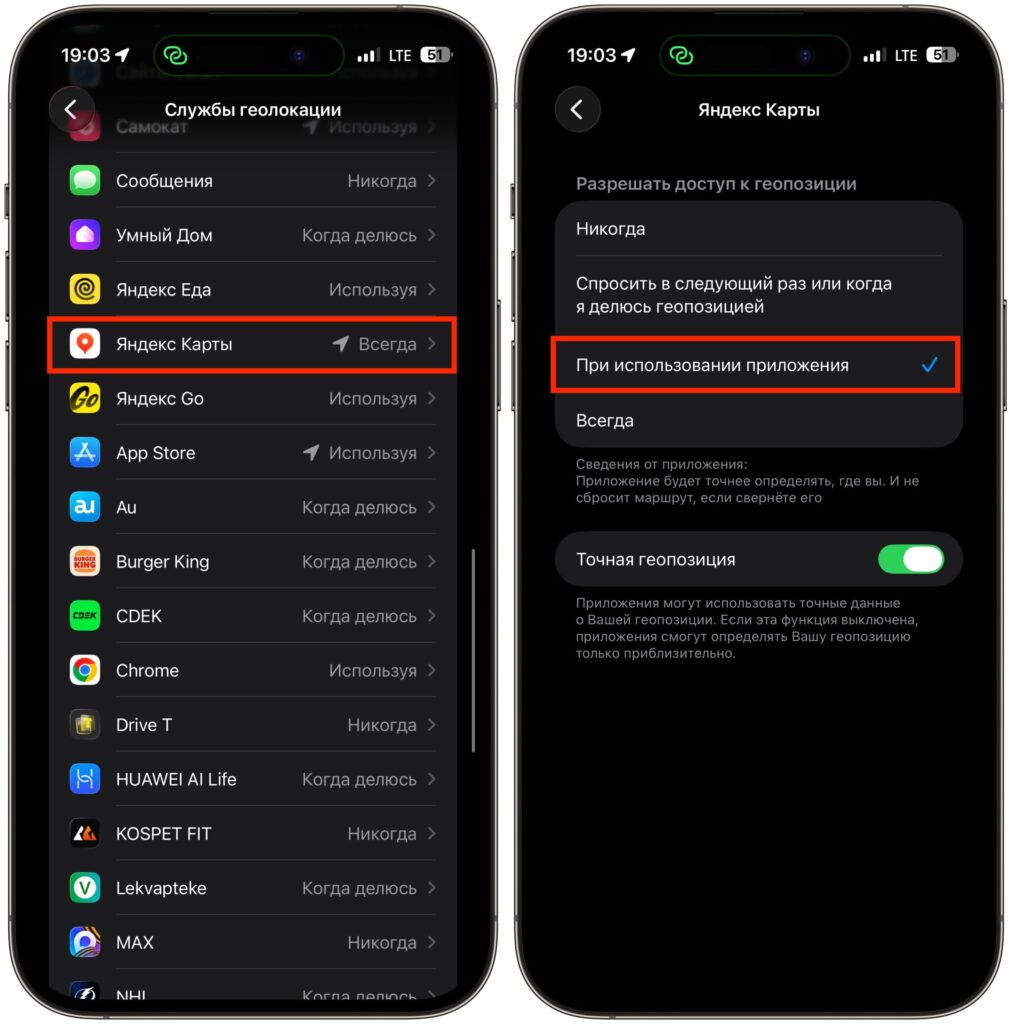
Change location settings for apps that objectively don’t need it
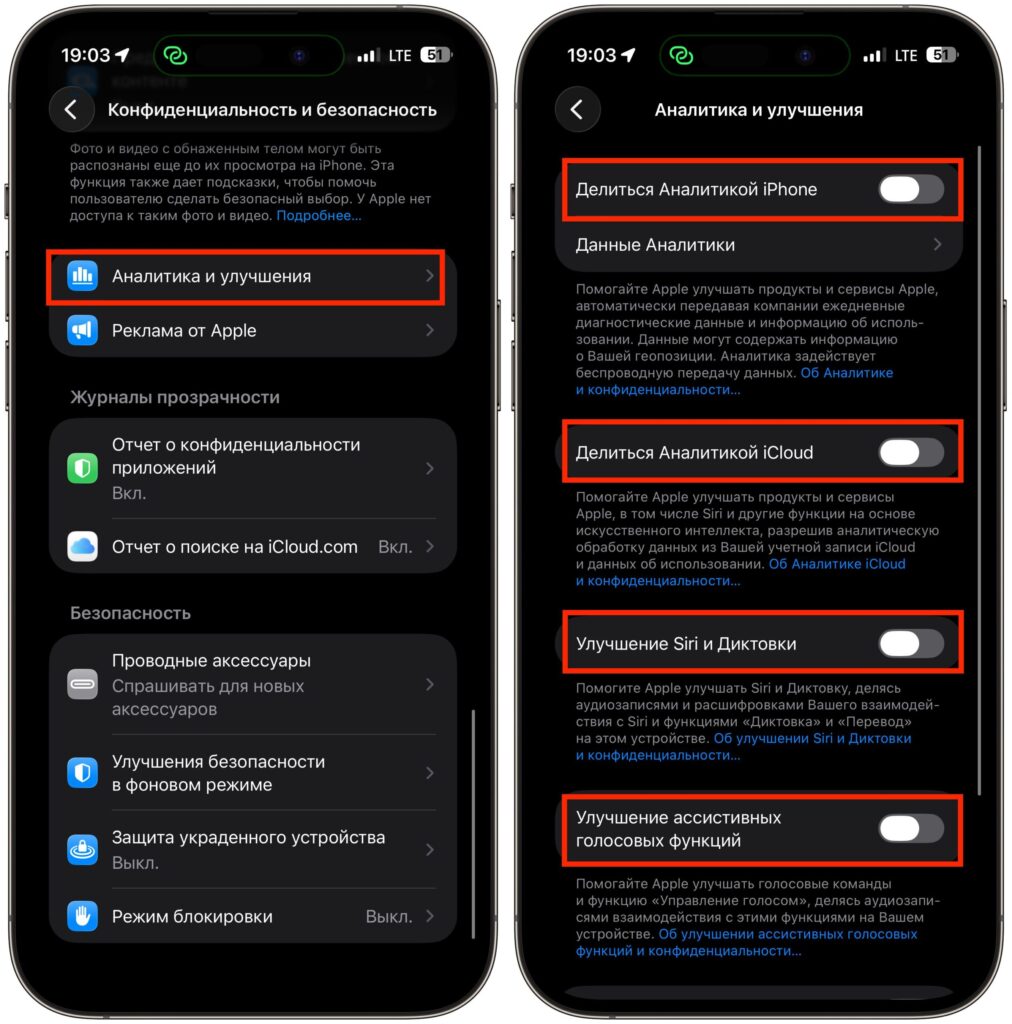
Turn everything off, it drains charge and provides no benefit


