Chrome works fine by default, but out of the box it doesn’t unlock its full potential. Most users don’t even realize that the browser hides several settings that noticeably speed up page loading on Android — for free and without any third-party apps. Let me show you how to supercharge Chrome.
Here’s how to easily speed up Chrome on Android
How to Speed Up Page Loading in Chrome
This is the most accessible of the three settings and one of the most useful. The page preloading feature works like this: when you open a website, Chrome predicts which links you’ll tap next and preloads them in the background. As a result, pages open instantly instead of loading from scratch after you tap.
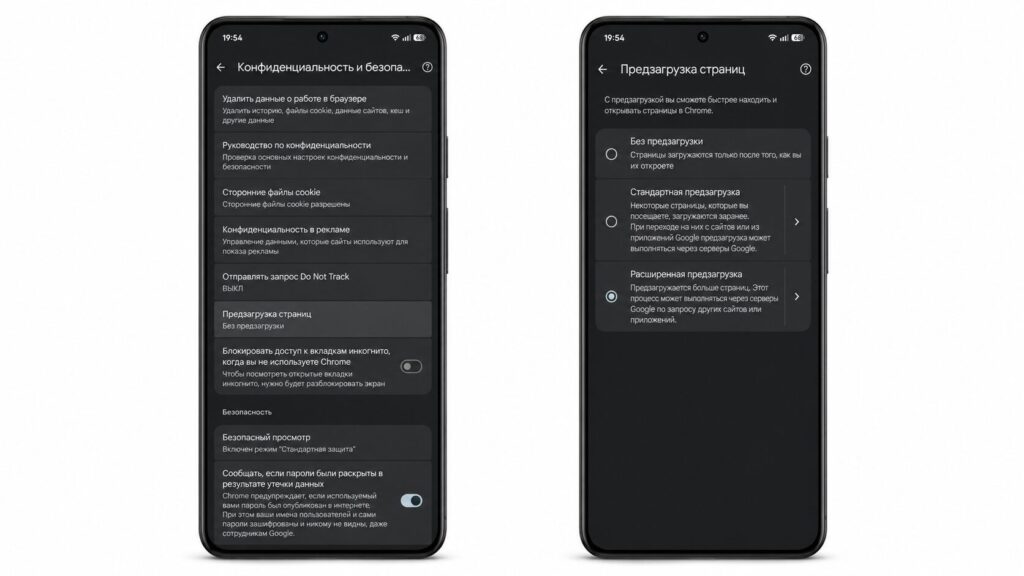
The setting is buried deep, but it’s definitely worth finding
By default, preloading is set to the standard mode, which makes cautious predictions. But extended preloading covers significantly more pages, and the chance that the link you need is already preloaded increases dramatically.
- Open Chrome and go to “Settings.”
- Select “Privacy and Security,” then “Preload pages.”
- Choose “Extended preloading.”
How to Reduce Delay When Loading Websites
Now we’re diving into the hidden flags. The QUIC protocol from Google is a modern replacement for the outdated TCP. In simple terms, it reduces delays when establishing connections, and compatible websites load faster and feel more responsive. By default, QUIC in Chrome is disabled, so you’ll need to enable it manually.
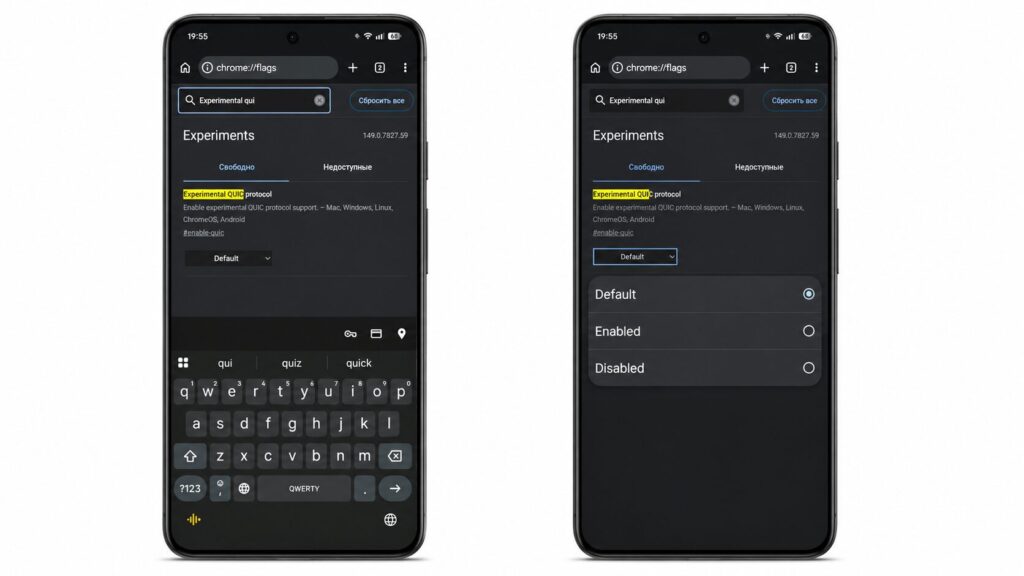
Now you need to dig into the flags and activate something important
- In the address bar, type Chrome://flags/.
- In the flag search, enter Experimental QUIC protocol.
- Tap the Default value, select Enabled, and restart the browser.
On fast Wi-Fi you might not notice the difference, but on slow or unstable internet, websites load noticeably faster. It’s especially helpful on the road and in areas with weak signal.
How to Make Scrolling in Chrome Smoother
The third flag isn’t about internet speed — it’s about browsing smoothness. With GPU rasterization enabled, Chrome offloads some page rendering tasks from the CPU to the graphics chip.
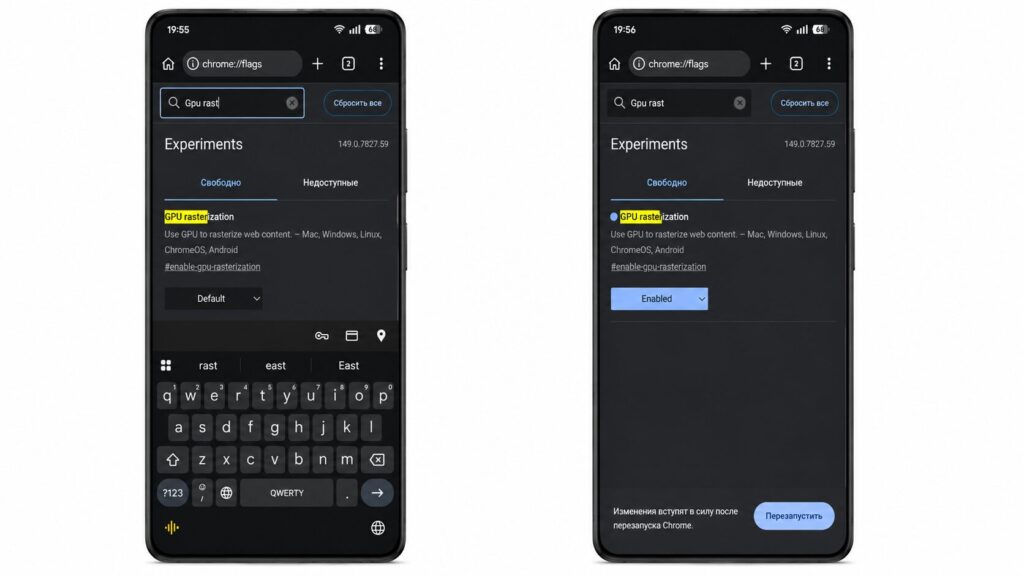
Make sure to show this setting to your friends — they’ll appreciate it
The GPU processes thousands of operations in parallel, so pages render more efficiently, and scrolling and animations become smoother. As a bonus, it takes the load off the main processor, and the phone’s overall responsiveness improves too. Here’s how to enable it:
- Type Chrome://flags/ in the address bar.
- In the search, type GPU rasterization.
- In the dropdown menu, change Default to Enabled and restart the browser.
- By the way, both QUIC and GPU rasterization are available not only on Android but also on ChromeOS, Windows, Linux, and Mac.
Why Chrome Lags on Android
If pages load slowly, the easiest thing is to blame the hardware, but it’s often the browser settings that are at fault. Chrome out of the box is slower than some alternatives, so a couple of tweaks can really change the experience of Chrome’s speed on Android.
Properly configuring Chrome is the key to success
That said, you can’t completely discount the hardware either. And there’s also the matter of memory. These days, even 8 GB of RAM is considered outdated, and it directly affects how many Chrome tabs can stay open without reloading. Try these settings on your phone and share your impressions!