iOS 27 is already out, the first beta is available to everyone, and with it CarPlay has received several notable improvements. In this article, we’ve gathered all the new features related to Apple’s car interface.
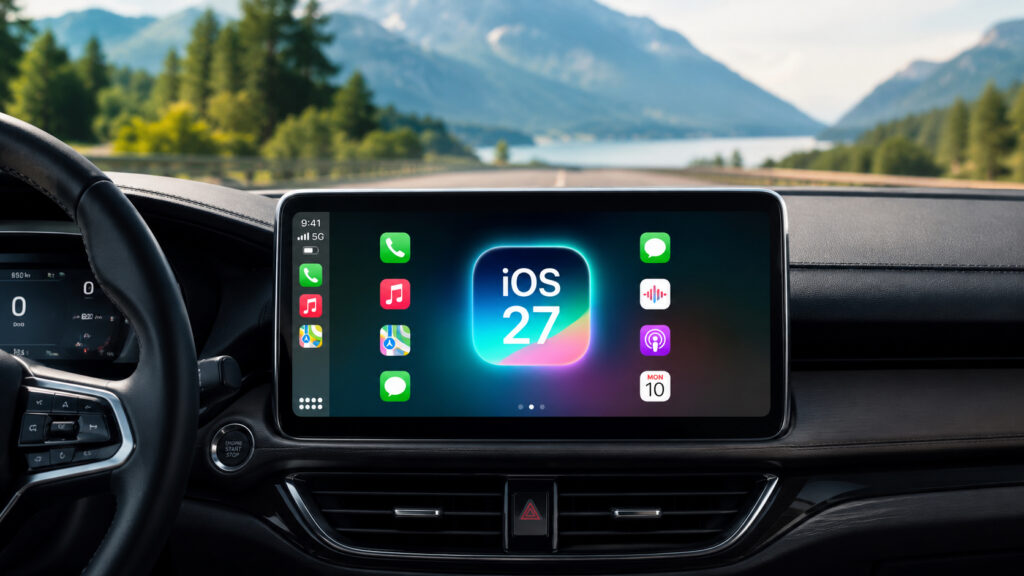
Let’s figure out what Apple has prepared for CarPlay
New Siri in CarPlay: What the AI Assistant Can Do
The main change in iOS 27 concerns Siri, and its new capabilities have made their way to CarPlay. The assistant received a fresh interface that visually resembles the iOS 18 era design, but with a more restrained color palette. Now Siri appears as a glowing orb in the bottom center of the screen.
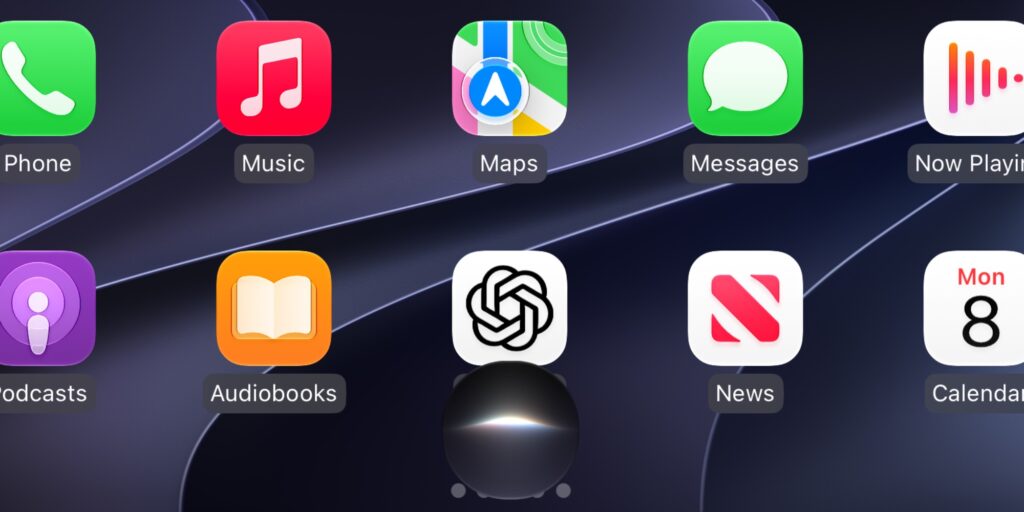
Of course, the new Siri. Can’t do without it
What’s more important is what’s happening under the hood. In CarPlay, Siri can finally answer questions of any nature, just like ChatGPT and Google Gemini can. In my drives, the assistant was noticeably better at maintaining conversation context: you can ask a follow-up question without repeating everything from the start, and Siri understands what you’re talking about. For an interface you use on the go and hands-free, this is arguably the most important improvement in recent years.
Siri Synchronization Between CarPlay and iPhone
Another nice touch that turns out to be very convenient in practice. All conversations you had with Siri in the car are automatically synced to the Siri app on iPhone. Open your phone after a trip, go to the history, and see everything you asked while driving.
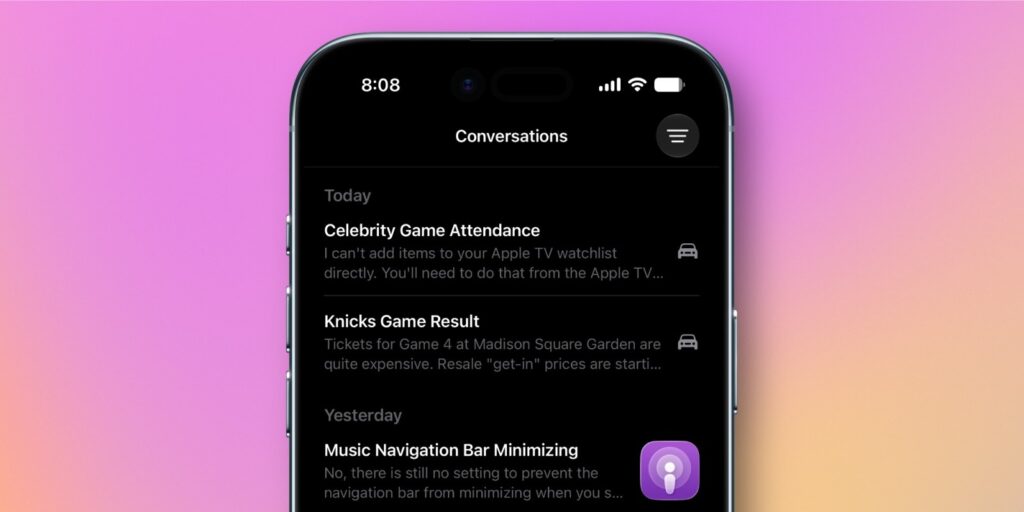
A neat car icon appears next to the chat in the app
To avoid confusion, CarPlay conversations are marked with a car icon. This makes it easy to distinguish what you asked at home versus on the road. It’s especially helpful when you asked Siri to find something on the go and want to revisit the results later with the screen comfortably in your hands.
How to Watch Video on the CarPlay Screen
In iOS 26, Apple allowed watching video in the car, but only via AirPlay streaming from iPhone. In iOS 27, the approach has changed: now developers can create full-fledged video apps for CarPlay, and videos play directly on the system’s display.
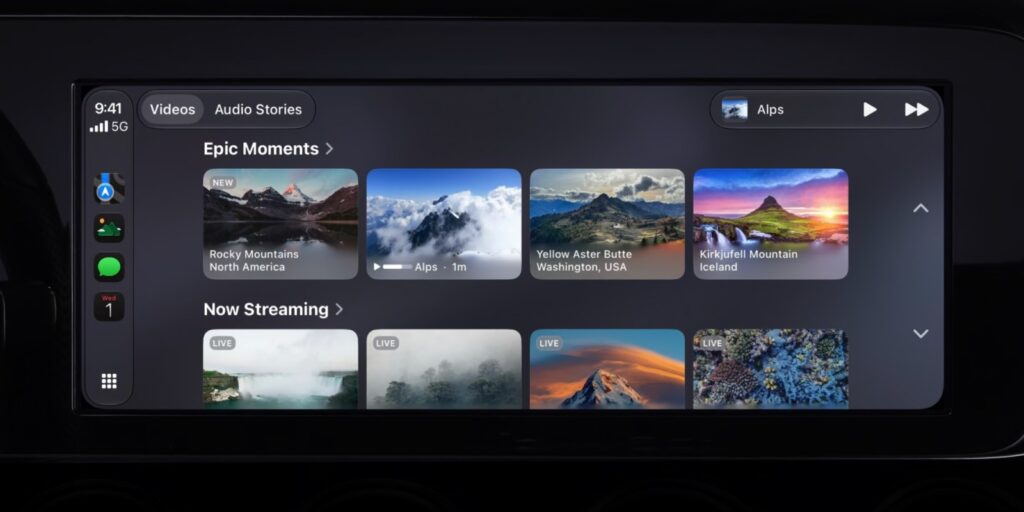
Now you can directly play videos from apps instead of streaming them
If an app already supports AirPlay video streaming, nothing needs to be reworked. Users can already cast the picture to the car’s screen when not driving by selecting the car’s display during playback on the phone. The new option goes further and lets you watch your favorite videos from iPhone directly in the CarPlay interface, without the intermediary step of launching a stream on the smartphone.
One caveat: the feature must be supported by the car manufacturer. It won’t automatically appear in every car, so availability will depend on the specific make and model.
New CarPlay Wallpapers in iOS 27
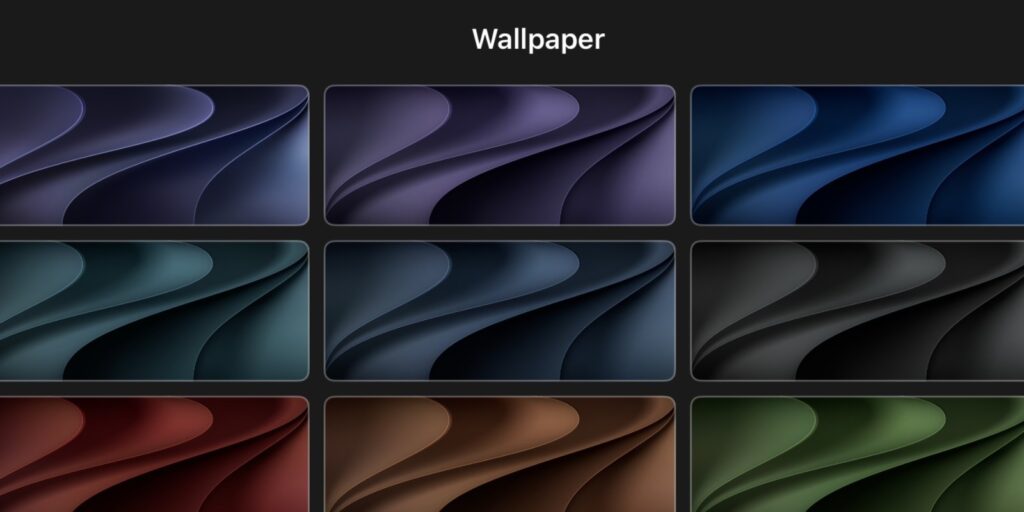
Of course, they added a bunch of new wallpapers
iOS 27 brought a fresh set of wallpapers to CarPlay. Stylistically, they echo those that appeared in iOS 27 and macOS Golden Gate, so the system on the phone, computer, and in the car now looks consistent. It’s a small detail, but such touches contribute to a cohesive impression of the update.
You can change the design right from the CarPlay settings, as before. So if the default background gets boring, a couple of taps on the car’s screen is all it takes to pick an option that matches your mood or interior color.
Liquid Glass in CarPlay: What Changed
In iOS 27, app icons transitioned to the new Liquid Glass design language, and these same icons are now visible in CarPlay. Semi-transparent with a glass effect, they noticeably refresh the main screen of the car system. If you’ve already gotten used to the new look of icons on iPhone, the same appearance will greet you in the car.
The effect is especially noticeable on a car’s large screen: glass reflections and smooth transitions look even more impressive than on a smartphone. At the same time, the icons remain recognizable, so you won’t have to search blindly for familiar apps.
How to Scrub Through Music and Podcasts in CarPlay
Music and other media apps in CarPlay received a new mini player. It’s positioned in the upper right corner and shows the album artwork along with playback controls. Previously, there was just a waveform icon there, and the update looks much more practical: you can see what’s playing and switch tracks right away without opening the full app.
The mini player works not only in Apple Music but also in third-party services that support playback in CarPlay. So switching tracks and seeing the cover art right from maps or another open app is now more convenient in any player.
Scrubbing on the Now Playing Screen
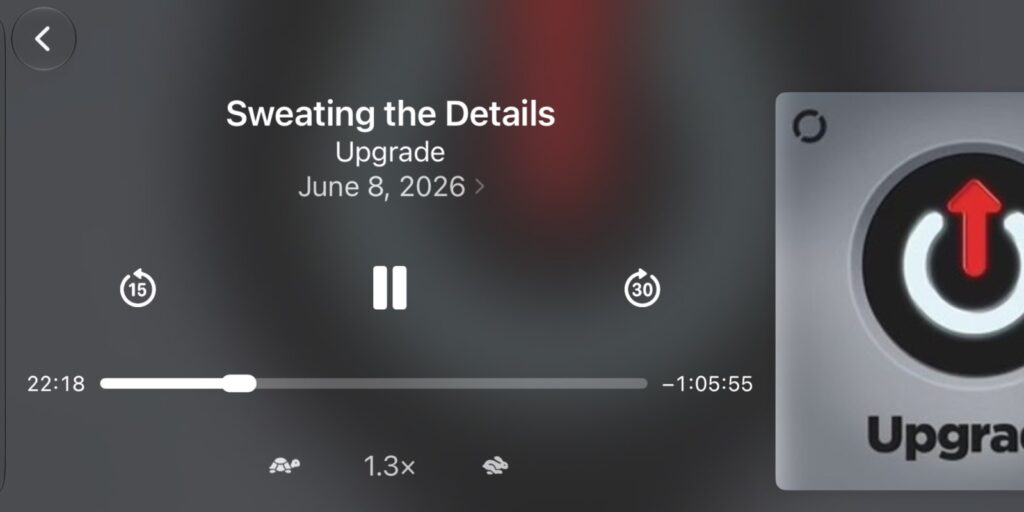
Playback control has become much more convenient
Rounding out the list is a small but useful tweak. On the Now Playing screen, you can now scrub through audio using an enlarged progress bar. The bar has gotten bigger, making it easier to jump to the right moment in a track or podcast, and for on-the-go control this is critical: the fewer precise movements required, the safer it is.