While everyone is discussing how bad certain messengers are, I look at the Android security problem more deeply, recognizing the harm that other software can cause too. Most apps we install once and forget about. But they continue to live their own lives: reading contacts, photos, and SMS in the background, even if you haven’t opened them in six months. I decided to check this and deleted five apps I used to trust.
Found and neutralized 5 apps on Android
Why You Should Check App Permissions on Android
The point of an audit is that many apps access your data in the background, even when you don’t launch them. I conduct such a review every few months to make sure nothing is abusing permissions without my knowledge or leaking data.
It’s important to understand one thing here. A permission used in the background doesn’t always mean surveillance — it’s often just regular synchronization or system cache. But if you haven’t used an app in months and it’s still accessing your contacts and photos, that’s a good reason to ask: why is it even on your phone.
Why WhatsApp* Messenger Is Dangerous
The first one to go was WhatsApp*. The reason is simple, and it’s not at all because a new messenger appeared in Russia. It’s just that after it was blocked, I barely use it and last opened it several months ago, possibly about half a year. Meanwhile, in the usage history I saw that over the past 24 hours the app had accessed contacts and photos/videos.
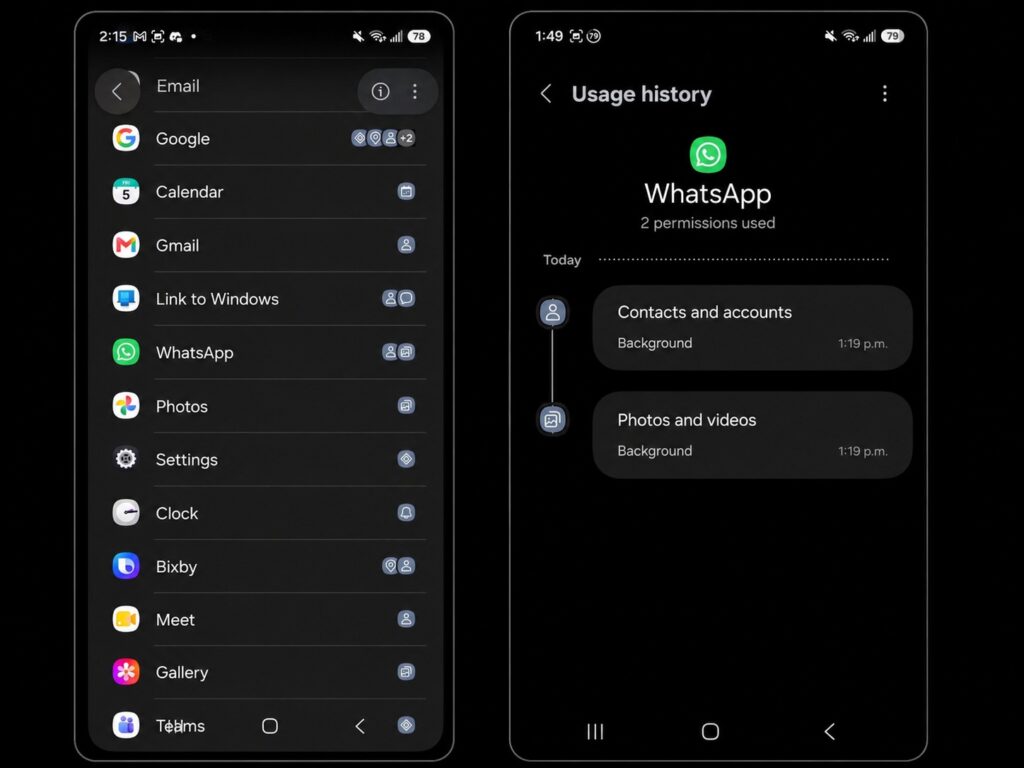
WhatsApp* should be neutralized
Most likely it’s due to synchronization, especially since many apps on my phone go into deep sleep when not in use. But my logic is this: if people can reach you through other messengers when needed, and spam is filtered by blocking anyway, there’s no reason to keep an unused messenger with access to contacts. In the end, I deleted the app but decided to keep the data.
Link to Windows — What This App Does in the Background
The second candidate was Link to Windows, Microsoft’s app for connecting a smartphone to a computer. For me, it was a leftover from old habits with the Galaxy S23, and after switching to a new smartphone I simply forgot about this program.
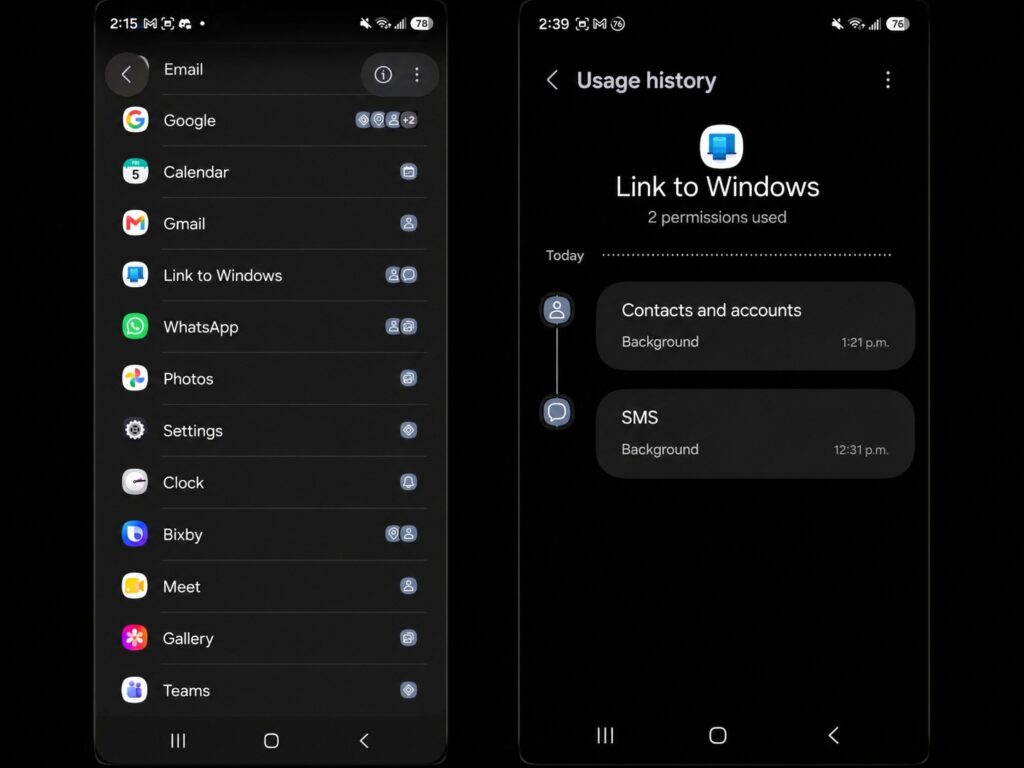
A useless app if you don’t use the Windows link feature
I had two complaints here. First, on my old phone the app noticeably drained the battery because it needs a constant Bluetooth connection to work. Second, although I hadn’t opened it since last summer, over the past 24 hours it had used permissions for contacts and SMS in the background. For an app you’ve stopped using, that’s reason enough to send it to the trash.
Unnecessary Google Apps on Android
Next, two of Google’s own apps got the treatment. I keep Google Photos on my phone irregularly: I install and delete it for work tasks, and the rest of the time I don’t touch it because I don’t like cloud photo galleries. During the check, I saw that the app had accessed photos and videos within 24 hours — which is expected and probably related to system cache, since backup is turned off on my end.
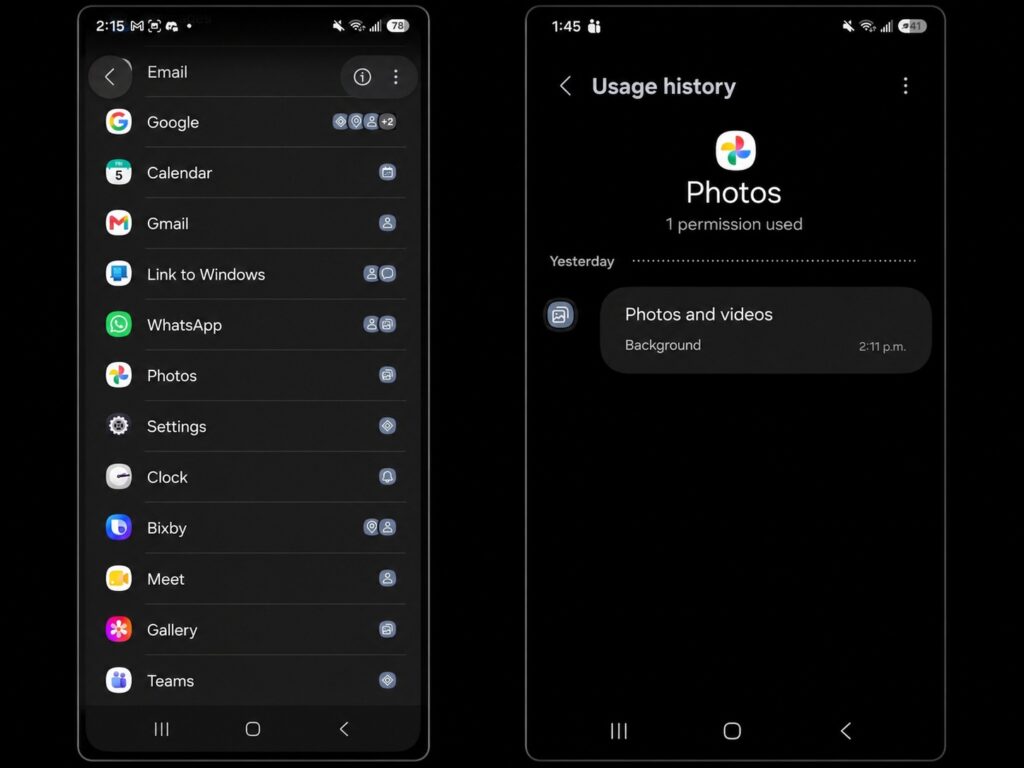
A useless app for cloud photo uploads
An important nuance: it wasn’t possible to fully delete Google Photos — the app can only be disabled and its updates removed. This is a typical situation for pre-installed programs. The same happened with Google Meet: I never used it on my phone, preferring the computer, but in the 24-hour history the app had still used access to contacts.
The Most Dangerous Google App on Your Phone
The main discovery was the core Google app. I use it mainly for Google Lens and almost never open it directly. But it turned out to have the widest access to data: over 24 hours the app used five permissions — nearby devices, geolocation, contacts, SMS, and call log.
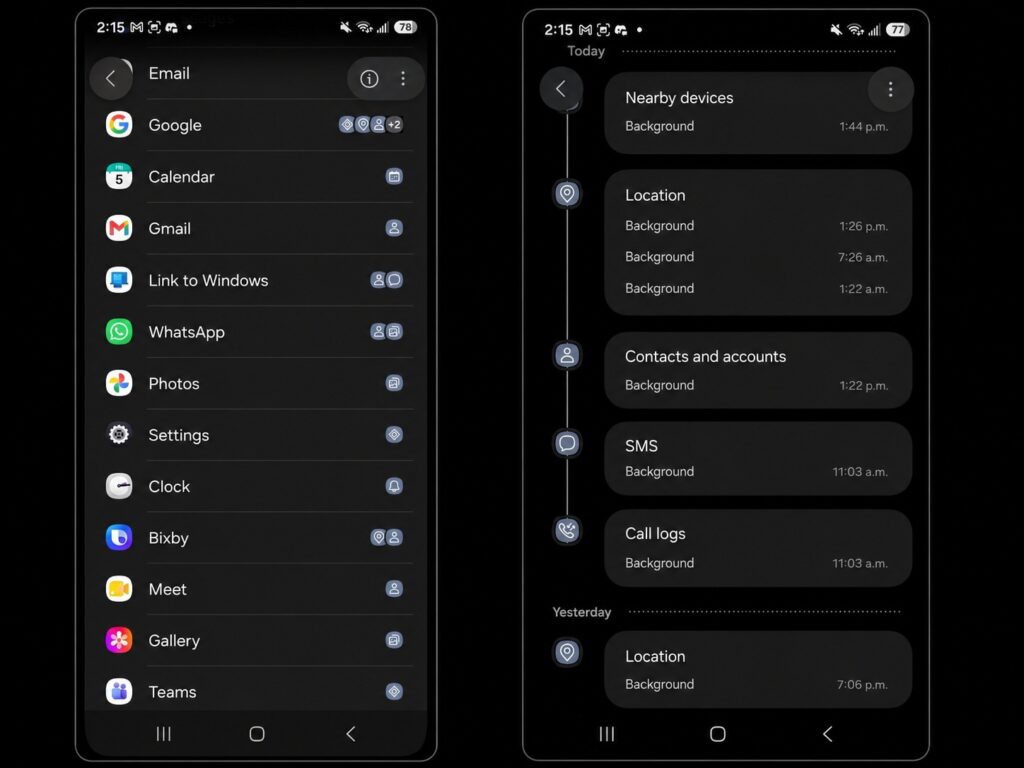
The Google app collects the most data
I didn’t delete it — instead I simply disabled the app. This is a reasonable compromise for system programs that can’t be fully erased: disabling removes their activity and revokes unnecessary permissions without breaking the system.
How to Check Permissions and Remove Unnecessary Apps Yourself
The main takeaway of this article is simple: periodic phone cleanup saves memory, speeds up performance, and closes some data leaks. This is especially relevant for those who buy smartphones with a pre-installed set of apps — they tend to have more unnecessary software.
If you want to repeat the same kind of audit, follow these steps:
- Open your smartphone settings and find the privacy or confidentiality section.
- Go to the permissions panel and look at the history for the last 24 hours — which apps accessed contacts, photos, SMS, geolocation, and calls.
- Mark the apps you haven’t used in a long time but that are active in the background.
- Delete what you don’t need; pre-installed programs that can’t be erased should be disabled and their updates removed.
- Also disable unnecessary carrier apps and clean up duplicate photos and junk files.
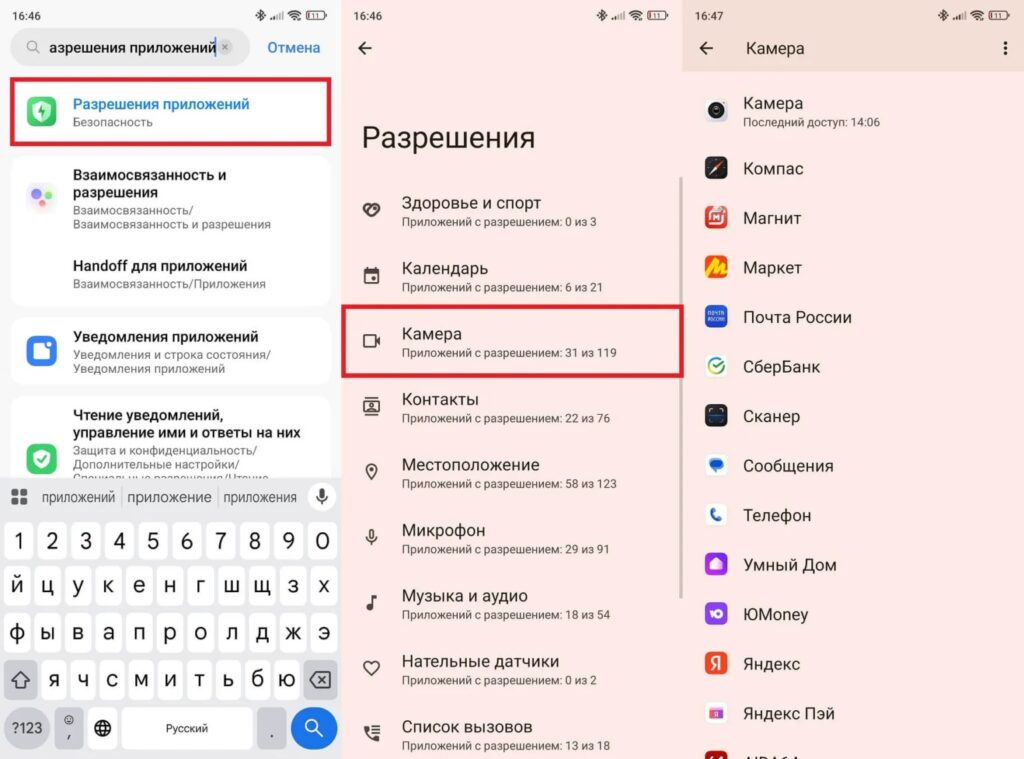
You can also revoke permissions through settings
It’s also worth going through AI apps and carrier software separately: that’s where you most often find unnecessary default data access.
* — belongs to Meta, which is recognized as extremist and banned in Russia.