Sometimes you urgently need your card number, but the physical card isn’t at hand. It’s at home, left at work, or lost altogether. And increasingly, banks issue virtual cards that don’t have any numbers printed on them at all. The good news is that all the data is safely stored in the bank’s app on your iPhone, and you can access it in just a couple of taps.
Figuring out how to view your card number on iPhone
Below I’ll show you using four banks I use myself: T-Bank, Sber, Alfa, and Ozon. The logic is the same everywhere. First you open the card, then press the button to show the details, and then confirm the action via Face ID or passcode. In newer versions of apps, the interface sometimes gets redesigned, but the sequence of steps stays more or less the same, so you won’t get confused even after an update.
An important note about security right away. The number, expiration date, and especially the CVC/CVV code on the back are essentially the keys to your money. You should only enter them when paying on trusted websites. If a stranger on the phone or in a chat asks you to share these numbers, you’re dealing with a scammer. Hang up and don’t share anything.
How to View Your Card Number in T-Bank on iPhone
To view the full card number in T-Bank, follow three simple steps:
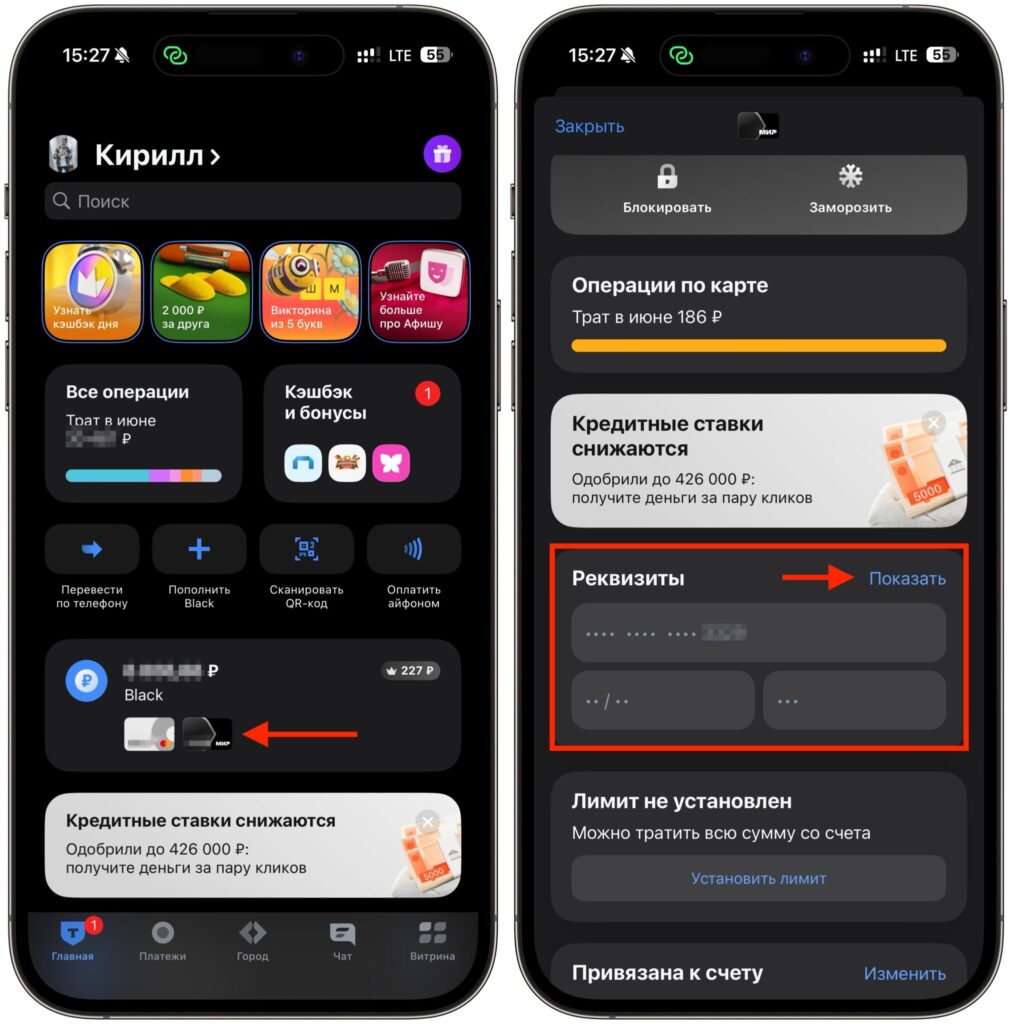
A couple of taps and the number is right in front of you
- Open the app and on the main screen tap on your card — in my case it’s the Black card with the MIR payment system.
- Scroll down slightly to the details section and tap the “Show” button to the right of it.
- Confirm with Face ID, after which the full number, expiration date, and three-digit code will appear.
You can copy any line with a long press and paste it wherever you need. The whole thing takes about ten seconds, and you won’t need to search for anything extra.
Where to Find Card Details in the Sber App
In Sberbank Online, card details are hidden in the “Wallet” section. Here’s what to do:
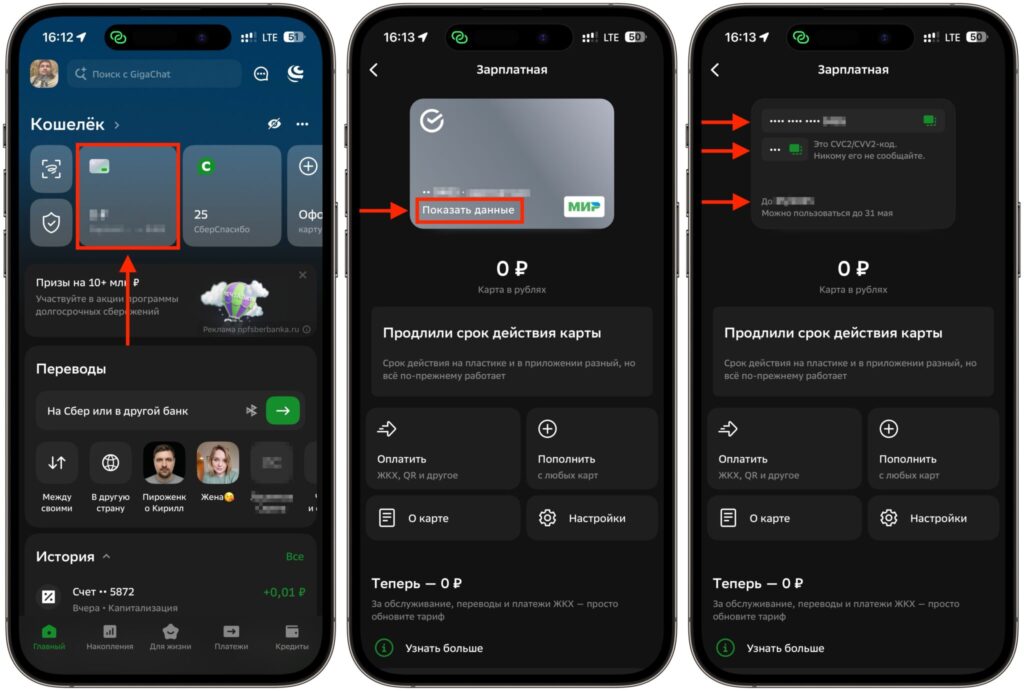
In Sber you’ll need to take a few more steps
- On the main screen, tap on the tile with the desired card — for example, “Salary” if you have multiple cards.
- On the large card image, find the text “Show details” below the card number and tap directly on it.
- Sber will reveal everything at once: the full number, CVC2/CVV2 code, and expiration date.
Next to it, the bank helpfully notes the card’s validity date and separately reminds you not to share the security code with anyone. That’s solid advice worth following. By the way, the expiration date on the physical card and in the app may differ, but that’s normal — the card still works.
How to Open Card Details in Alfa-Bank
There are a few more steps here, but nothing complicated:
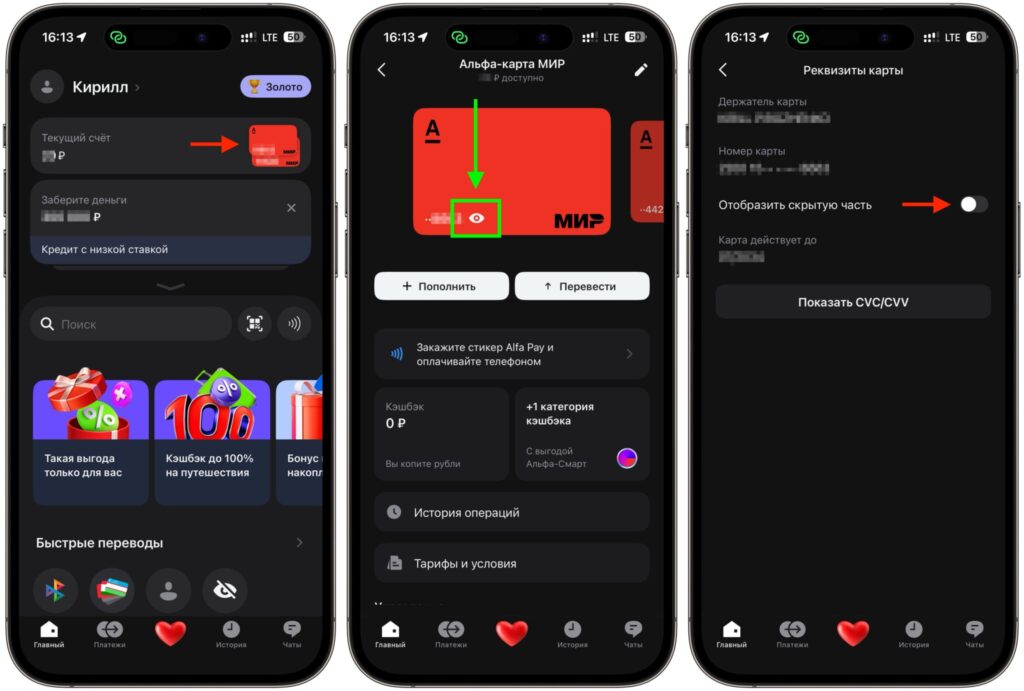
In Alfa, details are displayed for a limited time
- Launch the app and on the main screen tap on the card in the “Current Account” section.
- On the card image itself, find the small eye icon in the bottom left and tap on it.
- On the “Card Details” screen, slide the “Show hidden part” toggle to the right to reveal the full number.
- For the three-digit code, tap the separate “Show CVC/CVV” button at the bottom of the screen.
Alfa deliberately separated the number and code into different actions — this is slightly more secure: it’s harder to accidentally expose the full set of data.
How to View Your Card Number in Ozon Bank
Many Ozon Bank users have a virtual card, so viewing the details in the app is especially relevant here — there’s simply no physical plastic. Here’s what to do:
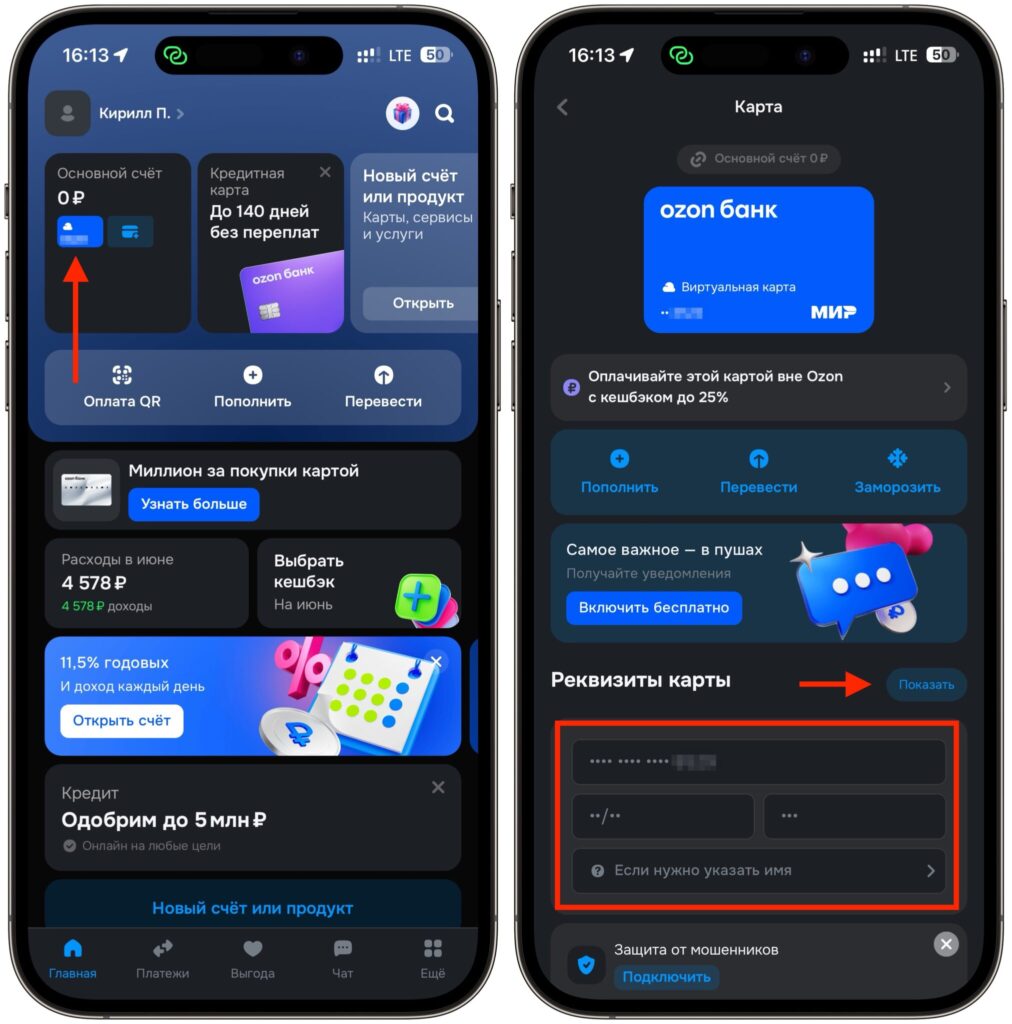
In Ozon Bank you can also open card details
- On the main screen, find the “Main Account” section and tap on your card.
- On the card screen that opens, scroll down to the “Card Details” section.
- Tap the “Show” button on the right, and the number, expiration date, and security code will appear.
A nice bonus: Ozon displays a separate item “If you need to enter a name”. This comes in handy when a foreign or finicky website requires the cardholder’s name in Latin characters during payment, and you can’t remember how it’s correctly spelled on the card.
How to Find Your Card Number Without the Physical Card
If you have a card from VTB, Gazprombank, Raiffeisen, Yandex Bank, or any other bank, follow the same pattern. The principle is the same everywhere:
- Open the desired card in the bank’s app.
- Find the button or details icon.
- Confirm your identity via Face ID or passcode.
- Get the full number on screen.
The button may be labeled differently. Sometimes it’s “Show,” sometimes “Show details” or simply “Details,” and occasionally everything is hidden behind an eye icon right on the card image. In some apps, details are placed in a separate “About Card” menu or in settings. But if you know what to look for, you can find the right option within a minute.
A little life hack to wrap up. To avoid opening the app every time, you can copy the details once and save them in a password-protected note or in a password manager. That way the data is always at hand and locked at the same time. Just don’t keep such information in open chats and don’t send it in messengers as plain text.
And the main rule that truly protects your money: only show your card details to yourself and only when paying on websites you trust. You can share the number and expiration date with someone who’s transferring money to you, but the CVC/CVV code should never be seen by anyone but you.