Android’s Do Not Disturb mode is a built-in software filter that silences calls, messages, app notifications, and vibrations without turning off your phone. Unlike airplane mode or simply muting the volume, Do Not Disturb keeps your internet connection active, logs missed calls, and queues notifications in the notification shade until you’re ready to check them. The real power of this feature lies in its flexibility: you decide exactly what gets through and what stays silent. Here’s how to enable, configure, and troubleshoot it across different Android devices.
What you need to know
- Do Not Disturb silences notifications but keeps internet and data active — missed alerts wait in the notification shade.
- You can set exceptions for starred contacts, repeated callers, alarms, and specific apps.
- Automatic schedules can activate the mode by time, location, or calendar events.
- The menu path varies by manufacturer: Samsung places it under Notifications, Xiaomi under Sound and Vibration, and Pixel under Sound and Vibration as well.
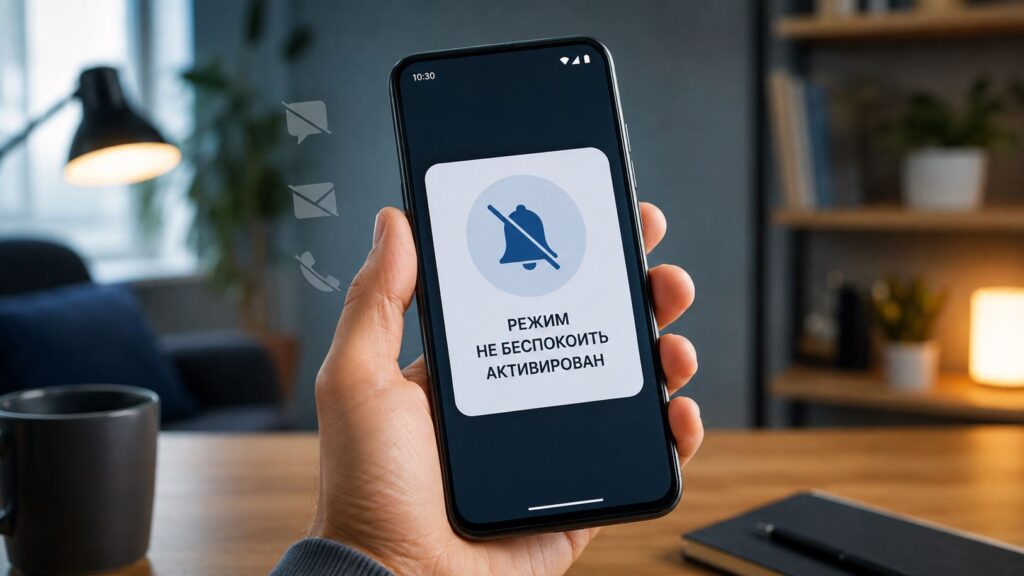
Setting up Do Not Disturb mode on Android
What Do Not Disturb does — and how it differs from silent mode
Do Not Disturb is a software filter that mutes calls, messages, app notifications, and vibration. Your phone stays fully functional: the internet works, data arrives, and calls are recorded in the call log. The key difference from ordinary silent mode is granularity — you choose exactly what breaks through the silence.
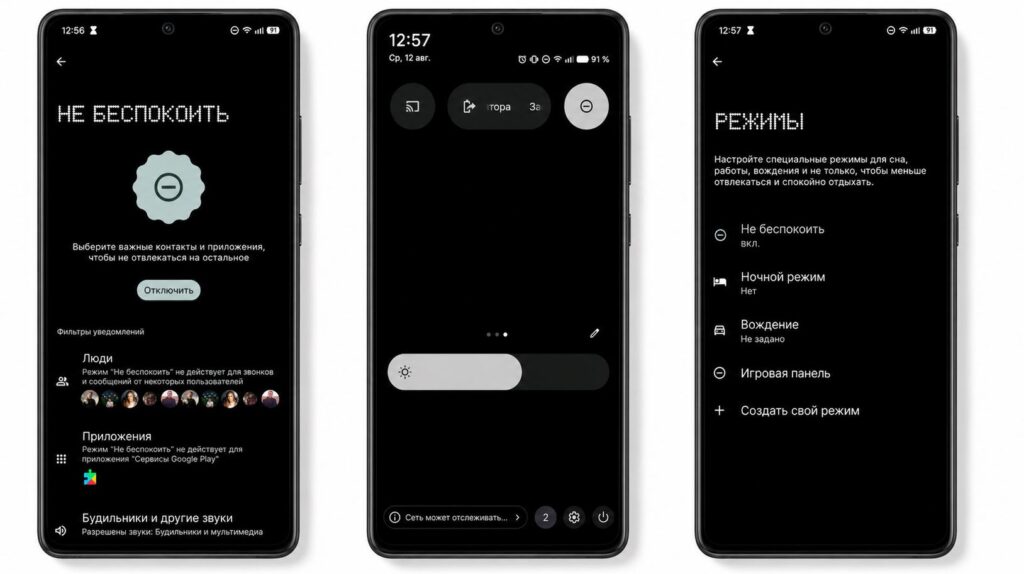
The mode offers a wide range of settings
Common situations where it’s useful:
- At night, to prevent messengers from waking you with screen flashes and vibration.
- During meetings, lectures, or at the cinema.
- On weekends, to silence work chats.
- While driving or exercising.
How to turn on Do Not Disturb
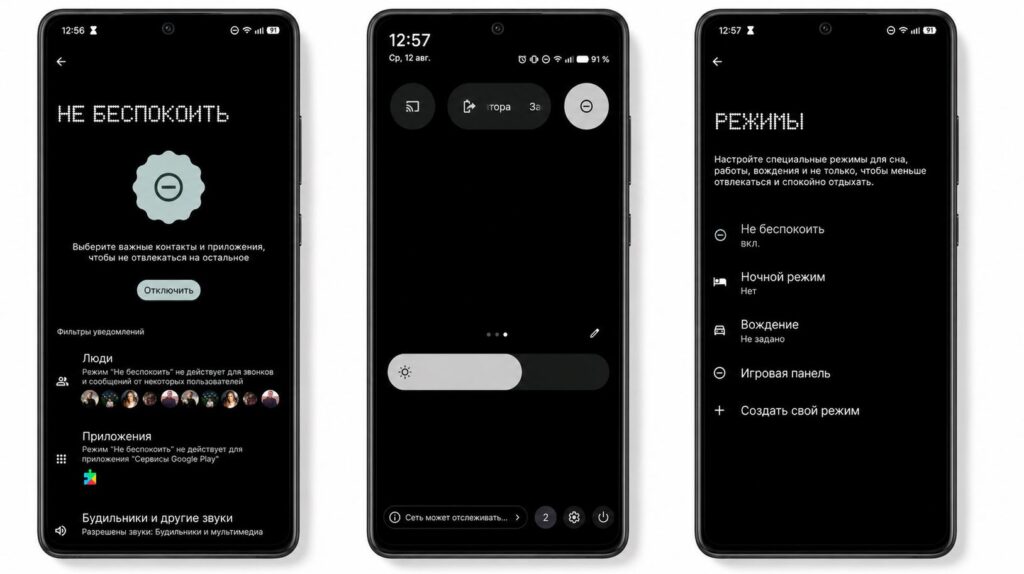
There are several ways to enable the mode — the quickest is from the notification shade
There are several ways to activate Do Not Disturb:
- Pull down the notification shade and tap the tile with the crossed-out bell or crescent moon icon.
- Open Settings, go to Notifications or Sound and Vibration, and select Do Not Disturb.
- On stock Android, you can long-press the volume-down button and switch the ringer profile to silent or priority.
Most Android skins will immediately ask how long you want silence to last: one hour, until morning, or until you turn it off manually. A status-bar icon confirms the mode is active. Long-pressing the same quick-settings tile opens the detailed configuration — that’s where the most useful options live.
Setting up exceptions: calls, messages, and apps
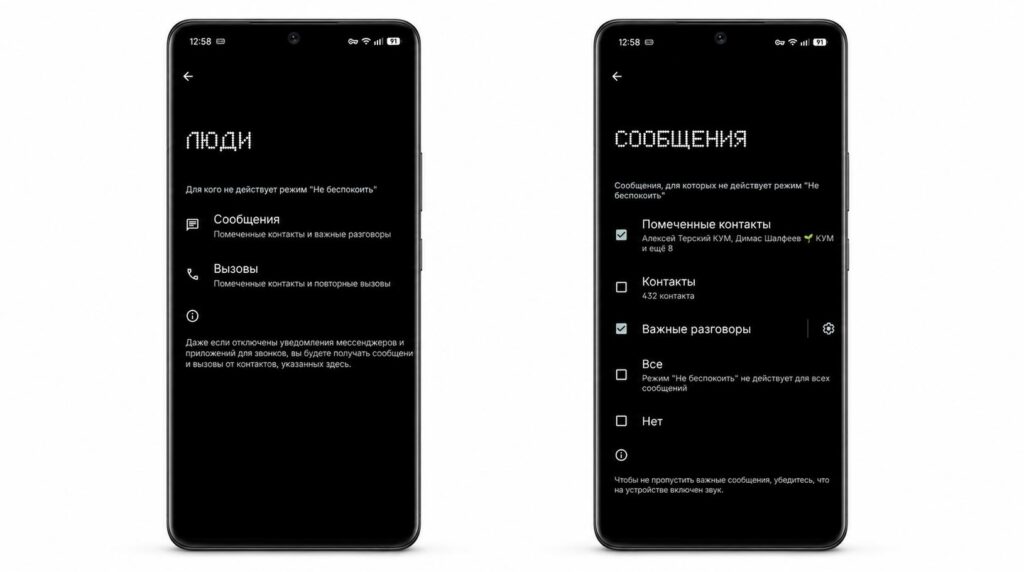
Set up exceptions so you don’t miss important calls
Total silence is rarely what you actually want. More often, the goal is to cut the noise while still letting important things through. In the Do Not Disturb settings, you can configure exceptions for:
- Calls from starred or favorited contacts.
- Repeated calls — when the same person calls twice within a short period.
- Alarms, timers, and reminders.
- Notifications from specific messaging apps.
To add a contact to the exceptions list:
- Open the Do Not Disturb settings.
- Go to People or Allowed contacts.
- Select Calls and choose Starred contacts only.
It’s worth keeping the repeated-calls exception enabled: if something is truly urgent, the caller will get through on the second attempt. Also double-check that alarms are allowed — they usually ring even in Do Not Disturb, but some manufacturer firmware may override this behavior.
Automatic schedules and focus modes
Manually toggling the filter every evening gets tedious quickly. Instead, you can create time-based rules in the same settings menu — for example, a sleep profile from 11:00 PM to 7:00 AM. Beyond time, rules can also be tied to a location (home, office) or to calendar events marked as “busy.” This is a set-it-and-forget-it configuration.
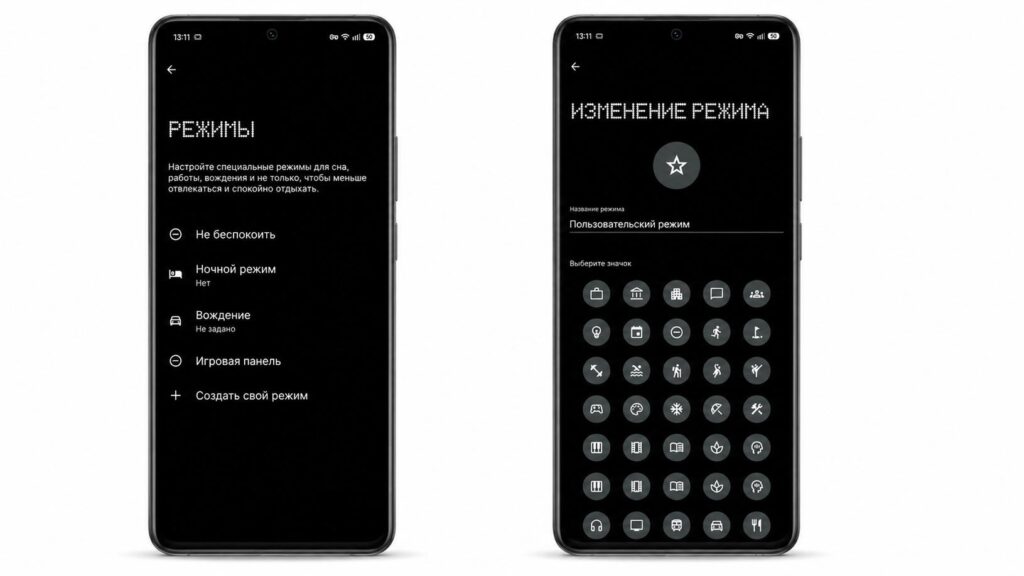
You can create custom modes tailored to your needs
In recent versions of Android, Do Not Disturb has evolved into a set of Modes — separate profiles for sleep, work, and exercise, each with its own list of allowed notifications and even its own home screen layout. This is essentially Android’s answer to iOS’s Focus feature.
Differences on Samsung, Xiaomi, and Pixel
The underlying logic is the same across manufacturers, but the menu path varies depending on the software skin.
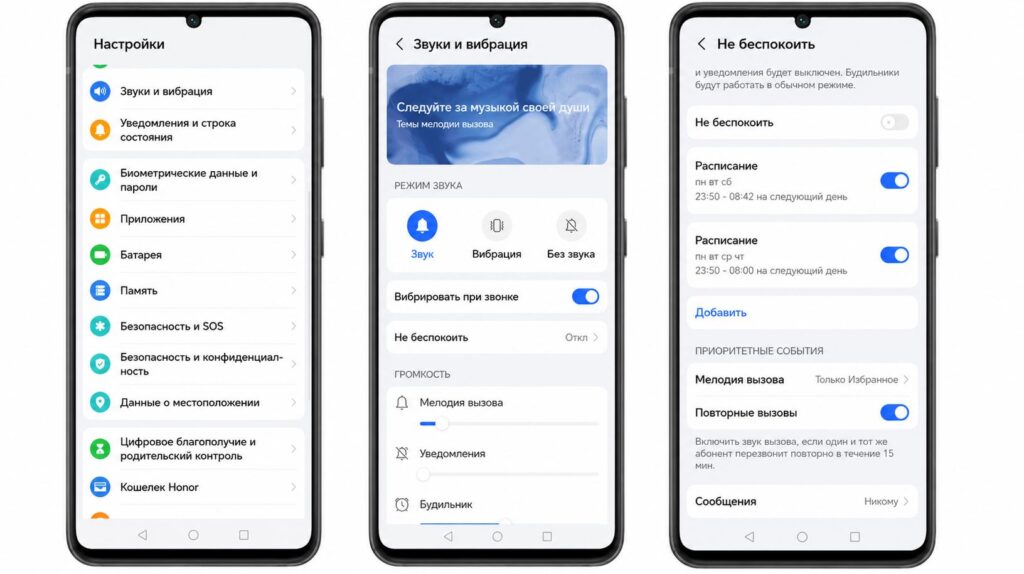
The path to Do Not Disturb may differ across Android skins
- Samsung (One UI): The mode is located under the Notifications section in Settings.
- Xiaomi (HyperOS / MIUI): Look for it under Sound and Vibration.
- Pixel and stock Android: Found under Sound and Vibration → Do Not Disturb.
The exact names and depth of settings differ, but the principle is consistent everywhere. On Nothing OS, the section is placed directly in the main settings screen and requires no searching.
Troubleshooting: what to do if Do Not Disturb seems stuck
Turning the mode off is straightforward: tap the same quick-settings tile again, or toggle the switch off in Settings. The trickier scenario is when the mode appears to be stuck — notifications don’t arrive even after you’ve disabled it. The most common cause is an accidentally forgotten schedule or an automatic profile that re-activated itself. Check the following in order:
- Active schedules and rules — an automatic profile may have triggered.
- Exceptions — make sure the apps you need haven’t been excluded.
- Battery saver mode — it can sometimes restrict background activity for messaging apps.
- The app’s own notification settings — some apps have independent notification controls.
If notifications still don’t return after checking all of the above, a simple restart often resolves the issue. Spending a few minutes configuring exceptions and schedules upfront will make silence manageable and ensure nothing important slips through.


