Android Auto works well enough for daily commutes, but long-distance driving exposes its weak points: lost cellular signal, a dying phone battery, distracting notifications, and flaky wireless connections. The source author shares a checklist of settings adjustments made before every extended trip. Here is a breakdown of what is worth configuring and why, based on that experience.
What you need to know
- Downloading offline maps in Google Maps before departure keeps navigation functional even when cellular signal drops on remote stretches of road.
- The “Start Music Automatically” setting in Android Auto resumes playback after each stop without manual intervention.
- Disabling the message preview and notification sound in Android Auto reduces distraction on multi-hour drives while still logging incoming messages.
- Not all USB cables support data transfer — a cable that only charges will not work for wired Android Auto, so it should be tested with your phone and head unit in advance.
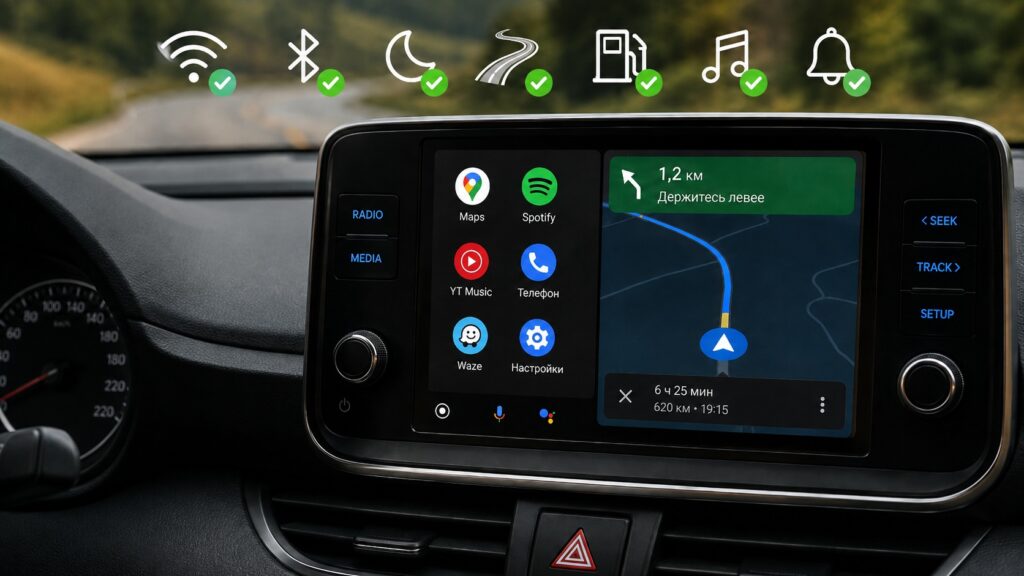
Recommended Android Auto settings for long road trips
Download offline maps as a navigation safety net
The source author reports that the first step before any long drive is downloading the relevant region in Google Maps for offline use. In urban areas, mobile data is usually available, but on highways, in tunnels, and in rural zones, signal can vanish without warning. Even a brief connectivity gap can leave the navigator unable to reroute or display the map at a critical junction.
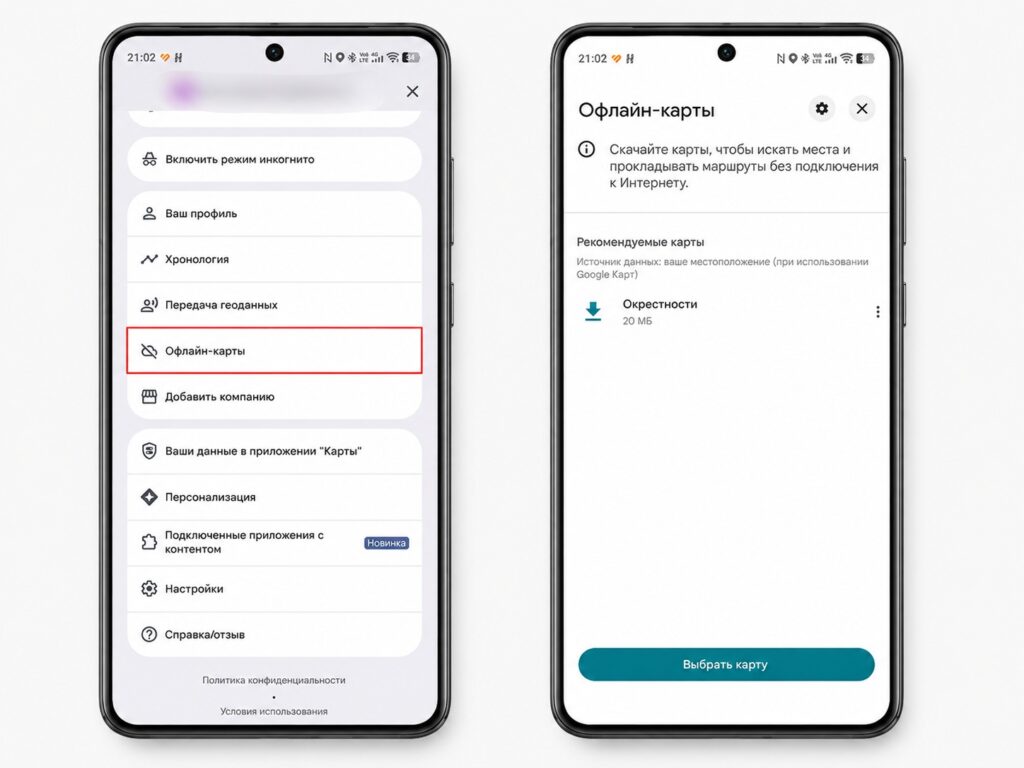
Make sure to download offline maps before a long trip
The recommendation is to download a generous area — larger than the planned route — so that detours for food, fuel, or sightseeing are also covered. Enabling automatic updates for offline maps is also advised, since outdated map data is an unreliable fallback. One limitation to keep in mind: offline mode does not include real-time traffic data, though basic turn-by-turn navigation continues to work.

Double-check route preferences before departure
Google Maps remembers previous route preferences. Options like “Avoid tolls” or “Avoid highways” may be barely noticeable on a short city drive, but over hundreds of kilometers they can add significant time and distance. The source author recommends opening route settings and reviewing every toggle before setting off — a task that takes roughly thirty seconds but can save considerable time on the road.
Enable automatic music playback after stops
Long trips involve multiple short stops — refueling, meals, stretching. Each pause means reconnecting the phone, waiting for Android Auto to load, and manually restarting a playlist or podcast. Over the course of a full day, the source author reports, this becomes tedious.
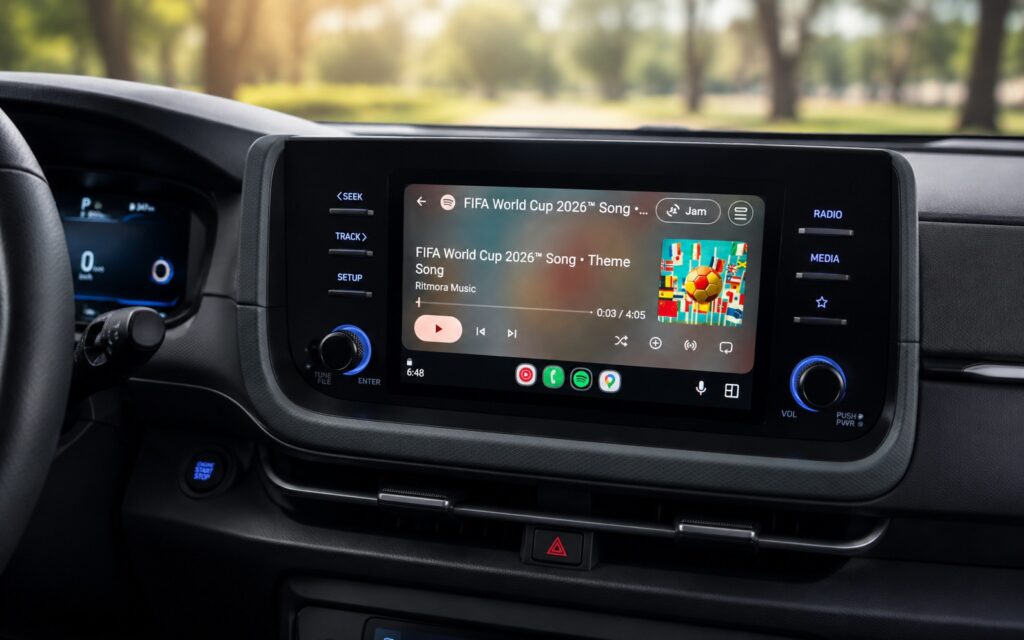
Auto-start music genuinely makes long drives more comfortable
The solution is to enable “Start Music Automatically” in Android Auto’s settings. Once activated, Android Auto resumes playback immediately after reconnection, as if the trip was never interrupted. This is especially convenient with long playlists, audiobooks, and podcasts — there is no need to remember where you left off.

Quiet notifications without going fully offline
Notifications that are harmless on a short commute become genuinely fatiguing over several hours. The source author reports that every incoming message used to display its first line directly on the Android Auto screen — enough to pull attention away from the road. The fix: disable the message preview so the system only announces that a message arrived without showing its content on screen.
Additionally, turning off the notification sound for new messages is recommended. On a multi-hour drive, repeated alert tones interrupt music, podcasts, conversations, and navigation prompts. Messages are still logged and can be read safely during a stop.
Keep a tested backup USB cable in the car
Wireless Android Auto is convenient — until it refuses to connect in the middle of a highway. In the city, a quick reboot usually helps, but troubleshooting Bluetooth and Wi-Fi far from home is not ideal. The source author recommends always keeping a spare USB cable in the car as a direct way to restore navigation, music, calls, and voice control without wasting time on the roadside.
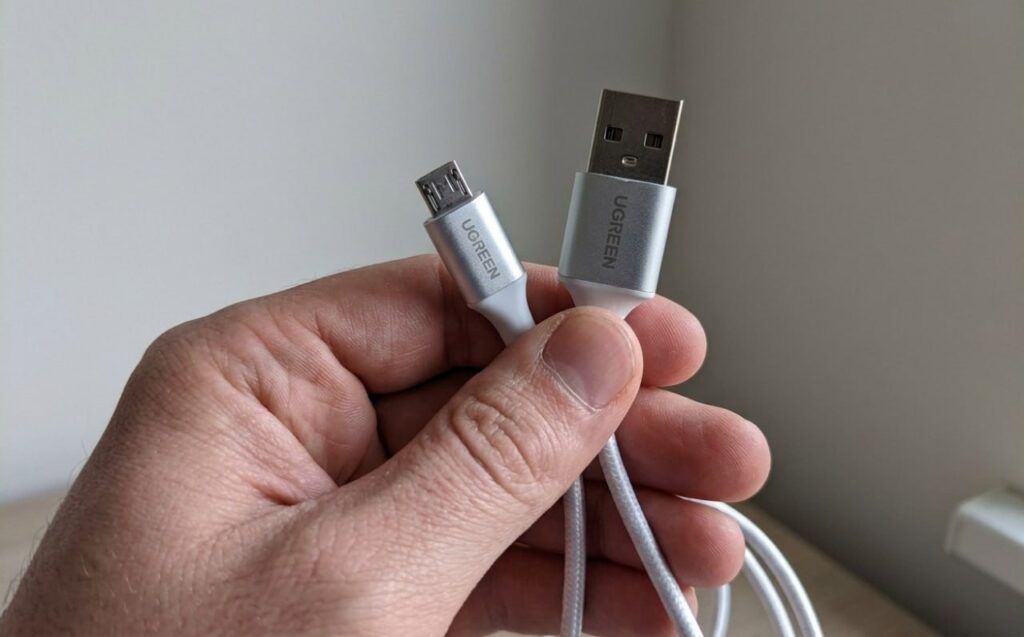
A quality USB cable kept in the car as a backup for wired Android Auto
An important caveat: not every USB cable works for wired Android Auto. Some cables provide charging only and do not transmit data, making them useless for this purpose. The source author advises keeping a short, quality cable that has been pre-tested with your specific phone and head unit. It is also worth noting that a wired connection can lead to phone overheating during extended use.


