Android can do more than many people think. One such feature relates to messages: you can read them in several different ways, and not all of them are obvious. And if a message has already been deleted, the situation isn’t always hopeless. Let me break down all the options for how to find a message on your phone.
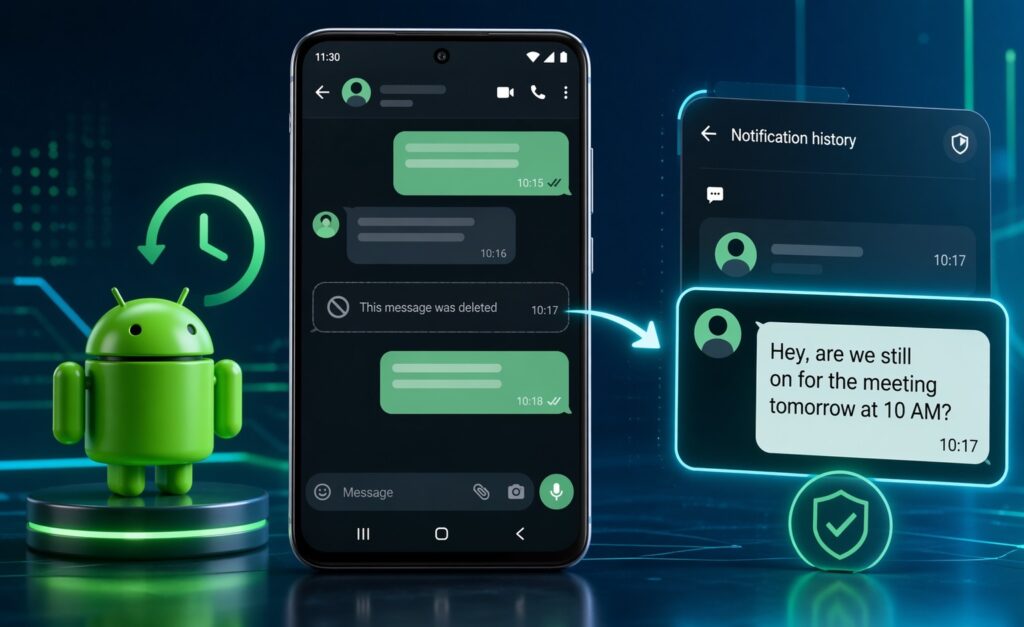
Learning to find and read messages on Android
Message Notification on Android
The quickest way to read a message on Android is directly from the notification, without opening the app. This works the same way for SMS and for most messengers, including Telegram.
When a message notification arrives, it appears in the notification shade at the top of the screen. Just pull the shade down and read the text right there. On most devices, the notification shows the first few lines. If the message is short, you can read it entirely without opening the app at all.
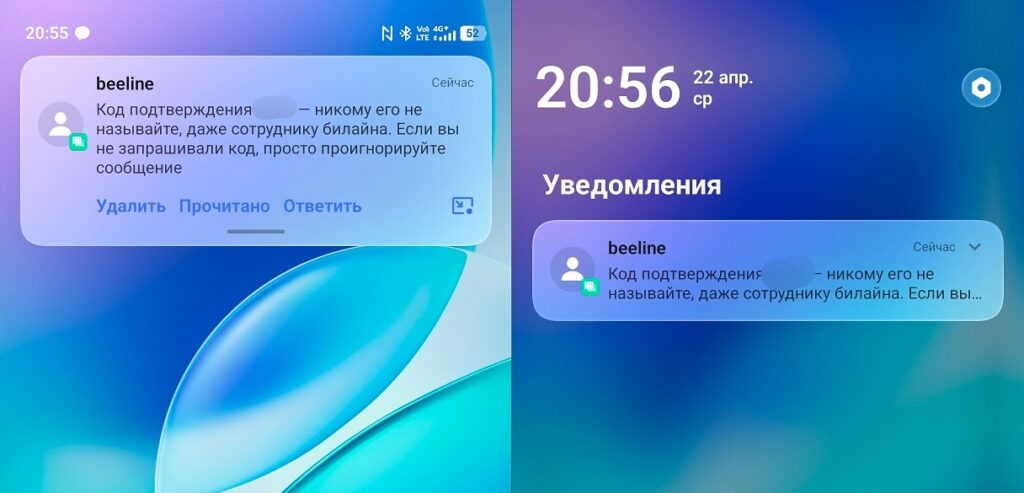
You can view messages right from the notification shade
If a message arrived while the screen was locked, it appears right on the lock screen: depending on your settings, either in full or showing only the sender without the text. You can configure the display level in “Settings — Notifications — Lock screen notifications.”
How to View a Message on Android
The standard way is through the Messages app on Android. It comes pre-installed on all devices. If your phone has Google’s “Messages” app, all conversations sync with your account and are accessible from any device:
- Launch the app.
- Find the unread message.
- Open it.
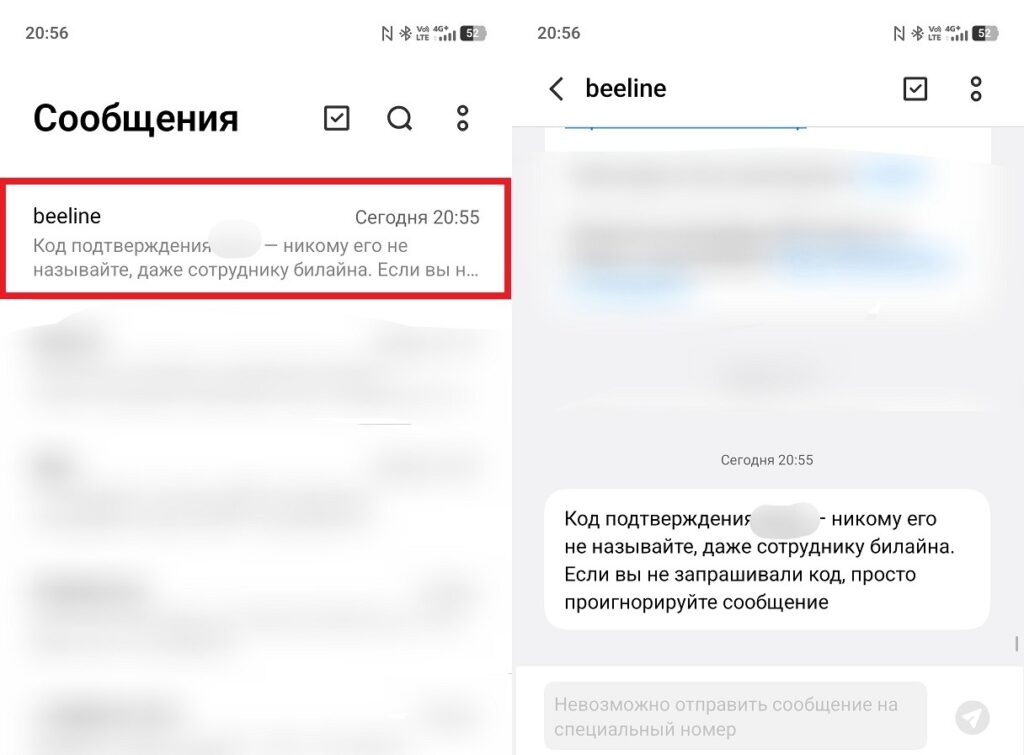
The standard way to view messages
The same applies to messengers: you can view a message on your phone from Telegram only through that specific app. Where messages are stored on your phone depends on the particular messenger. They exist only within that app and don’t appear in Android’s unified message storage. This is an important detail: SMS and messenger messages are stored separately and don’t overlap in any way.
Can You View a Deleted Message on Android
Viewing deleted messages on Android is a topic where much depends on what exactly was deleted and when. Two working options:
- Notification history: works if the notification about that message appeared before it was deleted. The text is saved in Android’s notification log regardless of what happens in the app itself.
- Trash in the Messages app: SMS and RCS messages go to the trash when deleted, where they can be recovered within 30 days.
With messengers, it’s more complicated. Deleted messages on your phone from Telegram and most other apps cannot be recovered using built-in tools — there’s no trash folder. The only chance is the notification history, which I’ll cover in the next section.
How to View a Message Through Notification History
This is a built-in Android feature that appeared in version 11 and still works today. Android saves all notifications in a special log. And if a message appeared in a notification before it was deleted, the text will remain there. How to open notification history:
- Open your phone’s settings.
- Go to the “Notifications and status bar” section.
- Open “Notification history.”
- Find the deleted message.
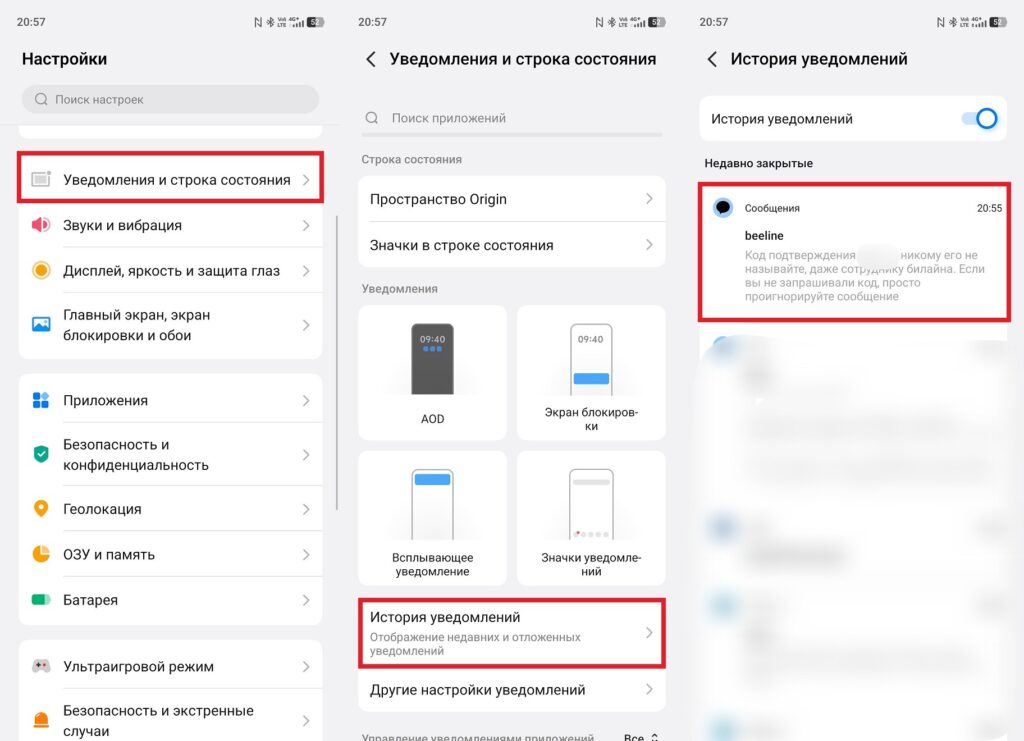
Notification history must be enabled beforehand
An important nuance: messages through notifications are saved only for those that arrived after the feature was enabled. Media files (photos, videos, voice messages) don’t appear in the log — only text. And one more thing: the history stores notifications from all apps at once, not just messengers. So you’ll need to search a bit among everything else.
How to Recover a Deleted Message on Android
If you deleted a message on your phone and want it back, the method depends on the type of message.
For SMS in the Messages app, there’s a trash folder. Deleted messages are stored there for 30-90 days, after which they’re permanently deleted. To access the trash:
- Open the Messages app.
- Tap the three dots in the upper right corner.
- Select “Recently deleted.”
- Find the message you need.
- Tap “Restore.”
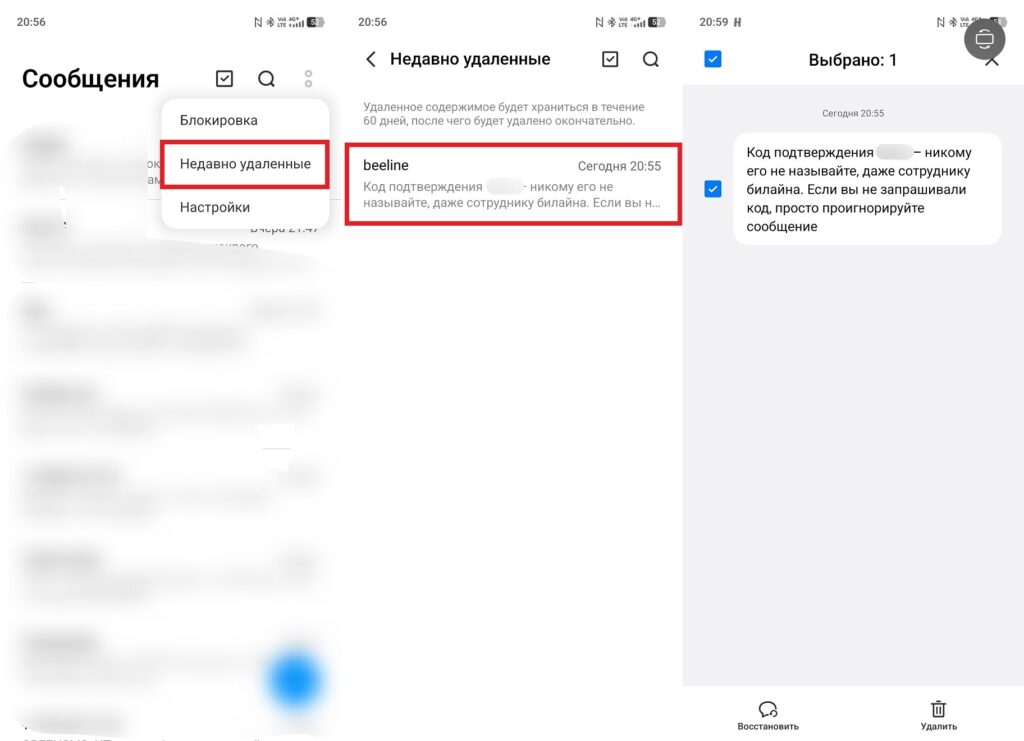
Almost any message can be recovered through the trash
With messengers, the situation is different. In Telegram, there’s no trash folder. Recovering deleted messages is only possible within a few seconds after deletion, while the “Undo” banner is shown at the bottom of the screen. If you tap “Undo” — the message comes back. If the banner disappears or you weren’t fast enough — that’s it, the message is gone permanently. The only way to read something after that is the notification history described above.
A separate option for SMS: you can recover deleted SMS through a Google One backup, if it was set up in advance. This requires resetting the phone or reinstalling the Messages app with a restore from backup. The method works but is labor-intensive: it’s easier to set up automatic backups right away so you don’t end up in that situation.


