How to pay for Apple subscriptions now — a question that since April 1, 2026, has become the main headache for millions of iPhone owners in Russia. Just recently, you could simply top up your Apple ID from your mobile phone balance, but now this option is unavailable and you have to change your Apple ID region. Let’s figure out what happened and how to pay for iCloud, music, and apps on iPhone now.
Figuring out Apple subscription payments
Why Apple ID Payments No Longer Go Through
By the end of March 2026, alarming news started spreading across the market: the Ministry of Digital Development decided to restrict payments for foreign services. March 31 was the last day when it was still possible to top up Apple ID via a mobile carrier number.
In April 2026, the “Big Four” carriers, by order of the ministry, disabled direct Apple ID balance top-ups from the phone account (this affected MTS and Beeline), while MegaFon and T2 shut down the partner schemes through which Apple payments were processed.
At the same time, Apple itself confirmed the cessation of payment processing for the Russian App Store region — any transactions, including purchases and subscription renewals, now only go through if there are funds in the account’s internal balance.
What to Do About Apple ID and iCloud Payments
If you’ve found that your usual Apple ID top-up method has stopped working, don’t panic: iCloud (Apple’s cloud storage) continues to function.
According to Apple, even when a paid iCloud+ subscription expires, your cloud data will not be deleted. However, as tech support clarifies, access to it may be suspended after 30 days — until payment is resumed. The files themselves will be stored indefinitely.
The key thing to understand: payments from a mobile account have been banned, but this does not mean your account will be blocked. The App Store still opens, free apps can be downloaded, and previously purchased games and software remain in your library.
The problem arises specifically when the system tries to charge money for subscriptions: if the Apple ID balance is empty, the payment doesn’t go through, and access to Apple Music, Arcade, or TV+ services is suspended.
How to Pay for Subscriptions on iPhone Now: Step-by-Step Guide
Direct Apple ID top-up via a Russian SIM card or a local bank card is now impossible. However, there are workaround methods that allow you to buy content and renew subscriptions.
Main Method — Switching to a Foreign Region
Since direct payments from Russia are no longer available, the most reliable path is to change your Apple ID region to a country where digital top-up codes work (for example, the US or Turkey), and then top up your balance using gift cards.
The Paytool service helps iPhone owners in Russia quickly top up their Apple ID. On the website, you can pay for a code in rubles and instantly receive an App Store gift card.
Before changing your Apple ID region, make sure to zero out your balance — a ruble balance won’t transfer to the new account, and if small change is “stuck” on the account, it can only be zeroed out through Apple support. Then cancel all active subscriptions and wait for the paid period to end. Additionally, leave the family group if you’re a member of one.
Instructions for changing the region:
- Go to “Settings” and tap your name at the top;
- Then open “Media & Purchases” — “View Account”;
- Tap “Country/Region”;
- Select the desired country from the list and accept the terms;
- For the payment method, select “None” (if you plan to top up the balance only with gift cards) and fill in an address: any valid address in the chosen country will work.
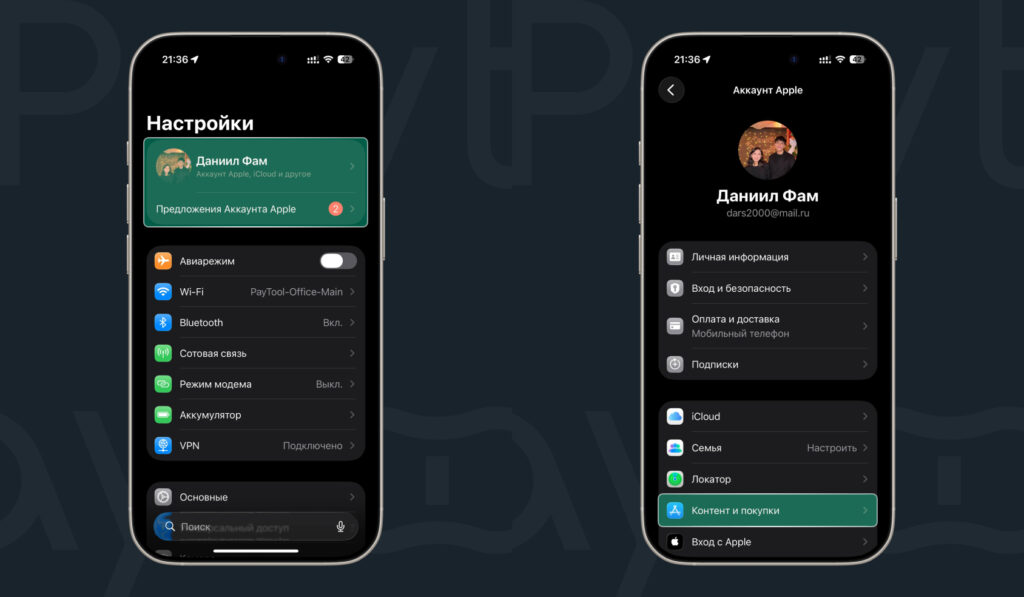
Start changing the region in settings
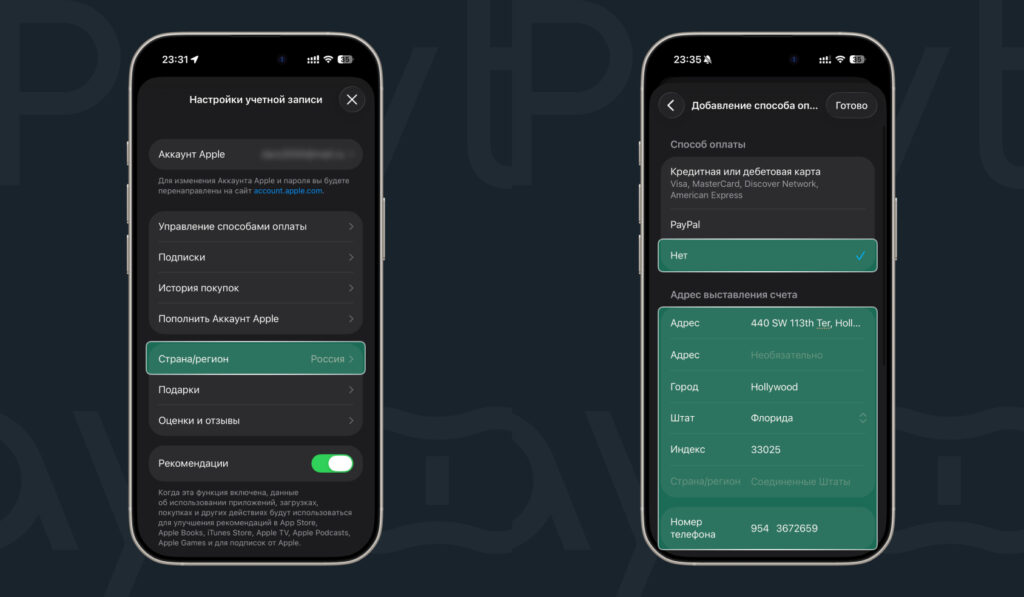
Change the region and confirm the action
Buying an Apple Gift Card for the New Region
Once the region has been successfully changed, all that’s left is to find a verified intermediary service that sells codes for rubles.
Let’s look at purchasing a code using the Paytool service as an example:
- Go to the Paytool website;
- Select the desired region and gift card denomination;
- If you need multiple cards, add them with the “+” button and click “Go to Cart”;
- Enter your email address;
- Choose a payment method (card, SBP, or SberPay) and scan the QR code to complete the payment;
- After payment, the unique code will immediately arrive at the specified email.
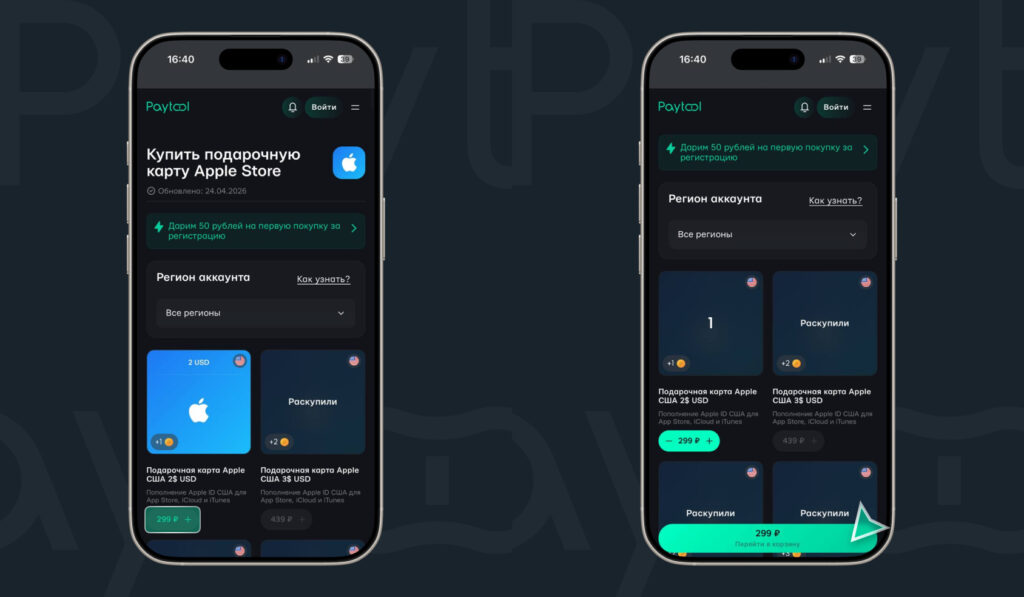
Add the card of the desired denomination to the cart
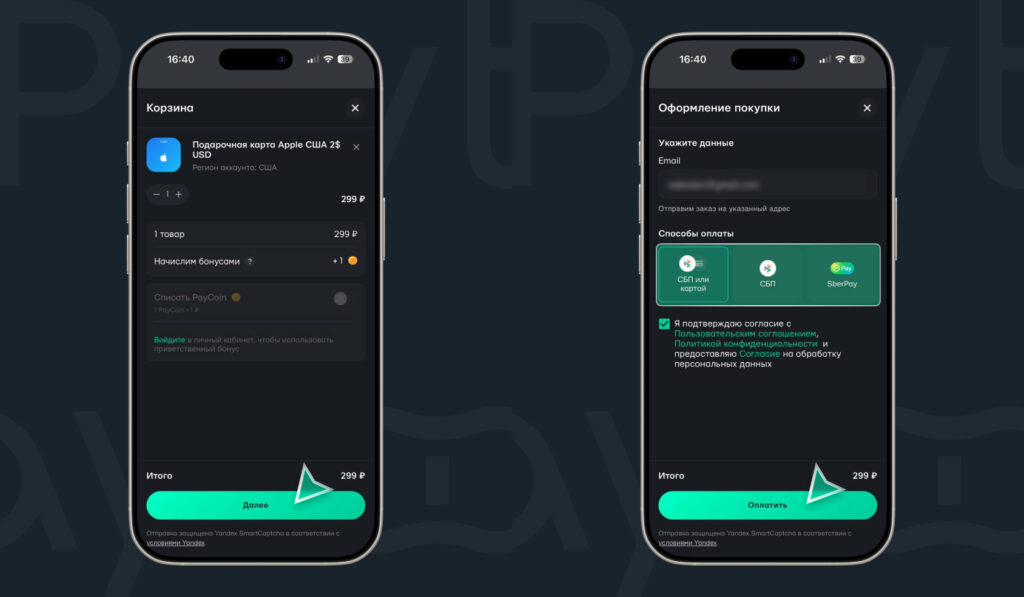
Pay for it
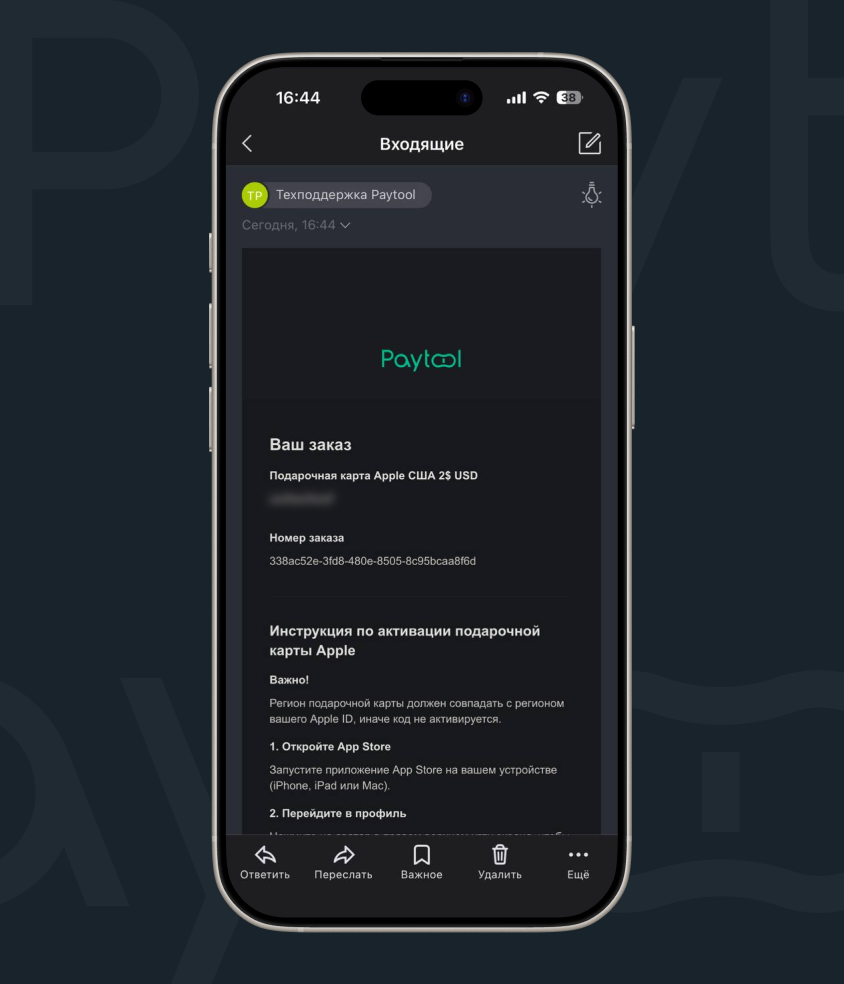
Receive the code via email

They also give a small welcome bonus