Moving WhatsApp from Android to iPhone is possible without losing your main chat history, but you cannot simply install WhatsApp on the iPhone and tap “Restore.” Android backups live in Google Drive, iPhone backups live in iCloud, and the two are not connected, so the iPhone app will never see your Google Drive copy. The route you take depends on one question: is the iPhone new (or factory reset), or already set up? For a fresh iPhone, Apple’s free Move to iOS app handles WhatsApp during initial setup. For an iPhone that is already in use, the source describes a paid desktop tool that transfers chats without wiping the device.
What you need to know
- Personal and group chats, photos, videos, voice messages and documents transfer; WhatsApp call history does not move via the official method.
- Apple’s Move to iOS requires Android 5 or newer, iOS 15.5 or newer, and an iPhone that is new or factory reset.
- The official transfer requires the same phone number on both devices; change the number in WhatsApp on Android first if you are switching numbers.
- Do not delete WhatsApp or chats from the Android phone until you have confirmed everything arrived on the iPhone.
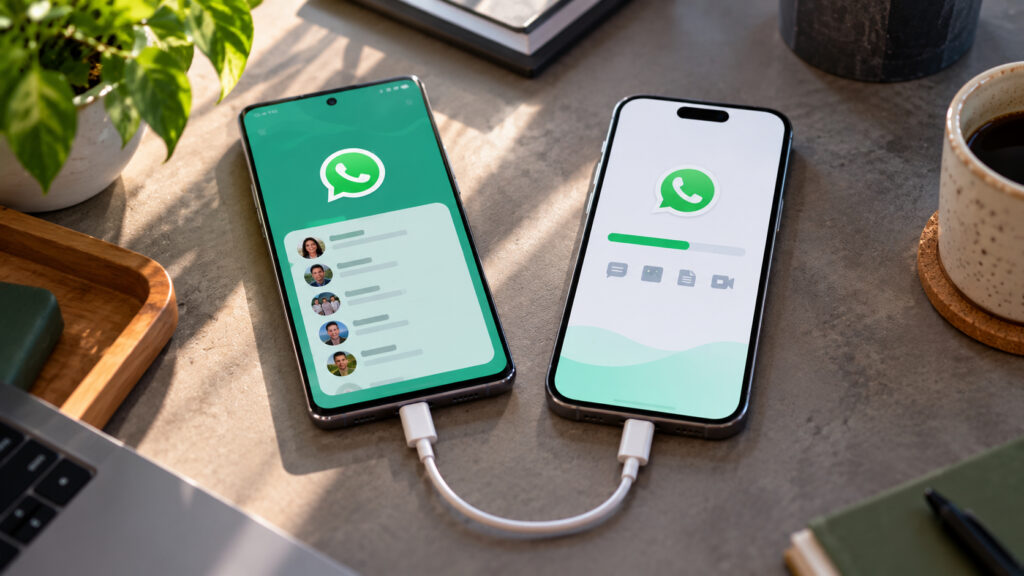
Transferring WhatsApp from Android to iPhone
What moves to the iPhone and what stays behind
Along with your account, personal and group chats, photos, videos, voice messages and documents make the move. Not everything does, however. WhatsApp call history is not transferred by the official method, so if you need a record of who you called and when, take screenshots before you start.
The main source of confusion is backups. Because WhatsApp on Android stores backups in Google Drive and WhatsApp on iPhone uses iCloud, many people log in on the new iPhone, find no backup to restore, and conclude their chats are gone. They are not; a different path is simply required.
- If the iPhone is new or has been reset to factory settings, Apple’s official Move to iOS app works. It is free, but it only runs during initial device setup.
- If the iPhone is already set up with your data on it, the source points to a computer-based transfer using Tenorshare iCareFone Transfer, which avoids a factory reset. This is paid third-party software, and the source’s coverage of it is sponsored.
Prepare both phones first
WhatsApp is tied to a phone number, and the official transfer requires the same number on Android and iPhone. With a physical SIM this is straightforward: move the card into the iPhone after the transfer. With an eSIM it is more complicated and depends heavily on your carrier.
If you are changing numbers anyway, use WhatsApp’s change-number feature on the old Android phone first so the account and chats move to the new number cleanly.
Then run through this checklist. It takes a few minutes and removes most of the reasons transfers fail midway.
- Create a fresh backup. On Android, open WhatsApp, go to Settings, then Chats, then Chat backup, and tap Back up.
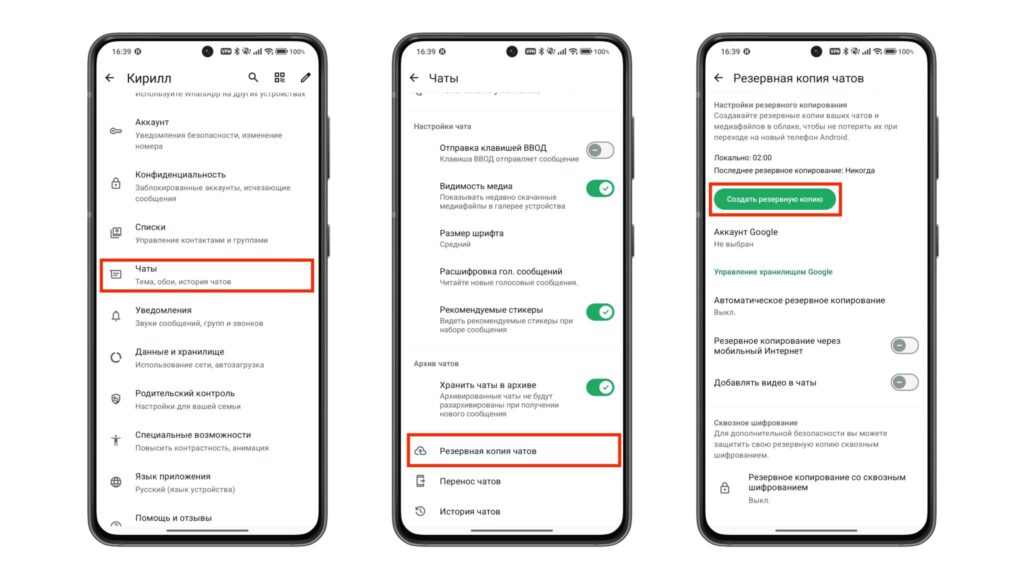
Creating a backup in WhatsApp on Android
- Update WhatsApp from Google Play. An outdated version is a common reason WhatsApp does not appear in the list of transferable data.
- Charge both phones or plug them in. A large archive with media can take a long time to transfer.
- Check free space on the iPhone under Settings, General, iPhone Storage. There must be room for the chats plus all the photos and videos in them.
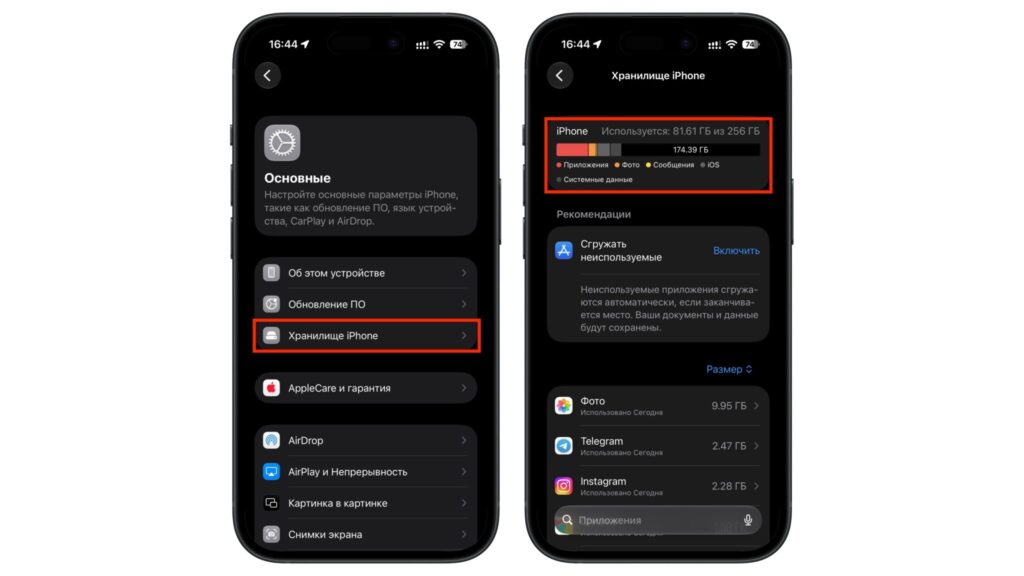
Checking free storage on iPhone
- Have stable Wi-Fi ready for the official method, or a Windows or Mac computer with reliable USB cables for the software method.
A word on cables: use original or at least known-good ones. A cable that charges intermittently can easily break a data transfer halfway through. And the one rule for the entire process: do not delete WhatsApp or your chats from the Android phone until you have confirmed every chat is present on the iPhone. The old phone is your safety net.
Method 1: Move to iOS (new or reset iPhone)
Move to iOS is Apple’s official app for switching from Android. Beyond contacts and photos, it can carry your WhatsApp history. The requirements: Android 5 or newer, iOS 15.5 or newer, and an iPhone that is new or reset to factory settings. If you are already using the iPhone, back up its data to iCloud or a computer before resetting.
- On Android, install Move to iOS from Google Play.
- Turn on the new or reset iPhone and begin setup. On the “Transfer Your Apps & Data” screen, choose “From Android.”
- Open Move to iOS on Android, enter the code shown on the iPhone, and connect the phones either with a cable or to the same Wi-Fi network.
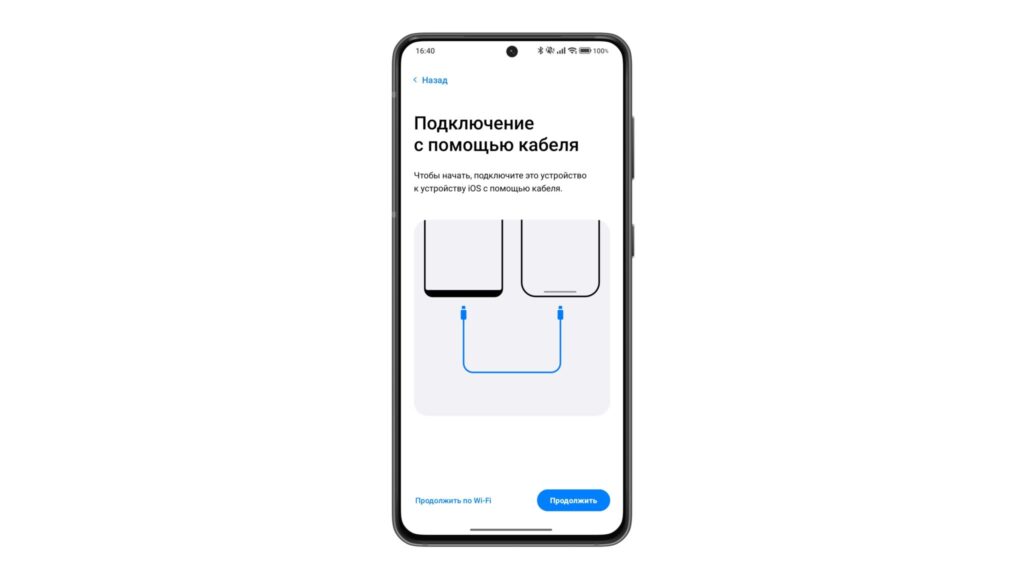
Connecting the two phones with a cable
- In the list of data to transfer, tick WhatsApp and tap Start. Wait while WhatsApp prepares the chat history. The Android phone will sign out of WhatsApp at this point; that is expected.
- Return to Move to iOS and complete the transfer to the iPhone. Keep the Android screen on until it finishes.
- Finish iPhone setup, install WhatsApp from the App Store, and sign in with the same phone number.
- When WhatsApp offers to import your history, tap Start and wait for the import to finish.
- Open personal and group chats and check that photos, videos and documents are present.
The advantage is clear: it is free and needs no computer. The drawback is equally clear. If you skip the transfer screen during setup, you must erase the iPhone and start over. That is no problem for a brand-new device, but if you have been using and customizing the iPhone for a month, a reset for the sake of one messaging app is a heavy price. That is where the second method comes in.
Method 2: Transfer to an already set-up iPhone without a reset
If you would rather not erase the iPhone, the source describes transferring WhatsApp via a computer using Tenorshare iCareFone Transfer. According to the source, it runs on Windows and Mac and can transfer, back up and restore WhatsApp between Android and iOS. Its key difference from the official route is the transfer without a factory reset of the iPhone.
Note that this section of the original article is sponsored content, and the details below reflect the source’s description rather than independent testing. The source lists the following capabilities:
- transfers WhatsApp between Android and iPhone in both directions;
- moves chats and supported media files;
- creates and restores WhatsApp backups;
- supports WhatsApp Business in the scenarios the program provides for;
- guides the user through a step-by-step interface.
The software is paid, so check the license terms and compatibility with your specific phones before buying. One important caveat from the source: WhatsApp data already on the iPhone may be replaced during the transfer. If the iPhone has accumulated chats you want to keep, back them up to iCloud first.
- Install and launch iCareFone Transfer on the computer. Choose the WhatsApp transfer option and connect both the Android phone and the iPhone via USB. Approve any device-access prompts on both phones.
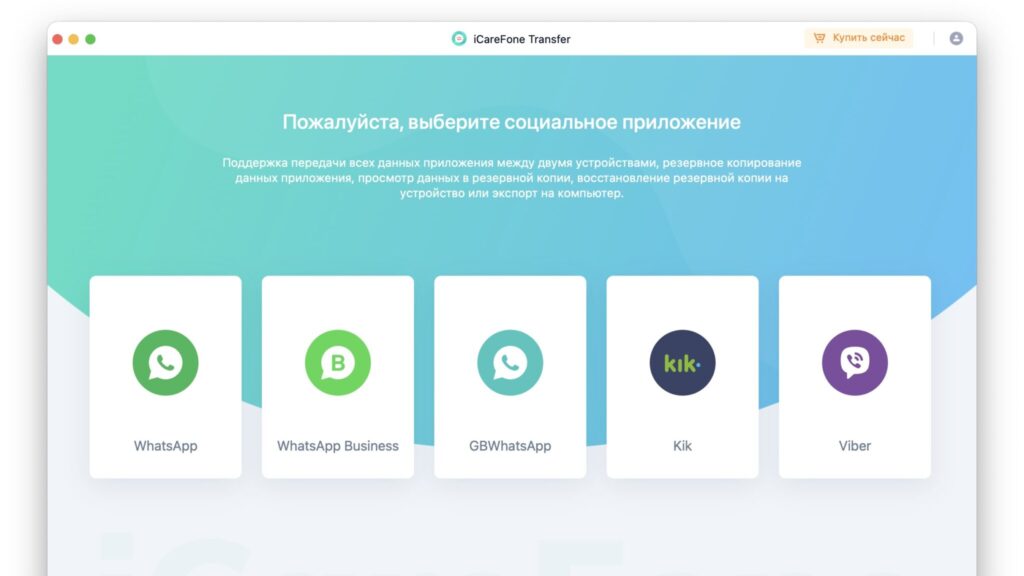
Selecting the app whose data will be transferred
- Make sure Android is set as the source device and the iPhone as the target. If the program has them reversed, swap them in the interface.
- Click Transfer and read the warning about what may happen to the WhatsApp data on the iPhone.
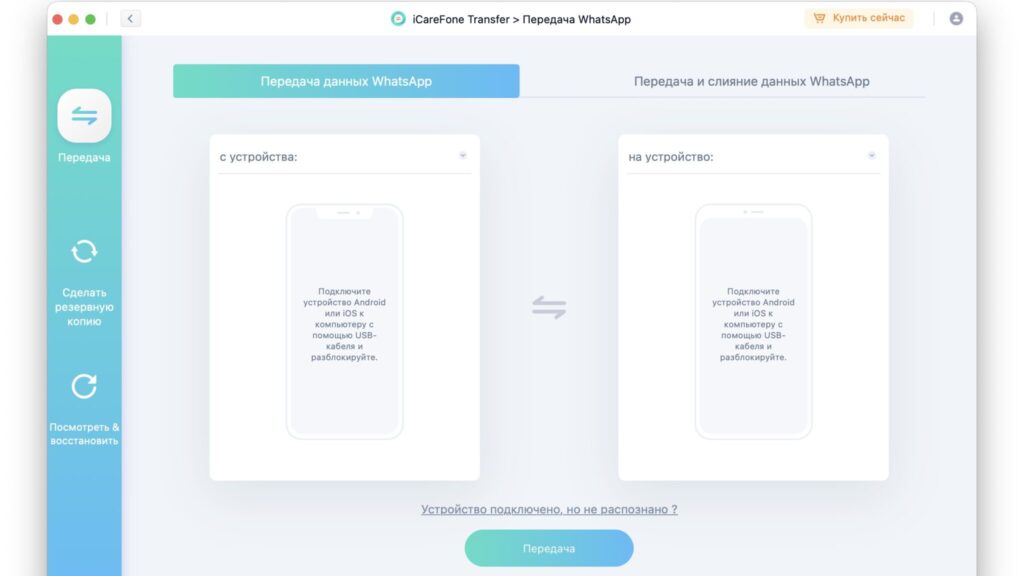
Connecting the phones and starting the data transfer
- Follow the program’s prompts on the Android phone. Depending on your WhatsApp version, you may need to create a local or encrypted backup. If the software asks for a password or encryption key, enter the one you set yourself in WhatsApp.
- Confirm the transfer and wait for it to complete. The time depends on the volume of chats and media. Do not disconnect the phones, close the program or shut down the computer during this period.
- After the success notification, follow the program’s final instructions and, if needed, sign in to WhatsApp on the iPhone with the correct number.
- Open WhatsApp and check personal and group chats, photos, videos and documents.
According to the source, the most temperamental stage is the connection itself. If the program does not detect a phone, the cause is almost always the cable, the USB port, or an unapproved access prompt on the phone’s screen.
Why the transfer fails and what to do
If the transfer stopped partway or never started, do not rush to erase anything. In most cases the cause is mundane and can be found with a short checklist. Confirm that:
- both phones are stably connected: to Wi-Fi for Move to iOS, or to the computer via USB for the software method;
- the iPhone has enough free space for the chats and media;
- for the official transfer, the same phone number is used as on Android;
- the iPhone is at the initial setup stage if you chose Move to iOS;
- WhatsApp and the transfer tool are updated to the latest versions.
With Move to iOS there is one more frequent cause of interruptions: the Android phone may switch on its own from the iPhone’s temporary network to mobile data or another Wi-Fi network. For the duration of the transfer, turn off mobile data on Android and disable automatic network switching if your settings include it. Also keep the app in the foreground and do not let the screen turn off.
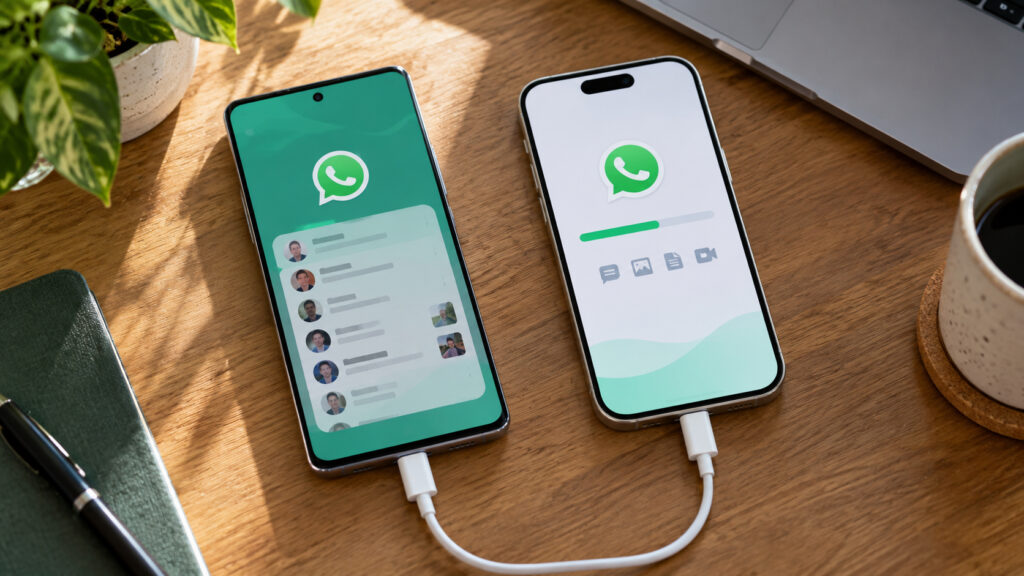
Transferring WhatsApp from Android to iPhone
Before retrying, make sure the original chats are still on the Android phone. If the iPhone is already set up and you specifically want the official method, you will need to back up its data, reset it, and go through initial setup again.
After a successful transfer
Once the chats have arrived, do not part with the old phone just yet. Complete these final steps:
- Confirm that WhatsApp on the iPhone is activated with the correct number.
- Open important personal and group chats and scroll back to older messages.
- Check that photos, videos and documents open.
- Turn on iCloud backup: in WhatsApp, go to Settings, Chats, Chat Backup, and tap Back Up Now. Set up automatic backups there as well.
- Delete WhatsApp and its data from the Android phone only after you have confirmed everything is in place.
In short, the choice of method comes down to the state of the iPhone. A new or reset iPhone: use the free Move to iOS app during setup. An already configured phone you do not want to wipe: the source’s suggested route is a paid computer-based tool. In both cases, back up important data beforehand, and turn on iCloud backups right after the move so that your chats travel automatically the next time you change iPhones.


