Everyone knows that Apple built in the “iPhone Mirroring” feature — it lets you control your smartphone from a Mac. But there are no native tools for the reverse direction. I often work on my Mac with several apps open simultaneously. ChatGPT, Claude, Cursor, browser, Telegram — all on different desktops. You can switch using Cmd+Tab, but when there are many apps, it turns into a lottery. At some point, I thought: it would be great to launch what I need right from the iPhone that’s already sitting next to me. And it turned out that such a thing already exists. I recently discovered Live Activities widgets on Mac with great excitement and realized that the iPhone can do much more when paired with a computer. Here’s how I turned my iPhone into a convenient remote for macOS using the free app Choclift.
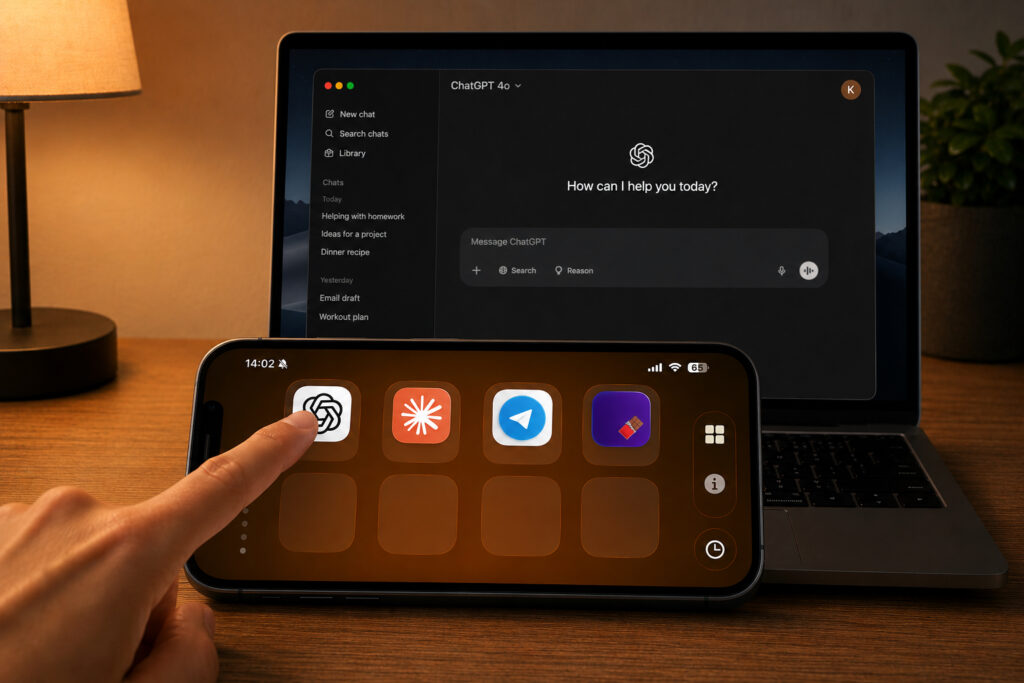
You can launch apps, commands, and open websites on Mac right from iPhone
What Choclift Can Do for Controlling Mac from iPhone
Choclift is a pair of companion apps for iPhone and Mac. The idea is as simple as possible: you install both apps, connect the devices over the same Wi-Fi network, and get a panel with app icons from your Mac on your iPhone screen. Tap an icon — the app instantly opens on your computer. No remote desktop, no VNC, no complicated setup.
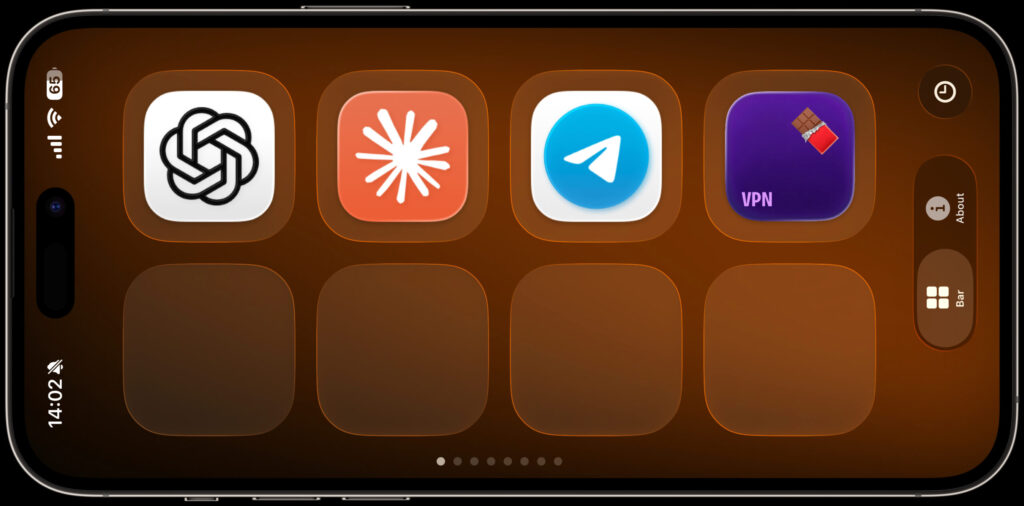
A panel with shortcuts opens on the iPhone, and from it you control the Mac
Essentially, the iPhone turns into a touch control panel for macOS. Instead of the Touch Bar, which Apple successfully killed off, you get a full screen with customizable buttons. And you can add not only apps but also Apple Shortcuts and website links.
Choclift was developed by a team from the German studio Shaped Agency. The app appeared in the App Store in spring 2026 and has already received enthusiastic reviews. The iPhone version is free with a basic set of features. For extended capabilities — additional bar pages and the App Time Travel feature — they charge $2.99 per month. But the free version is more than enough for comfortable work.
Connecting iPhone to Mac in Choclift: Step-by-Step Setup
The entire setup process takes literally a couple of minutes. Here’s what you need to do:
- Download Choclift from the App Store on iPhone. The app also supports Vision Pro, in case you have one.
- Install the Choclift companion app on Mac — also from the App Store or from the official website choclift.com.
- Make sure both devices are on the same Wi-Fi network.
- Open Choclift on Mac — a four-digit PIN code will appear on the screen.
- Enter this code in the app on iPhone and tap Connect.
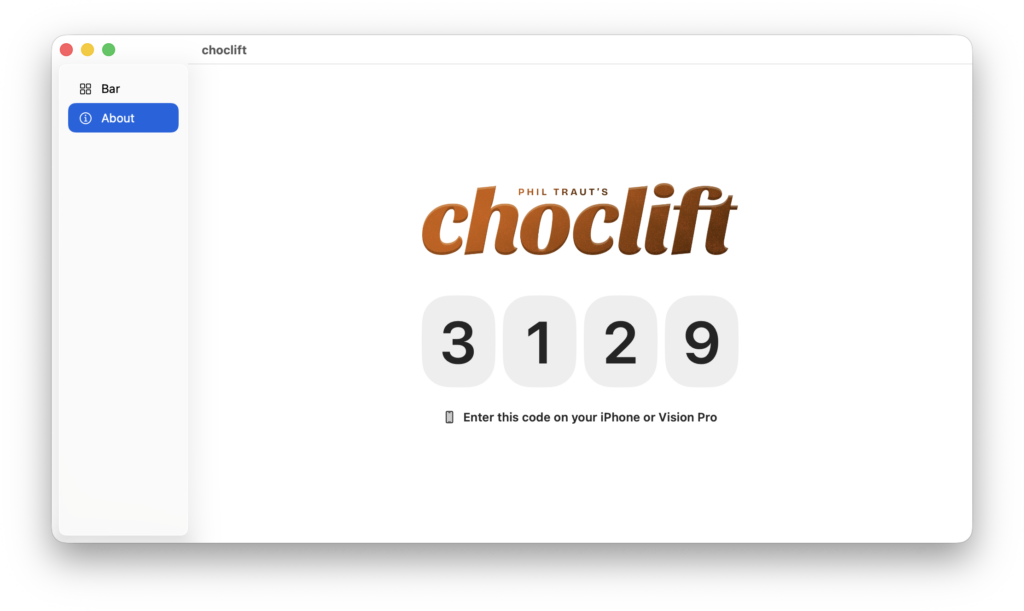
Enter this code on iPhone
That’s it. The devices sync instantly, and a bar with eight icon slots appears on the iPhone screen. The connection happens once — the next time you launch the app, the devices will find each other automatically if they’re on the same network.
Apps, Commands, and Websites in Choclift: What You Can Launch
On Mac, the Choclift app has a convenient settings panel. Tap on an empty slot and you’ll see three tabs: App, Apple Shortcuts, and Website Links.
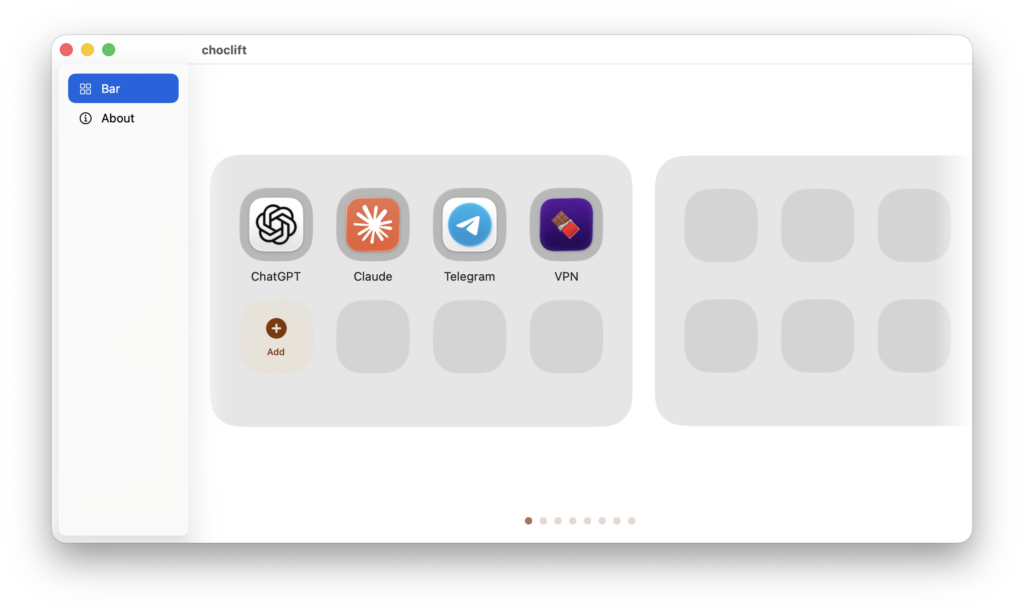
Tap the “+” and add a shortcut
In the App tab, you’ll see a library of all installed applications on your Mac. Search for the one you need, tap Add — and the icon appears in the bar. In the Apple Shortcuts tab, all the shortcuts you’ve created or downloaded on Mac are displayed. This is arguably the most powerful part of Choclift: you can assign absolutely any automation scenario to a button in the bar. Launching a VPN, switching audio output, sending text to the clipboard — all of this works with a single tap from the iPhone.
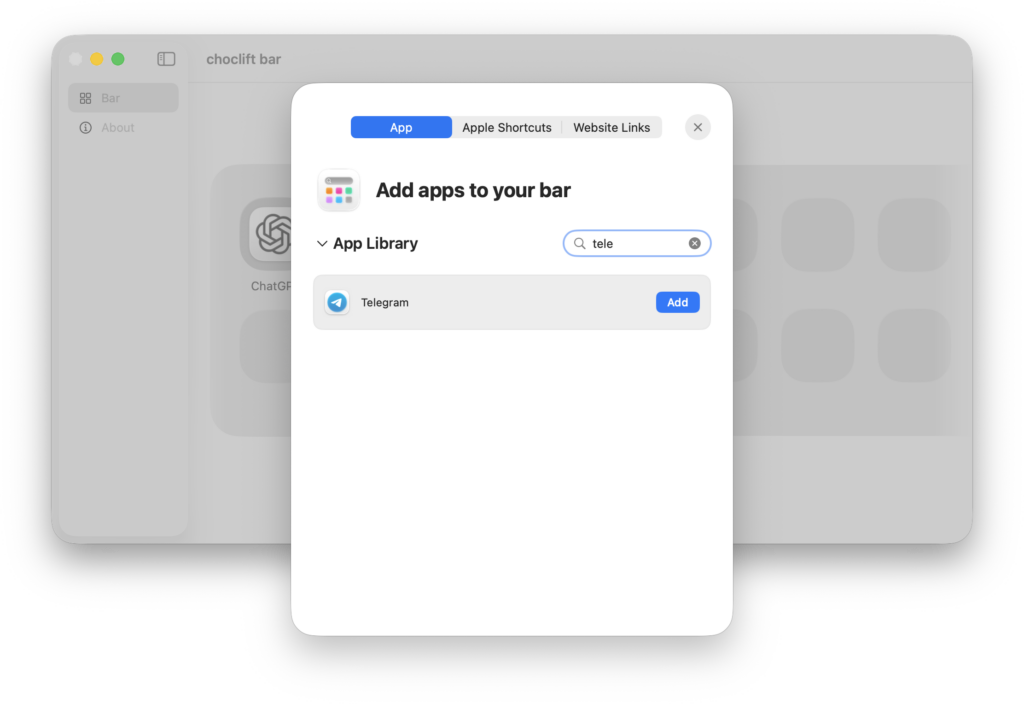
All apps installed on Mac are available
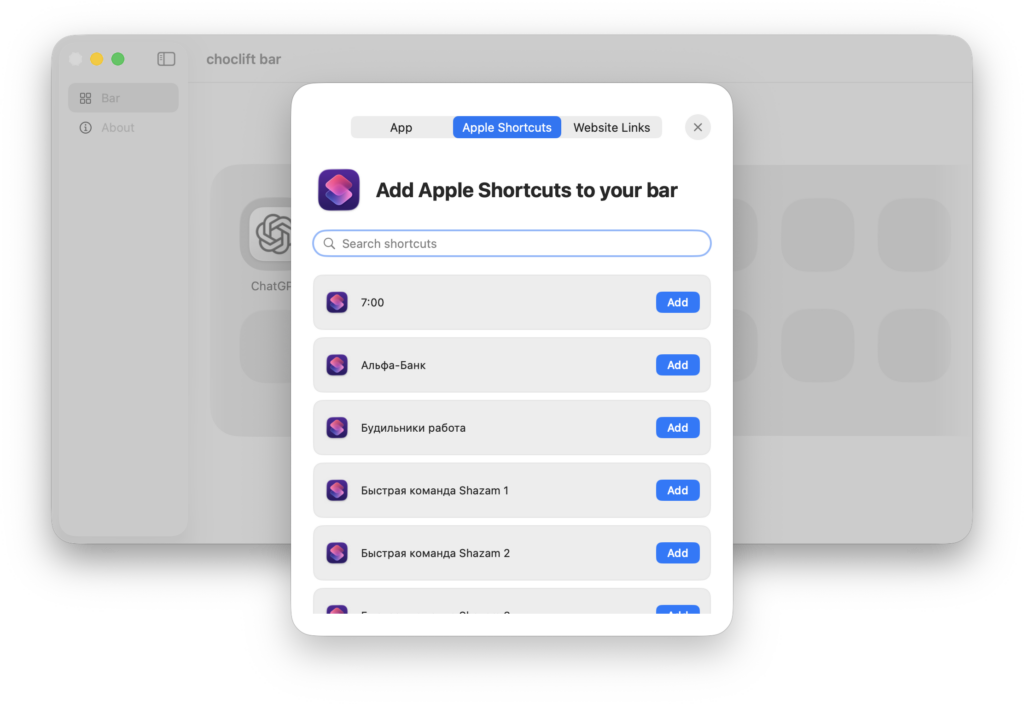
All your shortcuts separately
The third tab is Website Links. Add a URL, give it a name, and the link opens in the browser on your Mac when you tap the button on iPhone. Convenient for work dashboards or services you open every day.
Choclift Scenarios: ChatGPT, Browser, and Other Buttons
I set up the bar for my tasks and was very pleased with the result. Here’s what I currently have on my first page:
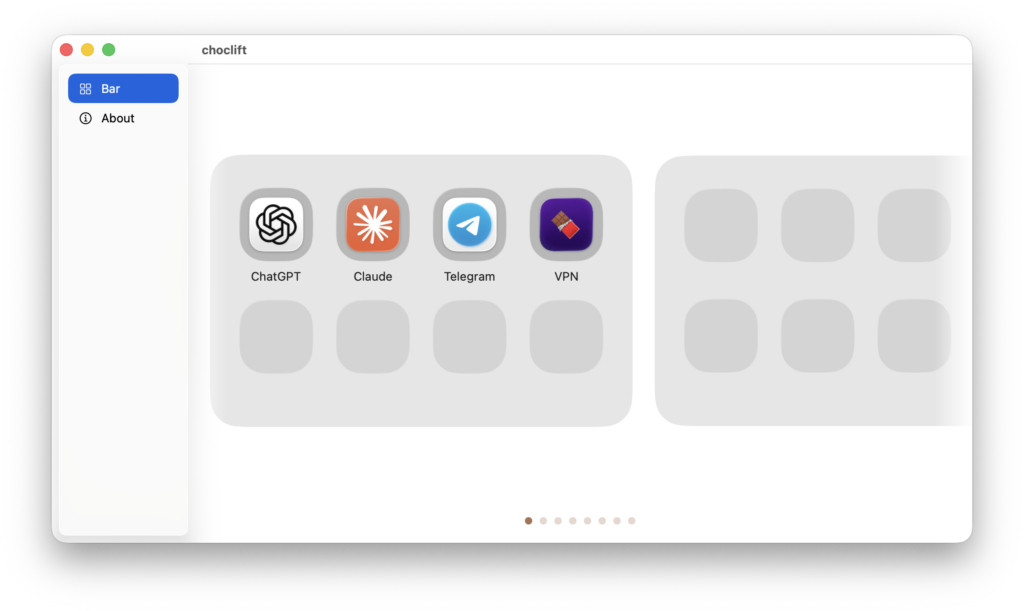
Here’s what my set of shortcuts looks like
- ChatGPT — for quick questions and text generation.
- Claude


