After the removal of MAX from the App Store, iPhone owners got yet another headache. You can’t install the messenger from the store, and there are simply no properly working workarounds for adding the app to iOS. But over the past few days, things have changed: the web version of MAX now works fully right in the iPhone browser. I tested everything myself — login, calls, and adding it to the home screen. Here’s what the browser version can already do and what it’s still missing.
MAX can be brought back to iPhone without the App Store
MAX Web on iPhone: Phone Number Authorization
The main change is authorization. Until recently, logging into the web version required a QR code that had to be scanned from another device where MAX was already installed. On an iPhone without a second phone, this was a dead end. Especially since MAX also stopped working properly on PC. Now everything is different — login by phone number, just like in a regular app. Here’s what you need to do:
- Open Safari and go to web.max.ru.
- If you keep getting redirected to the app or the authorization page won’t open, use “Private Browsing.”
- On the screen “Which phone number would you like to sign in with?” enter your number.
- If needed, tap the flag in the input field and select your country — you need a number from Russia or from a short list of available countries.
- Tap “Sign In.”
- Confirm that you’re not a robot — check the “I’m not a robot” box in the pop-up window.
- Wait for the SMS with the code and enter it.
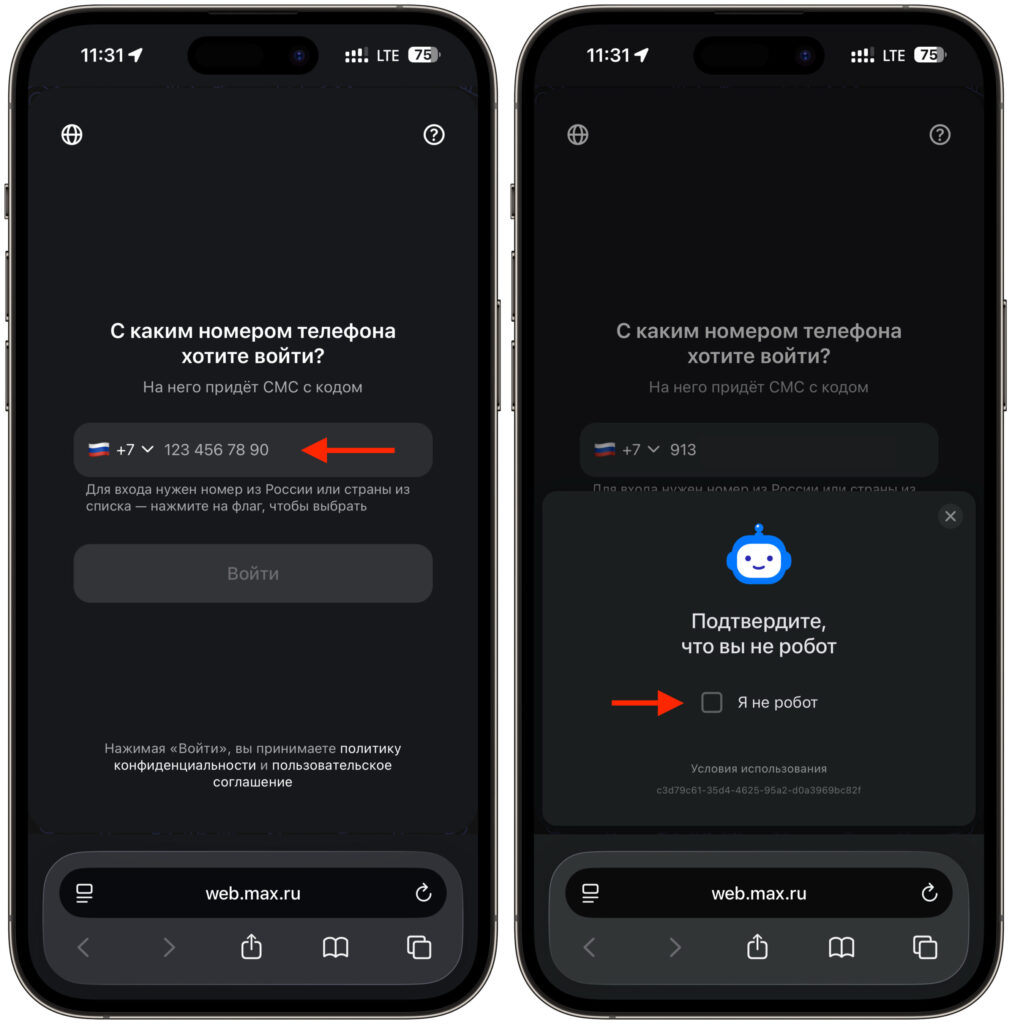
Start logging in with your phone number and wait for the SMS code
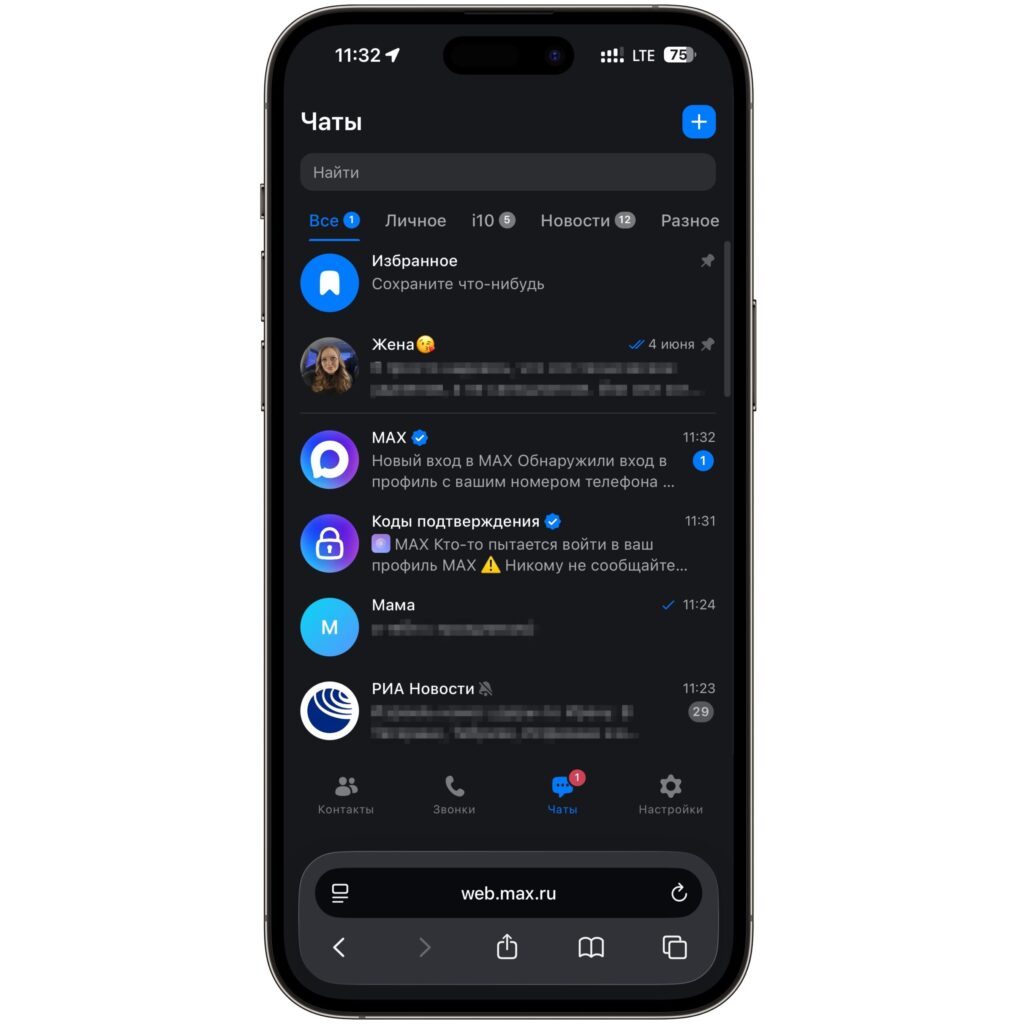
Get access to your chats
After that, you’ll be inside. For me, all conversations loaded automatically: chats, channels, favorites. This makes sense — MAX, like most cloud-based messengers, stores history on servers, not on the device. No second phone or QR code is needed anymore.
How to Add MAX to the iPhone Home Screen
Using the messenger through the browser’s address bar is inconvenient. Fortunately, the web version can be turned into an almost full-fledged app with an icon on the home screen. Here’s how:
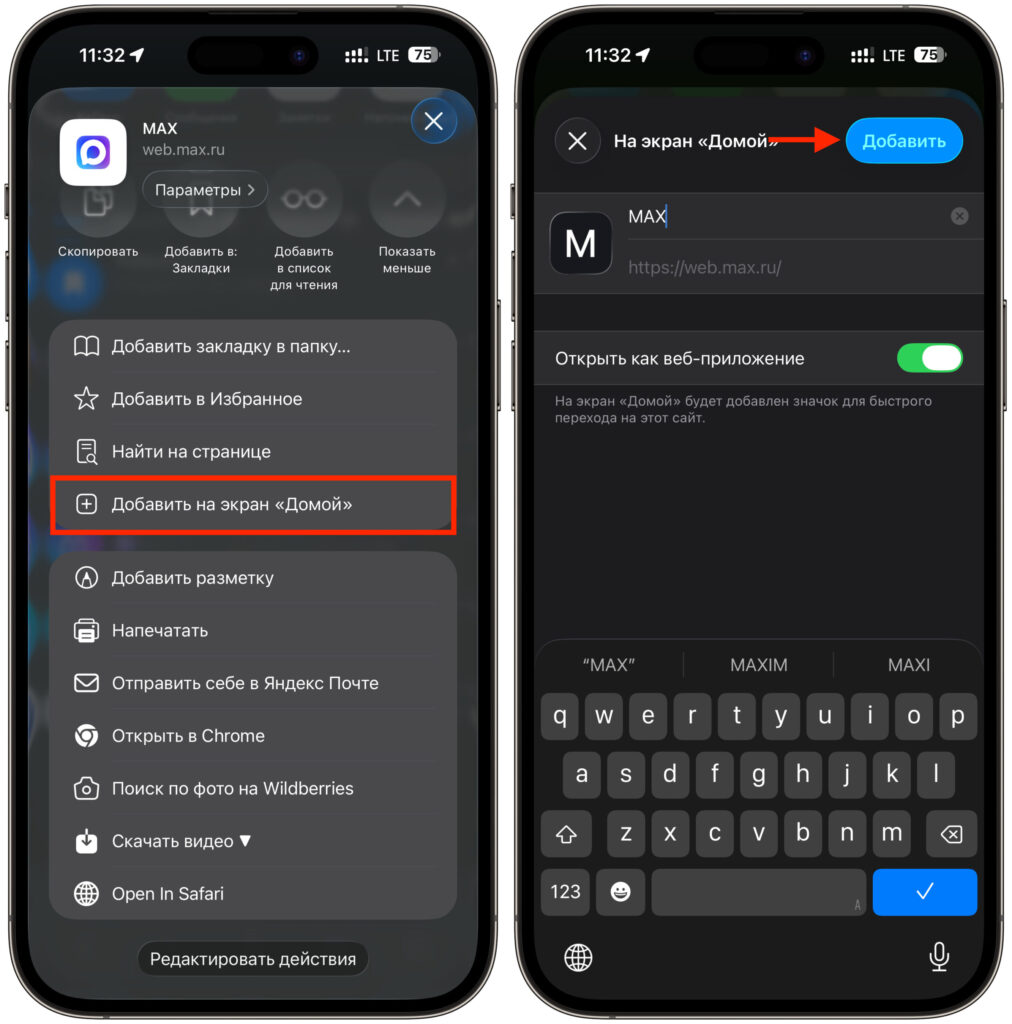
MAX can be added to the home screen for quick access
- Open web.max.ru in Safari and log in.
- Tap the “Share” button in the bottom browser bar.
- In the menu that appears, select “Add to Home Screen.”
- Set the shortcut name — by default it already says MAX.
- Make sure the “Open as Web App” toggle is enabled.
- Tap “Add.”
After that, a separate icon appears on the home screen that opens the messenger in its own window, without the address bar and Safari panels. Visually, it’s almost indistinguishable from a real app from the App Store.
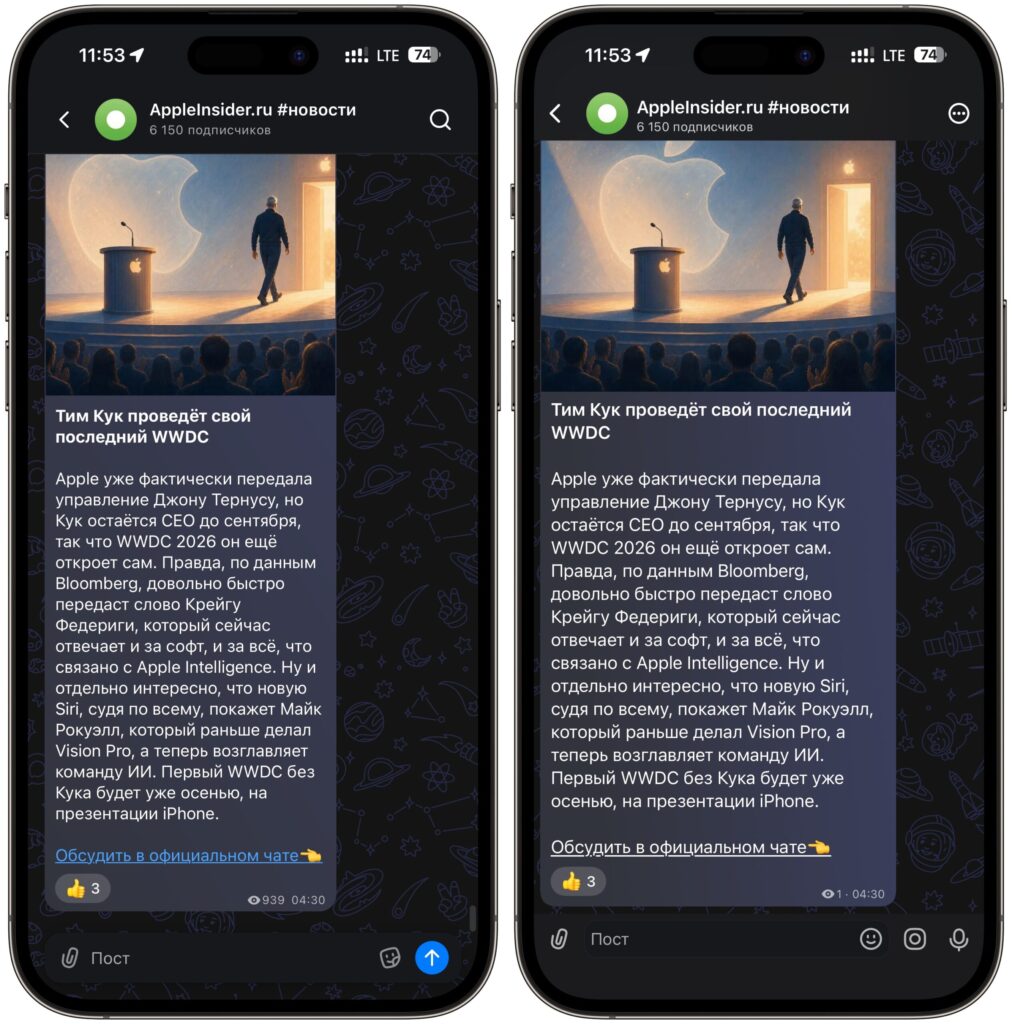
Guess which one is the app and which is the web version? Hint: the app is on the right
Important note: it’s best to add the shortcut specifically through Safari. This browser on iPhone works more correctly with home screen icons, authorization, and iOS system restrictions. With Chrome or other browsers, behavior may differ.
Do Calls Work in MAX Web on iPhone
The most pleasant discovery was calls. I was sure they wouldn’t work in the browser, but I was wrong.
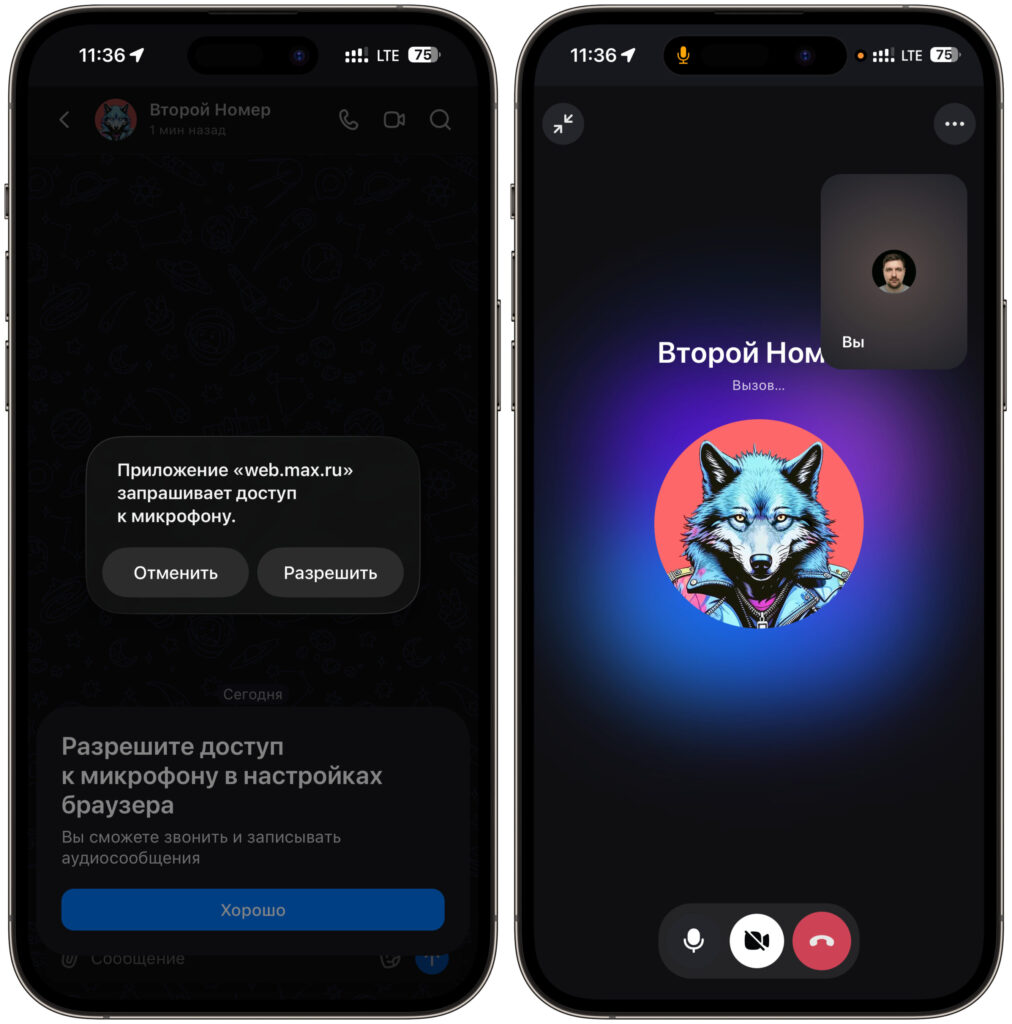
Calls work in the web version
On the first call, the web version requests microphone access — a system window appears saying “The website web.max.ru is requesting access to the microphone.” You tap “Allow,” and everything works normally from there. Audio and video calls work fine. The sound is clear, the video streams, and both the other person’s picture and your own preview are in place. For a web version in a browser, the result is excellent.
However, notifications are still a problem. Push notifications for new messages don’t come through. This means you’ll have to open the messenger manually to check for new messages. Minimizing it to the background and waiting for a notification like in a regular app won’t work.
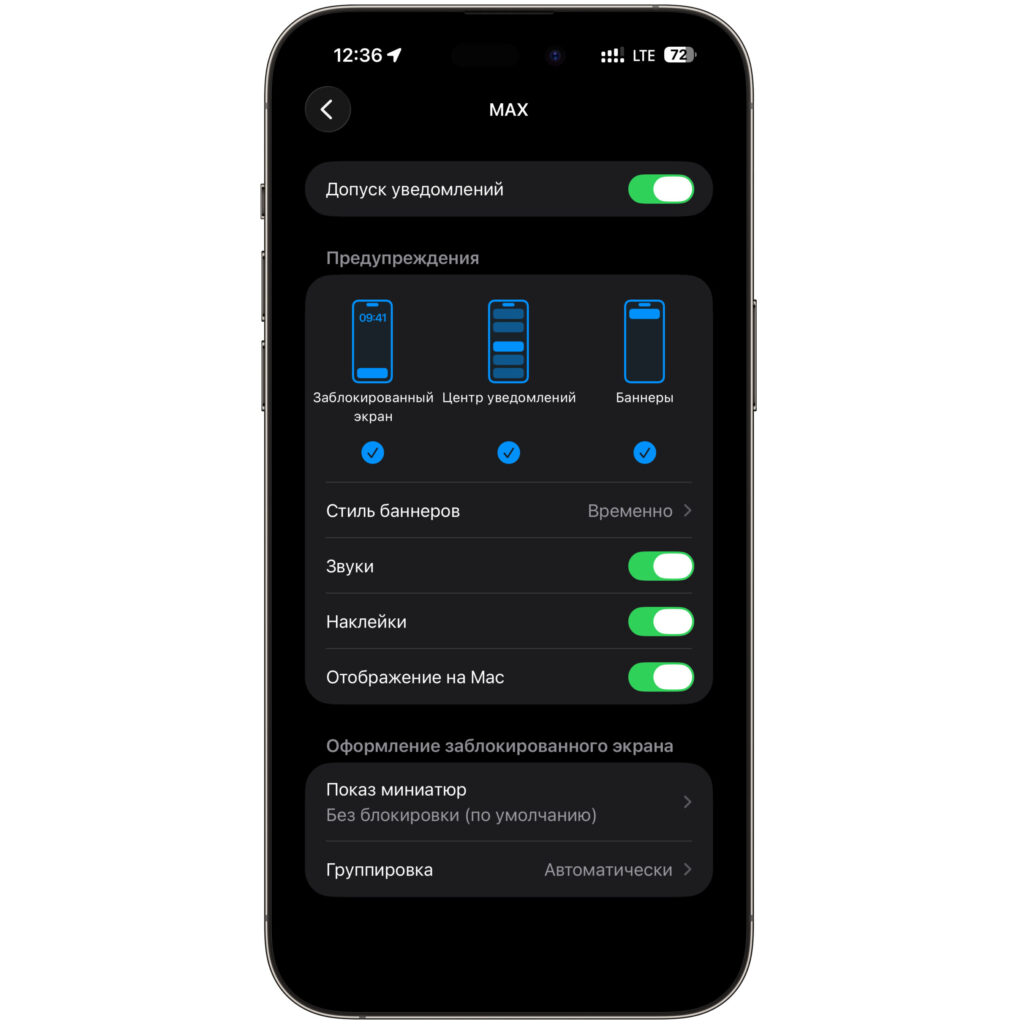
Notification settings are already there; I think they’ll start working soon
I think it’s a matter of time. Web Push on iOS only works for websites added to the home screen as a web app, and the MAX developers simply need to implement it.