When your Android phone runs low on storage, the instinct is to start deleting photos and videos. But a significant portion of occupied space often comes not from your actual media, but from hidden backup copies created during editing, forgotten trash bins, and unused apps. The source author reports using several built-in Android settings to reclaim substantial storage — without removing a single valued photo. Below is a breakdown of each method, what it actually does, and the caveats to keep in mind.
What you need to know
- Every time you edit a photo or video on Android, the gallery may silently save a backup copy of the original — potentially doubling the file size for large videos.
- The gallery and file manager trash bins retain deleted files for up to 30 days, continuing to consume storage the entire time.
- Archiving unused apps removes their main components but preserves account data and settings, freeing space without a full uninstall.
- Switching your camera to HEIF/HEVC formats and disabling live photos reduces the size of future captures over time.
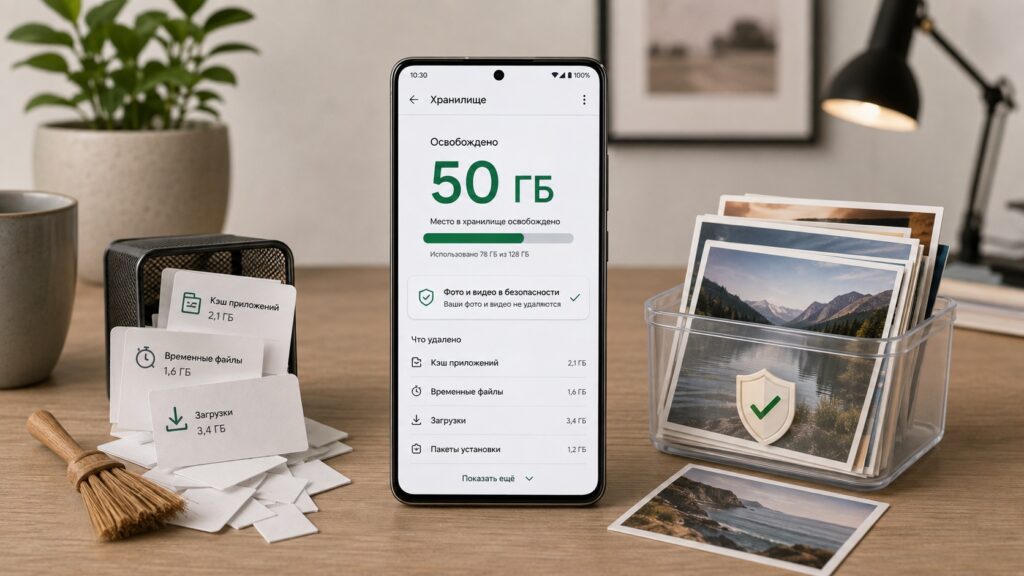
Several built-in Android tools can reclaim storage without deleting your photos
Why storage fills up faster than you think
The biggest storage consumer is media — especially video recorded at 1080p/60fps or 4K/30fps. A few heavy clips can fill a phone’s storage surprisingly fast.
But there is a less obvious culprit: editing. Each time you edit a file, the gallery app may save a hidden backup copy of the pre-edit original. For ordinary photos the extra space is negligible, but for large videos these invisible duplicates can accumulate into gigabytes.
Removing hidden pre-edit backup copies
The tool for clearing these hidden originals is typically found not in the gallery itself, but in the device care or storage management section of your phone’s system settings, where storage-saving utilities offer smart suggestions rather than blind deletion.

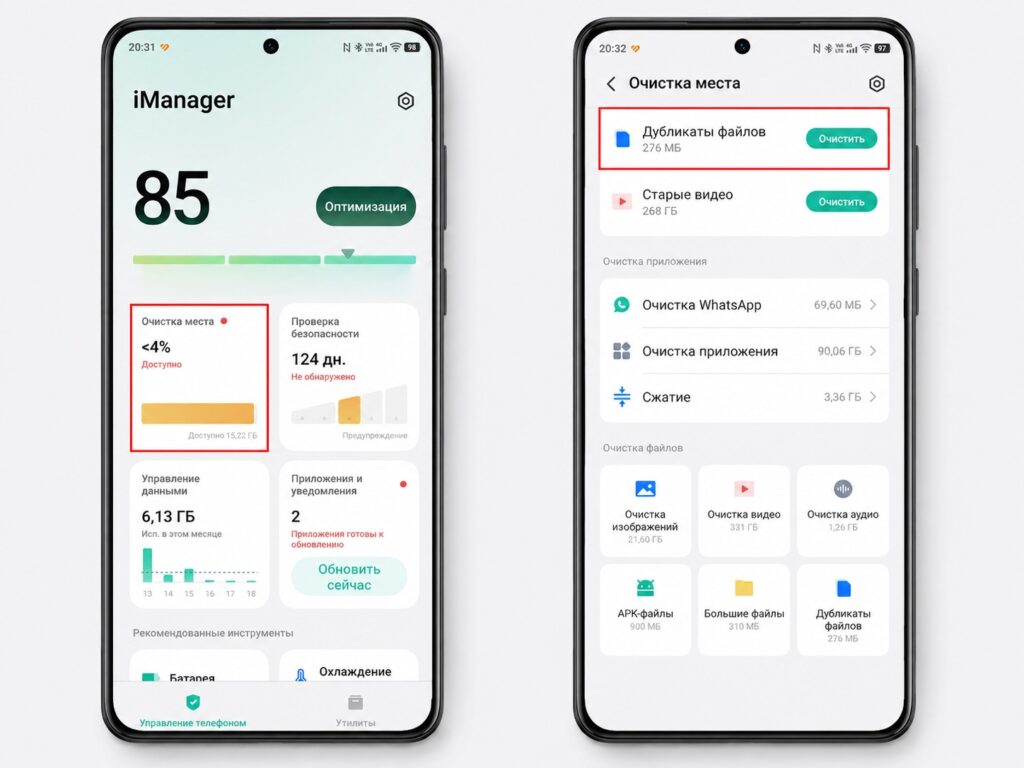
Hidden copies can be deleted through a built-in gallery utility
The source author reports that the system found roughly 276 MB of invisible backup versions. Deleting these removes the unedited originals while keeping the final edited copies. Important caveat: once you delete these originals, you lose the ability to revert an edited file back to its pre-edit state.
Empty the gallery and file manager trash
Another straightforward step is manually emptying the system trash. The gallery app — and sometimes the file manager — retains deleted photos and videos in a temporary trash bin for up to 30 days before permanently erasing them. Until you clear it, those files continue occupying storage.
The source author reports finding 8 GB sitting in the combined gallery and file manager trash bins. To clear them:
- Open the storage management section within your device care settings.
- Select “Trash” (or “Recycle bin,” depending on your phone’s interface).
- Choose “Gallery” or “Files” and delete the unwanted items.
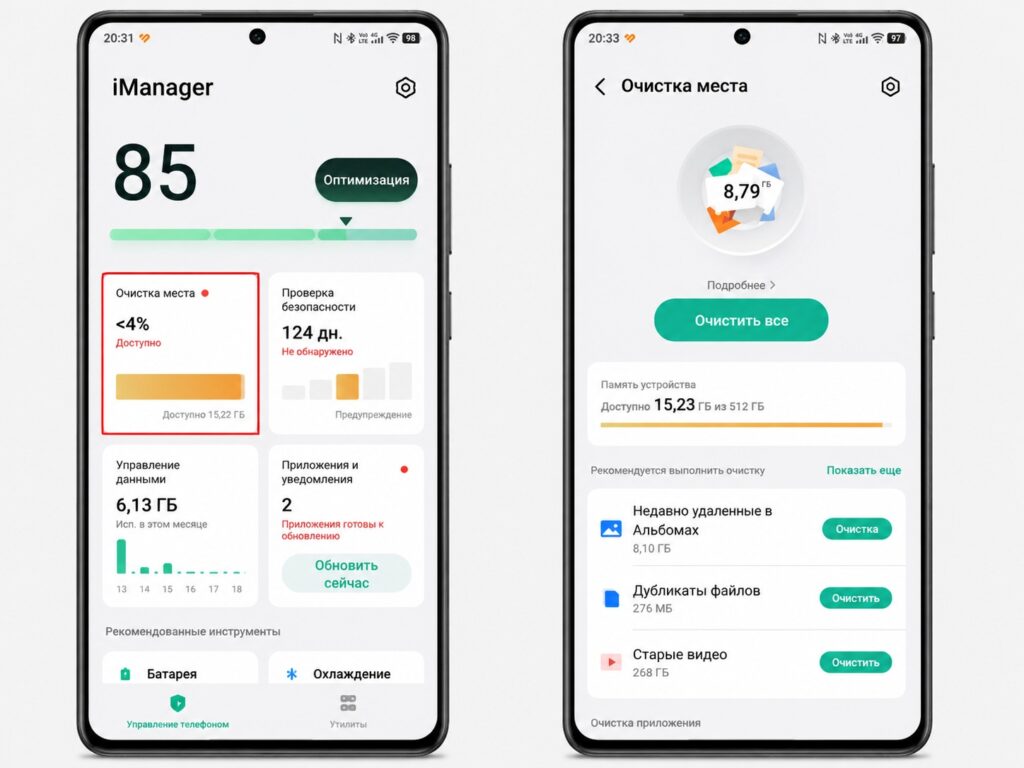
The file manager also lets you remove unnecessary files

Moving media to the cloud: big savings, with a trade-off
For the largest single gain, offloading media to cloud storage is the most powerful option. Similar to Google Photos’ “Free up space” feature, many built-in gallery apps can delete local copies of files that have already been synced to the cloud. You retain the ability to download those photos and videos back to the device at any time.
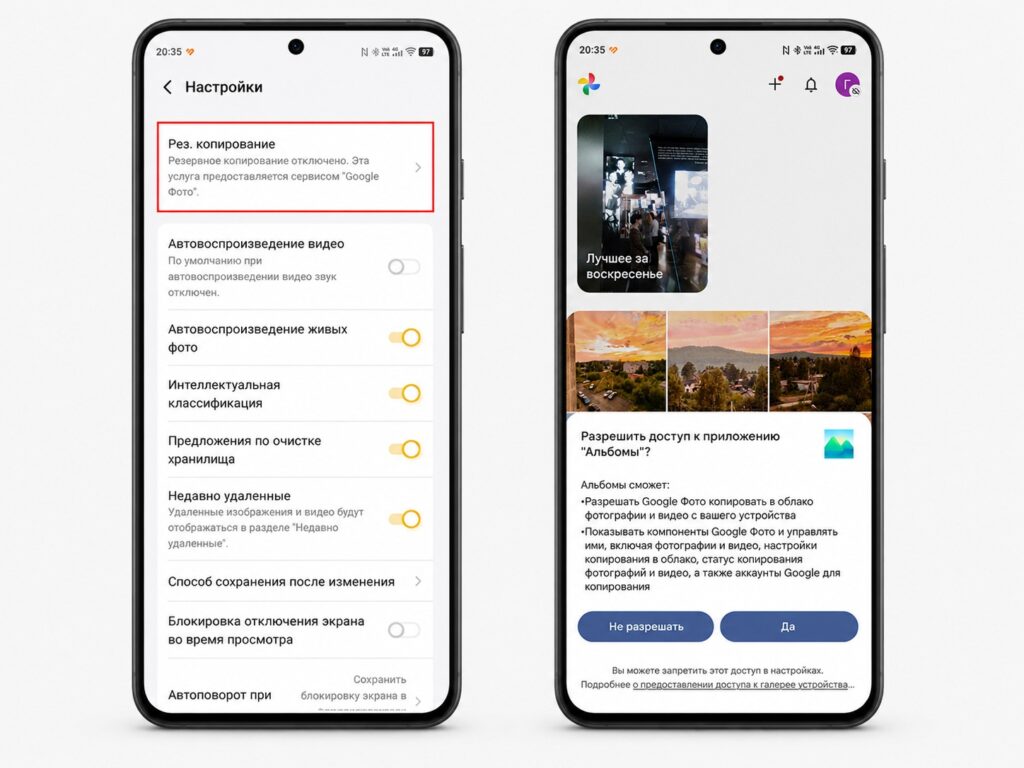
You can offload older photos to the cloud to free local storage
The main downside is that the gallery becomes noticeably slower afterward, since large videos must be streamed or re-downloaded on the fly. This also consumes mobile data, which is worth considering if you have a limited plan.
Archive apps you rarely use
A classic Android technique is app archiving. Archiving works like a freeze for seldom-used apps: it removes the main application components but preserves your data, accounts, passwords, and settings. When you need the app again, you can resume right where you left off.

The source author reports that archiving rarely used apps freed approximately 5 GB. However, there is an important warning: the “Select all” button in some implementations does not archive but fully uninstalls apps. To avoid losing programs and their data, stick to the default suggested list rather than selecting everything.
Camera settings that save space proactively
Beyond one-time cleanup, adjusting camera settings can prevent storage bloat going forward. The first habit is switching to space-efficient formats: HEIF for photos and HEVC for video. The savings per individual shot are modest, but they compound significantly over time. On most Android phones, the HEIF toggle is found in the camera app’s settings under the photo section.
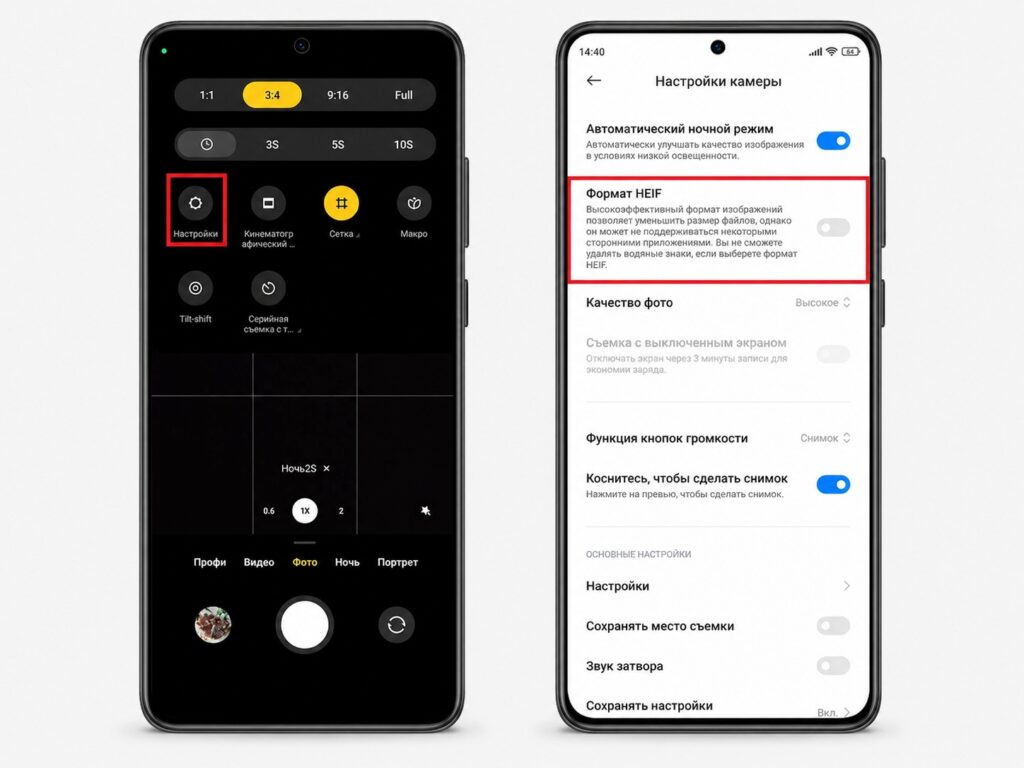
Enabling HEIC format helps save storage space over time
The second habit is disabling live photos (sometimes called “motion photos”). Turning this off captures only a static image instead of attaching a short pre-recorded video clip to every shot. Over time, this noticeably reduces storage consumption.
Limitations to keep in mind
The exact menu names, paths, and available features vary by Android manufacturer and OS version. The steps described here closely match Samsung’s One UI device care tools, but other brands may label these options differently or lack certain features entirely. The “up to 50 GB” figure referenced in the original source represents a combined theoretical maximum across all methods — individual results will depend on how much hidden data, trash, cloud-synced media, and unused apps exist on your specific device.


