Last year, we covered in detail the Circle to Search feature, which helps perform visual searches of objects on the screen. It works as a sort of Google Lens that operates without launching a separate app. However, Circle to Search on Android isn’t just about visual search for on-screen objects. The Circle to Search feature can also identify music in three ways: recognizing songs playing around you, listening to audio from the device itself, and even guessing a melody from your humming. If you’re still opening Shazam separately, it’s worth trying this built-in tool — it’s faster and always at your fingertips.

Helping you find music in a non-obvious way
How to Launch Music Recognition in Circle to Search
First, the general principle. To activate Circle to Search, press and hold the navigation bar or the Home button on your Android smartphone. A panel will appear at the bottom with several buttons: a search bar, a dictation button, a translation button, and a musical note icon. That icon is responsible for all three song recognition modes.
The feature is available on most modern Android smartphones with Circle to Search support — these include Google Pixel devices starting from the sixth generation, Samsung smartphones with One UI 6.1, as well as Xiaomi, OnePlus, Honor, Tecno, Oppo models and other brands that joined the feature later.
How to Identify Music Playing Around You
The most obvious scenario: a track is playing in a café, a store, or in your friend’s car, and you want to find out its name. Activate Circle to Search, tap the note icon, and wait a few seconds. The phone will listen to the surroundings through the microphone and show the result — a Google page with the track name, artist, and listening links. According to the Android Central author, a few seconds are usually enough.
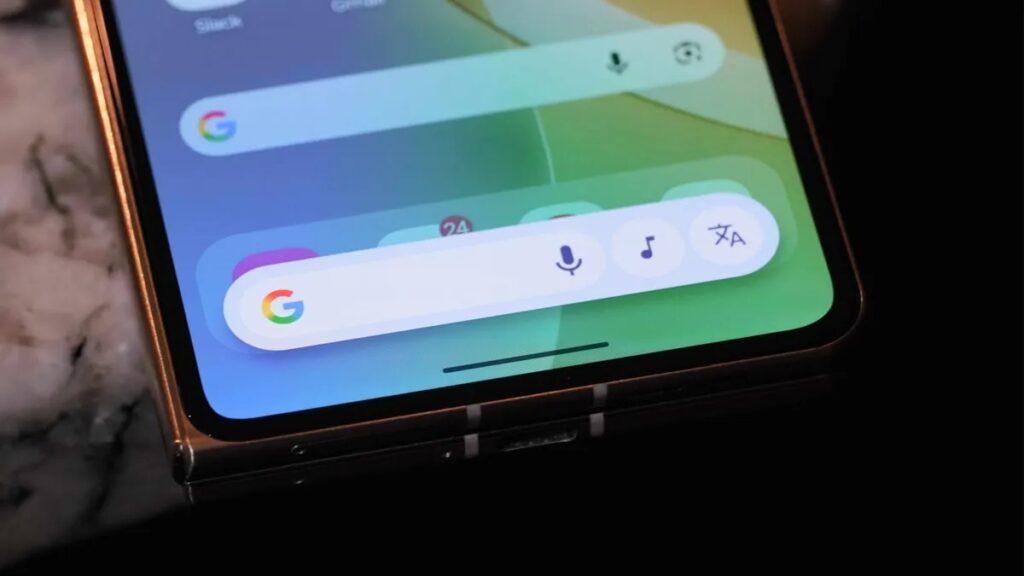
This is what the context menu with the melody icon looks like
The working principle is the same as Shazam or Google Assistant, but it launches faster — no need to open a separate app. Plus, if you’re already used to activating Circle to Search for other tasks, music recognition becomes part of a familiar gesture.
How to Recognize Music on Your Phone Through Circle to Search
A less obvious but useful option — identifying a track that’s playing right on your device. Say you’re watching Reels, TikTok, or a YouTube video, and a song is playing in the clip whose name you don’t know. Activate Circle to Search right in that app, tap the note, and the feature will try to identify the track from the device’s audio.
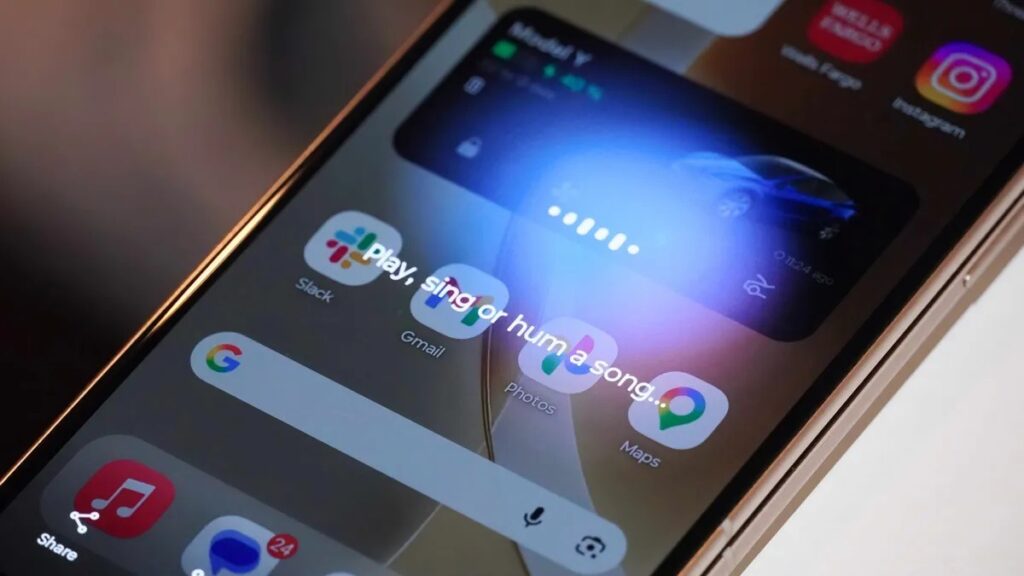
You can find music right from the device
This is more convenient than manually searching for a song using bits of lyrics. The phone analyzes the audio and provides the result as a Google search page with the name, artist, and links. It’s especially useful for streaming and social apps, where creators often use music without captions.
Hum a Melody — Circle to Search Will Guess the Song
The third method is the most unexpected. When you tap the note button, a hint appears on the screen: “Play, sing, or hum a song.” This means Circle to Search can try to identify a melody that you’re humming or singing.
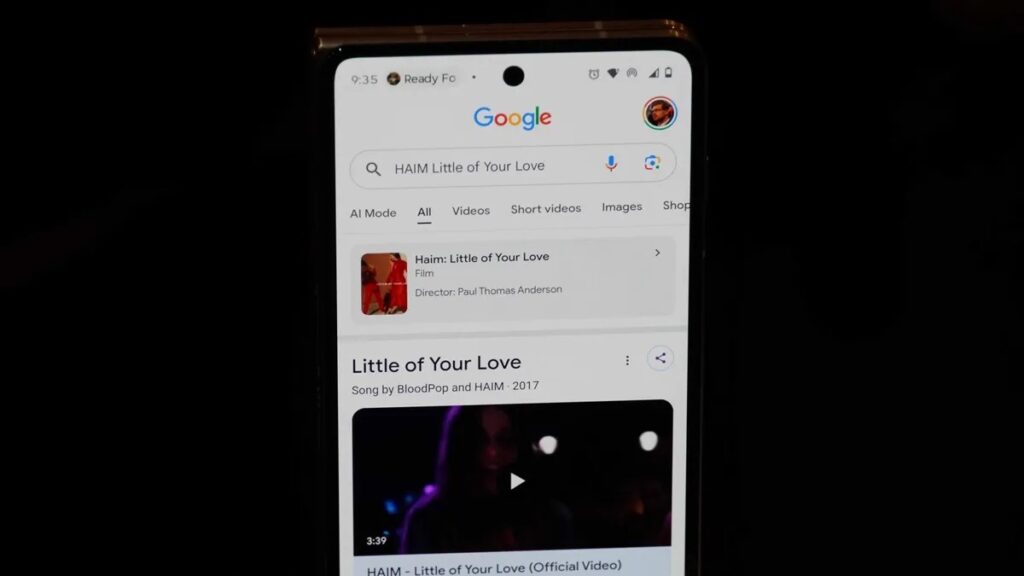
You can also just hum it, and Google will do the rest for you
The original article’s author tested this himself: he hummed the melody of Highway to Hell by AC/DC, and Circle to Search correctly identified the track in a few seconds. This works better than trying to describe a song with a text query in Google — especially when you can’t remember a single word of the lyrics, but the melody is stuck in your head. Of course, accuracy will depend on how recognizably you hum. But for popular tracks, the feature performs quite confidently.
Recognized Song History in Circle to Search: Where to Find It
If you frequently identify music through Circle to Search, it’s useful to know about a relatively recent addition. Google has added a history of recognized tracks right into the feature’s interface. After tapping the note button, a clock icon appears in the upper right corner. Tapping it reveals a list of previously identified songs — with cover art, artist names, and recognition dates.
According to 9to5Google, the history shows up to 10 results grouped by month. For the full list, you can go to the “My Activity” page in Google. This is handy when you identified a song in a café but forgot to add it to your playlist — now you can go back and find it.
Circle to Search vs. Shazam: Who Benefits and When
Circle to Search for music identification isn’t a revolution — it’s a convenient integration. All three described methods work within a single button that’s always accessible through a navigation gesture. This means there’s no need to install additional apps, remember voice commands, or switch between screens.

Two completely different but equally useful ways to search for music
This is useful for anyone who frequently encounters unfamiliar music — while traveling, on social media, or in public places. For most scenarios, Shazam is no longer needed separately if you already have Circle to Search. The only caveat: the feature requires an internet connection and only works on devices that support Circle to Search. If your smartphone doesn’t support Circle to Search, the classic options remain — Google Assistant with the “What’s this song?” command or Shazam itself.