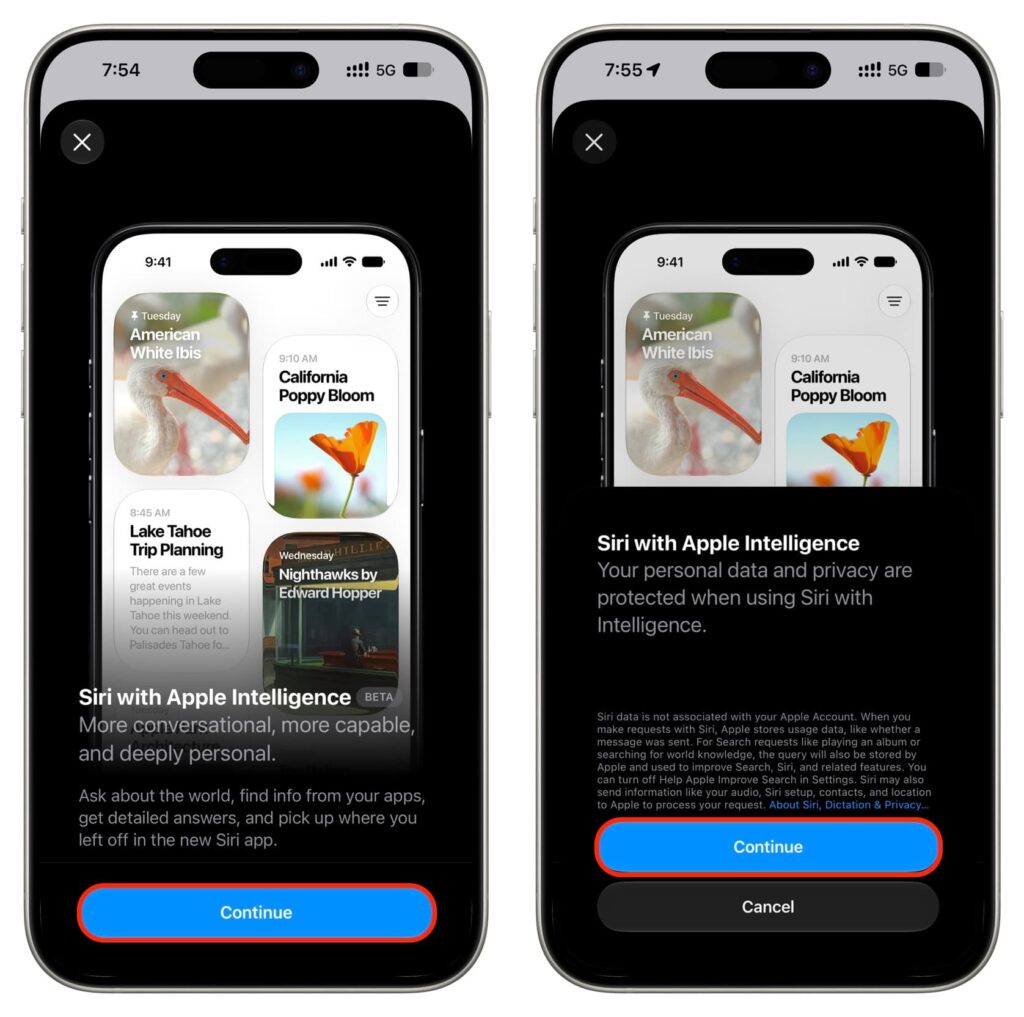
Apple introduced iOS 27 with a whole set of new features, and the main one was the updated AI-powered Siri. You can try it right now, without waiting for the public release in the fall: you’ll need a compatible device, the iOS 27 beta, and a spot on the waitlist. Below we break down step by step what exactly the new Siri offers and who should consider jumping into the beta for it.
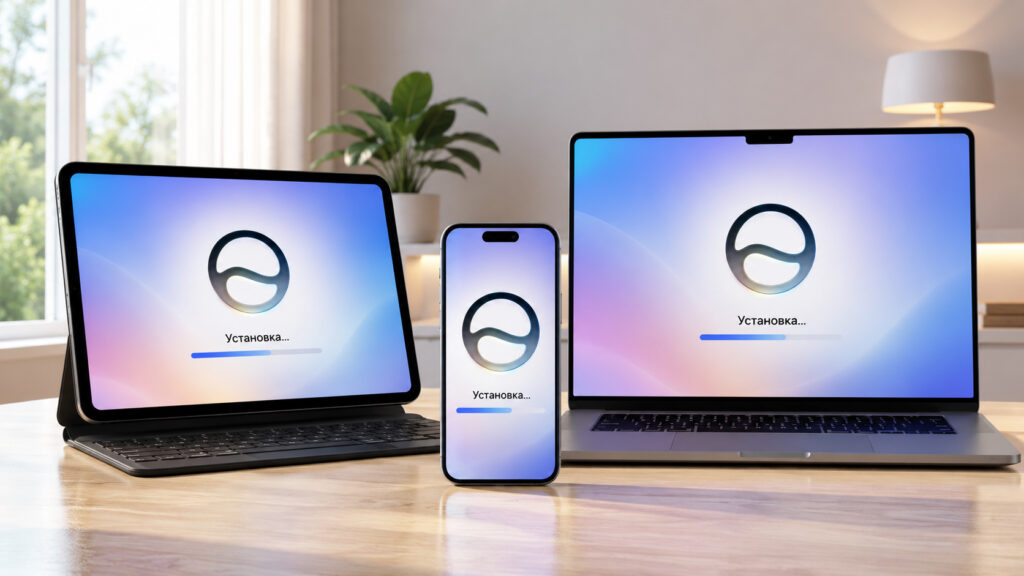
Enabling Siri AI on all Apple devices
New Siri AI in iOS 27: Key Features of the Voice Assistant
The Siri update was one of the biggest announcements at this year’s developer conference. The new Siri runs on the Google Gemini model and, according to Apple, has become noticeably smarter compared to the previous version. Essentially, this is an attempt to catch up with ChatGPT and similar chatbots, not just a cosmetic update to the voice assistant.
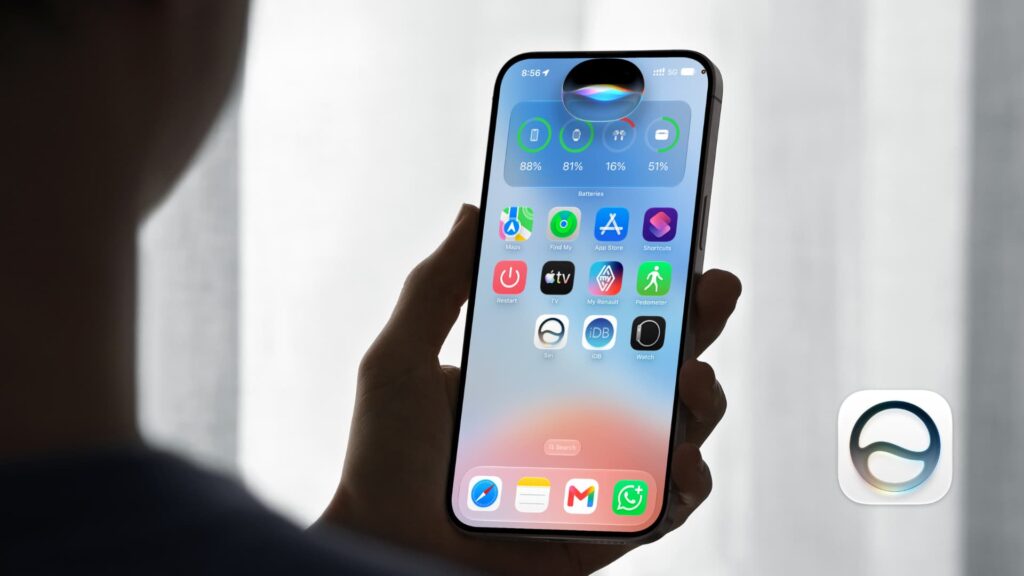
You can already try the new Siri
The assistant now understands what’s on your screen: you can be in any app and ask Siri about its content. It also takes on complex multi-step tasks, and on top of that, there’s a standalone Siri app. It works roughly like a regular AI chatbot, with a conversation thread and a new chat button.
Which Devices Support Siri AI and Apple Intelligence
The main limitation: the assistant only works with Apple Intelligence. If your device isn’t on the list below, you can stop reading — the update simply won’t reach it.
- iPhone: models 15 Pro and all newer ones
- iPad: all tablets with Apple chips, as well as iPad mini with the A17 Pro chip
- Mac: all models with Apple chips — M1, M2, M3, M4, and M5
This means the regular iPhone 15 without the Pro designation and older models are left out. The bar here is the same as for other Apple Intelligence features, so there are no surprises. There’s also a more subtle point: even among newer models, not all will get the full set of Siri AI capabilities, and this comes down to the amount of RAM.
What Language and Region Are Needed for Siri AI on iPhone
The new Siri is currently tailored for the English language and the US region. You can set this up in advance or come back to this step later if the assistant doesn’t launch.
- Open Settings, go to the Apple Intelligence and Siri section, then “Language” and select English (United States).
- Open Settings, General, Language & Region, and set the region to United States. I also recommend switching the system language to English.
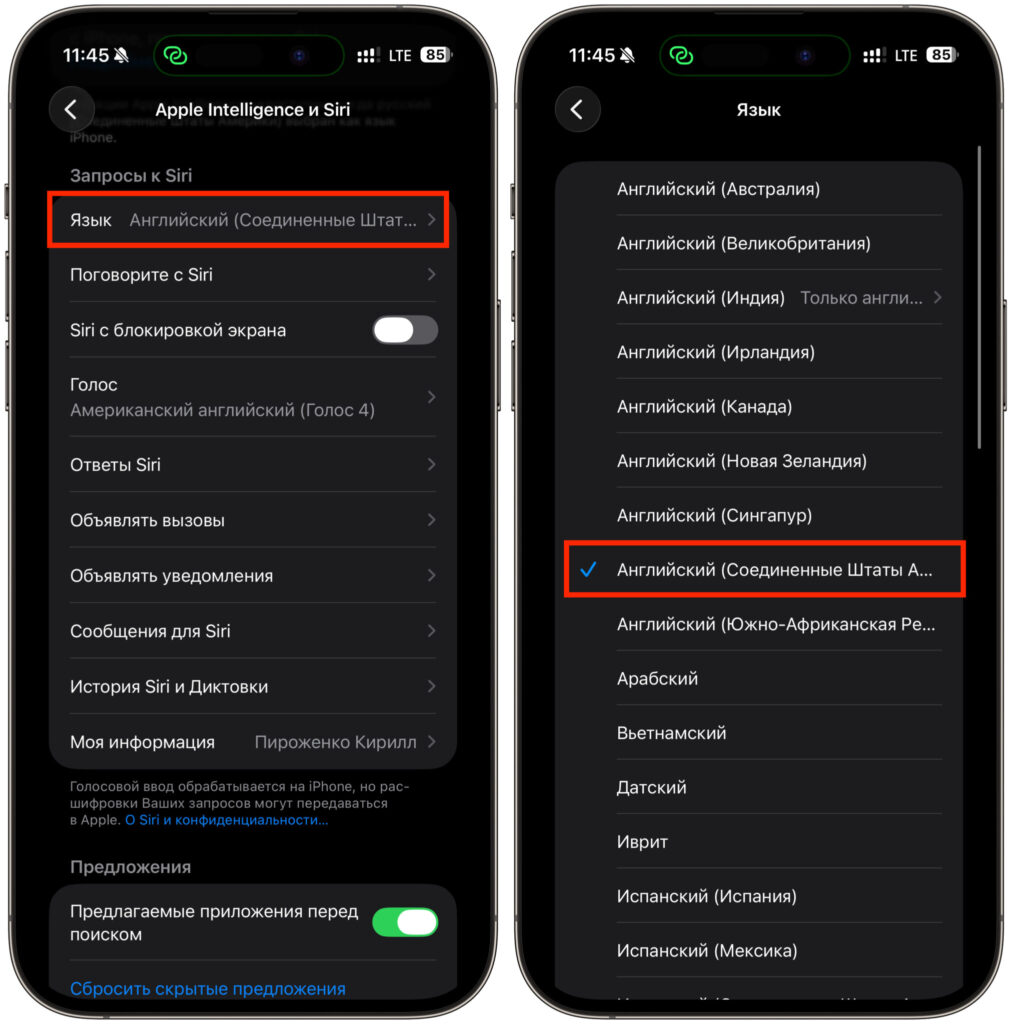
First, change the Siri language
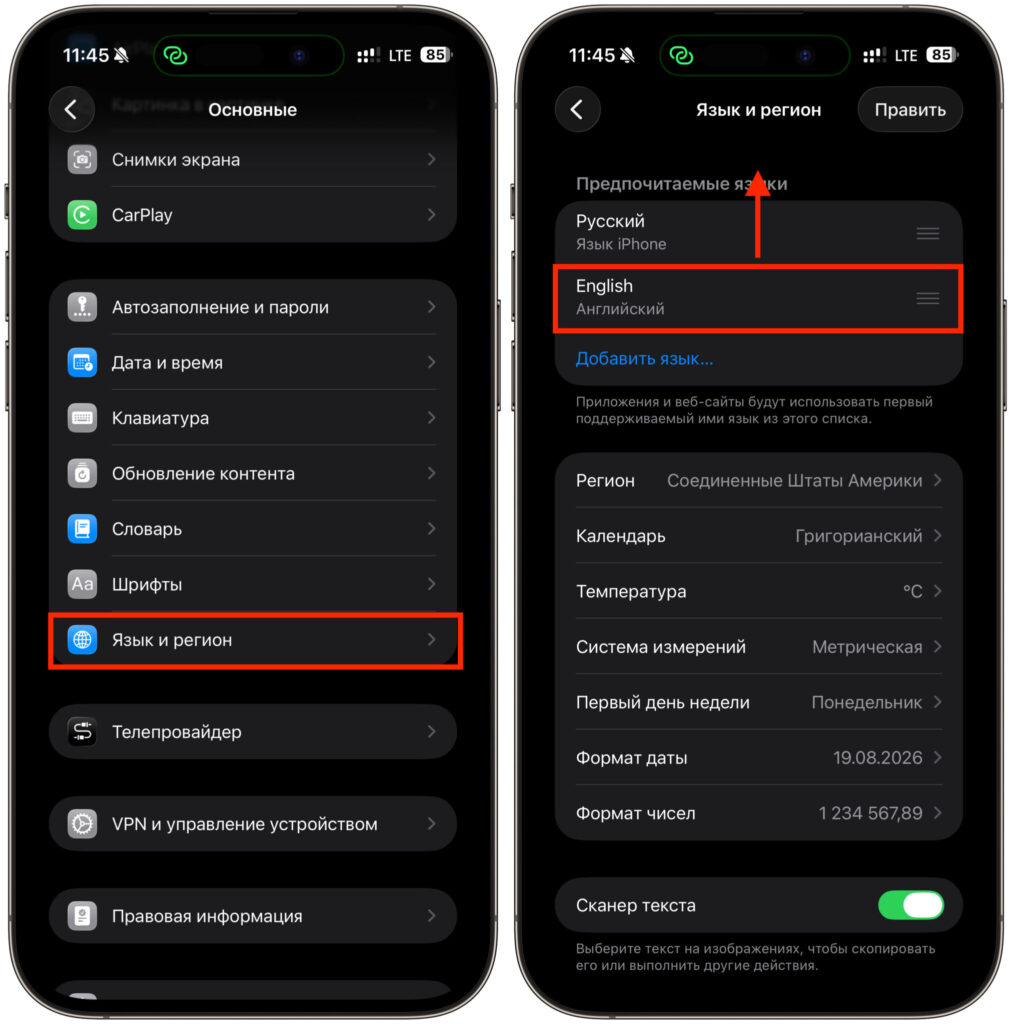
Switch the language and region in settings
For Russian-speaking users, this is an important caveat: after changing the language and region, the interface and the assistant itself will switch to English. Russian language support is not expected anytime soon.
Where to Download iOS 27, iPadOS 27, and macOS 27 for the New Siri
You must install version 27 of the system on your device
To access the updated assistant, you’ll need iOS 27, iPadOS 27, or macOS 27 Golden Gate. For now, all of them are only available as a developer beta. The public beta is expected in July, and the final release for everyone is around September.
The risks here should be assessed soberly. The developer beta remains raw software with potential crashes, bugs, and unstable app performance. If you only have one iPhone and it’s also your work phone, installing such a system just for early access to Siri is probably not wise. Betas are for those who are ready to put up with their issues.
How to Activate Siri AI Through Apple Intelligence Settings
After installing iOS 27, access to Siri doesn’t open immediately — you first need to join the queue.
- Go to Settings (on Mac, System Settings), open the Siri section, and tap Try New Siri.
- On the Siri with Apple Intelligence splash screen, tap Join Waitlist, then Continue.
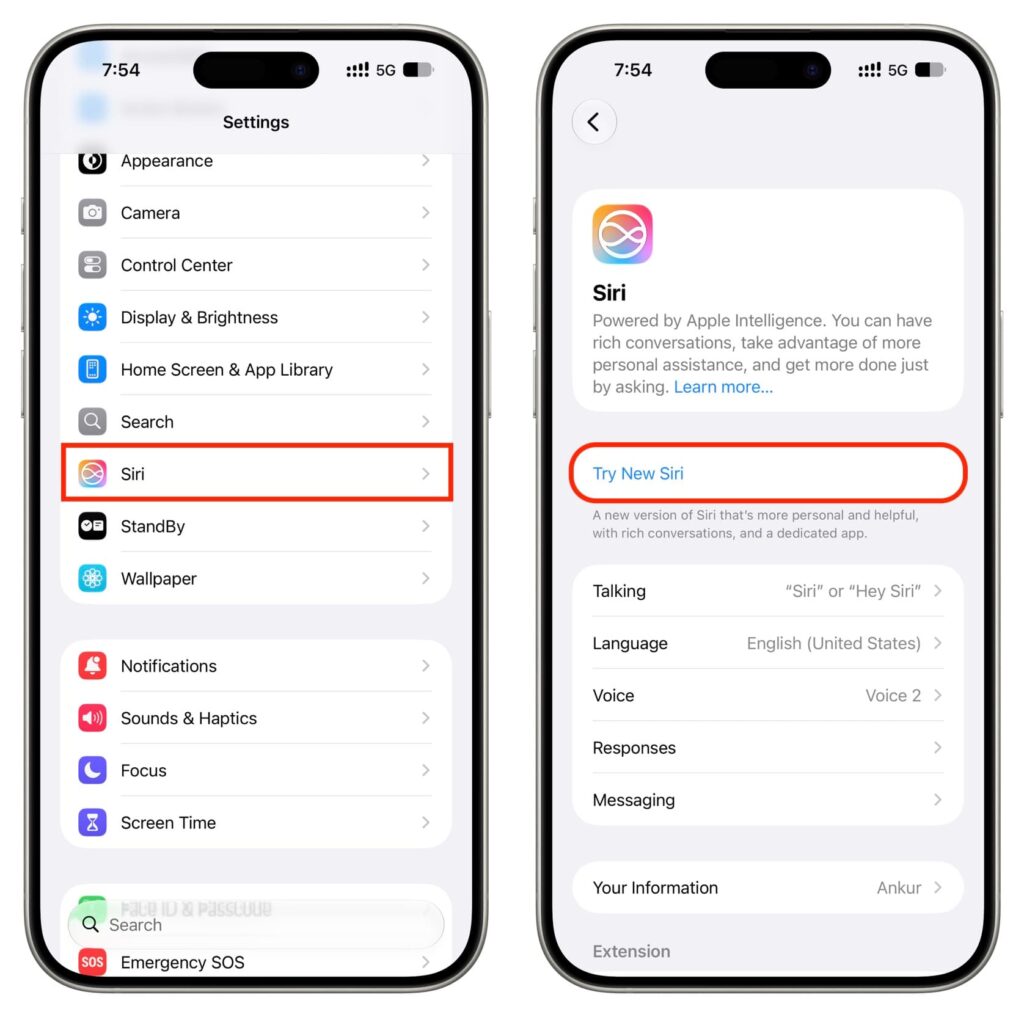
Join the waitlist queue