Every year before WWDC, a little ritual takes place: Apple releases official conference wallpapers, and the entire internet collectively changes their desktop background before a single new feature is even shown. And this year promises to deliver a lot. In 2026, the tradition lives on — the developer website already has wallpapers in the style of the upcoming presentation, and anyone can set them up; a developer account is not required. Here’s how it all looks, where to download, and how to set them on any Apple device.
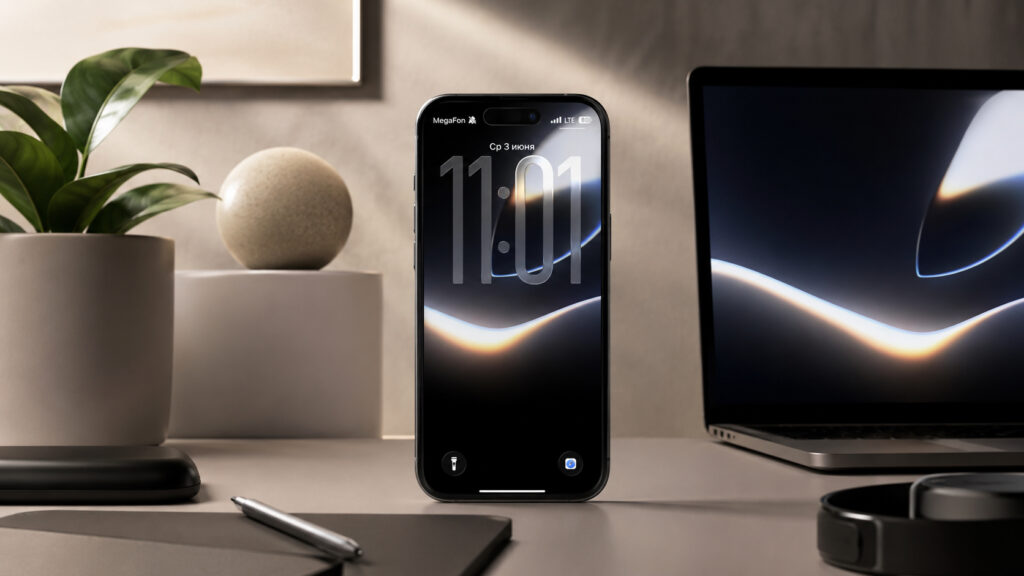
Apple made gorgeous wallpapers
New WWDC 2026 Wallpapers for iPhone, iPad, and Mac
Apple has prepared three separate versions of wallpapers — for Mac, iPad, and iPhone. The subject is the same, but the cropping is different, and that matters: the iPhone image is not the same as the Mac one simply cropped. Each image is composed for the proportions of a specific screen, so the glowing arc lands perfectly centered on all devices.
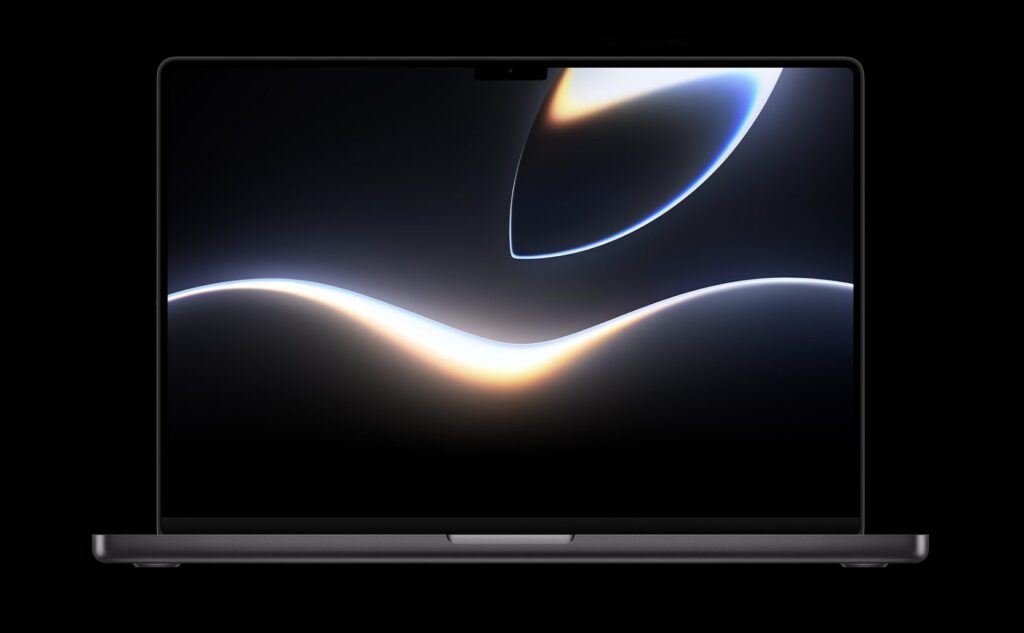
See how the wallpaper looks on Mac
In the Mac version, the composition is the most airy: a large glowing arch is visible at the top, and that signature wave with warm glow runs through the center. On iPad, the frame is slightly tighter, with the focus shifted to the center. On iPhone, the wallpapers look arguably the most impressive — the vertical format stretches the light into a beautiful arc that pairs perfectly with the dark system theme.
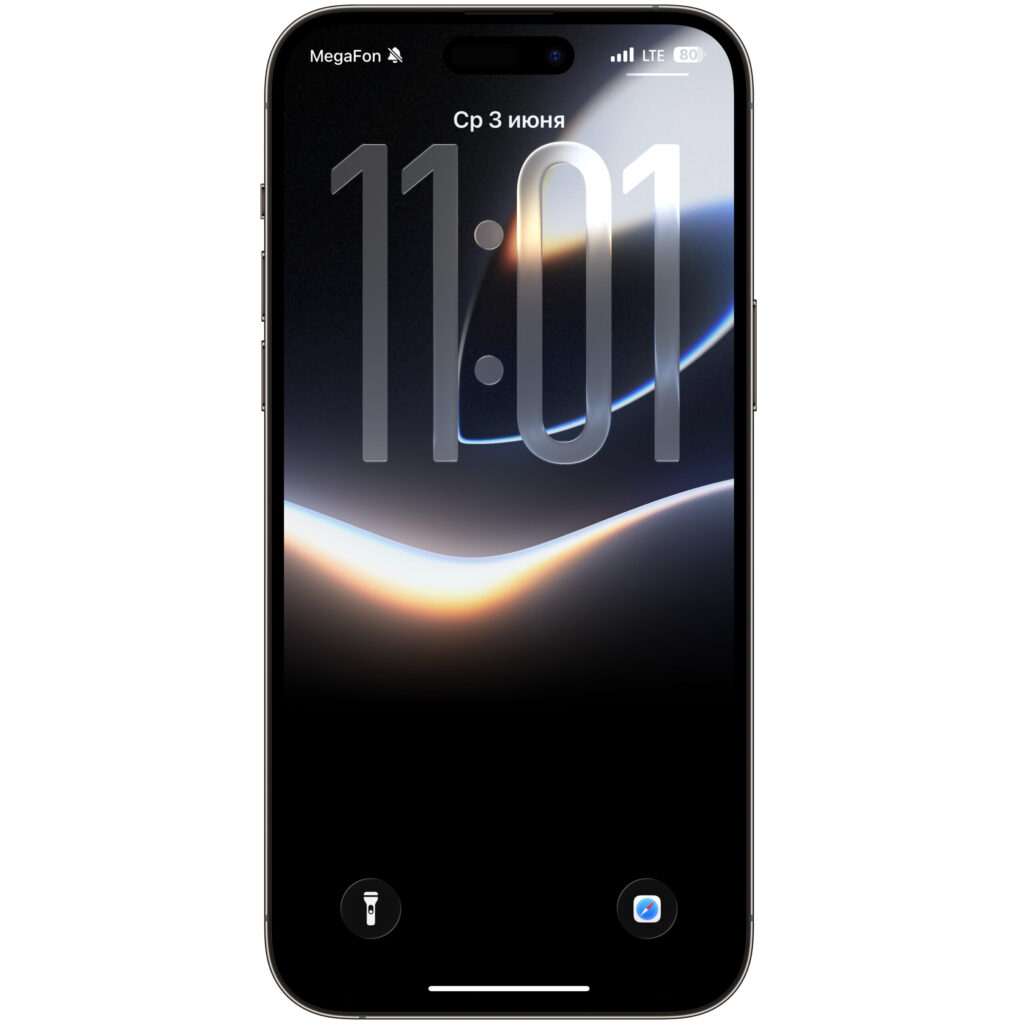
The wallpapers also fit perfectly on iPhone
The main advantage of these wallpapers is the deep black background. On OLED screens of iPhone and iPad Pro, black pixels simply turn off, so the image blends with the bezel and the glowing line appears to float in midair. On MacBook Pro with a Liquid Retina XDR display, the warm core of the arc also noticeably “pops” with brightness.
Download WWDC 2026 Wallpapers in High Resolution
The wallpapers are hosted on Apple’s official developer page, but it’s accessible to everyone without logging into an account. To download the version you need, do the following:
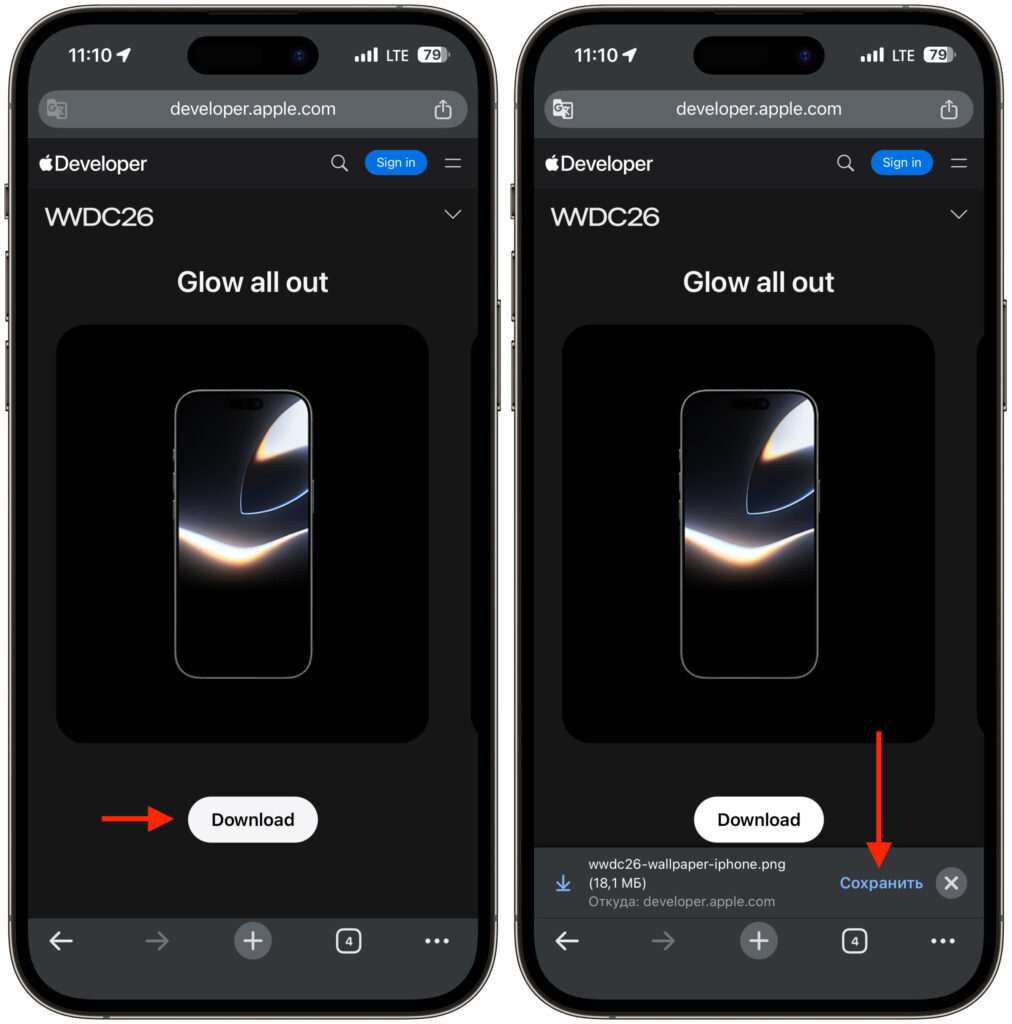
You can download them from the official developer website
- Open the WWDC 2026 wallpaper page on Apple’s website.
- Select the tab for the device you need — Mac, iPad, or iPhone.
- Click the Download button and save the image.
Tip: download the wallpapers from the device you plan to set them on. That way, the image goes straight to Photos or Downloads in maximum resolution without unnecessary re-saves through messaging apps, which love to compress quality.
If you want to set Mac wallpapers on iPhone or vice versa — nobody’s stopping you, but keep in mind that the proportions won’t match and part of the image will be cropped.
How to Set Wallpapers on macOS, iPadOS, and iOS
The instructions differ across all three systems, so we’ve gathered them in one place. Apple describes the process very briefly, but in practice there are a couple of nuances worth knowing.
On Mac running macOS:
- Open “System Settings.”
- Go to the “Wallpaper” section.
- Click “Add Photo” and select the downloaded image.
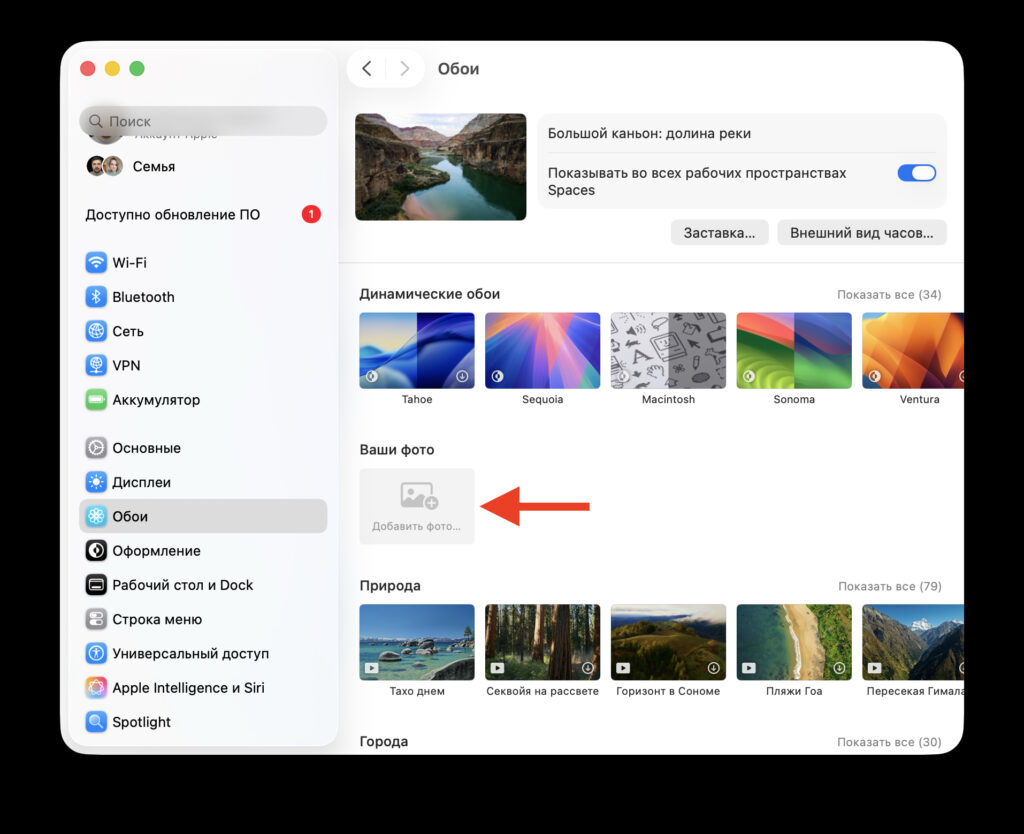
Start adding your image
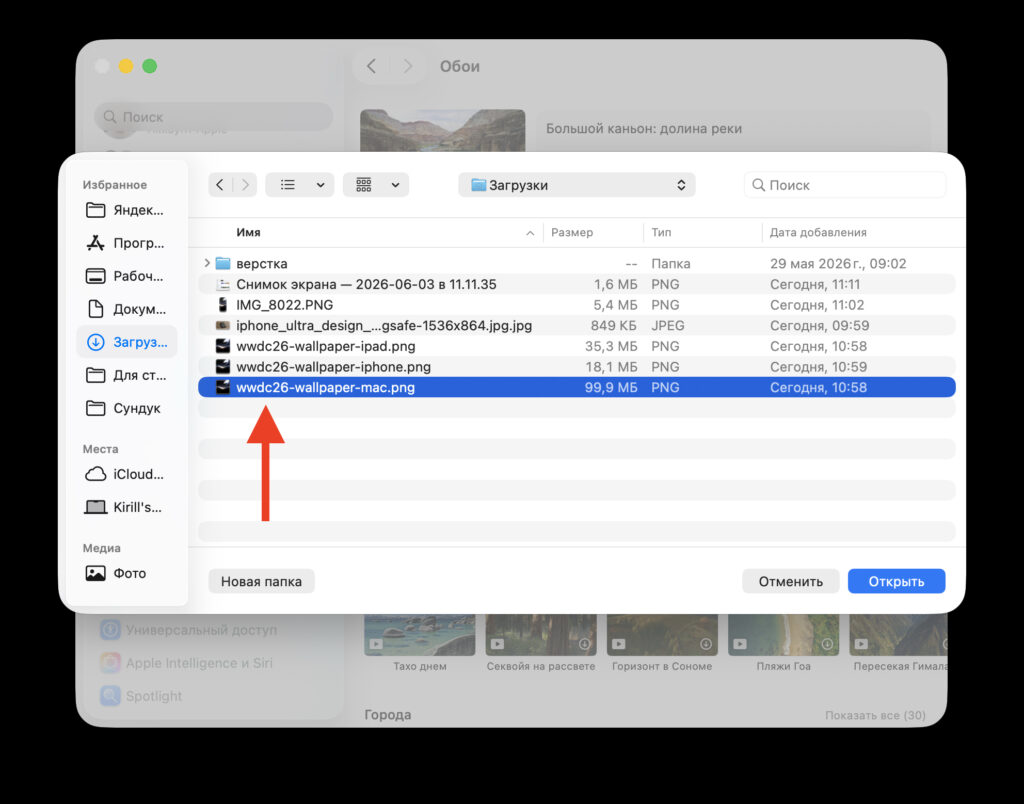
Select the image in Finder
On iPad running iPadOS and on iPhone running iOS, the process is the same:
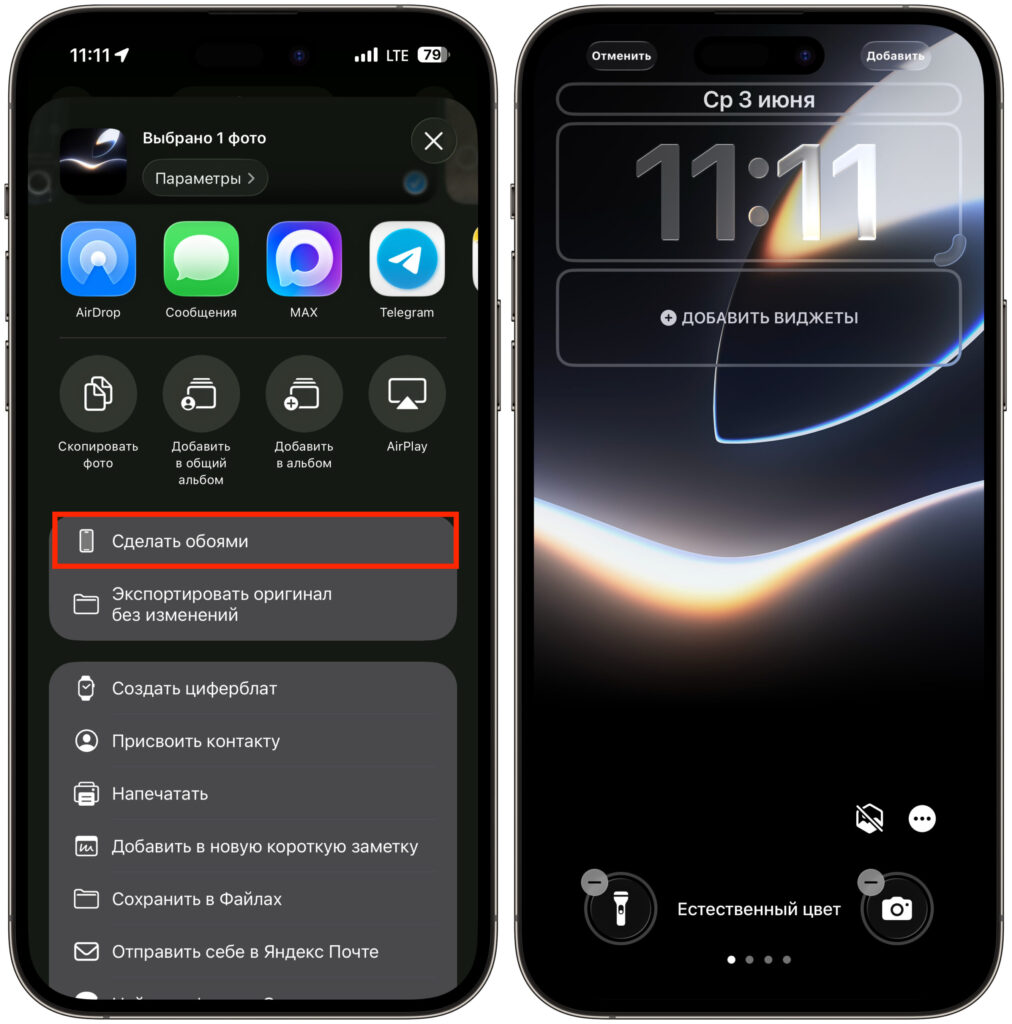
On iPhone and iPad, setting wallpapers is even easier
- Open the downloaded image in the Photos app.
- Tap the “Share” button.
- Select “Use as Wallpaper.”
On iPhone, the system will then offer to customize the lock screen: you can enable or disable the perspective effect, add widgets, and choose whether to set the same image on the home screen. Since the wallpapers are dark, we recommend keeping the home screen with the same image — app icons look especially clean on a black background. However, it’s better to disable the perspective effect: on an abstract image without distinct objects, it only blurs the glow.
Is It Worth Changing Wallpapers Right Now
Technically it’s just a pretty picture, but official WWDC wallpapers have a nice bonus — they set the mood before the presentation.


