If iPadOS 27 has left your iPad running hot, draining its battery early or crashing apps, you can still go back to iPadOS 26 — but only for as long as Apple’s servers keep “signing” the older release. The downgrade wipes the tablet completely, requires a Mac or Windows PC with a cable, and can only restore a backup that was made on iPadOS 26 or earlier. The source guide describes two routes: a free manual restore using an IPSW firmware file with Finder, Apple Devices or iTunes, and a guided process in a third-party utility. Below is what determines whether a downgrade is possible, what to do before starting, and how each method works.
Downgrading from iPadOS 27 to iPadOS 26
What you need to know
- A downgrade is only possible while Apple is still signing iPadOS 26 for your specific iPad model; once signing stops, no method works.
- The process fully erases the iPad, and a backup made on iPadOS 27 cannot be restored on iPadOS 26.
- You can check signing status on ipsw.me: firmware versions highlighted in green can still be installed, grey ones cannot.
- The firmware download is typically around 7–8 GB, and the whole process can take close to an hour.
Why the downgrade window is temporary
Everything hinges on Apple’s signing system. The company only allows installation of iPadOS versions that its servers are currently signing. While iPadOS 26 remains signed, you can return to it; as soon as signing is closed, the door shuts for every method, whether you use Apple’s own tools or a third-party program. The source notes that the logic is identical to downgrading an iPhone from iOS 27 to iOS 26, with only minor differences in the details.
According to the source author, the first public build of a major iPadOS release is rarely fully polished: some background processes misbehave, and optimisation for specific models tends to arrive in later updates, with older tablets feeling this most. Not everyone is affected, but the author says complaints are common enough that the wish to roll back is understandable.
iPadOS 26 on an iPad
How to check whether iPadOS 26 is still signed
The simplest check is the ipsw.me website. Open it, select your iPad model from the list and look at the firmware versions. Those highlighted in green are still being accepted by Apple’s servers — these are the ones you can use for a downgrade. Grey versions are already closed, and nothing will work with them.
There is also an important data caveat: a backup created on iPadOS 27 cannot be restored to iPadOS 26, because the system does not accept backups from a newer version.
What to back up and check before you start
A downgrade completely erases the iPad, so there is no reason to rush. The source author also suggests that anyone burned by a rough first release should think twice before updating immediately after a major launch next time. If you have decided to proceed, work through this checklist:
- Make a backup. Save photos, notes, documents and messages to iCloud, to a computer or to a third-party backup utility.
- Make sure the backup was created on iPadOS 26 or earlier. A backup from iPadOS 27 will not restore onto the older system.
- Charge the tablet to at least 50 percent, or preferably keep it plugged in throughout the process.
- Prepare a Windows PC or Mac, a working USB cable and a stable internet connection.
- Visit ipsw.me and confirm that the iPadOS 26 build you need for your model is still green.
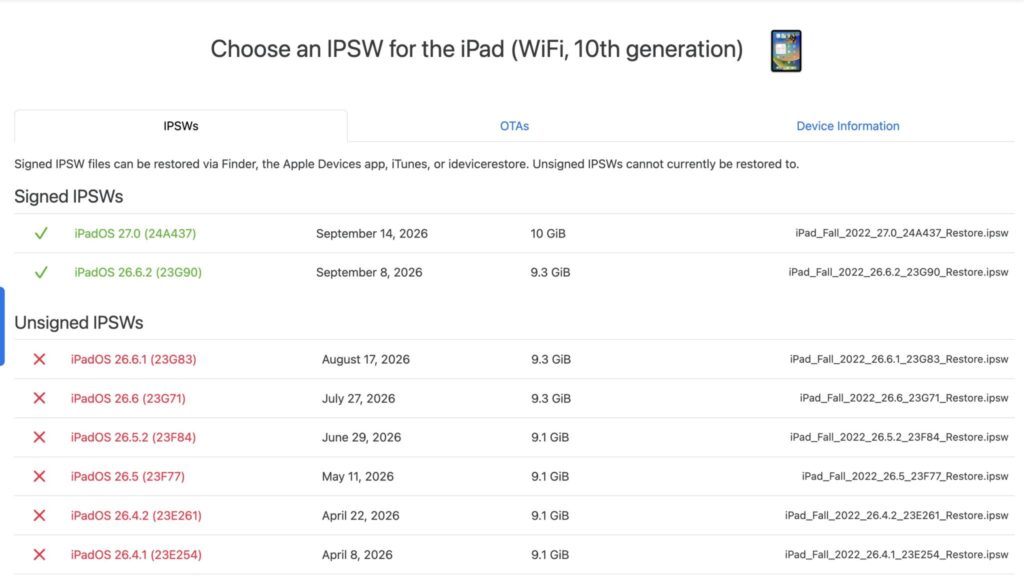
Firmware versions highlighted in green can be downgraded to
Including the firmware download, the entire downgrade can easily take close to an hour, so set aside enough time.
Method 1: Manual downgrade via Finder, Apple Devices or iTunes
There are two routes: a manual restore using Apple’s own tools, or a guided process in a separate program. The first is free but demands care; the second is simpler but relies on third-party software.
The manual route is built around an IPSW firmware file. You download the file for your exact model and install it in place of iPadOS 27 via recovery mode. No jailbreak or third-party utilities are involved — only Apple’s official software.
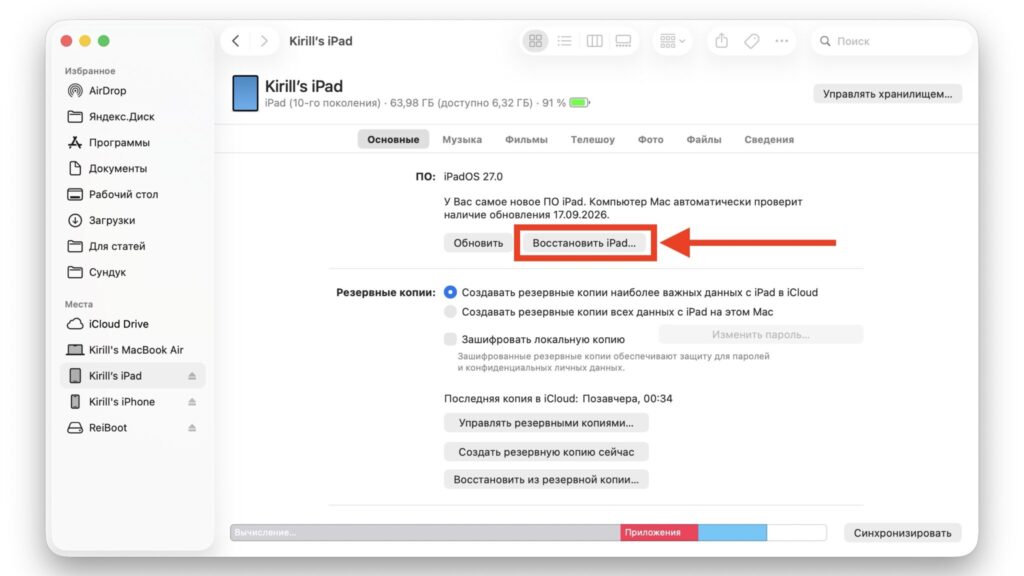
The “Restore iPad” button in Finder on a Mac
- Download the iPadOS 26 firmware for your model from ipsw.me. Choose the file strictly for your specific iPad — there are no universal firmware files.
- Connect the tablet to the computer with a cable and open Finder on a Mac, or Apple Devices or iTunes on Windows.
- Hold Option on a Mac or Shift on Windows and click the “Restore iPad…” button.
- Select the downloaded iPadOS 26 .ipsw file and confirm the installation.
- Wait for the process to finish. The tablet will reboot several times; do not touch the cable while this happens.
The source author describes this method as straightforward overall, but notes it may feel intimidating to users who are not comfortable working with files and settings.
Method 2: Guided downgrade with a third-party tool
For those who would rather not hunt down IPSW files or work in iTunes, the source describes using Tenorshare ReiBoot, a third-party utility for Windows and Mac. According to the source, the program detects the iPad model itself, selects an available firmware package and walks through the downgrade step by step. As with any third-party software that interacts with your device, weigh the convenience against the fact that it is not an Apple tool.
- Install and launch ReiBoot on Windows or Mac, connect the iPad with a cable and wait for the program to detect the device.
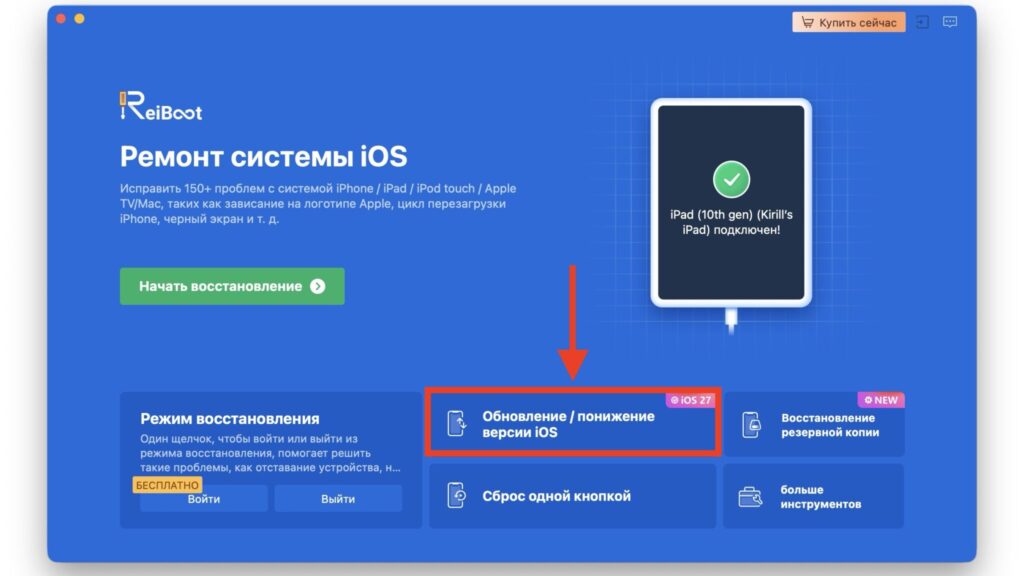
The main screen of Tenorshare ReiBoot
- Choose the iOS upgrade/downgrade option, then select the system downgrade. The program will warn that data may be erased.
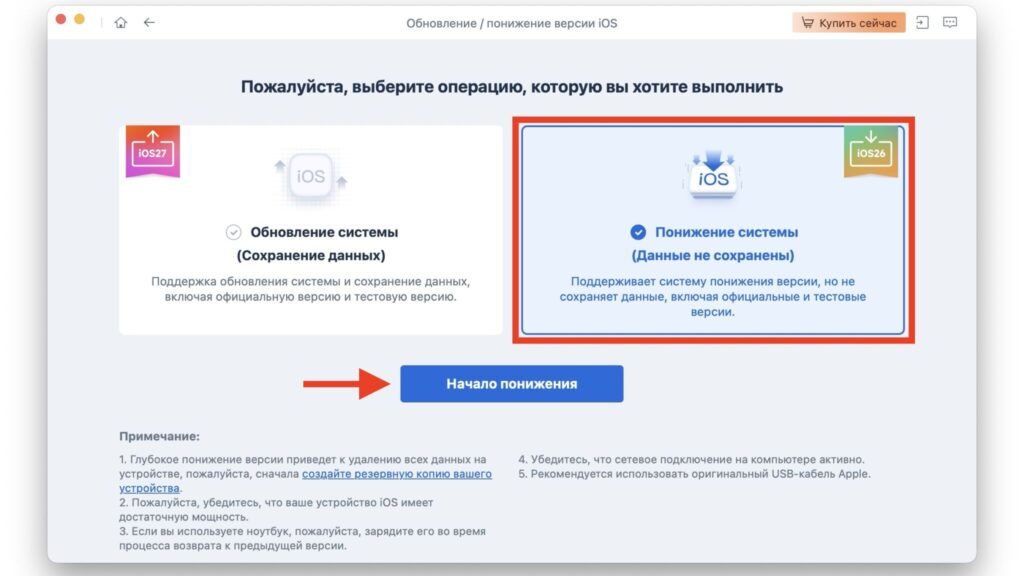
Navigating to the iPadOS downgrade option in Tenorshare ReiBoot
- ReiBoot will display the available iPadOS 26 firmware package. Double-check the model and version, then start the download.
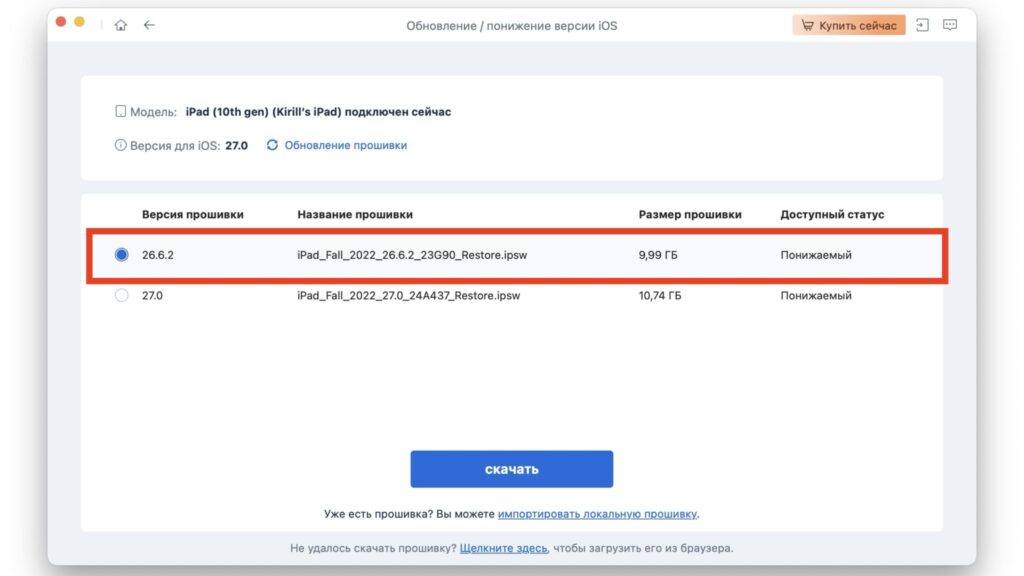
Selecting iPadOS 26 for the downgrade in Tenorshare ReiBoot
- Once the file has downloaded, start the downgrade. Do not disconnect the tablet, close the program or shut down the computer until the process is complete.
- Wait for the success notification. The iPad will reboot on its own.
The longest step is the firmware download itself: the file is usually around 7–8 GB, so on a slow connection this stage will drag. If the Apple logo stays on screen for a long time afterwards, the source says there is no immediate cause for alarm — the final unpacking happens on the tablet itself and can take several minutes.
If the downgrade fails — and what to do afterwards
Sometimes the installation stops with an error. The causes are usually mundane: a weak cable, a poor USB port, antivirus software on Windows, or signing that has already closed. Before worrying, run through this list:
- Is the required iPadOS 26 version still available — is it green on ipsw.me?
- Is your internet connection stable?
- Is the cable in good condition, and is the port not loose?
- Does the computer detect the tablet?
- Is there enough disk space for the firmware file?
If a failed attempt leaves the iPad stuck on the Apple logo or in recovery mode, the source notes that ReiBoot’s system-repair function can be used to recover it.
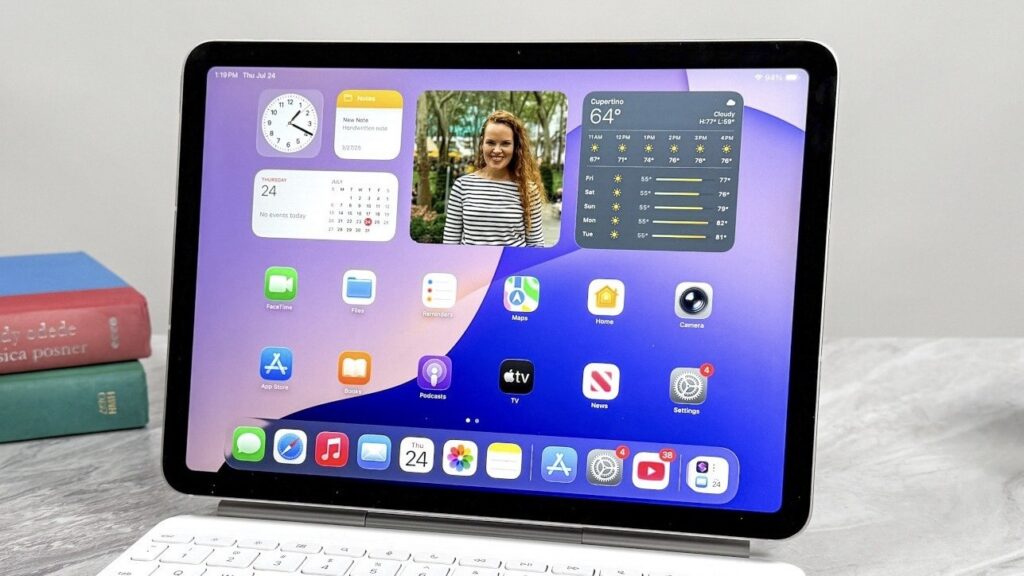
An iPad running iPadOS 26
Post-downgrade checklist
Once the tablet is back on iPadOS 26, spend a couple of minutes verifying everything:
- Open Settings > General > About and confirm the installed version is iPadOS 26.
- Check core functions: connectivity, the camera and your apps.
- Restore your data from the backup made on iPadOS 26.
- Confirm that photos, contacts and notes are all in place.
- Optionally, disable automatic updates so iPadOS 27 does not reinstall itself.
The bottom line
Rolling back from iPadOS 27 to iPadOS 26 is entirely possible, but the deadline is strict. As long as Apple signs the older version, the choice is yours; once signing ends, neither Finder nor any third-party tool can bring it back. If the new system is not working for you, act promptly and keep an eye on the signing status at ipsw.me. For the future, the source author offers a simple rule: try major updates on a spare device first.


