For over a year now, Google has been slipping AI-generated answers right into your search results. It’s called AI Overview. Sometimes useful, but more often annoying. While some are waiting for a smart Siri in iOS 27, others dream of at least getting rid of AI in search. Here’s how to do it with literally two characters — on iPhone and Mac.

You can disable Google’s AI in search results
Why Google Shows AI Answers Above Regular Websites
If you’ve googled anything in the past year, you’ve probably seen a large block of text above the usual links. That’s AI Overview — a brief summary generated by Google’s neural network based on found pages. The company launched this feature in May 2024 in the US and then rolled it out to over a hundred countries.

You can see all the information you need, but not everyone likes it
The idea is clear: instead of opening ten tabs, you get a ready-made answer right on the search page. Sounds convenient. In practice — not always. The neural network regularly makes mistakes, mixes up facts, and confidently presents outright nonsense. This is especially noticeable in niche topics where data is scarce. Plus, AI Overview takes up half the screen on iPhone, and you have to scroll a long way to reach normal results.
The most frustrating part — Google hasn’t provided an official button to disable it. The company considers this feature as fundamental as featured snippets. But workarounds exist, and they’re surprisingly simple.
How to Remove “AI Overview” from Google
The quickest method is to add -ai to the end of your search query. Yes, it’s literally a minus sign and two letters. For example, instead of “best case for iPhone 17” you type “best case for iPhone 17 -ai”.
This works thanks to Google’s standard exclusion operator. A minus sign before a word tells the search engine: remove everything containing this word from results. The side effect — the neural network also gets disabled, because AI Overview can’t generate a summary for a query that explicitly excludes AI content.
The downside of this method is obvious: you need to type the parameter manually every time. Forget to add it — and you get the AI wall of text again. For one-off queries — it’s perfect. For constant use, you’ll need to build a habit.
Google Search on iPhone Without AI Answers
On iPhone, everything is done right in the search bar — regardless of whether you use Safari, Chrome, or any other browser. No settings need to be changed.
Open your browser and go to google.com. Enter your query and add -ai at the end. Make sure to put a space between the last word and the minus sign. For example: “best headphones for running -ai”. Tap “Search” — and you’ll get clean results without the neural network wall of text at the top.

As you can see, AI Overview is immediately disabled
If you’re searching in Russian, you can write -ии instead of -ai. The principle is the same: “how to transfer data from Android to iPhone -ии”. The AI Overview block simply won’t appear, and you’ll immediately see the familiar website links.
This works in Safari’s search bar, Chrome’s address bar, and even in the Google widget on your home screen. The key is — don’t forget the space before the minus sign. If you write it without a space, Google will interpret it as part of the word, and the trick won’t work.
In practice, you get used to it within a couple of days. Your fingers automatically start adding those two characters at the end of a query. The habit forms especially quickly after you see yet another neural network summary with dubious “expert” advice scraped from Reddit.
By the way, -ai and -ии can be combined in a single query. If you type in a mix of Russian and English — for example, looking for a review of some gadget — add both parameters: “iPhone 17 Pro review -ai -ии”. This way you’ll guaranteed cut off the AI block regardless of the results language.
Google Search on Mac Without Neural Network Answers
On Mac, the process is exactly the same — you add -ai or -ии at the end of your query. Works in any browser: Safari, Chrome, Firefox, Arc — doesn’t matter. Go to Google, type your query, add two characters, get normal results.

This is what search on Mac looks like without additional characters
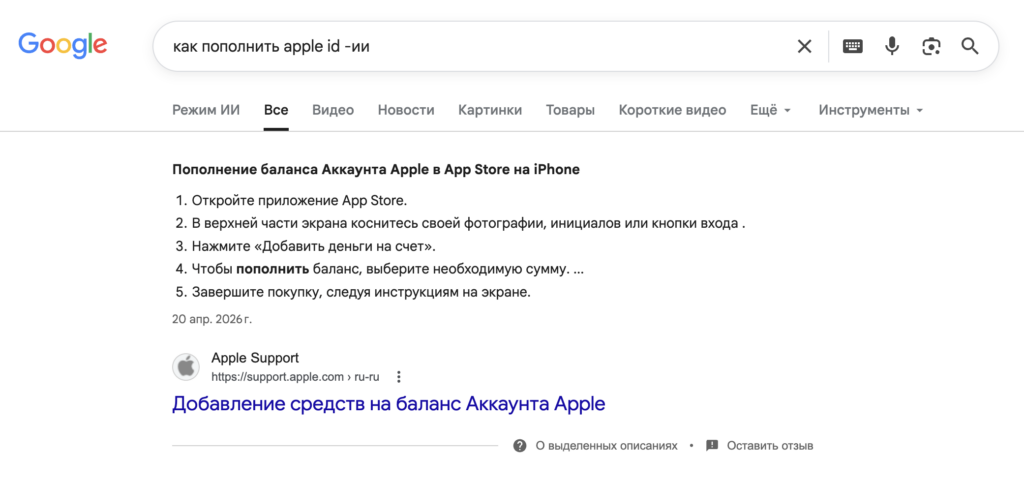
And this is how easily AI Overview is removed
I also recommend setting up text replacement in macOS. You can come up with a couple of easily typed characters that will be replaced with the needed combination.
Open “System Settings” — “Keyboard” — “Text Replacement”. Click “+” and create a new replacement. In the “Replace” field enter, for example, ==, and in the “With” field type “-ai”.
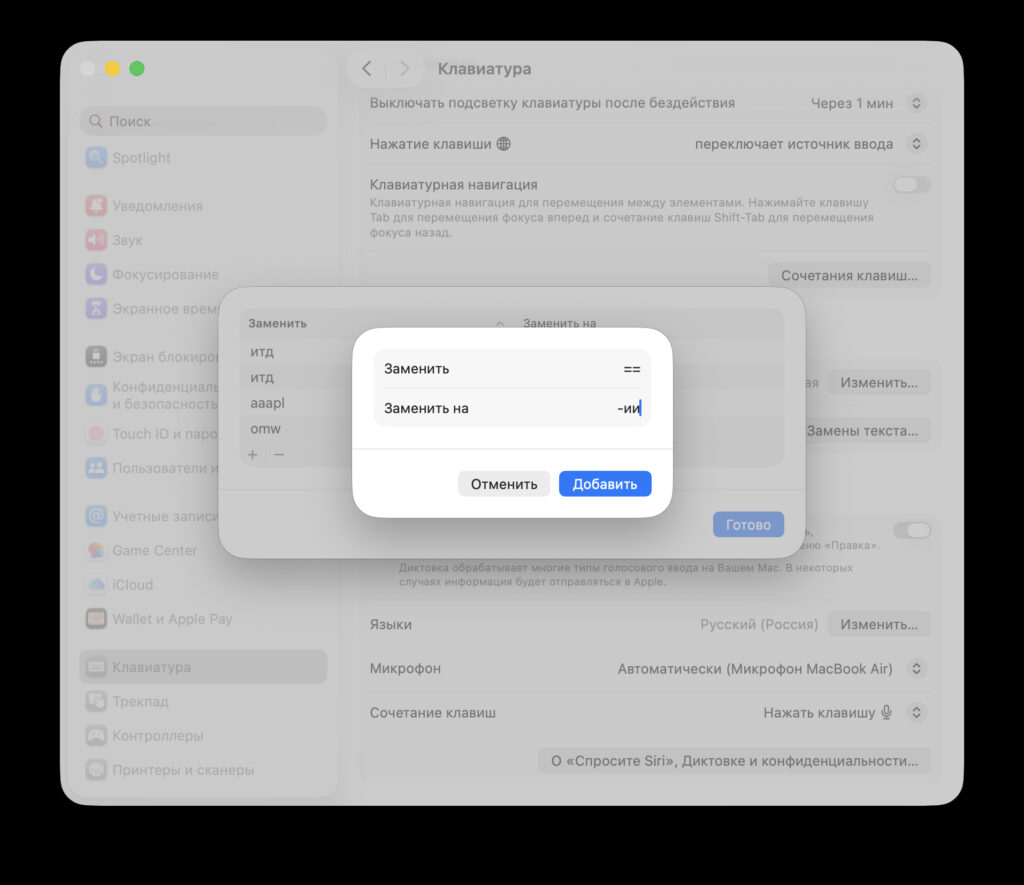
You can optionally add text replacement
It’s a small thing, but it saves time in the long run. Especially if you google dozens of times a day and seeing the neural network summary block every time has already gotten quite tiresome.
What Limitations Exist When Disabling AI in Google
The method works and has been verified, but it’s not perfect.