The new Siri in iOS 27 turned out to be the very feature that has people rushing to install the raw beta. But here’s the catch: even after installing the update, the AI-powered voice assistant doesn’t activate for everyone right away. We’ve already covered in detail how to enable the new Siri, but right after updating, you’ll face a waitlist. You could be waiting anywhere from a couple of hours to a couple of weeks. Enthusiasts have already found several ways to skip the queue: one of the older methods just stopped working, but a new one has appeared that looks even more convenient than the previous one.

There’s a small trick to skip the Siri queue
I’ve been running iOS 27 on my iPhone 16 Plus for a week now, so this topic is very real and familiar to me. Let me say upfront: everything below applies to the developer beta. If you’re not ready for crashes, a hot device, and battery drain, it’s better to wait for the final release this fall. But if you’re ready, let’s figure out how to get the smart Siri earlier.
Siri AI Waitlist: How Long to Wait for Access
At WWDC 2026, Apple showed off what is essentially a new Siri. This is no longer just an assistant for alarms and weather — it’s a full-fledged conversational assistant: it understands context, sees what’s on your screen, can dig through your messages, emails, and photos, and performs actions across multiple apps. Essentially, Apple rebuilt Siri around three things: understanding the request, understanding what’s on your device, and doing something useful rather than just returning a search link.
It’s not enough to flip a toggle — you’ll also have to wait
The problem is that simply updating to iOS 27 isn’t enough. After installing the beta, you need to go to Settings and tap “Try New Siri,” after which you’re placed on a waitlist. Then all you can do is wait for a notification saying “we’ll let you know.” Some people get access within ten minutes, while others wait over a week with no apparent logic.
The waitlist isn’t about your iPhone not being powerful enough for the feature. It’s simply a server load limiter: Apple is gradually scaling up its Private Cloud Compute capacity and letting new users in batches, usually once a week. Also keep in mind the basic requirements: the new Siri only works on iPhone 15 Pro and newer, only in English, and in the EU it’s not yet available on iPhone and iPad due to the DMA.
Why the Terminal Bypass for Siri Queue Stopped Working
The first bypass that went viral was a trick for Mac. People would open Terminal on macOS 27 Golden Gate and paste a command that instantly removed the restriction and enabled the new Siri. The best part: after that, the assistant would activate not only on the Mac itself but also on any iPhone and iPad with the same Apple ID. One computer would unlock access across all devices.
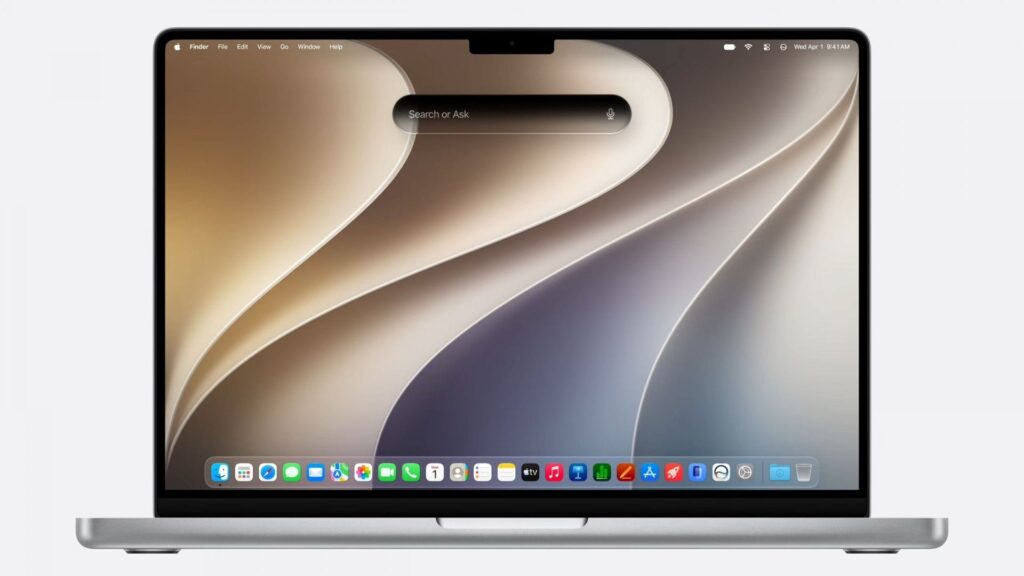
The Terminal trick in macOS 27 stopped working on the new beta
Well, that trick no longer works. With the second developer beta of macOS 27, the command stopped working. People are complaining that the fresh update simply throws them back into the queue with a “you’re on the waitlist” message, and re-running the procedure does nothing. If you managed to enable Siri this way earlier, after updating your access will be revoked. So running the command now is pointless — you’ll just be wasting your time.
By the way, there was also a clever method involving repeatedly toggling the Siri switch in Settings: disable the assistant on all devices except your main iPhone, then turn it off and on several times in a row, restarting the Settings app each time. For some people, this removed the queue message. The method works but is finicky and doesn’t work for everyone.
How to Submit Feedback in Image Playground on iPhone
Now for the most interesting part. Reddit users discovered a bypass that looks more logical than all the previous ones, and it supposedly pushes you through the queue on all your devices at once, not just on a Mac. The idea is that Apple is looking for testers who send useful feedback, so it supposedly grants active feedback submitters access faster. The process is simple:
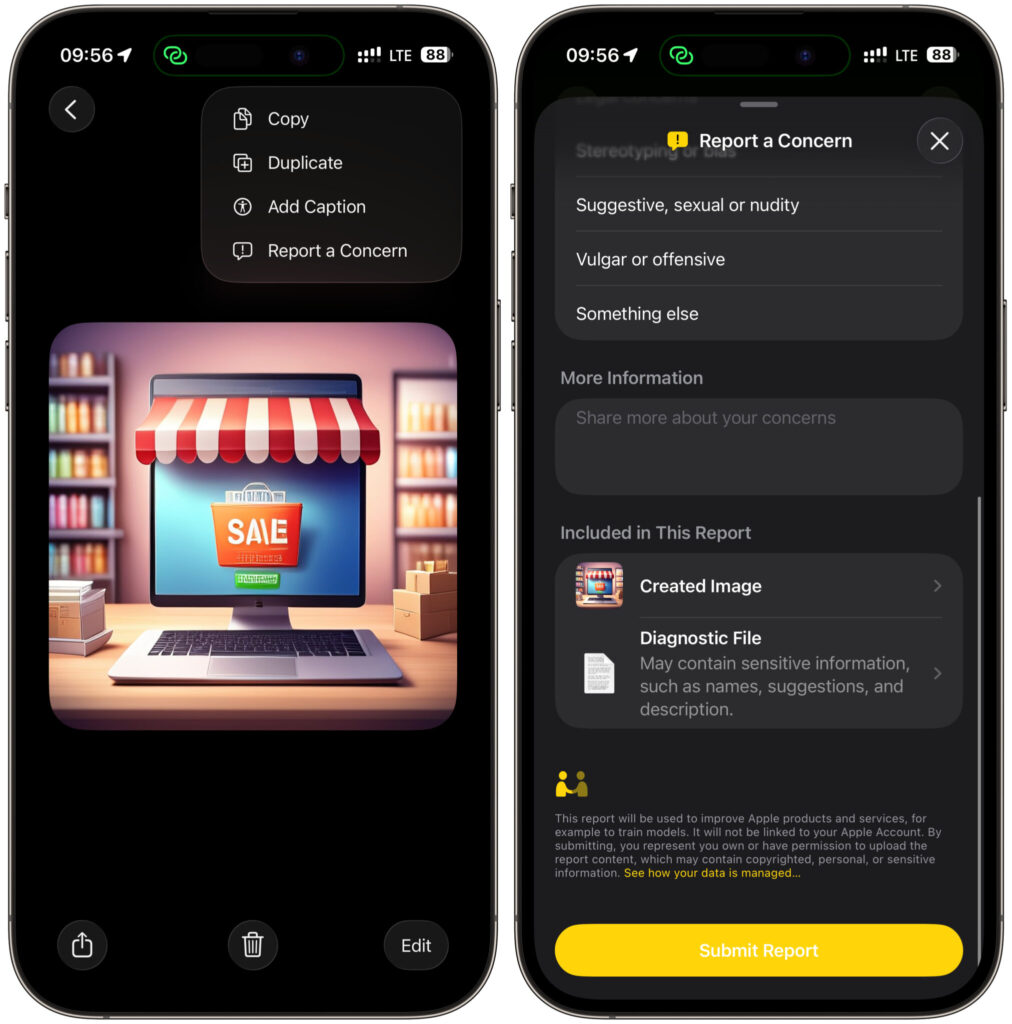
Generate an image with text — this is important — and submit a problem report
- Update to iOS 27 and make sure the Image Playground app has appeared on your screen.
- Generate several images in Image Playground.
- After generating, tap the (…) button in the upper right corner and select “Report a Concern.”
- Submit a meaningful review and repeat this several times.
- Go to Settings and check whether you’ve been offered the new Siri.
A small tip for your feedback: give Image Playground a prompt where text should appear, such as a photo of a newspaper or book page. The neural network will almost certainly mess up the letters, giving you a legitimate reason to tap “Something’s wrong” and describe a real problem. The feedback will be substantive rather than empty.

An image like this is perfect for a problem report
The same logic then extends to other Apple Intelligence features. Look for the “More” button in different parts of the system and submit feedback wherever it’s appropriate. The more sensible feedback you send, the higher the chance that Apple will classify you as an active tester and unlock the smart Siri early.
This is, naturally, not a guaranteed way to skip the queue — the method is based on Reddit reports, not official confirmation from Apple. But it’s definitely worth trying since you have nothing to lose.
Let me add a couple more sober thoughts. The queue exists for a reason: by bypassing it, you’re hitting Apple’s servers before the company has allocated capacity for your account. Also, don’t forget that the entire new Siri is currently English-only, so the Russian interface and Russian voice commands will have to wait for better times.