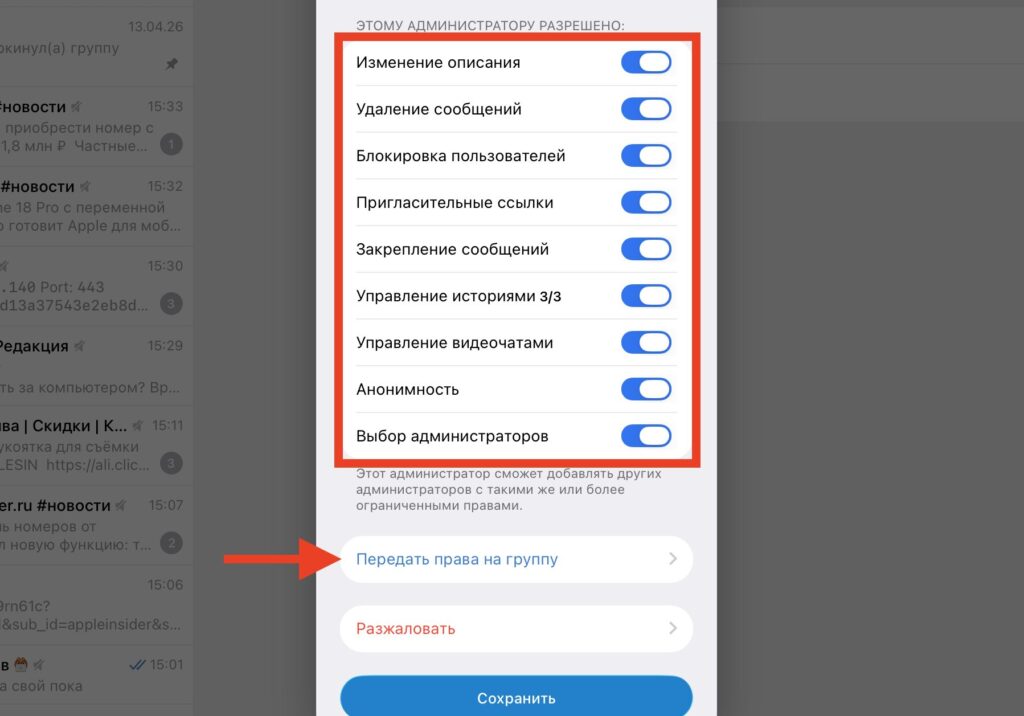
Telegram allows you to transfer full rights to a channel, group, or chat to another person. This is useful when selling a public page, handing a project over to an SMM specialist, or simply changing the person in charge. Or maybe you want someone to go through the entire process of getting a verification badge next to your Telegram channel name on your behalf. The procedure takes just a few minutes but requires preparation — without it, the messenger simply won’t let you complete the transfer. Below are step-by-step instructions for smartphones and computers, as well as a list of conditions you’ll need to meet in advance.

Group or channel owner rights can be transferred in a couple of taps
What You Need to Transfer Owner Rights in Telegram
Even though Telegram is supposedly blocked in Russia, groups and channels continue to grow. Telegram won’t allow you to transfer owner rights unless three requirements are met. Check them before starting the procedure, otherwise the messenger will throw an error.
- Cloud password enabled at least 7 days ago. This is an additional password that Telegram requests when logging in from a new device. If you haven’t set it up yet, you’ll only be able to transfer rights a week after activation.
- Active session on the device for at least 24 hours. You must have logged into Telegram on the current device at least a day ago. If you just authorized — you’ll have to wait.
- Latest version of the Telegram app. Update the messenger through the App Store, Google Play, or from the official website.
If even one condition is not met, the transfer button won’t appear or the messenger will show a warning asking you to try later.
When Do You Need to Transfer Owner Rights in Telegram
Full transfer of owner rights is needed in two cases: when selling a channel or group, and when permanently handing a project over to another person. In all other situations — working with an SMM specialist, delegating moderation, connecting a bot — it’s enough to assign an administrator without changing the owner.
Before transferring, make sure that two-factor authentication in Telegram has been active for at least a week, the session on the device is older than 24 hours, and the app is updated. Without this, Telegram simply won’t show the required button. And most importantly — only transfer rights to someone you truly trust: you won’t be able to reverse the transfer unilaterally.
Cloud Password in Telegram: How to Enable
This is a mandatory step. Without a cloud password, transferring rights is impossible.
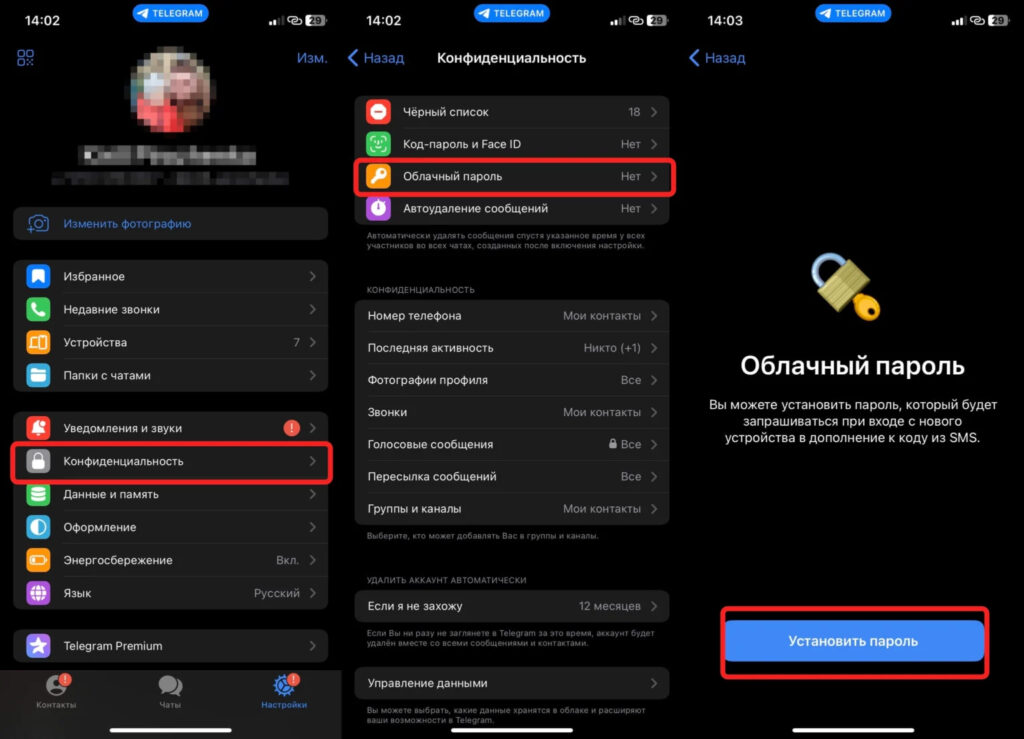
Make sure to set a cloud password, without it nothing will work
- Open Telegram and go to “Settings.”
- Select the “Privacy and Security” section.
- Tap on “Cloud Password.”
- Set an additional password and tap “Done.”
On iPhone, the “Settings” button is at the bottom right (gear icon); on Android, it’s behind the three lines in the upper left corner. Be sure to write down this password — you’ll need it during the actual rights transfer. After enabling two-factor authentication, at least seven days must pass before Telegram will allow the transfer of rights.
How to Add an Administrator to a Group or Channel in Telegram
If you don’t need to transfer full rights and just want to delegate some tasks — publishing posts, moderation, or subscriber management — simply appoint the person as an administrator. This is safer: you remain the owner and can revoke access at any time.
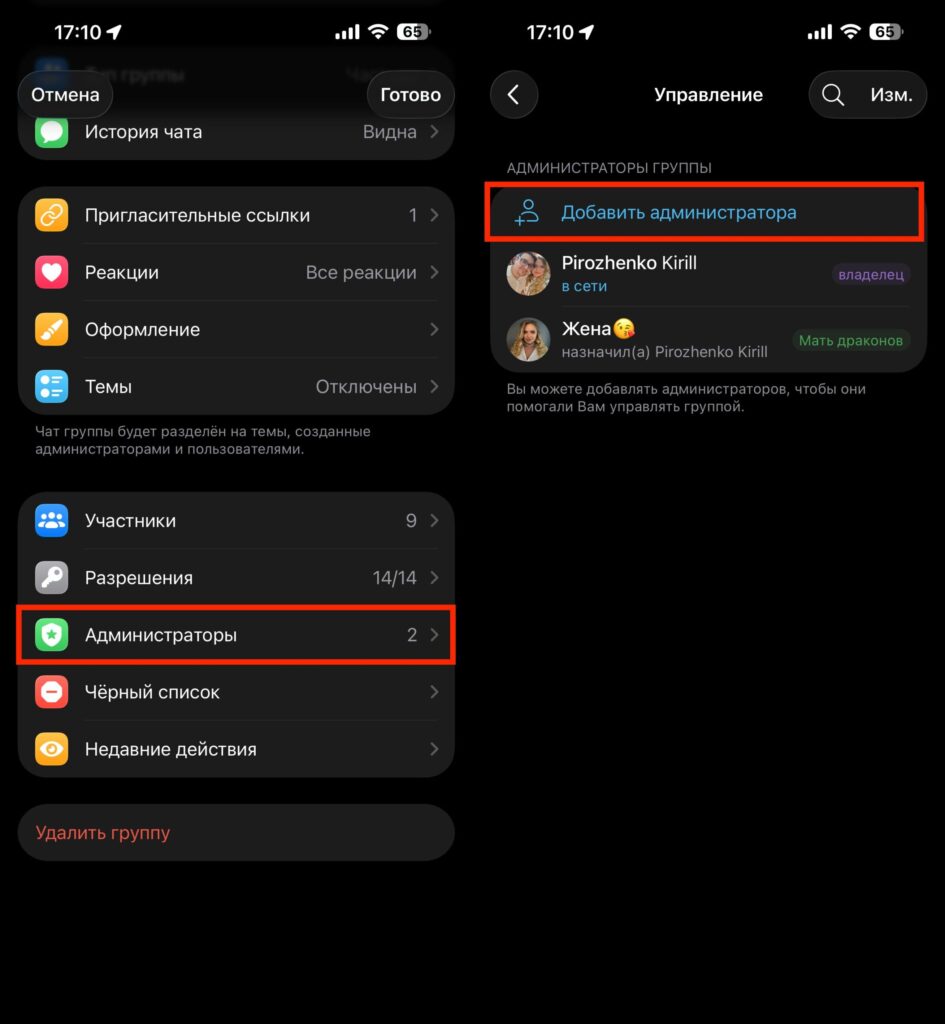
Adding an administrator is very simple
- Open the channel or group in Telegram and tap on the name at the top of the screen.
- Tap the “Edit” button.
- Go to the “Administrators” section.
- Tap “Add Administrator” and select the desired person from the list of members. If the list is long — use the search.
- Configure the rights: enable only the toggles that this person actually needs — publishing messages, deleting others’ messages, adding members, pinning posts, and others.
- Tap “Done” to save.
You don’t have to grant all rights at once — they can always be expanded later. The key difference from transferring ownership is that an administrator cannot delete the channel, change its type, or transfer it to someone else. All key functions remain with you. If the helper is no longer needed, just go to the same “Administrators” section, select them, and tap “Remove Admin Rights.”
Change the Owner of a Channel or Group in Telegram on Android and iPhone
The procedure on iOS and Android is identical. Only the placement of some buttons differs, but the logic is the same.
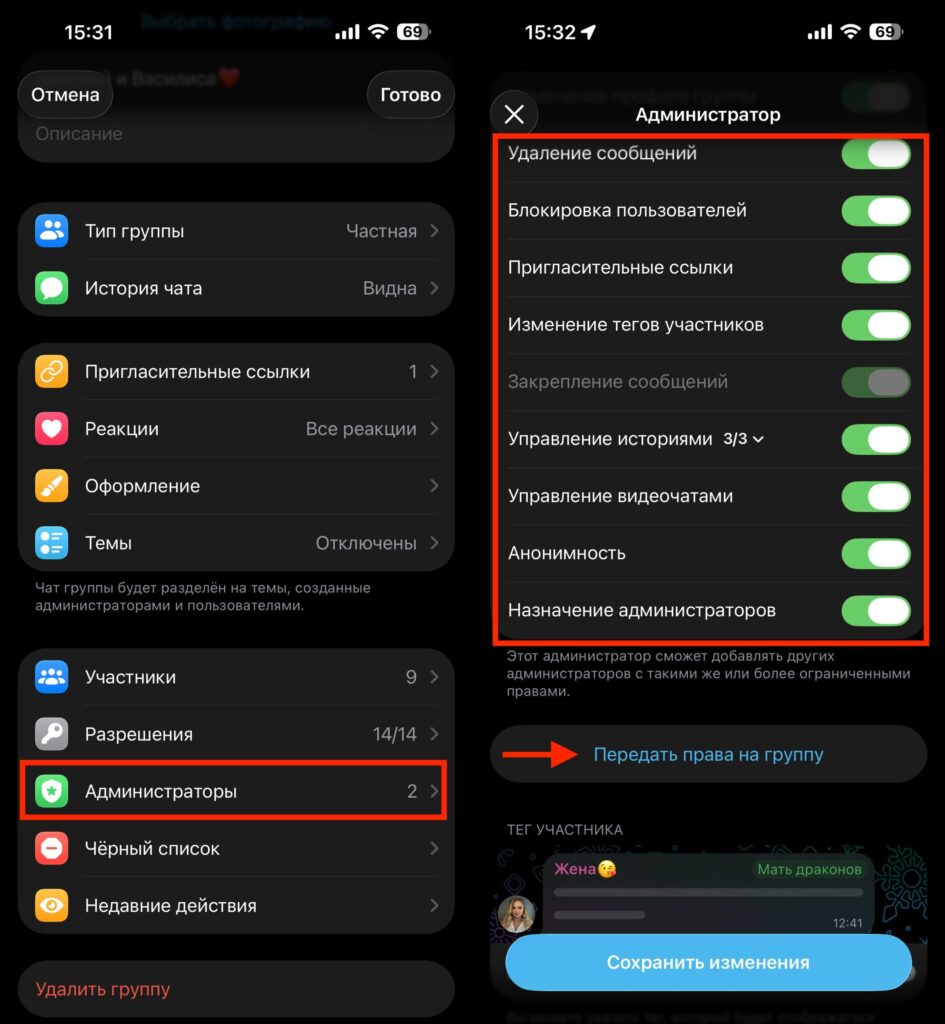
Only after activating all toggles will the needed button appear
- Open Telegram and go to the group or channel whose rights you want to transfer.
- Tap on the group or channel name at the top of the screen.
- Tap the pencil icon (“Edit” button).
- Go to the “Administrators” section.
- Tap “Add Administrator” and select the new owner from the list. If the list is long — use the search.
- Activate all permission toggles (they should turn green).
- At the bottom of the screen, the line “Transfer Channel Rights” or “Transfer Group Rights” will appear — tap on it.
- Confirm the action and enter your two-factor authentication password.
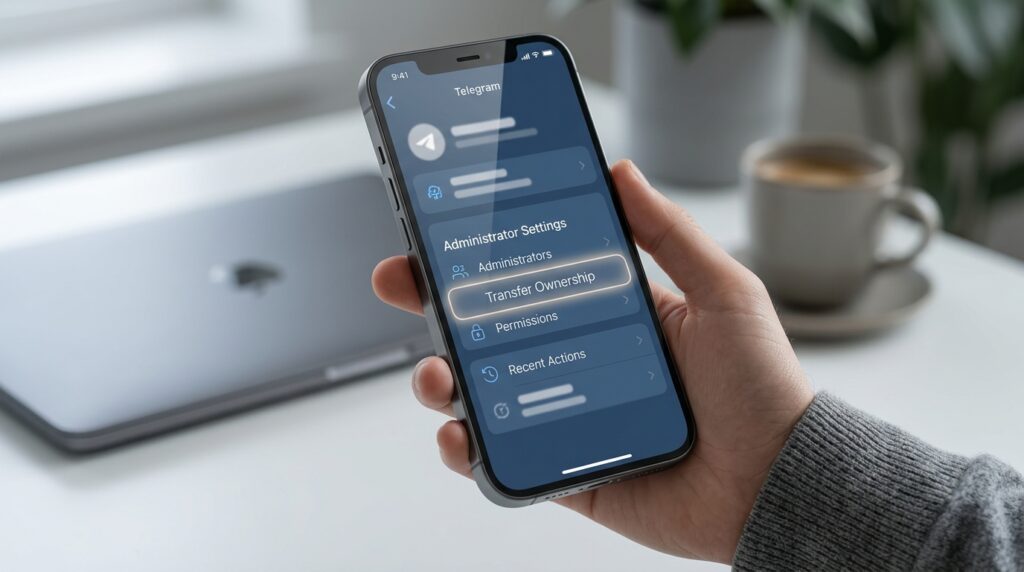
Owner rights transfer button in administrator settings
After this, the new owner receives full control over the group or channel. An important point: the new owner will be able to demote you from administrators and even block you. So only transfer rights to someone you trust.
Transfer Owner Rights of a Channel or Group in Telegram on Computer
In the desktop version, the procedure is virtually identical to the mobile one, but the navigation is slightly different.