One of the most power-hungry processes on any smartphone is constant location requests from apps you are not even actively using. The source author reports noticing that their phone drained significantly faster than a family member’s device with a similar battery — the difference turned out to be the number of installed apps, many of which were silently requesting geolocation data in the background. After revoking background location permissions for non-essential apps, the source author reports gaining roughly two additional hours of battery life.
What you need to know
- Apps that use background location services activate the GPS chip, Wi-Fi module, and sometimes Bluetooth scanner even when you are not using them, increasing power consumption.
- Airplane mode does not disable the GPS receiver, so background location tracking can continue via satellite signals even with airplane mode enabled.
- Revoking background location permissions forces the operating system to reject hardware requests early, keeping radios off and CPU sleep cycles uninterrupted.
- Some apps — especially map-dependent services like DoorDash, Airbnb, or Pokémon Go — may need background location to function correctly.
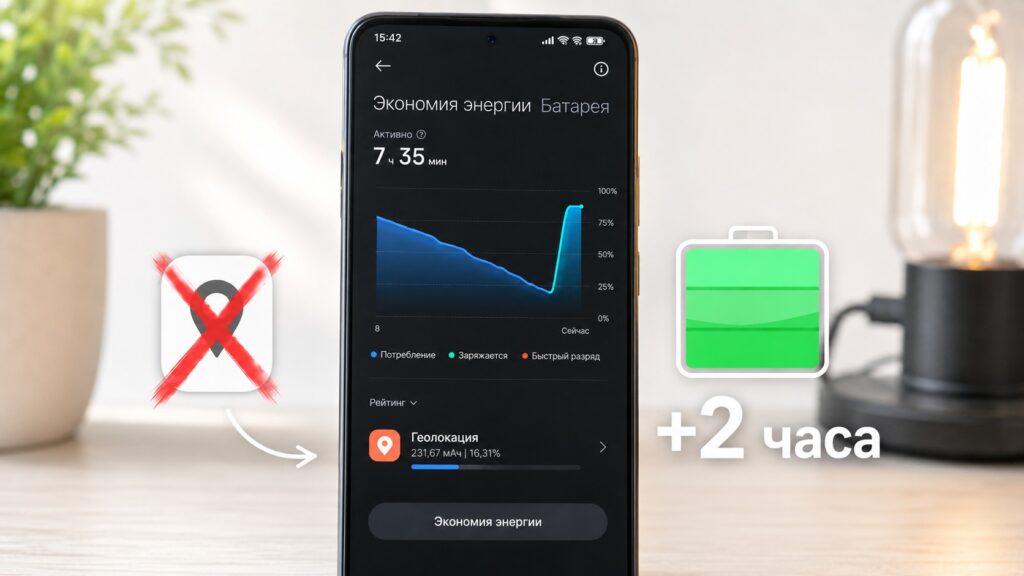
The source author reports gaining about two hours of battery life by disabling background location access
Why background location drains your battery
Background location refers to apps checking your position while you are not actively using them — and sometimes while the screen is off entirely. These apps engage the phone’s built-in GPS chip or Wi-Fi module to determine your location. How frequently they do so depends on the individual app.
Some apps genuinely need background location to function. Map-dependent services — such as DoorDash, Airbnb, and Pokémon Go — rely on it for core features. However, many other apps request location permissions primarily to collect data. Social media apps are particularly suspect, as they tend to gather the most user information, including location.

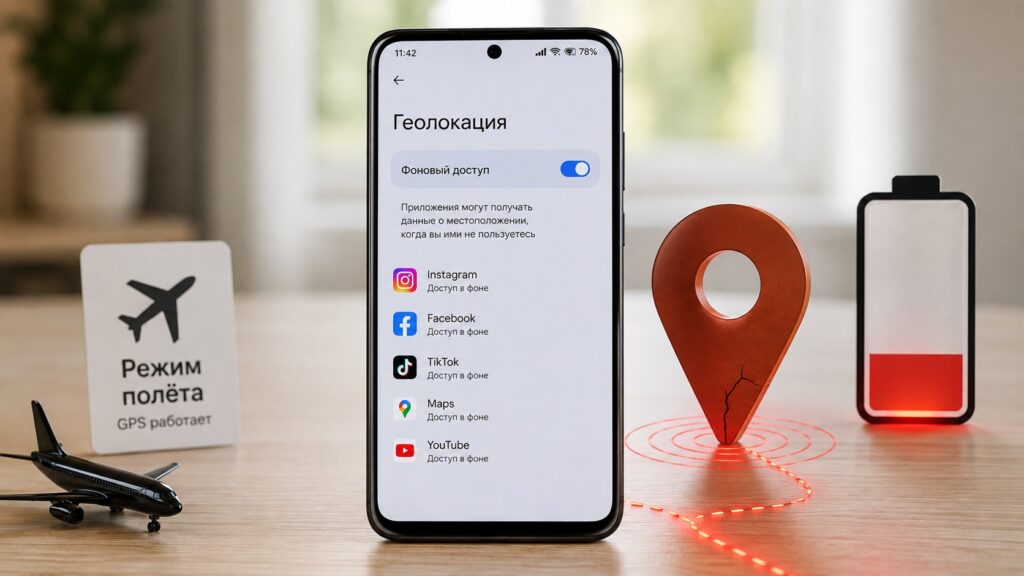
Background location consumes energy even when you are not looking at your phone
An important misconception: airplane mode does not disable background location services because it does not turn off the phone’s GPS receiver. Location data can still be processed in the background using satellite signals.
How background location drains power — the mechanisms
Several factors contribute to the battery drain simultaneously:
- CPU wake-ups: Disabling background location can prevent processor wake-ups that sometimes occur when an app updates its location data.
- Power-hungry hardware: Location requests activate built-in components — the GPS chip, Bluetooth scanner, and Wi-Fi module — all of which require significant energy.
- Network data transmission: Sending and receiving location data over Wi-Fi or mobile networks consumes additional power. In areas with weak signal, energy consumption increases further.
When you set stricter location permissions, the operating system rejects hardware requests at an early stage. This keeps physical radio modules powered down and allows the CPU’s sleep cycles to remain uninterrupted.
How to disable background location on Android
There are two approaches: revoking location permission app by app, or using the centralized permission manager. The recommended method is to revoke permissions so the operating system handles enforcement. Here are the steps (note that exact menu names may vary by device manufacturer and Android version):

- Open Settings, then go to Privacy (or Security & Privacy).
- Navigate to Other privacy settings, then Permission manager.
- Find Location and review the list of apps.
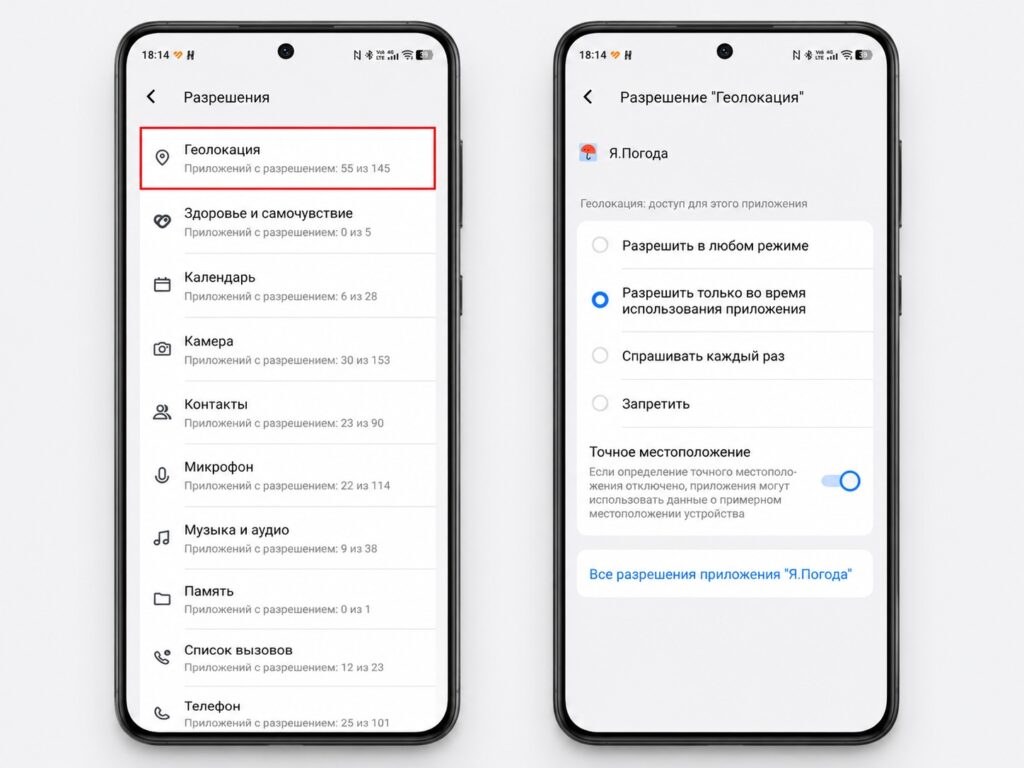
Allow location access only while using the app, or deny it entirely for non-essential apps
For each app, select either “Don’t allow” or “Allow only while using the app.” There is no need to enable the “show system apps” toggle — changing permissions for core system applications is not recommended.
Potential side effects to keep in mind
Restricting background location is not entirely without trade-offs, though they are predictable. After changing these settings, some apps may not provide accurate location data or may return search results that are less relevant to your area.
The fix is straightforward: if a specific app starts behaving unexpectedly, you can re-enable its location permission through the app management section in Settings. The recommended approach is to revoke access for all non-essential apps first, then selectively restore permissions only for apps that genuinely need them.


